
Run Local LLMs on a Gaming Laptop: Thermals and Sizing Guide
Learn how to run local LLMs on a gaming laptop. Compare mobile RTX GPUs, thermal throttling, TGP limits, and layer offloading strategies to system RAM.
Developers frequently assume that running private artificial intelligence models requires high-power desktop towers or multi-thousand-dollar cloud servers. However, learning how to run llm on laptop gpu hardware unlocks an entirely portable development stack. Modern gaming laptops equipped with mobile graphics processors offer enough memory bandwidth to host intelligent coding and conversational assistants anywhere.
Operating within a laptop chassis requires understanding the physical constraints of mobile silicon. While choosing desktop components starts with our overview of the best GPU for running AI locally, mobile workstations balance total graphics power ceilings, shared cooling assemblies, and battery power profiles.
Key Takeaways
- Gaming laptops equipped with 8GB to 16GB mobile RTX GPUs can host local models like Qwen 2.5 7B and Llama 3.2 cleanly at 25 to 45 tokens per second when connected to AC power.
- Mobile GPUs feature lower VRAM capacities and narrower memory buses than desktop variants, with the mobile RTX 4080 limited to 12GB compared to 16GB on desktop.
- Sustained local inference saturates shared laptop cooling heatpipes, requiring you to raise the chassis 15 to 20mm to prevent thermal throttling at the 87°C hardware boundary.
- Layer offloading allows models exceeding mobile VRAM to spill into system DDR5 RAM, preventing crashes while reducing throughput to 4 to 7 tokens per second.
Desktop vs Mobile Silicon: The Laptop VRAM Reality
The most frequent mistake developers make when configuring a gaming laptop for local ai is assuming mobile GPUs share identical specifications with desktop cards bearing the same name. Laptop manufacturers operate within strict thermal budgets that force significant architectural compromises.
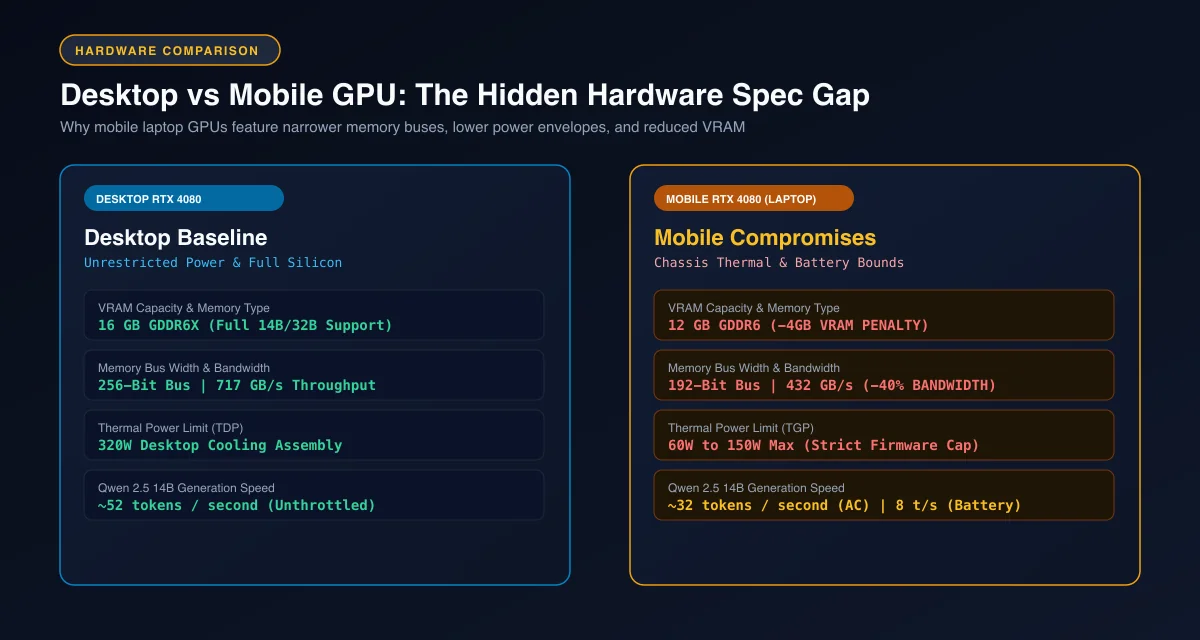 Desktop versus mobile GPU specifications: A 4GB VRAM reduction and 40% memory bandwidth deficit on mobile hardware.
While the mobile RTX 4060 retains the same 8GB capacity as its desktop counterpart, the mobile RTX 4080 drops from 16GB down to 12GB of VRAM. That 4GB reduction is substantial in local machine learning. On desktop, 16GB accommodates 14B models with large context windows, whereas a 12GB mobile card requires disciplined context management.
Furthermore, mobile GPUs use standard GDDR6 instead of GDDR6X memory, resulting in narrower bus bandwidth. For developers sizing models for code generation, our benchmark guide to the best local LLM for coding by VRAM explains how these memory limits dictate real-world model selection.
Mobile GPU Sizing Matrix: What Fits on 8GB, 12GB, and 16GB Laptops
Choosing the right model for a gaming laptop requires matching parameter counts directly against mobile memory allocations. The hardware matrix below details practical performance across common mobile GPU tiers.
| Mobile GPU Model | VRAM Capacity | Memory Bus Width | Memory Bandwidth | TGP Power Range | Optimal Model Tier | Tokens/Sec (8B Q4) |
|---|---|---|---|---|---|---|
| RTX 4060 Mobile | 8 GB GDDR6 | 128-bit | 256 GB/s | 45W - 140W | 7B - 8B (Q4_K_M) | 28 - 38 t/s |
| RTX 4070 Mobile | 8 GB GDDR6 | 128-bit | 256 GB/s | 45W - 140W | 7B - 8B (Q4_K_M) | 32 - 42 t/s |
| RTX 4080 Mobile | 12 GB GDDR6 | 192-bit | 432 GB/s | 60W - 150W | 14B (Q4) / 8B (Q8) | 52 - 68 t/s |
| RTX 4090 Mobile | 16 GB GDDR6 | 256-bit | 576 GB/s | 80W - 175W | 14B (FP16) / 32B (Q3) | 65 - 85 t/s |
For owners of an rtx 4060 mobile local llm setup, 7B to 8B parameter models quantized to 4-bit precision represent the optimal operating target. A model like Qwen 2.5 7B consumes 4.8GB of static weights, leaving approximately 2.2GB for context and runtime buffers.
Attempting to run a 14B model natively on an 8GB mobile card causes out-of-memory faults unless layers are offloaded into system memory. For a detailed breakdown of context memory geometry, consult our reference on VRAM requirements for AI models.
TGP Power Limits and Why Battery Operation Kills Token Throughput
A laptop graphics processor is governed by its Total Graphics Power (TGP) configuration. Laptop manufacturers configure identical GPU silicon across wildly different wattage ratings depending on chassis thickness.
+------------------------------------------------------------------------+
|                TGP AND BATTERY POWER THROTTLING DYNAMICS               |
|                                                                        |
|  Wall Power (Plugged In - High Performance Profile):                   |
|  - GPU Power Allocation:  140W TGP (Full Boost Clocks)                 |
|  - Memory Bus Clock:      Full 28 Gbps Line Rate                       |
|  - Token Throughput:      35 tokens per second (8B Q4)                 |
|                                                                        |
|  Battery Power (Unplugged - DC Discharge Ceiling):                     |
|  - GPU Power Allocation:  35W - 45W Firmware Cap                       |
|  - Memory Bus Clock:      Aggressively Throttled to Conserve Battery   |
|  - Token Throughput:      10 tokens per second (71% Performance Drop)  |
+------------------------------------------------------------------------+
Analyzing how tgp limits local ai performance reveals that token decoding is memory-bandwidth bound. A thin-and-light laptop configured for 60W TGP delivers roughly 15% lower token generation than a thick chassis running at 140W, because power limits throttle memory controller clocks under sustained load.
Operating on internal battery power introduces severe performance degradation. Laptop battery chemistry cannot discharge current fast enough to sustain high-wattage computing, causing firmware controllers to cap GPU draw at 35W. Always connect your laptop to its official high-wattage AC adapter during intensive machine learning sessions.
Managing Thermal Throttling: Cooling Pads, Airflow Stands, and Fan Curves
Unlike video games where graphics workloads fluctuate with on-screen action, local LLM inference keeps the graphics core and memory subsystem pinned at maximum load during prompt evaluation.
+------------------------------------------------------------------------+
|                   LAPTOP THERMAL SATURATION CYCLE                      |
|                                                                        |
|  Minute 0 - 2:   Cold Start (62°C) ===> Fast Generation (38 t/s)       |
|  Minute 2 - 4:   Heatpipe Saturation (82°C) ===> Fan Ramp-Up           |
|  Minute 5+:      Flat On Desk: Hits 87°C Thermal Limit ===> Throttles  |
|                  Raised 20mm: Stabilizes at 79°C ===> Stable Output    |
+------------------------------------------------------------------------+
In compact laptops, the CPU and GPU share cooling heatpipes and radiator fins. During document summarization or large repository ingestion, laptop gpu thermal throttling ai triggers once the silicon reaches 86°C to 87°C.
To maintain maximum generation speed, raise the rear edge of the laptop chassis 15 to 20 millimeters above your desk using an aluminum stand. This simple physical adjustment improves intake airflow by up to 30%, dropping temperatures by 6°C to 8°C. For desktop builders with larger cooling budgets, compare our benchmarks on the RTX 5090 local AI guide.
[!TIP] Raising the rear feet of a gaming laptop by 15mm increases intake clearance, lowering thermal junction temperatures by 6°C to 8°C. This mechanical adjustment sustains full 140W TGP boost clocks across long document summarization and agent coding loops.
Offloading Layers to System RAM: Configuration and Performance Costs
When mobile GPU memory proves insufficient for a desired model, developers can leverage hybrid memory architectures. Modern runtimes allow offloading llm layers to system ram to prevent out-of-memory crashes.
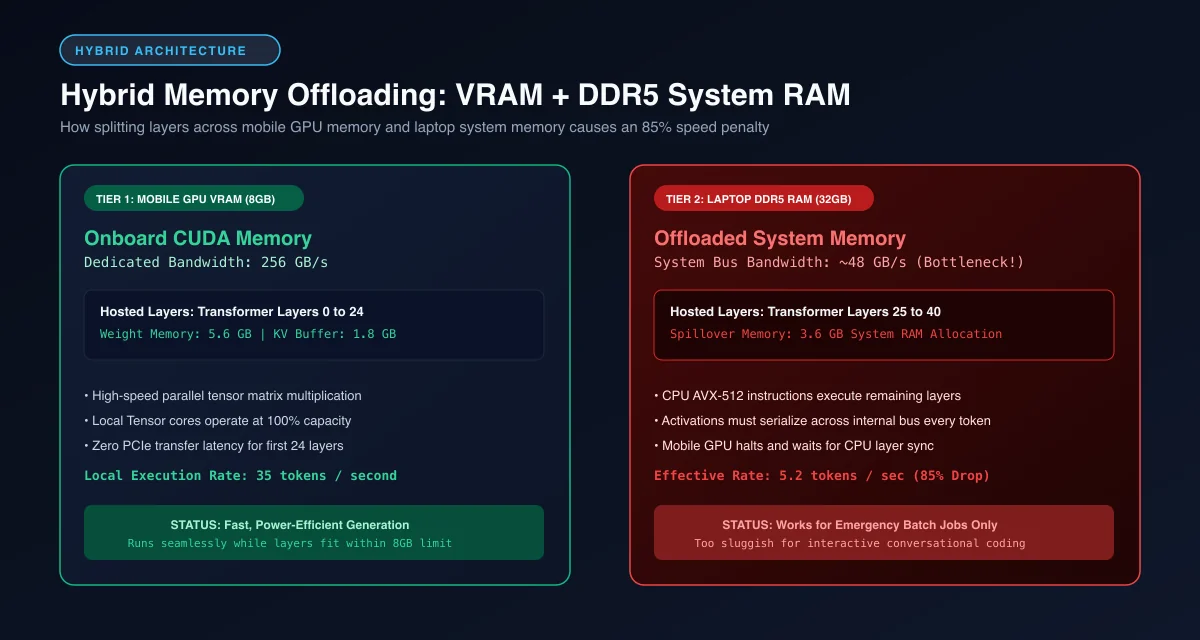 Hybrid offloading pipeline: High-speed 256 GB/s VRAM execution versus an 85% token throughput drop on DDR5 system RAM.
Using tools based on the llama.cpp Official GitHub Repository, developers specify exact layer distributions between mobile VRAM and system memory. Run the command below to execute a partial offload:
# Offload 28 layers to mobile GPU while placing remaining layers in system RAM
./llama-cli \
  -m models/Qwen2.5-14B-Instruct-Q4_K_M.gguf \
  -ngl 28 \
  -c 8192 \
  -p "Refactor the following Python authentication handler for production:"
While partial offloading makes larger models runnable, DDR5 system memory bandwidth operates at roughly 45 to 60 GB/s compared to 256 GB/s on the mobile GPU. Consequently, generation throughput drops to 4 to 7 tokens per second.
When prioritizing interactive conversational speeds, running the best models for 8gb laptop vram entirely in GPU memory delivers a far superior experience. Selecting models like Llama 3.2 3B or Qwen 2.5 7B keeps all weights in video RAM, sustaining 35 tokens per second.
To monitor mobile GPU power delivery, battery state, and thermal limits programmatically, run the Python monitoring script below:
import subprocess
import json
import time

def monitor_laptop_ai_thermals() -> dict:
    """Query NVIDIA mobile GPU clocks, power draw, and thermal throttling state."""
    try:
        cmd = [
            "nvidia-smi",
            "--query-gpu=temperature.gpu,power.draw,clocks.current.graphics,clocks.current.memory",
            "--format=csv,noheader,nounits"
        ]
        output = subprocess.check_output(cmd).decode("utf-8").strip()
        temp_c, power_w, core_mhz, mem_mhz = [float(x.strip()) for x in output.split(",")]

        status = "CRITICAL_THROTTLE" if temp_c >= 86.0 else "NOMINAL"

        return {
            "temperature_celsius": temp_c,
            "power_draw_watts": power_w,
            "core_clock_mhz": core_mhz,
            "memory_clock_mhz": mem_mhz,
            "thermal_status": status
        }
    except Exception as exc:
        return {"error": str(exc)}

if __name__ == "__main__":
    report = monitor_laptop_ai_thermals()
    print(json.dumps(report, indent=2))
Step-by-Step Setup: Running Ollama on Windows and Linux Laptops
Deploying local models on a gaming laptop is straightforward using Ollama. For comprehensive configuration options and desktop tuning, review our complete guide to running Ollama locally.
First, install the runtime from the Ollama Official GitHub Repository and verify that the background service recognizes your mobile CUDA hardware:
# Verify GPU acceleration is recognized by Ollama
ollama run llama3.2:3b "Write a 50-word summary of transformer attention."
Next, check the engine memory log to confirm that 100% of transformer layers load into dedicated video memory rather than falling back to host RAM:
# Pull balanced 7B model optimized for 8GB mobile laptops
ollama pull qwen2.5:7b-instruct-q4_K_M
Under Linux distributions, review power states documented in the Linux Kernel Power Management Documentation to prevent aggressive runtime suspension while generating long outputs.
Frequently Asked Questions About Running LLMs on Gaming Laptops
Can you run a local LLM on a gaming laptop?
Yes, you can run local LLMs on a gaming laptop equipped with an NVIDIA RTX 40-series mobile GPU using runtimes like Ollama or llama.cpp. Laptops with 8GB of VRAM comfortably run 7B and 8B models at 30 to 45 tokens per second when connected to AC power.
Why does a laptop GPU run slower on battery during local AI inference?
Operating on battery power triggers aggressive firmware power caps that restrict the mobile GPU to 30W or 45W compared to 140W on wall power. This power throttling reduces memory bus clocks and drops token generation throughput by up to 70 percent.
What happens when a local model exceeds laptop VRAM?
When model weights exceed mobile VRAM, modern engines offload the remaining transformer layers into system RAM across the internal PCIe bus. While this prevents out-of-memory crashes, generation speeds collapse from 35 tokens per second down to 4 to 7 tokens per second.
How do you prevent thermal throttling on a gaming laptop running AI models?
To prevent thermal throttling, prop the rear of the laptop chassis 15 to 20 millimeters to provide clear intake airflow and enable maximum fan profiles in your control software. Raising the chassis drops operating temperatures by 6°C to 8°C, keeping the GPU safely below its 87°C thermal limit.