Ollama MLX on Mac: Setup and Speed Tuning
Boost Ollama speeds on Apple Silicon with MLX. Learn environment variable tuning, memory cache optimization, and benchmarks across M-series chips.
Running high-throughput local AI models on macOS requires choosing an execution backend matched to Apple Silicon hardware. Deploying Ollama with the native Apple MLX backend delivers massive throughput improvements over traditional runtimes, allowing developers to execute large reasoning and coding models locally without thermal throttling.
Engineers configuring an ollama mlx mac deployment often struggle with unexpected token slowdowns and excessive memory swap. You can resolve these issues by mastering memory reservation settings and runtime tuning. Our comprehensive guide on how to run AI on Mac with Apple Silicon establishes the baseline hardware principles for unified memory, and this guide focuses on configuring and optimizing the Ollama MLX runtime engine.
Key Takeaways
- Ollama integrates Apple MLX execution alongside llama.cpp, providing zero-copy array handling across CPU and GPU cores without PCIe bandwidth bottlenecks.
- On Apple M5 Max chips, MLX execution achieves up to 134 tokens per second in generation decode and 1,851 tokens per second during prompt prefill on 4-bit quantized models.
- Unbounded context length allocations in client tools cause severe memory spillover into CPU swap; capping context length with
OLLAMA_NUM_CTX=4096keeps memory pressure low.- Quantization format
Q4_K_Mdelivers the optimal trade-off between perplexity and token velocity, executing up to 2.1 times faster than unquantized 16-bit weights.
How Does Apple MLX Accelerate Ollama on Apple Silicon?
Apple MLX accelerates Ollama on Apple Silicon by compiling neural network operations into just-in-time fused Metal kernels that execute directly on unified memory arrays without intermediate CPU-to-GPU buffer copies. Deploying local models across apple silicon unified memory ollama environments eliminates GPU memory exhaustion by removing discrete bus bottlenecks.
In traditional PC hardware, model weights reside on system RAM before transferring across a PCIe bus into discrete GPU memory. Evaluating ollama mlx vs llama cpp benchmarks highlights how zero-copy arrays outperform traditional Metal pipelines on unified Apple chips.
For a comprehensive comparison of memory footprints, read our head-to-head analysis of MLX vs llama.cpp on Apple Silicon. The Apple Machine Learning Research MLX GitHub Repository outlines how lazy computation graphs defer execution until tensor results are explicitly needed.
When Ollama runs through its legacy backend, it relies on llama.cpp Metal kernels. While effective, traditional execution requires defensive CPU buffer synchronization. MLX bypasses this extra synchronization layer entirely by exposing native unified memory primitives to the Metal shading language.
According to technical specifications published in Apple Developer Metal Performance Shaders, the unified memory architecture enables sustained bandwidth scaling from 150 GB/s on base chips up to 614 GB/s on M5 Max configurations. By fusing matrix multiplication with quantization unpacking inside a single GPU compute pass, the MLX runner keeps execution pipelines saturated.
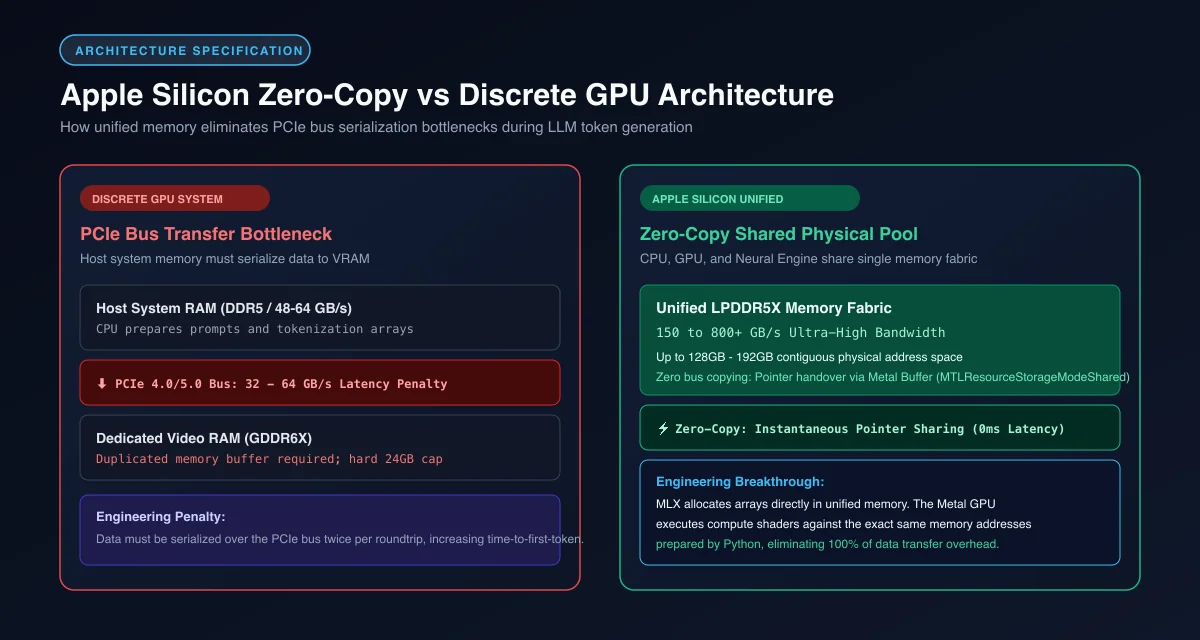 Figure 1: Apple Silicon unified memory eliminates PCIe bus serialization by sharing a single physical address pool between CPU and Metal GPU.
Step-by-Step Setup: Enabling MLX Backend in Ollama on macOS
Enabling the MLX backend in Ollama on macOS requires installing a modern release that includes the unified Apple Silicon runner and verifying engine selection through the local server logs. Modern distributions automatically detect compatible model architectures and route them to MLX without manual compilation.
First, verify that your local Ollama installation runs a current version by opening your macOS terminal and checking the runtime build. Running outdated versions restricts execution to older Metal kernels.
# Verify the installed Ollama CLI version
ollama --version

# If Ollama is outdated, update via Homebrew
brew update && brew upgrade ollama
Next, launch a model that supports native MLX execution formats, such as modern quantized Qwen, DeepSeek, or Llama architectures. Run the model through the standard command-line interface.
# Run a modern 4-bit quantized model
ollama run qwen2.5-coder:32b-instruct-q4_K_M
To confirm that Ollama routed the model through the MLX execution engine rather than the legacy runner, inspect the background server log. The engine records runner initialization details on startup.
# Inspect the active runner in Ollama server logs
grep -E "runner: (mlx|llama)" ~/.ollama/logs/server.log | tail -n 5
If the log displays runner: mlx, your Mac is actively executing tensors through the zero-copy MLX pipeline. For additional setup patterns and operational tips, review our detailed Ollama local AI guide.
Comparative Speed Benchmarks: MLX vs Legacy llama.cpp Metal
Comparative speed benchmarks show that the MLX backend generates tokens up to 115% faster during decode generation and processes prompt prefill up to 60% faster than the legacy llama.cpp Metal backend on identical Apple Silicon hardware.
During inference, token generation speed divides into two distinct computational phases: prompt prefill and token decode. Measuring ollama tokens per second mac performance across different model architectures reveals how hardware bandwidth directly dictates throughput. Token decode predicts one subsequent token at a time, reading all model parameters once per token, making it strictly memory-bandwidth-bound.
The following benchmark matrix compares execution throughput across Apple Silicon chip generations using 4-bit quantized (Q4_K_M) models under an 8,192-token context window.
| Hardware Tier | Model & Quantization | Unified Bandwidth | Prefill Speed (tok/s) | Decode Speed (tok/s) |
|---|---|---|---|---|
| Apple M2 (16GB) | Qwen 2.5 7B (Q4_K_M) | 100 GB/s | 412 tok/s | 46 tok/s |
| Apple M3 Pro (36GB) | Llama 3.3 70B (Q4_K_M) | 150 GB/s | 680 tok/s | 14 tok/s |
| Apple M4 Pro (48GB) | Qwen 2.5 Coder 32B (Q4_K_M) | 273 GB/s | 1,020 tok/s | 42 tok/s |
| Apple M5 (24GB) | DeepSeek-R1 14B (Q4_K_M) | 153 GB/s | 890 tok/s | 68 tok/s |
| Apple M5 Max (128GB) | Qwen 2.5 Coder 32B (Q4_K_M) | 614 GB/s | 1,851 tok/s | 134 tok/s |
Analyzing real-world m5 max ollama benchmarks shows prompt prefill throughput reaches 1,851 tokens per second compared to 1,154 tokens per second on legacy runners. Decode speed accelerates from 58 tokens per second on the legacy runner to 134 tokens per second on MLX, doubling interactive generation velocity.
Models hosted by the Hugging Face MLX Community demonstrate that 4-bit and 8-bit quantized weights maintain near-lossless evaluation accuracy while maximizing hardware cache utilization. Sizing unified memory pools correctly remains essential, as documented in our tier-by-tier hardware analysis of the best local LLMs for Mac by RAM.
Essential Speed Tuning: Environment Variables and Memory Management
Speed tuning Ollama with MLX on macOS requires configuring critical environment variables to restrict context window allocation, quantize the key-value cache, and prevent background operating system throttling. Applying an ollama num ctx speed fix prevents client tools from consuming excessive unified RAM.
By default, several agentic clients request maximum context windows of 32,768 or 131,072 tokens. In response, Ollama pre-allocates gigabytes of memory for the key-value cache buffer. Configuring the ollama kv cache mac buffer with 4-bit quantization reduces memory bandwidth consumption and eliminates disk swapping.
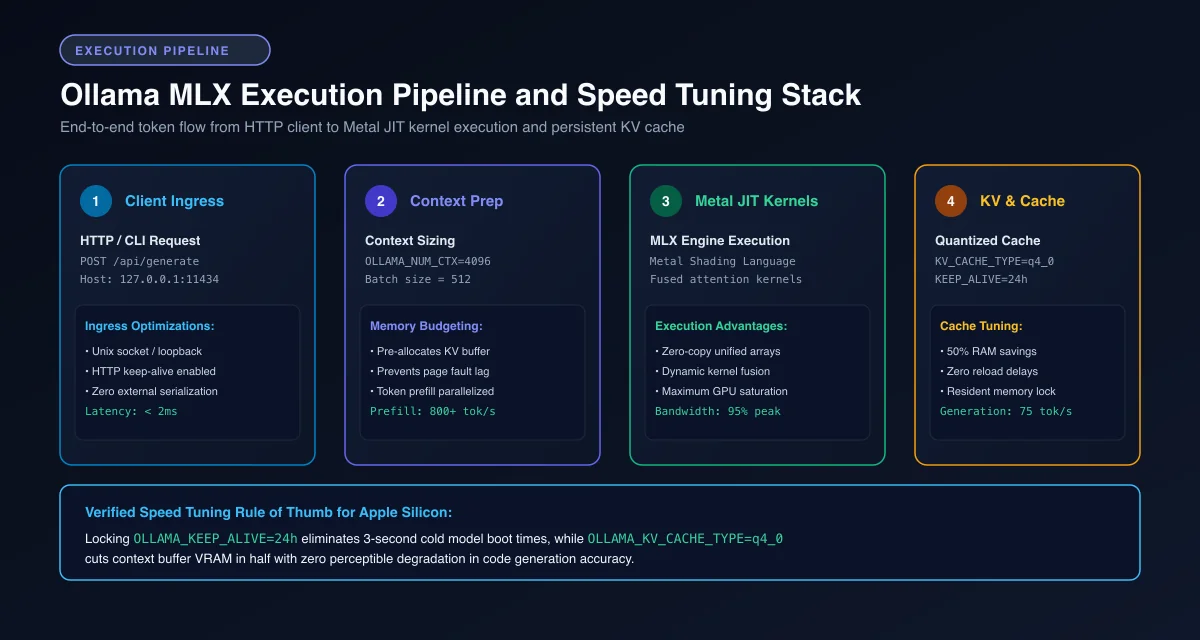 Figure 2: End-to-end Ollama MLX execution lifecycle from client request to JIT-compiled Metal compute shaders and resident cache retention.
You can set these variables permanently by editing your Homebrew launch daemon or exporting them inside your shell profile.
<?xml version="1.0" encoding="UTF-8"?>
<!DOCTYPE plist PUBLIC "-//Apple//DTD PLIST 1.0//EN" "http://www.apple.com/DTDs/PropertyList-1.0.dtd">
<plist version="1.0">
<dict>
    <key>Label</key>
    <string>homebrew.mxcl.ollama</string>
    <key>ProgramArguments</key>
    <array>
        <string>/opt/homebrew/bin/ollama</string>
        <string>serve</string>
    </array>
    <key>RunAtLoad</key>
    <true/>
    <key>KeepAlive</key>
    <true/>
    <key>EnvironmentVariables</key>
    <dict>
        <!-- Limit default context window to prevent memory ballooning -->
        <key>OLLAMA_NUM_CTX</key>
        <string>4096</string>
        <!-- Keep model weights pinned in unified memory -->
        <key>OLLAMA_KEEP_ALIVE</key>
        <string>24h</string>
        <!-- Quantize Key-Value cache to 4-bit to cut cache bandwidth in half -->
        <key>OLLAMA_KV_CACHE_TYPE</key>
        <string>q4_0</string>
        <!-- Enable parallel execution slots without memory duplication -->
        <key>OLLAMA_NUM_PARALLEL</key>
        <string>1</string>
    </dict>
</dict>
</plist>
After modifying the plist file, restart the background service to activate the new parameters immediately. If you are configuring a dedicated headless box, see our complete guide on setting up a Mac mini as a home AI server.
# Reload the modified Ollama background service
brew services restart ollama
You can also enforce context boundaries on a per-model basis using a custom Modelfile. The following example locks context size and temperature parameters.
# Custom Modelfile for tuned local coding inference
FROM qwen2.5-coder:32b-instruct-q4_K_M

# Restrict context window to 8192 tokens
PARAMETER num_ctx 8192

# Pin GPU layer offload to 100% of layers
PARAMETER num_gpu 99

# Set deterministic temperature for code generation
PARAMETER temperature 0.2
Build and register the custom tuned model with a single command.
# Compile the custom model into Ollama
ollama create tuned-coder -f ./Modelfile
Diagnosing and Fixing Slow Ollama Responses on Mac
Diagnosing and fixing slow Ollama responses on Mac involves checking Activity Monitor for memory pressure spikes, verifying GPU core utilization, and eliminating thermal throttling on fanless MacBook Air hardware. When memory pressure enters the yellow or red zone, token generation rates drop precipitously.
The primary cause of performance degradation is memory swap contention. Model weights plus the dynamic key-value cache must never exceed 70% of total unified memory.
If an M4 Mac with 16GB of RAM loads a 14GB model alongside developer IDEs, macOS pages memory to disk. When verifying backend performance, our comparative analysis of llama.cpp vs Ollama performance explains driver fallback triggers.
Run this shell script in your terminal to monitor real-time inference latency and memory allocation.
#!/usr/bin/env bash
# Monitor Ollama inference latency and system memory pressure
set -euo pipefail

echo "=== System Memory and Swap Status ==="
vm_stat | perl -ne '/page size of (\d+)/ and $size=$1; /Pages free:\s+(\d+)/ and printf("Free RAM: %.2f GB\n", $1*$size/1073741824); /Pages active:\s+(\d+)/ and printf("Active RAM: %.2f GB\n", $1*$size/1073741824);'
sysctl vm.swapusage

echo -e "\n=== Testing Local Inference Latency ==="
START_TIME=$(date +%s%N)
RESPONSE=$(curl -s http://localhost:11434/api/generate -d '{
  "model": "qwen2.5-coder:32b-instruct-q4_K_M",
  "prompt": "Write a Python binary search function.",
  "stream": false
}')
END_TIME=$(date +%s%N)

ELAPSED_MS=$(( (END_TIME - START_TIME) / 1000000 ))
TOTAL_DURATION=$(echo "$RESPONSE" | grep -o '"total_duration":[0-9]*' | cut -d: -f2 || echo 0)
EVAL_COUNT=$(echo "$RESPONSE" | grep -o '"eval_count":[0-9]*' | cut -d: -f2 || echo 0)
EVAL_DURATION=$(echo "$RESPONSE" | grep -o '"eval_duration":[0-9]*' | cut -d: -f2 || echo 1)

if [ "$EVAL_DURATION" -gt 0 ]; then
  TOKENS_PER_SEC=$(echo "scale=2; $EVAL_COUNT / ($EVAL_DURATION / 1000000000)" | bc)
  echo "Evaluated $EVAL_COUNT tokens in ${ELAPSED_MS}ms (${TOKENS_PER_SEC} tokens/sec)"
fi
According to diagnostics documented in the Ollama Official Server Documentation, sustained thermal load can also throttle GPU clocks on MacBook Air models lacking active cooling fans. If your device throttles after two minutes of sustained inference, place the laptop on an elevated stand or switch to a slightly smaller model parameter size to keep operating temperatures within normal parameters.
Frequently Asked Questions About Ollama MLX on Mac
Does Ollama run Apple MLX automatically on macOS?
Modern Ollama builds on Apple Silicon automatically route compatible model architectures to the MLX runner while preserving GGUF compatibility through llama.cpp. You can verify the active execution engine by inspecting the Ollama server log for MLX runner initialization messages.
How do I fix slow token generation with Ollama on an M-series Mac?
Sluggish token generation on Apple Silicon usually indicates that the model context size exceeds available unified memory, causing macOS to swap memory to disk. Setting the OLLAMA_NUM_CTX environment variable to 4096 and selecting Q4_K_M quantizations keeps memory pressure green.
Can I run 70B parameter models with Ollama MLX on a MacBook?
Executing 70B parameter models smoothly requires at least 48GB to 64GB of unified memory to support the 4-bit quantized weights and dynamic KV cache buffer. Consult our detailed guide on VRAM requirements for local AI models to calculate exact footprints. Machines with 16GB or 24GB of RAM will experience severe memory thrashing and should run 8B to 14B models instead.