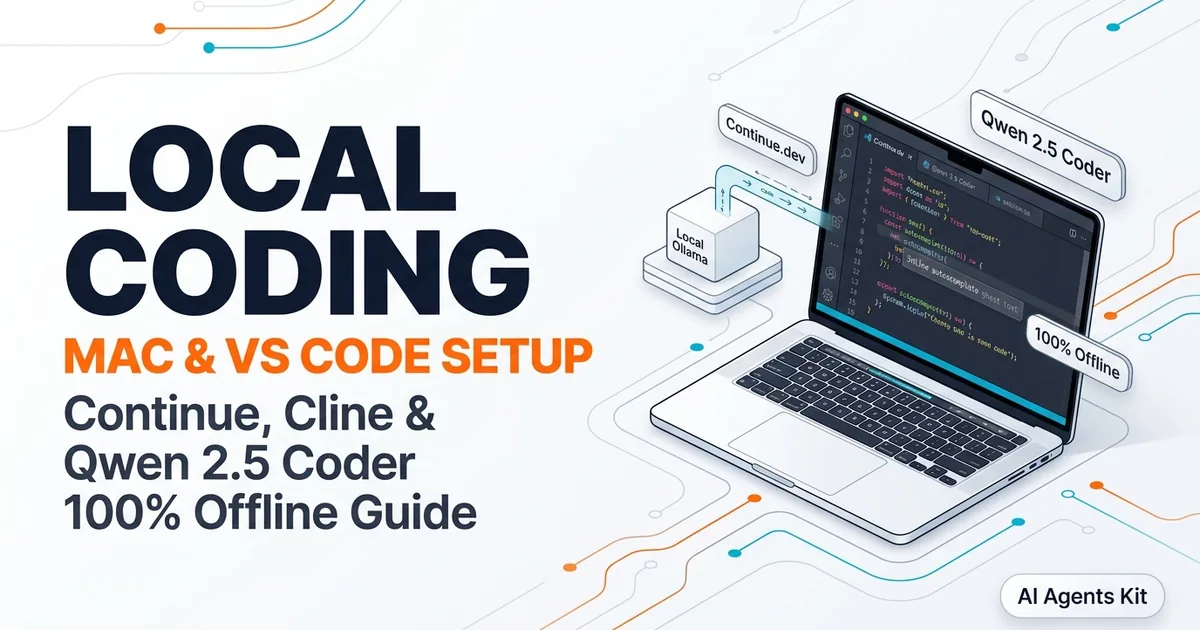
Run Local Coding Models on Mac with VS Code
Set up a private local coding assistant in VS Code on Mac. Configure Ollama with Continue and Cline, dual-model autocomplete, and Qwen 2.5 Coder.
Setting up a high-performance local coding llm mac environment inside Visual Studio Code provides developers with an air-gapped, zero-latency programming copilot that never sends proprietary source code over external networks. With Apple Silicon unified memory providing high bandwidth for quantized models, local coding assistants now rival commercial cloud extensions in speed and code synthesis quality.
Software engineers deploying local coding assistants often struggle with typing latency during completions or context exhaustion during complex refactorings. Our architectural guide to running AI on Mac with Apple Silicon explains unified memory scaling.
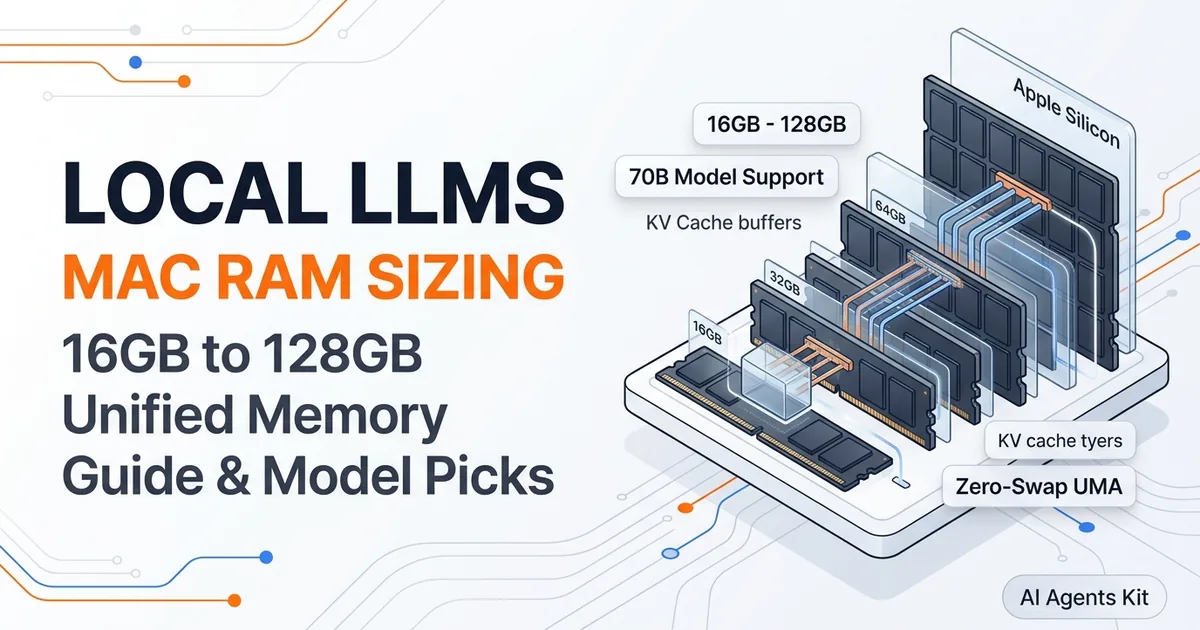
Our hardware analysis of best local LLMs for Mac by RAM details exact model sizing rules. This tutorial guides you through configuring Ollama, setting up Continue and Cline, and implementing a dual-model architecture for instantaneous completions.
Key Takeaways
- Running local coding models on Apple Silicon eliminates proprietary telemetry and delivers sub-25ms inline code completions without external API costs.
- Decoupling the tab autocomplete model (Qwen 2.5 Coder 1.5B) from the chat model (14B or 32B) delivers instant suggestions while preserving deep reasoning for refactoring.
- Continue excels at inline completions and interactive chat, while Cline executes autonomous multi-file edits and terminal commands directly in your workspace.
- Configuring a custom Modelfile with
PARAMETER num_ctx 32768gives local coding models the context depth required to understand large software repositories.
The Dual-Model Architecture: Decoupling Autocomplete from Reasoning
The dual-model architecture decouples high-frequency tab autocomplete from deep conversational reasoning by routing inline keystroke suggestions to a lightweight 1.5B model while directing multi-file refactoring queries to a powerful 14B or 32B model. This separation prevents typing stutter while preserving deep architectural comprehension.
Inline tab autocomplete operates under strict latency budgets. If a model takes longer than 50 milliseconds to return ghost text, the developer experiences typing lag. Loading a 32B model for autocomplete creates severe latency penalties, making real-time typing frustrating.
Implementing an offline tab autocomplete mac pipeline with Qwen 2.5 Coder 1.5B resolves this friction. The 1.5B model occupies under 2GB of unified memory and generates completions in roughly 18 to 22 milliseconds on Apple M3 and M4 chips.
For conversational explanations, multi-file code review, and automated test generation, requests route to a larger model like Qwen 2.5 Coder 14B or 32B. Reviewing our survey of top AI coding agents and autonomous systems confirms that larger parameter classes are mandatory for navigating complex cross-file dependencies.
| Workflow / Task | Recommended Local Model | Memory Footprint | Target Latency | Best VS Code Extension |
|---|---|---|---|---|
| Inline Tab Autocomplete | Qwen 2.5 Coder 1.5B (Q4_K_M) | ~1.6 GB RAM | < 25 milliseconds | Continue (continue.dev) |
| Interactive Code Chat | Qwen 2.5 Coder 7B / 14B (Q4) | ~5.8 GB to 10 GB | 45 to 65 tok/sec | Continue Sidebar |
| Multi-File Refactoring | Qwen 2.5 Coder 32B (Q4_K_M) | ~19.5 GB RAM | 25 to 45 tok/sec | Cline / Continue |
| Autonomous Workspace Agent | Qwen 2.5 Coder 32B (Q4) | ~20 GB + 4GB Cache | 25 to 40 tok/sec | Cline Agent Loop |
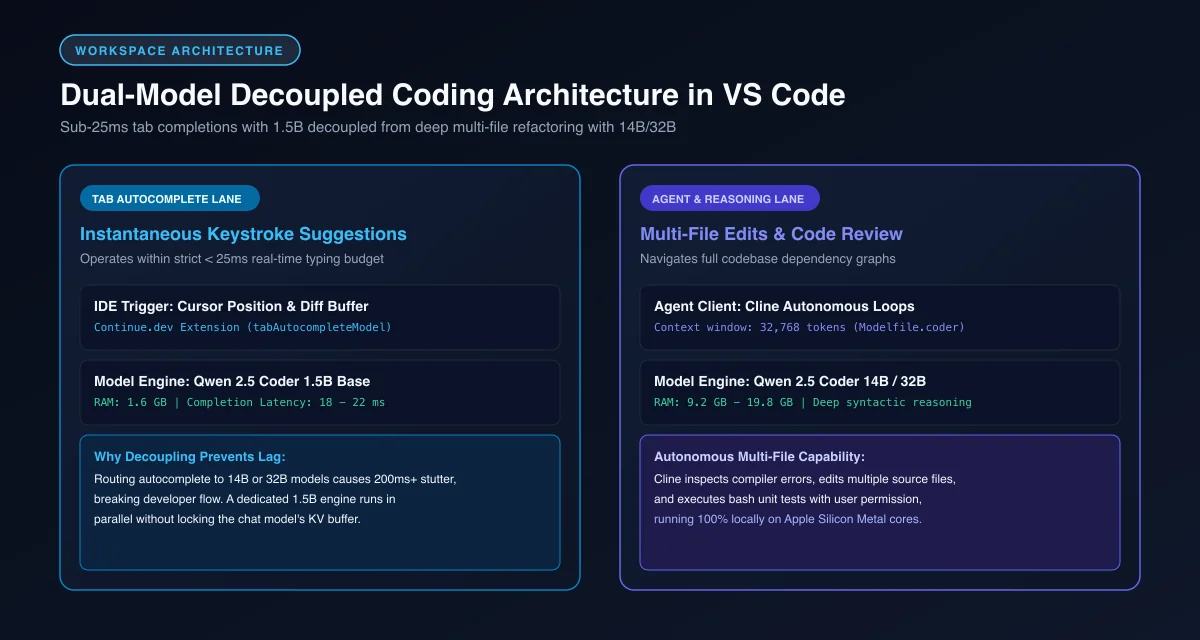 Figure 1: Dual-model decoupled architecture separating sub-25ms tab autocomplete from deep multi-file reasoning in VS Code.
Step 1: Installing Ollama and Pulling Qwen 2.5 Coder Models
Installing Ollama and pulling Qwen 2.5 Coder models on macOS requires installing the command-line utility via Homebrew and executing download commands for both the lightweight autocomplete engine and the primary chat model. Ollama manages model weight caching and hardware-accelerated Metal execution automatically.
Open your macOS terminal and install Ollama if it is not already present on your workstation.
# Install Ollama CLI and desktop backend
brew install ollama

# Start the local Ollama background server
brew services start ollama
Next, pull the specialized Qwen 2.5 Coder model family weights from the Ollama Official Model Library. We download the compact 1.5B model for autocomplete and the 14B or 32B model for conversational synthesis.
# Download the ultra-fast autocomplete model
ollama pull qwen2.5-coder:1.5b-base

# Download the primary coding and refactoring model (14B for 16GB/24GB Macs)
ollama pull qwen2.5-coder:14b-instruct-q4_K_M

# Alternatively, download the 32B model on Macs with 32GB+ of RAM
# ollama pull qwen2.5-coder:32b-instruct-q4_K_M
To ensure peak inference throughput across both models, apply the performance tuning parameters outlined in our guide to Ollama MLX on Mac speed tuning.
Step 2: Configuring Continue for Inline Completions and Chat
Configuring Continue for inline completions and chat requires installing the Continue extension from the VS Code Marketplace and defining a split-model configuration inside config.json that maps the autocomplete trigger and chat provider to distinct local Ollama models.
After installing Continue, click the gear icon in the lower-right corner of the Continue sidebar to access your configuration file. Define the following split model continue config to separate interactive chat from background tab autocomplete.
{
  "models": [
    {
      "title": "Qwen 2.5 Coder 14B (Chat)",
      "provider": "ollama",
      "model": "qwen2.5-coder:14b-instruct-q4_K_M",
      "apiBase": "http://localhost:11434"
    }
  ],
  "tabAutocompleteModel": {
    "title": "Qwen 1.5B (Autocomplete)",
    "provider": "ollama",
    "model": "qwen2.5-coder:1.5b-base",
    "apiBase": "http://localhost:11434"
  },
  "tabAutocompleteOptions": {
    "useCopyBuffer": true,
    "maxPromptTokens": 1024,
    "prefixPercentage": 0.5
  }
}
This continue vs code ollama setup ensures that your keystrokes trigger fast autocomplete suggestions without interrupting active model memory buffers. To optimize qwen coder vs code autocomplete response times, the prefixPercentage parameter balances prefix and suffix code context surrounding your cursor.
Additional parameter options and configuration schemas are detailed in the Continue Autocomplete Documentation.
Step 3: Setting Up Cline for Autonomous Multi-File Coding
Setting up Cline for autonomous multi-file coding involves installing the Cline extension in VS Code and configuring its API provider to connect to Ollama’s local OpenAI-compatible endpoint. Cline acts as an autonomous software engineer that can read your workspace directory, edit files, and execute terminal commands.
While Continue focuses on developer-in-the-loop assistance, a cline local llm mac workflow enables autonomous multi-step problem solving. Cline iteratively formulates task plans, makes edits across multiple files, inspects compiler output, and self-corrects errors.
Configure Cline by opening its sidebar panel, selecting Ollama as your API provider, and setting the base URL to http://localhost:11434. Choose qwen2.5-coder:14b-instruct-q4_K_M and set the context window parameter to 32,768.
According to development specifications in the Cline Official GitHub Repository, the extension requests user permission before executing terminal commands or modifying workspace files, maintaining complete developer oversight.
Calibrating Context Windows and Tuning Latency on Apple Silicon
Calibrating context windows and tuning latency on Apple Silicon requires creating a custom Modelfile to expand default context memory from 4,096 tokens to 32,768 tokens, giving coding assistants sufficient memory to parse entire source files without truncation.
By default, standard Ollama models initialize with a 4,096-token context window. While sufficient for casual chat, multi-file code editing quickly exceeds 4,000 tokens, causing models to drop earlier function signatures from memory.
Create a custom Modelfile named Modelfile.coder in your workspace to lock an expanded context length into the model definition.
# Custom Modelfile with expanded 32k context buffer
FROM qwen2.5-coder:14b-instruct-q4_K_M

# Expand context window for large codebase ingestion
PARAMETER num_ctx 32768

# Pin all neural network layers to Metal GPU cores
PARAMETER num_gpu 99

# Set low temperature for precise syntax generation
PARAMETER temperature 0.1

# Set repeat penalty to prevent syntax loops
PARAMETER repeat_penalty 1.1
Compile and register the expanded model into Ollama with a single command.
# Build the 32k context coding model
ollama create qwen-coder-32k -f ./Modelfile.coder
Update your Continue and Cline settings to point to qwen-coder-32k to unlock expansive context memory for complex development tasks.
Privacy and Security: Air-Gapped Coding Without Telemetry Egress
Privacy and security represent the primary justification for operating an on-device coding assistant, ensuring that enterprise intellectual property, API keys, and proprietary algorithms never leave local hardware.
Commercial cloud coding assistants transmit code context, open file tabs, and developer keystrokes to third-party data centers for inference. For defense contractors, financial institutions, and privacy-focused developers, this telemetry creates severe compliance risks.
Deploying a local ai coding assistant privacy stack guarantees that every byte of source code remains in local unified RAM. You can disconnect your Mac from Wi-Fi entirely and verify that code generation, tab completions, and automated refactoring operate with zero internet access.
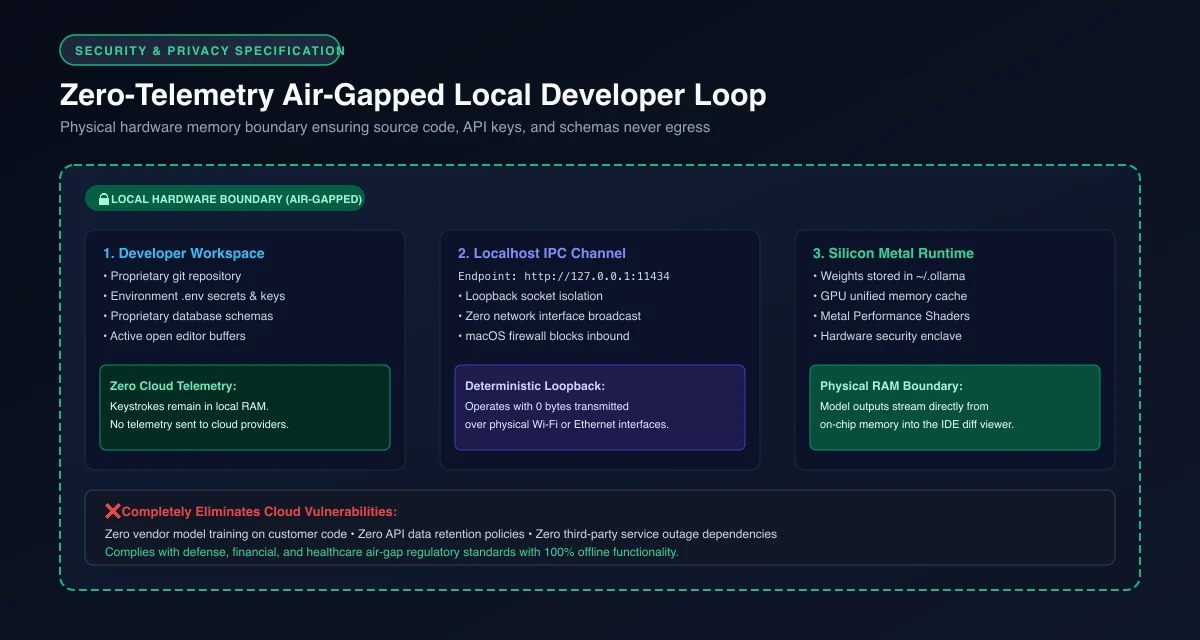 Figure 2: Air-gapped physical hardware security perimeter ensuring zero code, secret, or telemetry egress to cloud data centers.
Frequently Asked Questions About Local Coding Models on Mac
Can I use local coding models in VS Code completely offline?
Yes, pairing VS Code extensions like Continue or Cline with a local Ollama instance allows you to generate code, run tab completions, and execute refactorings completely offline without internet connectivity. Because all inference executes locally on Apple Silicon unified memory, zero code leaves your machine.
What is the best model for tab autocomplete in VS Code on Mac?
Qwen 2.5 Coder 1.5B in 4-bit quantization is the best model for tab autocomplete on Mac because it generates inline suggestions in under 25 milliseconds, preventing typing stutter. Larger models like 7B or 14B introduce noticeable latency during typing and are better suited for chat and refactoring.
How much RAM is required to run local coding assistants on Mac?
A Mac with 16GB of unified memory can comfortably host a 1.5B autocomplete model alongside a 7B chat model while leaving headroom for development tools. Running a top-tier 32B coding model like Qwen 2.5 Coder 32B requires at least 32GB to 36GB of unified RAM.