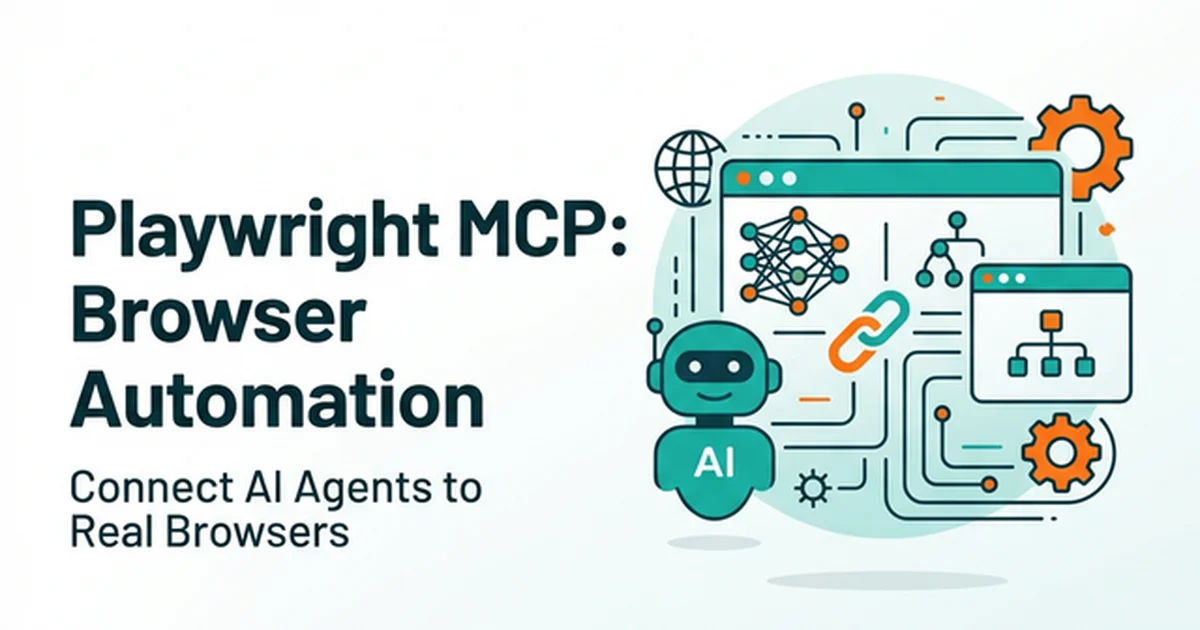
Playwright MCP: AI-Powered Browser Automation Guide (2026)
Learn how Playwright MCP connects AI agents to real browsers using the Model Context Protocol. Setup guide for Claude Desktop, VS Code & Cursor.
Software engineering teams shifted their perspective on browser automation when AI agents gained direct, programmatic control over the browser DOM. This evolution moved teams past brittle selector scripts and manual regression passes into intent-driven autonomous testing.
Playwright MCP serves as the foundational bridge for this transition. By connecting language models in Claude Desktop, GitHub Copilot, and Cursor to real browser engines, teams execute complex web actions using natural language instructions that survive routine interface updates.
Key Takeaways
- Microsoft maintains
@playwright/mcpas an open-source Model Context Protocol server that exposes Playwright browser actions to AI clients.- Accessibility tree snapshot mode reduces context payloads to 1-5 KB per step, achieving 4x to 10x token efficiency over pixel screenshots.
- Deterministic semantic locators like
getByRoleandgetByLabelresist CSS class drift, responsive layout shifts, and visual redesigns.- Production multi-turn workflows prevent context exhaustion by scoping element trees, isolating profiles, or offloading test runs to the Playwright CLI.
This guide details how Playwright MCP operates architecturally, why accessibility tree snapshots outperform computer vision models, and how to configure client environments across enterprise workflows alongside the underlying Model Context Protocol architecture.
What Is Playwright MCP and How Does It Work?
Playwright MCP is an open-source server that implements the Model Context Protocol to expose Playwright browser automation methods as callable AI tools. It converts natural language prompts from agents into deterministic browser interactions across Chromium, Firefox, and WebKit without requiring human developers to hand-craft selector strings.
The communication loop operates through five distinct stages:
- AI Client Sends Intent: An AI model inside Claude Desktop or Cursor receives a directive such as “verify user registration on the staging cluster.”
- Protocol Server Translates: The MCP server translates this high-level intent into typed Playwright method calls including page navigation, role-based clicks, and form population.
- Browser Executes: A live browser process executes the action, evaluates JavaScript, and triggers network requests exactly like a human user.
- Structured Snapshot Returns: Instead of transmitting heavy image pixels, the server extracts an accessibility tree snapshot detailing active elements and ARIA states.
- AI Evaluates Next Step: The language model parses the lightweight tree, validates assertions, and schedules the subsequent browser step until the task reaches completion.
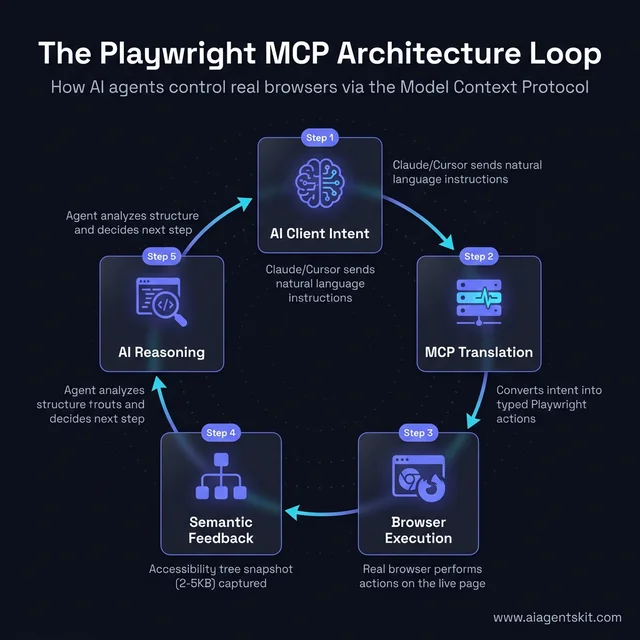
The Playwright MCP Architecture Loop: How AI agents translate intent into real browser actions using the Model Context Protocol.
Traditional end-to-end automation relies on rigid CSS classes and XPath expressions like button.btn-primary:nth-child(2). When product teams rename styling tokens or alter layout wrappers, those fragile selectors break immediately.
The server bypasses layout fragility by navigating the browser through semantic accessibility properties. Elements are identified by their roles, accessible names, and interactive states. A checkout trigger remains “button labeled Place Order” regardless of whether styling shifts or DOM nesting changes.
According to empirical browser automation benchmarks, accessibility snapshots require only 1 to 5 KB of text data (250 to 1,250 tokens), whereas raw pixel screenshots consume 100 KB or more (1,500 to 5,000+ tokens) per interaction step. This structural approach yields a 4x to 10x token reduction across multi-turn workflows.
The project is officially developed by Microsoft and distributed via the Microsoft Playwright MCP GitHub Repository under the Apache 2.0 license. This permissive structure allows engineering teams to audit, customize, and self-host the server without vendor lock-in.
Why Accessibility Snapshots Outperform Screenshot Vision Models
Accessibility snapshots outperform vision-based screenshot models because structured text provides deterministic element references while consuming a fraction of the token context. Evaluating accessibility snapshot vs screenshot performance highlights how structural text representations eliminate visual interpretation errors across varying display resolutions.
When a vision agent targets an interface, minor visual variations cause misclicks and coordinate drift. If a banner shifts an input field down by four pixels, coordinate-based clicks fail. In contrast, accessibility tree snapshots expose what an element actually is rather than where it visually renders.
- form "User Registration" [role=form]
  - textbox "Work Email" [required=true, value=""]
  - textbox "Password" [type=password, value=""]
  - checkbox "I accept the terms" [checked=false]
  - button "Create Account" [enabled=true]
This structured tree informs the agent of interactive components with zero ambiguity. The agent does not calculate pixel coordinates or infer boundaries. It targets the explicit accessible entity directly.
The operational tradeoffs between automation paradigms are summarized below:
| Automation Approach | Token Payload | Locator Stability | Setup Complexity | Native AI Agent Support |
|---|---|---|---|---|
| MCP Snapshot Mode | Low (1-5 KB) | Very High | Low-Medium | Native |
| MCP Screenshot Mode | High (100 KB+) | Medium | Low-Medium | Native |
| Traditional Playwright Scripts | Zero | High (requires maintenance) | Medium | None |
| Vision Model + Screenshots | Very High (200 KB+) | Fragile | Low | Native |
| Selenium WebDriver | Zero | Medium | High | None |
The server provides two primary capture mechanisms: Snapshot Mode and Screenshot Mode. Snapshot Mode reads the ARIA accessibility tree and represents the standard production configuration for over 90% of user journeys.
Screenshot Mode captures full-page visual frames for vision-capable models. It is reserved for canvas elements, WebGL viewports, and custom graphical charting libraries where accessibility nodes do not exist. Review the Playwright Official Documentation for deeper locator architecture standards.
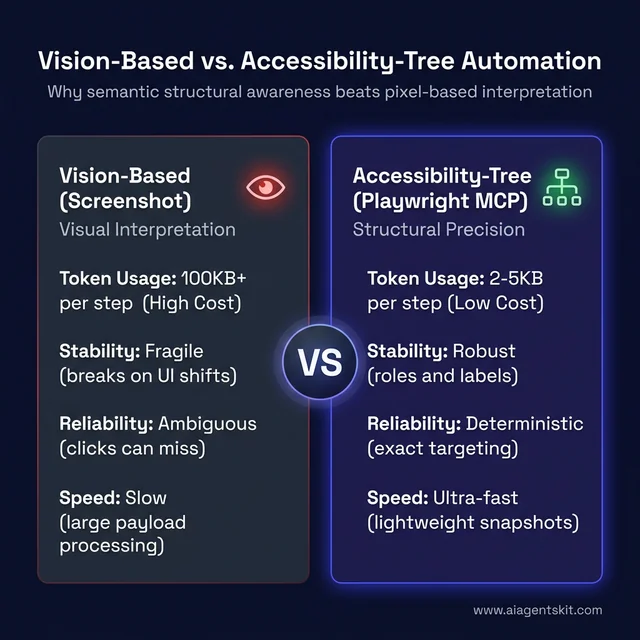
Comparing Vision-Based (screenshot) vs. Accessibility-Tree (Playwright MCP) automation: Why semantic structural awareness leads to higher stability and lower costs.
6 Core Capabilities of the Browser MCP Server
The browser automation server provides AI agents with comprehensive control by exposing six foundational tool primitives. These capabilities empower agents to navigate domains, interact with form controls, emulate mobile devices, and intercept network traffic.
Engineers evaluating the ecosystem frequently rank it among the best MCP servers for Claude due to its depth of browser tooling.
- Browser Lifecycle & Navigation: Agents open isolated browser sessions, manage history stacks, follow redirect chains, and await network idle signals before interacting.
- Role-Based Element Interaction: Agents type text into fields, select combobox items, toggle checkboxes, trigger keyboard shortcuts, and perform drag-and-drop gestures via semantic identifiers.
- Accessibility Snapshot Retrieval: The server extracts compact 1-5 KB text snapshots of the active DOM tree, giving models real-time visibility into UI state changes.
- Cross-Engine Execution: Workflows run deterministically across Chromium, Firefox, and WebKit engines from a single unified API specification.
- Hardware Device Emulation: The server provides 140+ pre-configured hardware device profiles, simulating mobile touch viewports, pixel densities, and user-agent strings.
- Network & Session Management: Agents capture network requests, inspect response payloads, inject session cookies, generate PDF exports, and dismiss modal dialogs.
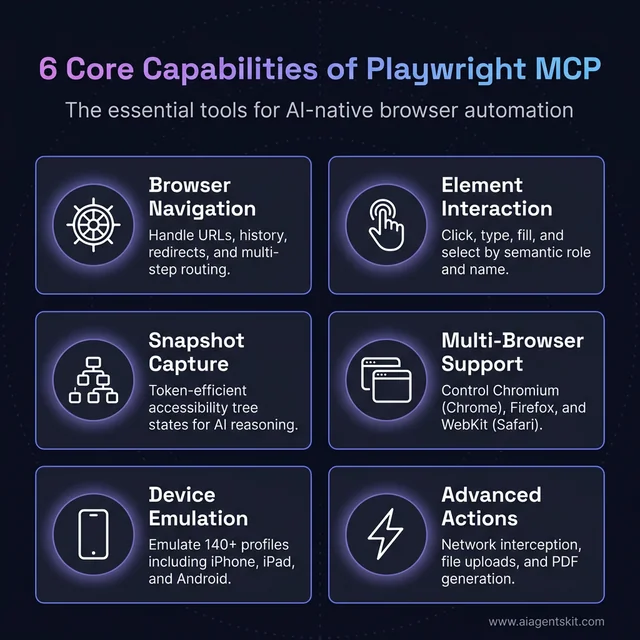
The 6 core capabilities exposed by the Playwright MCP server, providing AI agents with full control over browser navigation, interaction, and context.
How to Set Up Playwright MCP: Step-by-Step Configuration
Completing a successful Playwright MCP setup requires Node.js 18 LTS or later and an MCP-compatible host application like Claude Desktop, Cursor, or VS Code. Verify your local Node runtime by executing node --version in your terminal before configuring client connections.
The setup utilizes the Model Context Protocol Specification to connect client host applications to local subprocesses via standard I/O pipes.
Configuring Claude Desktop with Browser MCP
When configuring a claude desktop playwright mcp connection, the client application reads local JSON settings to launch an automated browser subprocess. Reference our comprehensive Claude Desktop MCP configuration guide for platform-specific troubleshooting.
First, enable Developer Mode in Claude Desktop via Settings, then navigate to Developer. Open your configuration file located at:
- macOS:
~/Library/Application Support/Claude/claude_desktop_config.json - Windows:
%APPDATA%\Claude\claude_desktop_config.json
Add the server definition into your mcpServers object:
{
  "mcpServers": {
    "playwright": {
      "command": "npx",
      "args": [
        "-y",
        "@playwright/mcp@latest"
      ]
    }
  }
}
This configuration launches Playwright in headed mode using the default Chromium engine. If you require background automation without a graphical window popping up, pass the --headless flag in the args array.
{
  "mcpServers": {
    "playwright": {
      "command": "npx",
      "args": [
        "-y",
        "@playwright/mcp@latest",
        "--headless"
      ]
    }
  }
}
Restart Claude Desktop completely to load the new server definition. Check the Anthropic Claude Desktop MCP Documentation to verify host permissions.
Setting Up VS Code and GitHub Copilot
Enabling a vs code playwright mcp workflow allows GitHub Copilot to navigate frontend routes and validate application states directly within the editor. This capability lets Copilot Chat inspect running localhost servers without requiring you to leave the code workspace.
Open VS Code User Settings (JSON) via Cmd+Shift+P (macOS) or Ctrl+Shift+P (Windows) and search for Preferences: Open User Settings (JSON).
Add the MCP configuration entry:
{
  "github.copilot.chat.agent.mcp": {
    "playwright": {
      "command": "npx",
      "args": ["-y", "@playwright/mcp@latest"]
    }
  }
}
Restart VS Code, switch Copilot Chat to Agent Mode, and prompt: “Open localhost:3000 and check the navigation header links.”
Copilot uses editor file context alongside browser snapshots to write integration tests matching your repository’s existing testing idioms.
Adding Browser Tools to the Cursor IDE
Configuring a cursor playwright mcp integration takes under two minutes through Cursor’s visual settings panel.
- Open Cursor Settings via
Cmd+,(macOS) orCtrl+,(Windows) and select MCP Servers. - Click Add new global MCP server.
- Set the Name to
playwright, Type tocommand, and Command tonpx -y @playwright/mcp@latest. - Click Save and confirm that the green connection indicator illuminates.
With the server connected, prompt Cursor: “Navigate to our staging URL, attempt to trigger an invalid checkout submission, and report the form validation messages.”
Autonomous Testing Workflows: Planner, Generator, and Healer
Microsoft introduced three autonomous agent patterns for Playwright automation: Planner, Generator, and Healer. Together, they create a self-sustaining testing pipeline that plans user coverage, drafts code, and repairs broken locators automatically.
Teams often combine this architecture with the GitHub MCP server to open pull requests containing freshly generated test suites.
The Planner Agent
The Planner agent receives a target URL and crawls key user flows autonomously. It inspects accessibility trees, maps input sequences, and outputs a human-readable Markdown test plan.
## Checkout Flow Test Plan

### Scenario: Standard Purchase with Valid Card
1. Navigate to /products and select first catalog item.
2. Click "Add to Cart" and proceed to /checkout.
3. Fill shipping fields: Name, Address, City, Postal Code.
4. Input test payment details and submit order.
5. Verify order confirmation heading displays within 3 seconds.
The Generator Agent
The Generator agent ingests the Markdown test plan and synthesizes fully typed, executable Playwright test scripts. It prioritizes semantic role locators like getByRole() and getByLabel().
import { test, expect } from '@playwright/test';

test('completes purchase flow with valid test card', async ({ page }) => {
  await page.goto('/products');
  await page.getByRole('button', { name: 'Add to Cart' }).first().click();
  await page.getByRole('link', { name: 'Proceed to Checkout' }).click();

  await page.getByLabel('Full Name').fill('Alex Mercer');
  await page.getByLabel('Street Address').fill('450 Science Park');
  await page.getByLabel('City').fill('Cambridge');
  await page.getByLabel('Postal Code').fill('02138');

  await page.getByLabel('Card Number').fill('4242424242424242');
  await page.getByLabel('Expiry').fill('10/28');
  await page.getByLabel('Security Code').fill('888');

  await page.getByRole('button', { name: 'Complete Purchase' }).click();

  await expect(page.getByRole('heading', { name: /Order Confirmed/i })).toBeVisible();
});
The Healer Agent
The Healer agent activates when continuous integration test runs fail due to locator drift. Rather than failing the build silently, the Healer visits the failing URL, captures the active accessibility tree, identifies the intended element, and submits an automated code patch.
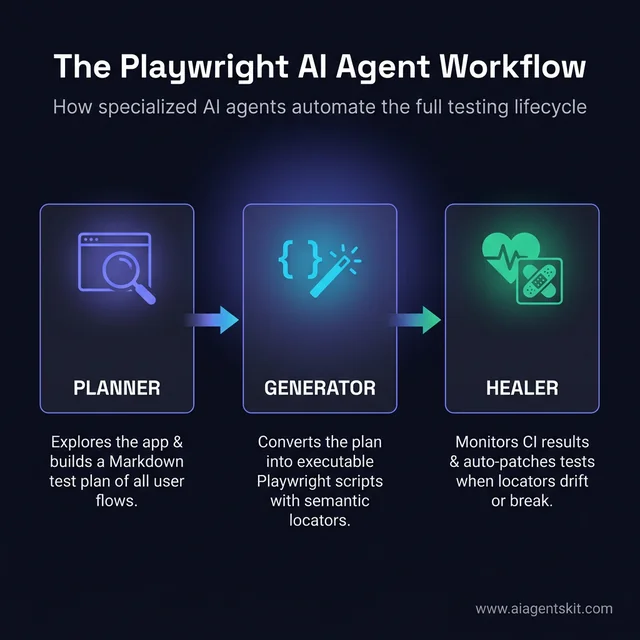
The three-agent Playwright workflow: Planner explores, Generator scripts, and Healer maintains the automation suite.
Playwright MCP vs Alternative Browser Automation Approaches
Choosing the correct automation framework depends on whether your project requires deterministic script execution, autonomous agentic exploration, or visual regression testing. The discussion around MCP vs function calling illustrates how protocol-level abstractions streamline tool integration compared to proprietary custom APIs.
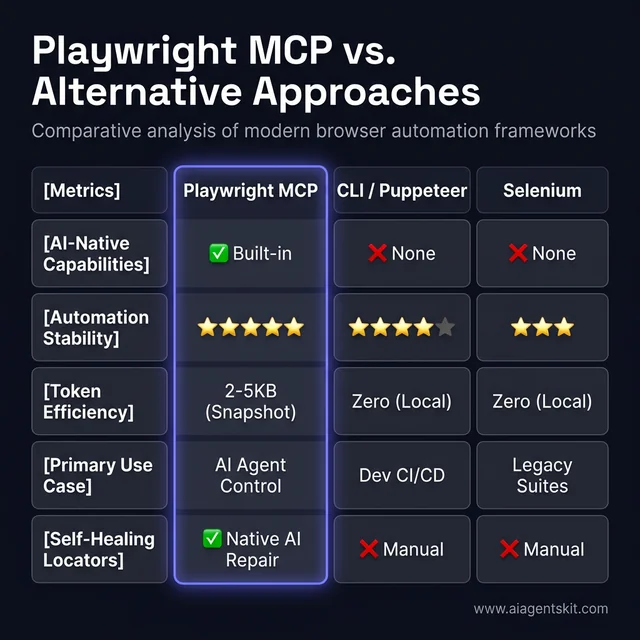
Feature matrix comparing Playwright MCP against CLI, Selenium, and Vision-based approaches across stability, cost, and AI integration.
Dynamic MCP Agent vs Playwright CLI
Playwright CLI runs pre-written, deterministic test files with zero LLM inference cost. In contrast, the MCP server introduces an AI reasoning engine capable of dynamic problem solving and test authoring.
Production teams use a hybrid pattern: the agent authors and heals test suites, while the CLI runs those suites across every commit in CI/CD pipelines.
MCP Server vs Selenium WebDriver
Selenium remains common in legacy enterprise stacks but lacks native protocol integrations for language models. Playwright provides superior asynchronous handling, automatic waiting, and built-in accessibility tree serialization.
Teams adopting agentic workflows choose this framework because it offers native tool endpoints without custom bridging code.
Accessibility Snapshots vs Computer Vision Solutions
Vision-based models process screenshots to determine button coordinates. However, responsive layouts, high-DPI scaling, and font rendering shifts frequently cause vision misclicks.
The accessibility engine targets semantic labels directly. The accessibility tree ensures that a search button remains addressable regardless of viewport scaling or color theme variations.
Token Economics and Cost Optimization for AI Browser Loops
Operating autonomous browser agents at scale requires careful token budget management. Multi-step sessions can quickly consume large context windows if unmanaged DOM trees are transmitted repeatedly.
In long agent sessions spanning 20 or more turns, re-sending entire page snapshots causes active context to bloat beyond 90,000 tokens. This context accumulation increases API inference latency and raises per-step costs.
Apply these four architectural optimizations to maintain high token efficiency:
- Scope Snapshots to Target Forms: Instruct the agent to capture only relevant DOM subtrees (such as
form#checkout) rather than extracting the entire document body. - Decompose Long Tasks: Split multi-page workflows into discrete modular sub-tasks. Each sub-task launches with a fresh, clean context window.
- Enforce Snapshot Mode: Default to text-based accessibility snapshots. Reserve screenshot captures strictly for canvas or WebGL interfaces.
- Offload Deterministic Work to CLI: Use the AI server for test generation, then execute test verification using the local
playwright testrunner which consumes zero tokens.
| Architecture Choice | Context per Action | 20-Turn Session Footprint | Risk of Context Saturation |
|---|---|---|---|
| Raw Screenshot Vision Loop | 1,500-5,000 tokens | 60,000-100,000 tokens | Extreme |
| Full Page Accessibility Snapshot | 500-1,200 tokens | 20,000-35,000 tokens | Moderate |
| Scoped DOM Subtree Snapshot | 100-300 tokens | 4,000-8,000 tokens | Minimal |
| Generated Test via Playwright CLI | Zero tokens | Zero tokens | None |
Running Headless CI/CD Pipelines and Docker Containers
Running browser automation inside continuous integration environments requires configuring headless execution and provisioning required system libraries. Establishing an automated playwright mcp ci cd pipeline in GitHub Actions ensures UI assertions run continuously across pull requests.
Headless GitHub Actions Configuration
Use the --headless flag when invoking @playwright/mcp inside continuous integration runners. Ensure that browser binaries include necessary operating system libraries.
name: Playwright MCP Automated Agent Suite

on:
  push:
    branches: [main]
  pull_request:

jobs:
  run-agent-tests:
    runs-on: ubuntu-latest
    steps:
      - name: Checkout Codebase
        uses: actions/checkout@v4

      - name: Setup Node.js Runtime
        uses: actions/setup-node@v4
        with:
          node-version: '20'

      - name: Install Dependencies
        run: npm ci

      - name: Install Playwright Browsers with System Dependencies
        run: npx playwright install chromium --with-deps

      - name: Run MCP Test Suite
        env:
          ANTHROPIC_API_KEY: ${{ secrets.ANTHROPIC_API_KEY }}
        run: node scripts/run-mcp-orchestration.mjs
The npx playwright install chromium --with-deps command installs both the browser binary and missing Linux system packages like libgbm. Omitting --with-deps causes missing shared library errors on fresh Ubuntu runners.
Docker Containerized Deployment
Deploying a containerized playwright mcp docker service allows engineering organizations to share headless browser clusters over HTTP. Host the container as a standalone service using Server-Sent Events (SSE) transport. To configure complete container orchestration directly from your coding assistant, follow our Docker MCP server guide.
FROM mcr.microsoft.com/playwright:v1.50.0-jammy

WORKDIR /app
COPY package*.json ./
RUN npm ci

RUN npm install @playwright/mcp
EXPOSE 8931

CMD ["npx", "@playwright/mcp@latest", "--port", "8931"]
The official mcr.microsoft.com/playwright base image bundles required browser engines and display dependencies, preventing environment mismatches.
Production Best Practices and Security Hardening
Transitioning agentic browser testing into mission-critical pipelines requires deliberate configuration standards to prevent security vulnerabilities and flakiness.
- Pin Strict Package Versions: Avoid using
@latestin automated CI pipelines. Pin explicit versions like@playwright/mcp@0.0.79to prevent unexpected dependency changes from breaking scheduled builds. - Pass Credentials via Environment Variables: Never hardcode authentication secrets inside
claude_desktop_config.jsonor committed repository files. Inject values dynamically using environment managers. - Use Persistent Browser Contexts Safely: Leverage
storageStateto persist authenticated session tokens across tests, avoiding repeated login flows during exploratory sessions. - Isolate Multi-Tenant Profiles: When serving multiple concurrent developer sessions, launch instances with isolated
--user-data-dirpaths to avoid session cross-contamination.
Troubleshooting and Diagnostic Guide
When troubleshooting automated browser setups, most errors stem from configuration formatting, missing operating system libraries, or ambiguous accessibility trees.
Problem: Server Fails to Load or Shows “No Tools Detected”
Cause: Client configuration files frequently fail due to minor JSON syntax mistakes such as trailing commas. Alternatively, the host application was not restarted fully.
Remedy: Validate your JSON file structure in an editor. Fully quit your host application (using Cmd+Q on macOS rather than closing the window) and restart it to reinitialize MCP server discovery.
Problem: “Browser Executable Not Found”
Cause: The @playwright/mcp package was installed, but the underlying Chromium or Firefox binaries were not downloaded to the local cache.
Remedy: Run npx playwright install chromium in your terminal. On clean Linux servers or Docker containers, run npx playwright install chromium --with-deps to include required OS libraries.
Problem: Agent Targets Incorrect Page Elements
Cause: Two or more buttons share identical accessible text (for example, duplicate “Submit” buttons), or interactive inputs lack semantic labels.
Remedy: Add unique aria-label or aria-labelledby attributes to your frontend components. When prompting, direct the agent to focus on specific form containers.
Quick Diagnostic Reference
| Error Symptom | Root Cause | Immediate Remediation |
|---|---|---|
| Tools missing from AI chat | JSON syntax error or incomplete app restart | Check JSON commas; perform full process quit |
| Browser launch failure | Missing browser binaries or OS dependencies | Execute npx playwright install --with-deps |
| Session timeout on dashboard | Excessive DOM tree size consuming context | Scope snapshot instructions to specific selectors |
| Display error on CI server | Missing --headless execution argument |
Add "--headless" to client server launch args |
| Authentication lost on navigation | Ephemeral browser context discarded | Configure persistent storageState parameters |
Frequently Asked Questions
What is the difference between Playwright MCP and regular Playwright?
Regular Playwright is a programmatic automation library requiring developers to write TypeScript or Python scripts. Playwright MCP wraps the framework in a Model Context Protocol server so AI agents can execute browser actions via natural language instructions.
How does accessibility snapshot mode differ from screenshots?
Snapshot mode captures a structured text tree of roles, labels, and states consuming 1 to 5 KB per page. Screenshots capture pixel images that require vision inference, consume over 100 KB per step, and suffer from layout-shift errors.
Which AI models support browser MCP tools?
Any frontier language model hosted in an MCP-compliant client can use Playwright MCP, including Claude Sonnet 5, GPT-5.6 Sol, and Gemini 3.7 Flash. The integration functions across Claude Desktop, Cursor IDE, VS Code Copilot, and custom agent runtimes.
How do you configure headless CI/CD execution?
Pass the –headless argument inside your client configuration args array to suppress GUI window rendering. In Linux container environments, invoke npx playwright install chromium –with-deps to supply required operating system libraries.
What are the official Planner, Generator, and Healer agents?
Planner autonomously crawls web applications to generate structured markdown test plans for user flows. Generator translates those plans into executable Playwright test files with semantic locators, while Healer repairs locator drift when tests fail.
Summary and Production Next Steps
Semantic browser automation establishes a reliable foundation for agentic browser automation by grounding AI actions in semantic accessibility trees rather than fragile visual pixels. This architecture slashes token consumption while ensuring tests adapt smoothly to routine interface updates.
Engineering teams should adopt a hybrid model: leverage the MCP server for autonomous exploration, planning, and self-healing test generation, then execute the resulting test suites deterministically in CI/CD using the Playwright CLI.
To explore complementary tooling for your agent infrastructure, browse our comprehensive MCP server directory covering database, file system, and API connectors.