Mac mini as a Home AI Server
Turn your Mac mini into an always-on home AI server. Headless macOS setup, launchd configuration, Tailscale remote access from phone/laptop, and Open WebUI.
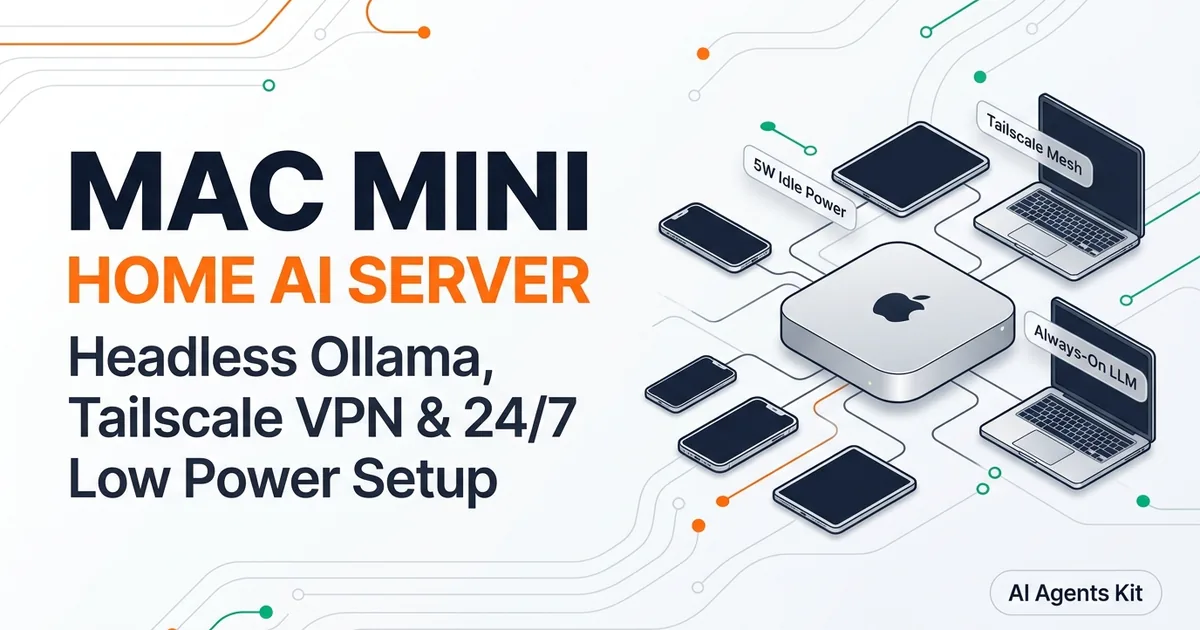
Deploying a dedicated mac mini ai server provides an always-on, whisper-quiet private inference hub that serves language models to every device in your household. With Apple Silicon delivering desktop-grade matrix multiplication at single-digit idle wattages, the Mac mini outperforms traditional rackmount servers in thermal efficiency, electrical footprint, and acoustic comfort.
Home lab enthusiasts often struggle with configuring headless power management and automating background services. Our core guide to running AI on Mac with Apple Silicon covers unified memory fundamentals.
Matching model architectures to hardware capacities is detailed in our guide to the best local LLMs for Mac by RAM. This walkthrough provides an end-to-end blueprint for deploying an encrypted, multi-device private AI server.
Key Takeaways
- An Apple Silicon Mac mini draws only 4W to 7W at idle and under 35W during active multi-token inference, resulting in monthly electricity costs under $1.50.
- Configuring Ollama as a native macOS launchd daemon ensures the model engine launches on system boot and binds to all internal network interfaces.
- Tailscale mesh networking creates an encrypted peer-to-peer WireGuard tunnel, allowing phones, tablets, and remote laptops to access local models without opening router firewall ports.
- Deploying Open WebUI in a lightweight container delivers a private browser-based interface complete with multi-user authentication and conversation history.
Why the Mac mini Is the Ultimate Low-Power Home AI Server
The Mac mini is the ultimate low-power home AI server because its unified memory architecture provides up to 64GB of high-bandwidth VRAM in a compact chassis drawing under 35 watts under full computational load. Traditional x86 home servers require massive multi-fan power supplies and generate significant heat, whereas Apple Silicon operates virtually silent in home office environments.
Evaluating mac mini power consumption local ai benchmarks highlights an extraordinary efficiency gap between hardware architectures. A custom PC rig hosting an NVIDIA GeForce RTX 3090 or RTX 4090 draws between 350W and 500W during inference, radiating intense heat into residential living spaces.
The Apple Silicon Mac mini relies on high-efficiency unified LPDDR5X memory directly adjacent to the compute die. When idling between requests, the machine consumes between 4W and 7W. Under sustained generation on a 14B model, total system power consumption peaks at roughly 28W to 32W.
This low thermal footprint means the Mac mini requires zero specialized server racks or dedicated closet ventilation. You can place the machine on a standard bookshelf or media console without generating noticeable ambient fan noise.
| Hardware Configuration | Idle Power Draw | Full Inference Load | Max Model Parameter Class | Monthly Power Cost (24/7) |
|---|---|---|---|---|
| Mac mini M4 (16GB RAM) | 4.2W | 24W | 7B to 9B Dense (Q4) | ~$0.85 / month |
| Mac mini M4 (24GB RAM) | 4.5W | 26W | 14B Reasoning Models | ~$0.95 / month |
| Mac mini M4 Pro (48GB) | 5.8W | 34W | 32B Dense / Small MoE | ~$1.25 / month |
| Mac mini M4 Pro (64GB) | 6.2W | 38W | 70B Quantized Models | ~$1.45 / month |
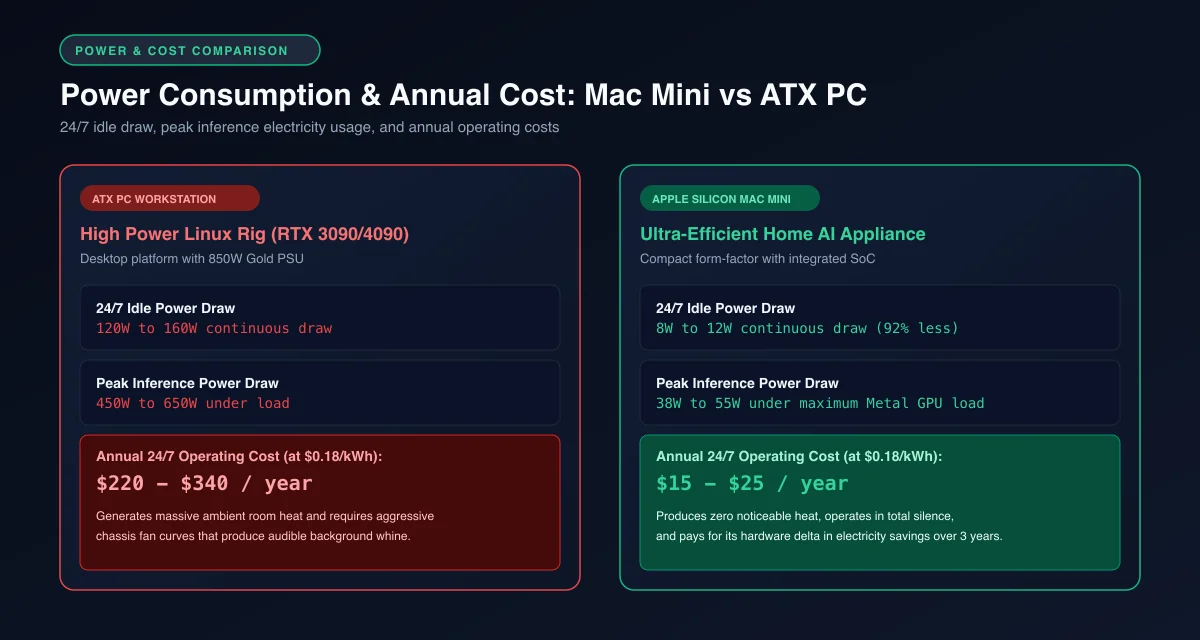 Figure 2: 24/7 power draw and annual operating costs comparing a headless Mac mini against an ATX PC workstation.
Hardware Selection: Choosing the Right Chip and RAM for 24/7 Serving
Choosing the right chip and RAM for a 24/7 Mac mini AI server depends on whether you intend to serve single-user developer autocompletion or multi-user family assistant workloads. Memory capacity dictates the maximum parameter scale and concurrent context reservations your server can host.
For entry-level home automation and smart assistant integration, the base M4 Mac mini with 16GB or 24GB of unified memory is exceptionally capable. It hosts compact models like Qwen 2.5 7B or Llama 3.2 3B, delivering instant responses to home sensor events with negligible latency.
For software developers hosting a shared coding assistant, the Mac mini M4 Pro with 48GB or 64GB of RAM represents the recommended tier. The 64GB configuration provides 273 GB/s of memory bandwidth and comfortably loads Qwen 2.5 Coder 32B alongside concurrent conversation threads.
Investing in internal SSD storage is also critical. Downloading multiple model weights, LoRA adapters, and key-value cache scratchpads quickly consumes drive space. Sizing the internal storage at 1TB or attaching a high-speed Thunderbolt 4 NVMe external drive ensures plenty of space for expanding model libraries.
Configuring Headless macOS: Sleep Overrides and launchd Daemon Setup
Configuring headless macOS requires overriding power management sleep timers in the terminal and establishing a launchd service descriptor that automatically launches the Ollama server on system boot. Proper headless configuration ensures that the machine remains accessible without an attached keyboard, mouse, or monitor.
First, adjust your headless mac mini sleep settings to prevent the operating system from suspending GPU cores or sleeping network interfaces when no display is detected. Open a terminal session and execute the following power management commands.
# Prevent macOS from sleeping when connected to AC power
sudo pmset -a sleep 0
sudo pmset -a disablesleep 1
sudo pmset -a displaysleep 0
sudo pmset -a womp 1

# Enable automatic restart after power failure
sudo pmset -a autorestart 1
Next, configure the mac mini launchd ollama service by creating a dedicated launch daemon property list. This file ensures Ollama starts immediately on system boot and binds its HTTP REST endpoint to all internal network interfaces.
Create the file /Library/LaunchDaemons/com.ollama.server.plist with administrative privileges.
<?xml version="1.0" encoding="UTF-8"?>
<!DOCTYPE plist PUBLIC "-//Apple//DTD PLIST 1.0//EN" "http://www.apple.com/DTDs/PropertyList-1.0.dtd">
<plist version="1.0">
<dict>
    <key>Label</key>
    <string>com.ollama.server</string>
    <key>ProgramArguments</key>
    <array>
        <string>/usr/local/bin/ollama</string>
        <string>serve</string>
    </array>
    <key>EnvironmentVariables</key>
    <dict>
        <!-- Bind API to all interfaces for internal network routing -->
        <key>OLLAMA_HOST</key>
        <string>0.0.0.0:11434</string>
        <!-- Limit context buffer to maintain fast multi-request serving -->
        <key>OLLAMA_NUM_CTX</key>
        <string>4096</string>
        <!-- Pin model weights into memory for instant subsequent responses -->
        <key>OLLAMA_KEEP_ALIVE</key>
        <string>24h</string>
    </dict>
    <key>RunAtLoad</key>
    <true/>
    <key>KeepAlive</key>
    <true/>
    <key>StandardOutPath</key>
    <string>/var/log/ollama.log</string>
    <key>StandardErrorPath</key>
    <string>/var/log/ollama.err.log</string>
</dict>
</plist>
Load and activate the daemon using the macOS service controller according to instructions documented in the Apple Developer launchd Documentation.
# Set proper permissions and load the background daemon
sudo chown root:wheel /Library/LaunchDaemons/com.ollama.server.plist
sudo launchctl load -w /Library/LaunchDaemons/com.ollama.server.plist
For performance tuning parameters that maximize token generation velocity on Apple Silicon, review our guide to Ollama MLX on Mac speed tuning.
Encrypted Remote Access Across Phone and Laptop via Tailscale
Encrypted remote access across phone and laptop devices is achieved by installing Tailscale on the Mac mini, creating a zero-configuration WireGuard mesh network that routes queries securely without exposing public router ports.
Opening traditional firewall port forwards creates dangerous security vulnerabilities by exposing unauthenticated REST APIs to internet port scanners. Configuring tailscale ollama remote access sidesteps this hazard by establishing an encrypted peer-to-peer overlay network.
Install Tailscale on the Mac mini and authenticate the device into your private tailnet.
# Install Tailscale via Homebrew
brew install --cask tailscale

# Start and authenticate the Tailscale daemon
tailscale up --ssh
Once connected, run tailscale ip -4 to retrieve your Mac mini’s private 100.x.x.x IP address. Every device registered on your Tailscale account can now communicate with the Mac mini directly. According to the Tailscale Encrypted Mesh Documentation, all packets travel through end-to-end encrypted WireGuard tunnels without routing through public relay servers.
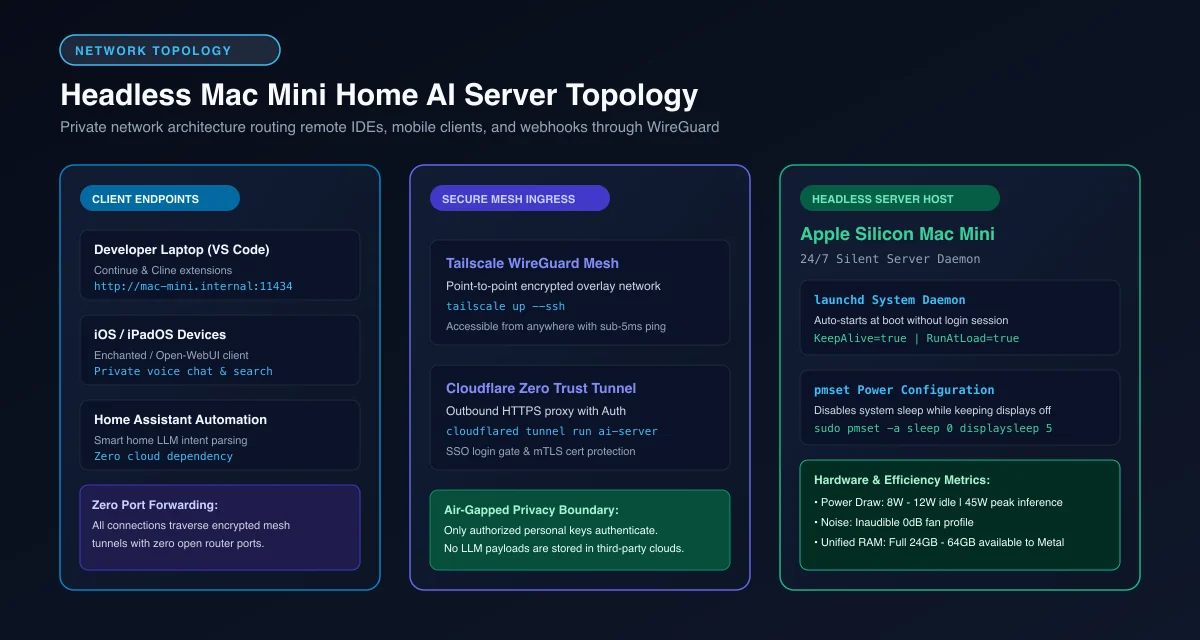 Figure 1: Multi-client headless server architecture connecting local IDEs, mobile clients, and webhooks to an Apple Silicon Mac mini.
You can verify remote connectivity from a laptop or mobile terminal by sending an HTTP health check.
# Verify remote Ollama connectivity over Tailscale mesh
curl -s http://100.x.y.z:11434/api/tags | jq .
Deploying Open WebUI for a Private Browser Interface
Deploying Open WebUI for a private browser interface provides a full-featured ChatGPT equivalent hosted directly on your Mac mini, featuring chat history, document retrieval, and multi-user access.
Rather than installing heavy virtual machine hypervisors, developers can run containerized tools through OrbStack, a fast, lightweight container engine optimized for Apple Silicon. Configuring an open webui mac mini deployment requires a simple Docker Compose configuration.
Create a docker-compose.yml file on your Mac mini to orchestrate the web interface.
services:
  open-webui:
    image: ghcr.io/open-webui/open-webui:main
    container_name: open-webui
    restart: always
    ports:
      - "3000:8080"
    environment:
      - OLLAMA_BASE_URL=http://host.docker.internal:11434
    volumes:
      - open-webui-data:/app/backend/data
    extra_hosts:
      - "host.docker.internal:host-gateway"

volumes:
  open-webui-data:
Launch the container in detached background mode.
# Start Open WebUI in the background
docker compose up -d
The web dashboard is now accessible at http://localhost:3000 on the Mac mini, or at http://100.x.y.z:3000 from any device connected to your Tailscale mesh network. Technical specifications and user management features are detailed in the Open WebUI GitHub Repository.
Developers interested in broader self-hosting architectures can consult our guide on how to self-host ChatGPT alternatives.
Connecting Client Apps, Mobile Shortcuts, and IDE Extensions
Connecting client apps, mobile shortcuts, and IDE extensions transforms your Mac mini from a standalone web server into an integrated infrastructure backend for your entire developer workflow.
You can configure VS Code extensions like Continue or Cline to route code completion requests to your home server. Simply point the extension endpoint to your Mac mini’s Tailscale IP address http://100.x.y.z:11434 and select a lightweight model like Qwen 2.5 Coder.
On iOS devices, Apple Shortcuts can send prompt queries directly to the server API via standard HTTP POST actions, enabling customized Siri integrations. Specifications from the Ollama Official Server Documentation verify that the REST endpoint remains fully compatible with OpenAI API schemas, allowing drop-in client integration.
Setting up this comprehensive mac mini ollama server setup creates a private, energy-efficient AI platform that eliminates cloud API subscription costs while keeping all personal data strictly on your own hardware.
Frequently Asked Questions About Mac mini AI Servers
Can a Mac mini run 24/7 as an AI server without overheating?
Yes, Apple Silicon Mac mini models feature active blower cooling that easily dissipates the 25W to 35W heat output produced during continuous LLM inference. Even when running multi-turn agent loops for hours, operating temperatures remain well within safe limits with virtually inaudible fan noise.
How do I query my Mac mini AI server from my iPhone outside my home?
Install Tailscale on both your Mac mini and iPhone, which connects both devices through an encrypted WireGuard mesh network. You can then query the Ollama REST API or access Open WebUI directly using the Mac mini’s private Tailscale IP address without port forwarding.
Does the Mac mini need an attached display to run AI models headlessly?
No, Apple Silicon Mac mini hardware boots, runs macOS background daemons, and processes GPU compute workloads completely headlessly without an attached monitor. If you occasionally need remote desktop access via Screen Sharing, a cheap HDMI dummy plug can simulate a high-resolution display buffer.