Moltbot (Clawdbot) Guide: Self-Hosted AI Setup & Tutorial (2026)
Master Moltbot (Clawdbot): The open-source, self-hosted AI assistant. Complete setup tutorial, local models with Ollama, MCP integration, and fixes.
This comprehensive clawdbot tutorial walks engineers through installing, configuring, and deploying Moltbot (now evolved into OpenClaw) as a personal, self-hosted AI assistant. Running an autonomous AI agent locally keeps sensitive system telemetry, file access credentials, and conversation histories entirely on your own physical hardware.
Key Takeaways
- Moltbot (Clawdbot) operates as a self-hosted background gateway daemon on localhost port 3001, executing POSIX shell commands and managing local files while keeping sensitive data off third-party servers.
- The software project originated as Warelay, rebranded to Clawdbot, briefly adopted the Moltbot name following Anthropic trademark requests, and permanently established its open-source foundation under OpenClaw.
- Running local models through Ollama (such as Qwen 2.5 Coder 32B or DeepSeek-R1) eliminates recurring token charges, saving an estimated $5.40 to $7.50 weekly compared to continuous cloud API polling.
- Resolving the common “gateway did not become ready” initialization error requires executing the OpenClaw doctor command (
openclaw doctor --fix), verifying port 3001 availability, and settinggateway.mode local.- Standardized Model Context Protocol (MCP) support enables Moltbot to act as both an MCP client for external services and an MCP server for IDEs.
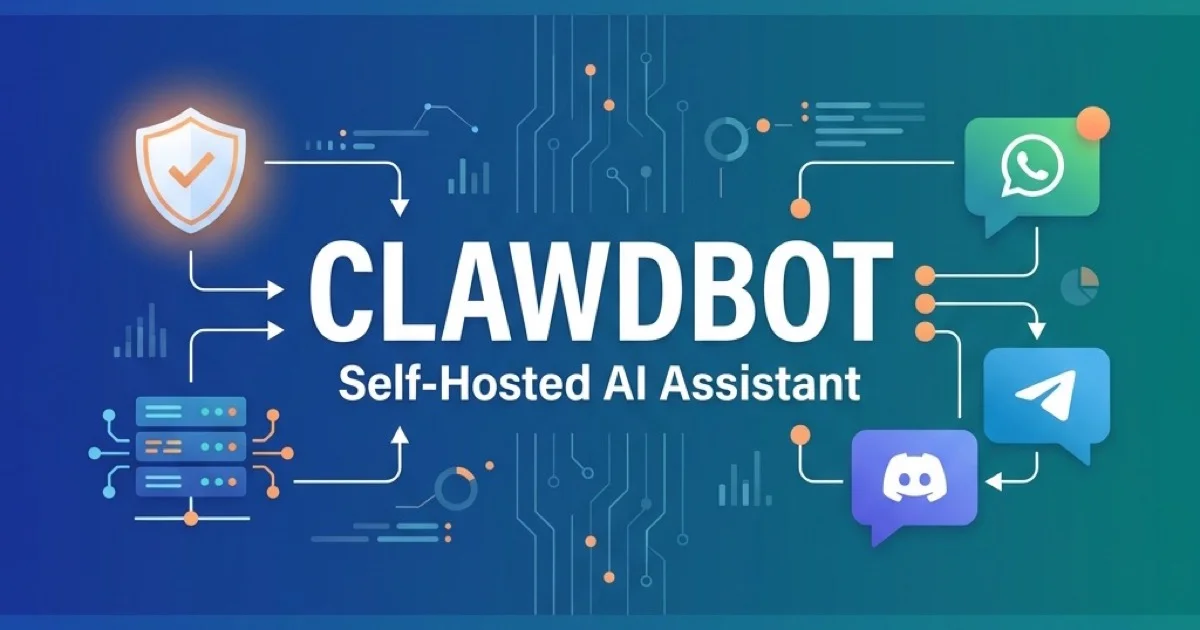
Moltbot connects frontier large language models directly to operating system primitives and everyday messaging channels including WhatsApp, Telegram, Discord, and Slack. Rather than confining automated tasks to an isolated browser sandbox, the system bridges local shell environments with autonomous reasoning loops. For an exploration of autonomous agent communities, serverless MoltWorker hosting, and multi-platform cost curves, read our Moltbook and OpenClaw ecosystem guide.
+-------------------------------------------------------------------------+
|                  Moltbot / OpenClaw Unified Architecture                |
+-------------------------------------------------------------------------+
|  Messaging Clients: WhatsApp  |  Telegram  |  Discord  |  Slack         |
+-------------------------------------------------------------------------+
                                    |
                                    v (WebSocket / IPC)
+-------------------------------------------------------------------------+
|  Local Gateway Daemon (Port 3001)                                       |
|  - DM Pairing & Security Handshake                                      |
|  - Channel Routing & Context Session Store                              |
|  - JSON5 Runtime Config (~/.openclaw/ or ~/.clawdbot/)                  |
+-------------------------------------------------------------------------+
          |                                            |
          v                                            v
+-----------------------+                    +----------------------------+
| Tool & MCP Execution  |                    | LLM Inference Engine       |
| - POSIX Shell Runner  |                    | - Local: Ollama / vLLM     |
| - File System R/W     |                    | - Cloud: Claude Sonnet 5   |
| - MCP Client / Server |                    | - Cloud: GPT-5.6 Sol       |
| - Home Assistant Node |                    | - Cloud: Gemini 3.7 Flash  |
+-----------------------+                    +----------------------------+
What is Moltbot? Architecture and the Clawdbot to OpenClaw Evolution
Moltbot is an open-source, local-first personal AI assistant that runs directly on user hardware, executing operating system commands and routing responses through messaging applications. It pairs frontier reasoning engines with local execution rights rather than delegating sensitive system operations to remote third-party web interfaces.
The software landscape around the project underwent rapid rebranding in early 2026. Creator Peter Steinberger initially published the tool as Warelay in November 2025 before renaming it Clawdbot. In late January 2026, Anthropic requested a trademark change due to naming proximity to Claude, prompting a brief shift to Moltbot.
Three days later, the repository permanently relaunched under the OpenClaw Official GitHub Repository. Governance transitioned to an independent open-source foundation as Steinberger joined OpenAI. Choosing a clawdbot self hosted architecture gives developers total control over system privileges and data residency.
Understanding autonomous AI agents guide reveals why this local-first architecture captured developer attention so rapidly. Cloud chatbots operate in strict web sandboxes where they cannot inspect local configuration files, execute terminal scripts, or read system logs. Moltbot bridges that gap by running a persistent gateway process directly on macOS, Linux, or Windows WSL2 environments. Analyzing the overall clawdbot architecture clarifies how the gateway routes requests between channels and tools.
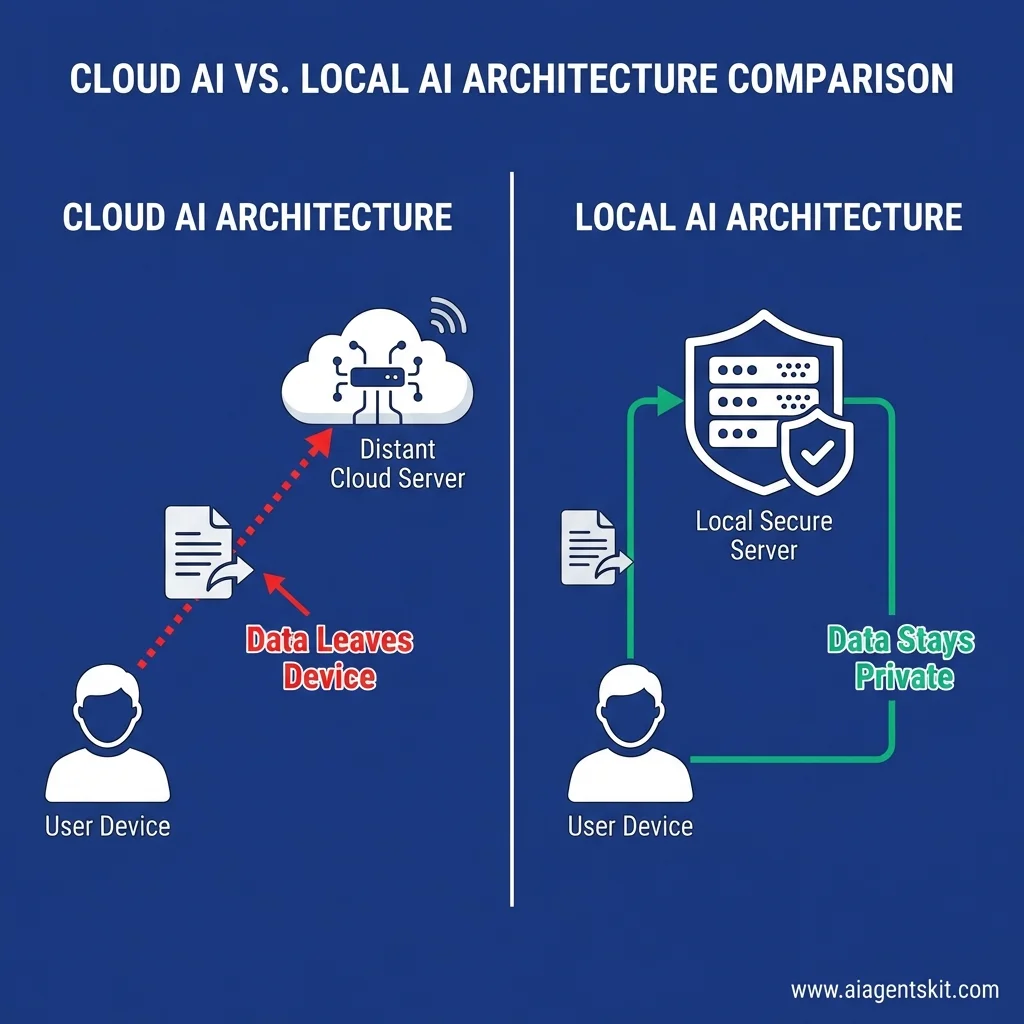
The system operates around three distinct layers: the Gateway daemon, channel adapters, and execution skills. The Gateway maintains persistent conversation history and manages tool permissions. Channel adapters connect the gateway to messaging services, translating incoming chat messages into agent prompts and returning execution outputs.
OpenClaw crossed 100,000 GitHub stars within weeks of release in early 2026, demonstrating huge demand for self-hosted execution environments. The following comparison highlights key operational differences across deployment models:
| Feature / Capability | Moltbot / OpenClaw (Self-Hosted) | Cloud Assistants (ChatGPT / Claude) | Raw Local LLMs (Ollama CLI / LM Studio) |
|---|---|---|---|
| Data Boundary | 100% Local (Hardware Controlled) | Vendor Cloud Data Centers | 100% Local (Hardware Controlled) |
| System Tool Access | POSIX Shell, Filesystem, Browser, MCP | Restricted Cloud Sandbox | None (Requires External Orchestrator) |
| Messaging Gateways | WhatsApp, Telegram, Discord, Slack | Dedicated Mobile / Web Apps Only | Web UI or CLI Terminal Only |
| Inference Flexibility | Hybrid (Ollama Local or Cloud APIs) | Vendor Locked (GPT or Claude Only) | Open-Weight Local Models Only |
| Background Daemons | Native launchd and systemd Services | None (Manual Session Interaction) | Background Service Available |
| Protocol Standards | Native Model Context Protocol (MCP) | Custom Function Calling Formats | OpenAI Compatible API Emulation |
How to Install and Set Up Moltbot (Clawdbot): Complete Step-by-Step Guide
Installing Moltbot requires Node.js 22 LTS or newer, a POSIX-compliant shell environment, and administrative access to configure persistent background daemons. The setup process configures the CLI, initializes local workspace directories, generates runtime authentication tokens, and pairs messaging channels in under fifteen minutes.
This comprehensive clawdbot installation guide details the commands needed to run the daemon across Unix environments. Engineers must verify runtime prerequisites prior to executing installation scripts. The Node.js 22 LTS Documentation outlines the ECMAScript module and process management standards utilized by the daemon. Execute the following command to verify your local runtime environment:
# Verify Node.js runtime version
node --version
If the terminal returns a version below v22.16.0, update your environment using Node Version Manager (nvm install 22 && nvm use 22). For comprehensive platform setups and Windows WSL2 walkthroughs, refer to our OpenClaw installation guide. For macOS and Linux systems, install the agent using the official automated installer script:
# Execute automated installation script
curl -fsSL https://openclaw.ai/install.sh | sh
Developers who prefer manual package management can install the CLI globally via npm or pnpm. Both legacy package aliases (clawdbot, moltbot) and the modern package (openclaw) remain supported:
# Global installation via npm
npm install -g openclaw@latest

# Verify installation output
openclaw --version
+-------------------------------------------------------------------------+
| Step-by-Step Setup Sequence |
+-------------------------------------------------------------------------+
| 1. Install Runtime & Package (Node.js 22+ & openclaw CLI) |
| | |
| v |
| 2. Execute Onboarding Wizard (`openclaw onboard --install-daemon`) |
| | |
| v |
| 3. Configure Messaging Gateway (Telegram BotFather / WhatsApp QR) |
| | |
| v |
| 4. Pair Security Token & Validate Health (`openclaw doctor`) |
+-------------------------------------------------------------------------+Once installed, launch the interactive onboarding wizard to configure the gateway daemon, storage directories, and channel credentials:
# Launch interactive onboarding and install background daemon
openclaw onboard --install-daemon
The onboarding wizard prompts for your primary workspace location (defaults to ~/.openclaw/workspace), gateway listening ports, and preferred AI provider credentials. Editing the main clawdbot config file located at ~/.openclaw/openclaw.json allows fine-tuning runtime flags and listening interfaces. To register Telegram as your primary communication channel, open Telegram, message @BotFather, and send /newbot to generate an authentication bot token. Supply that token directly to the channel configuration utility:
# Configure Telegram channel gateway
openclaw configure --section channels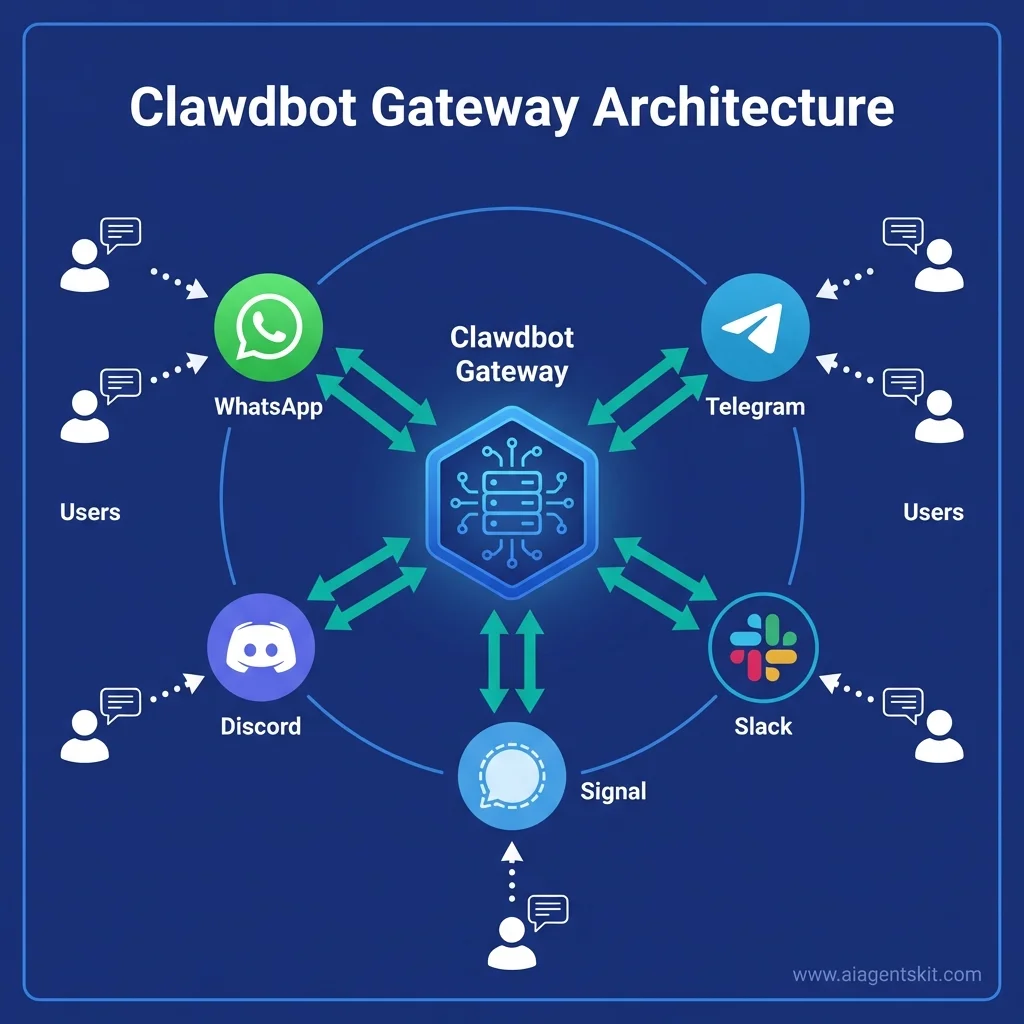
Start the background gateway daemon to begin processing incoming messages. You can verify daemon health using the native status inspector:
# Start background daemon on macOS or Linux
openclaw daemon start

# Inspect operational health and port bindings
openclaw daemon status
Send a simple /start message to your registered bot on Telegram. The bot responds with a pairing code, which you approve in the terminal to grant your personal account exclusive access.
Connecting Local LLMs via Ollama vs Cloud APIs (Claude, OpenAI, Gemini)
Connecting Moltbot to local models via Ollama provides complete data isolation and zero token charges, while cloud APIs offer superior reasoning depth for complex multi-file engineering refactors. Choosing the optimal inference engine depends on your hardware specifications, latency tolerances, and operational budget constraints.
Developers can configure local inference using running local LLMs with Ollama on workstations equipped with modern Apple Silicon or NVIDIA RTX graphics cards. Configuring a clawdbot local model via Ollama ensures complete isolation from external networks and eliminates API subscription expenses.
Quantized 14B or 32B models, such as Qwen 2.5 Coder or DeepSeek-R1 Distill, handle routine file manipulation and tool execution with low latency. Connect Ollama directly to the agent runtime:
# Launch OpenClaw configured against a local Ollama instance
ollama launch openclaw --model qwen2.5-coder:32b
Alternatively, you can edit ~/.openclaw/openclaw.json (or legacy ~/.clawdbot/config.json) to declare Ollama as the default provider:
{
  "agents": {
    "defaults": {
      "model": "ollama/qwen2.5-coder:32b",
      "endpoint": "http://127.0.0.1:11434/v1"
    }
  }
}
When multi-step agentic workflows require frontier reasoning capabilities, connect cloud model providers. The Anthropic Prompt Caching Documentation demonstrates how persistent system prompts reduce latency by up to 80% and token costs by 90% during repeated conversational loops. Register your API tokens securely:
# Configure Anthropic Claude credentials
openclaw models auth setup-token --provider anthropic

# Configure Google Gemini credentials
openclaw models auth setup-token --provider google
+-------------------------------------------------------------------------+
| Inference Engine Decision Framework |
+-------------------------------------------------------------------------+
| Task: Routine File Organization, Terminal Scripts, Home IoT |
| --> Route to Local Ollama (Qwen 2.5 Coder 32B / DeepSeek-R1) |
| --> Outcome: $0 API cost, zero network transmission |
+-------------------------------------------------------------------------+
| Task: Multi-File Code Refactoring, Deep Research Synthesis |
| --> Route to Frontier Cloud (Claude Sonnet 5 / GPT-5.6 Sol) |
| --> Outcome: Maximum architectural reasoning, prompt-cached tokens |
+-------------------------------------------------------------------------+Model switching commands function directly within messaging chat sessions. To execute a clawdbot change model action during an active session, send /model directly in chat. For example, sending /model claude-sonnet-5 shifts the active agent session to Claude for high-complexity programming tasks, while /model ollama/qwen2.5-coder:32b switches back to local inference.
Model Context Protocol (MCP): Connecting Tools, Databases, and Services
The Model Context Protocol (MCP) provides a standardized client-server specification that allows Moltbot to discover tools, execute database queries, and inspect APIs through uniform protocol schemas. Adopting MCP eliminates brittle custom skill wrappers in favor of interoperable, community-maintained server components.
Reviewing Model Context Protocol architecture clarifies how stdio and HTTP transports decouple agent logic from underlying tool implementations. Moltbot operates simultaneously as an MCP client (consuming external tools) and as an MCP server (exposing its own agent tools to editors like Cursor or VS Code).
Running a clawdbot mcp server enables external applications to access internal automation tools through standard protocol schemas. The Model Context Protocol Specification defines standard JSON-RPC 2.0 message schemas for tool enumeration and execution.
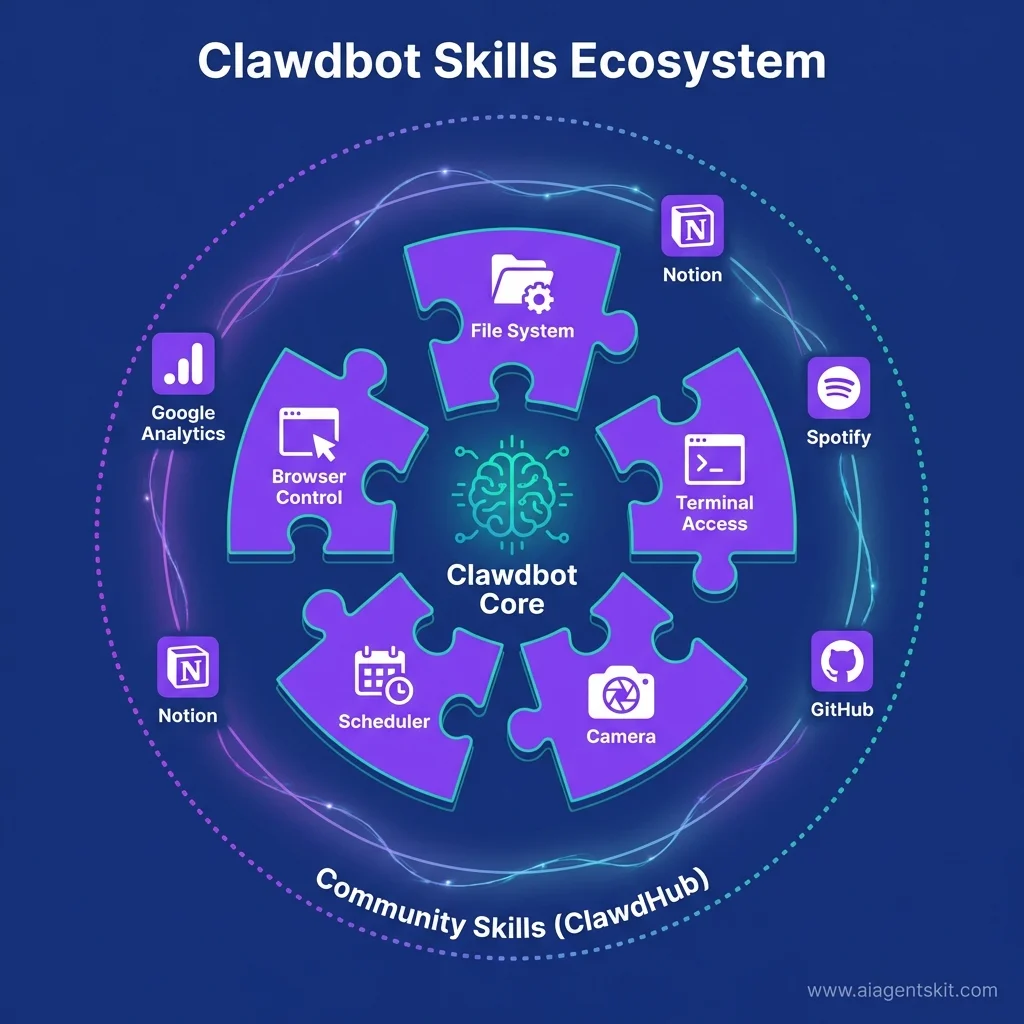
To connect external MCP tools, register them via the CLI or declare them in your configuration file. For example, connecting a PostgreSQL database inspection server requires a single command:
# Register a PostgreSQL MCP server via stdio transport
openclaw mcp add postgres npx -y @modelcontextprotocol/server-postgres postgresql://localhost/production_db
Similarly, engineers can connect GitHub repository management tools to automate pull request workflows and issue triage:
# Register GitHub MCP server with environment authentication
openclaw mcp add github npx -y @modelcontextprotocol/server-github --env GITHUB_PERSONAL_ACCESS_TOKEN=$GITHUB_TOKEN
Verify all active MCP connections and available tool definitions using the diagnostic command:
# List configured MCP servers and active tool schemas
openclaw mcp list
To expose Moltbot tools to external development environments, launch the native server daemon using openclaw mcp serve. This mode allows desktop code editors to call Moltbot capabilities directly through standard JSON-RPC pipes.
Security Best Practices: Sandboxing, Token Auth, and Safe Operation
Operating an autonomous personal assistant with terminal execution capabilities requires strict boundary enforcement, unprivileged process isolation, and direct messaging authorization. Because the agent executes shell commands on physical hardware, proper containment protects sensitive user directories against accidental deletion or prompt injection exploits.
When adjusting model targets or provider credentials, consulting changing models without breaking your setup prevents syntax errors from corrupting daemon configurations. Run the agent under an unprivileged system account rather than root:
# Create dedicated unprivileged user on Linux systems
sudo useradd -m -s /bin/bash openclaw-agent
sudo passwd -l openclaw-agent
Configure workspace boundaries to prevent the assistant from navigating beyond approved working directories. Restrict write permissions on sensitive directories containing private SSH keys, system binaries, and financial records:
# Set restricted agent workspace path
export OPENCLAW_WORKSPACE=~/agent-sandbox

# Secure sensitive configuration directories
chmod 700 ~/.ssh
chmod 700 ~/.gnupg
+-------------------------------------------------------------------------+
| Defense-in-Depth Security Perimeter |
+-------------------------------------------------------------------------+
| Layer 1: Channel DM Pairing (Cryptographic PIN handshake) |
| | |
| v |
| Layer 2: Unprivileged POSIX User (`openclaw-agent`, non-root) |
| | |
| v |
| Layer 3: Workspace Containment (`~/agent-sandbox`, strict chmod) |
| | |
| v |
| Layer 4: Docker Container Isolation for Untrusted Third-Party Plugins |
+-------------------------------------------------------------------------+Messaging channel access must use strict Direct Message (DM) pairing. When an unknown phone number or username messages your bot, the gateway issues a single-use pairing code and blocks execution until the administrator enters that code in the host terminal. Never set messaging channel policies to public or open.
For untrusted plugins or community extensions, enable Docker-based sandboxing:
# Enforce containerized execution for third-party extensions
openclaw config set skills.sandboxing.enabled true
Sandboxed processes execute inside transient containers with read-only root filesystems and restricted bridge networking, isolating your host operating system from potential script failures.
Troubleshooting Common Issues: Fixing “Gateway Did Not Become Ready”
The error “gateway did not become ready” indicates that the background daemon started its process lifecycle but failed to complete TCP port binding, configuration loading, or database initialization within the default 60-second timeout. Resolving this issue requires inspecting daemon logs, clearing port conflicts, and verifying runtime flags.
When diagnosing a clawdbot gateway did not become ready error, check port 3001 socket availability first. The openclaw doctor command automatically repairs socket configurations and system paths:
# Run automated configuration repair and restart daemon
openclaw doctor --fix && openclaw restart
If the gateway continues to stall, inspect live log outputs to pinpoint the precise failure phase:
# Stream daemon logs in real time
openclaw logs --follow
The gateway must successfully output [gateway] listening on :3001 (or your configured port). If this line does not appear, check whether another process has claimed the gateway port:
# Inspect process listeners on port 3001 (macOS / Linux)
lsof -i :3001
If a lingering daemon occupies the socket, terminate the PID using kill -9 <PID> or reassign the listening port:
# Reconfigure gateway listening port
openclaw config set gateway.port 3002
openclaw gateway restart
Another common trigger is an unconfigured gateway mode. Setting the mode explicitly to local resolves startup stalls:
# Enforce explicit local gateway execution mode
openclaw config set gateway.mode local
openclaw daemon restart
When deploying local models alongside the gateway, reference the Ollama Official Model Library to ensure your selected model is fully pulled and cached locally. Running out of VRAM during model loading can stall the gateway initialization sequence indefinitely.
For Windows WSL2 environments encountering exec: node: not found, ensure Node.js is installed directly inside the Linux distribution rather than referencing the Windows host binary. Execute which node inside WSL2 to confirm the path points to /usr/bin/node or ~/.nvm/.
How to Uninstall Moltbot (Clawdbot) and Clean Background Daemons
Completely uninstalling Moltbot requires stopping the active daemon service, unregistering startup plists or systemd unit files, removing globally installed npm packages, and deleting persistent workspace directories. Following a structured cleanup procedure ensures that no orphan background processes continue consuming system memory.
Following this clawdbot uninstall procedure ensures that background daemons and service files do not persist on your machine. To manually uninstall clawdbot, remove the global npm package and configuration directories. Execute the built-in non-interactive removal command to tear down background services and purge application state:
# Complete automated teardown of services and configuration
openclaw uninstall --all --yes
If the CLI utility has already been deleted or you prefer manual cleanup, follow this sequential removal process. First, stop and disable the running daemon:
# Stop running daemon process
openclaw daemon stop
openclaw daemon uninstall
Next, uninstall the global npm or pnpm package:
# Remove global package installations
npm rm -g openclaw moltbot clawdbot
+-------------------------------------------------------------------------+
| Complete Manual Cleanup Sequence |
+-------------------------------------------------------------------------+
| 1. Terminate Daemon: `openclaw daemon stop` |
| 2. Unload Service: `launchctl bootout` or `systemctl --user disable` |
| 3. Purge Package: `npm rm -g openclaw moltbot clawdbot` |
| 4. Delete State Directories: `rm -rf ~/.openclaw ~/.moltbot` |
| 5. Revoke Messaging Bots: Delete Telegram bot via @BotFather |
+-------------------------------------------------------------------------+Remove persistent configuration, chat history, and credential stores from your user home directory:
# Purge configuration files and legacy directories
rm -rf ~/.openclaw ~/.moltbot ~/.clawdbot ~/molt
On macOS systems using launchd, ensure the LaunchAgent configuration file is purged:
# Unload and delete macOS launchd service plist
launchctl bootout gui/$UID/com.openclaw.gateway 2>/dev/null
rm -f ~/Library/LaunchAgents/com.openclaw.gateway.plist
rm -f ~/Library/LaunchAgents/com.moltbot.gateway.plist
On Linux systems using systemd, disable the user unit and reload the service manager:
# Disable and remove Linux systemd service
systemctl --user disable --now openclaw-gateway.service 2>/dev/null
rm -f ~/.config/systemd/user/openclaw-gateway.service
rm -f ~/.config/systemd/user/moltbot-gateway.service
systemctl --user daemon-reload
Finally, disconnect messaging channel bots. In Telegram, message @BotFather, select your bot, and choose /deletebot to invalidate the authentication token permanently. In Discord, kick the bot application from your server settings.
Real-World Use Cases: Home Assistant, Automation, and Messaging Gateways
Deploying a self-hosted AI assistant enables autonomous routines that combine real-time messaging, smart home control, and automated developer maintenance. Because the agent retains context across conversations, it operates as an active digital butler rather than a stateless prompt responder.
Following AI data privacy best practices ensures that home telemetry and private schedules remain strictly confined to local storage. Building a clawdbot home assistant integration allows natural voice and text control over local smart lights and thermostats through native REST APIs or MCP bridges. Users can issue conversational requests via WhatsApp while commuting:
User (WhatsApp): "Set home to evening mode and preheat oven to 400 degrees."
Moltbot: Executes Home Assistant scene 'evening_relax', sets lighting to 30% warm, triggers kitchen smart plug, and responds with confirmation.
Another high-value application is automated morning briefing synthesis. Using scheduled cron heartbeats, the assistant inspects your local calendar, parses unread emails, checks weather forecasts, and sends an itemized daily briefing to Telegram at 7:30 AM:
// Sample heartbeat automation configuration in ~/.openclaw/tasks/briefing.ts
export default {
  schedule: '30 7 * * 1-5', // Weekdays at 7:30 AM
  async execute(agent) {
    const calendar = await agent.tools.calendar.getUpcomingEvents();
    const emails = await agent.tools.email.getUnreadUrgent();
    const summary = await agent.reason(`Summarize these items in 4 bullet points: ${JSON.stringify({ calendar, emails })}`);
    await agent.channels.telegram.send(summary);
  }
};
Software engineers frequently use Moltbot for CI/CD pipeline monitoring and pull request hygiene. When a GitHub Actions build fails, the agent parses the failure log, identifies the failing unit test, and sends a concise root-cause breakdown to a private Discord channel.
Pricing and Cost Structure: Local Inference vs Cloud API Tokens
Moltbot software is completely free and open-source, meaning operational expenses depend entirely on your choice between local hardware inference and cloud API token consumption. Deploying with local models on owned hardware creates a predictable $0 recurring cost model.
The cheapest way to run clawdbot is using local open-weight models on owned hardware with zero API subscriptions. Running the assistant entirely locally using Ollama requires no external credit cards. A modern Mac mini or desktop PC equipped with 32GB of RAM easily runs 14B parameter models with negligible electricity overhead (approximately $1.50 to $3.00 monthly in power consumption).
Selecting the right clawdbot hosting option depends on whether you run on a local machine or a low-cost cloud virtual server. When using cloud frontier models, costs scale with conversation frequency and prompt length. Because Moltbot maintains conversation history and tool schema descriptions in prompt context, each interaction consumes between 1,500 and 4,000 input tokens. The following cost breakdown compares typical deployment configurations:
| Deployment Profile | Hosting Infrastructure | Language Model Engine | Monthly Software Cost | Estimated Monthly API Cost | Total Monthly Expense |
|---|---|---|---|---|---|
| Local Offline | Local Workstation / Mac mini | Ollama (Qwen 2.5 Coder 32B) | $0.00 | $0.00 | $0.00 |
| Budget Cloud | Local Workstation | Claude Haiku 4.5 / Gemini 3.7 Flash | $0.00 | $4.00 - $8.00 | $4.00 - $8.00 |
| Frontier Reasoning | Local Workstation | Claude Sonnet 5 / GPT-5.6 Sol | $0.00 | $15.00 - $30.00 | $15.00 - $30.00 |
| Dedicated 24/7 VPS | Hetzner Cloud (CPX21, 3 vCPU, 4GB) | Claude Sonnet 5 + Ollama Hybrid | $8.50 | $12.00 - $20.00 | $20.50 - $28.50 |
Engineers can optimize cloud expenses by configuring prompt caching and setting budget thresholds in their provider consoles. For routine notifications and status checks, routing background queries to lightweight models like Claude Haiku 4.5 or local Ollama instances prevents unexpected token spikes. For an in-depth breakdown of practical workloads that maximize return on investment, explore our guide to OpenClaw use cases covering automated social briefings, repository management, and data extraction pipelines.
Frequently Asked Questions
What happened to Clawdbot and why was it renamed to Moltbot and OpenClaw?
Anthropic issued a trademark request regarding the name Clawdbot in late January 2026, leading creator Peter Steinberger to briefly rename the project Moltbot before establishing its permanent open-source foundation under OpenClaw. The core codebase, gateway daemon, and local-first architecture remain fully backward-compatible across all three naming iterations.
How do I resolve the “gateway did not become ready” startup error?
This error occurs when the local gateway daemon stalls during port binding or configuration loading on port 3001. Running openclaw doctor --fix and explicitly setting openclaw config set gateway.mode local resolves configuration conflicts and restores gateway connectivity.
Can I run Moltbot and Clawdbot entirely offline with local models?
Moltbot integrates directly with Ollama to run open-weight models like Qwen 2.5 Coder or DeepSeek-R1 completely on your local GPU or Apple Silicon unified memory. Running offline ensures zero API token costs and guarantees that conversational data never transmits across external networks.
How does Moltbot connect to Model Context Protocol (MCP) servers?
Moltbot features native MCP client capabilities that allow it to attach external tool servers via standard input/output transports using CLI commands. It can also operate in server mode using openclaw mcp serve to expose its persistent agent tools to external developer environments.
How do I completely remove Clawdbot and its background services from my computer?
You must first terminate the persistent background service using openclaw daemon uninstall or the platform-specific launchctl/systemd stop command. Afterward, run npm uninstall -g openclaw (or clawdbot) and delete the persistent configuration directories located at ~/.openclaw or ~/.clawdbot.