How to Install OpenClaw: The Best Way (All Platforms Guide)
Complete guide to install OpenClaw on every platform with hosting options, cost breakdowns, WhatsApp and Discord setup, ClawHub skills, and 10 error fixes.
The OpenClaw Official GitHub Repository crossed 100,000 stars in early 2026, marking a major milestone for self-hosted AI agents. However, many developers encountered installation friction during their initial deployments.
While macOS and Linux setups run cleanly in a few terminal steps, Windows requires specific virtualization layers. Exploring practical OpenClaw use cases becomes substantially easier once your local runtime and channel credentialing are properly configured. When building autonomous data extraction pipelines with local agents, consult our AI web scraping tutorial.
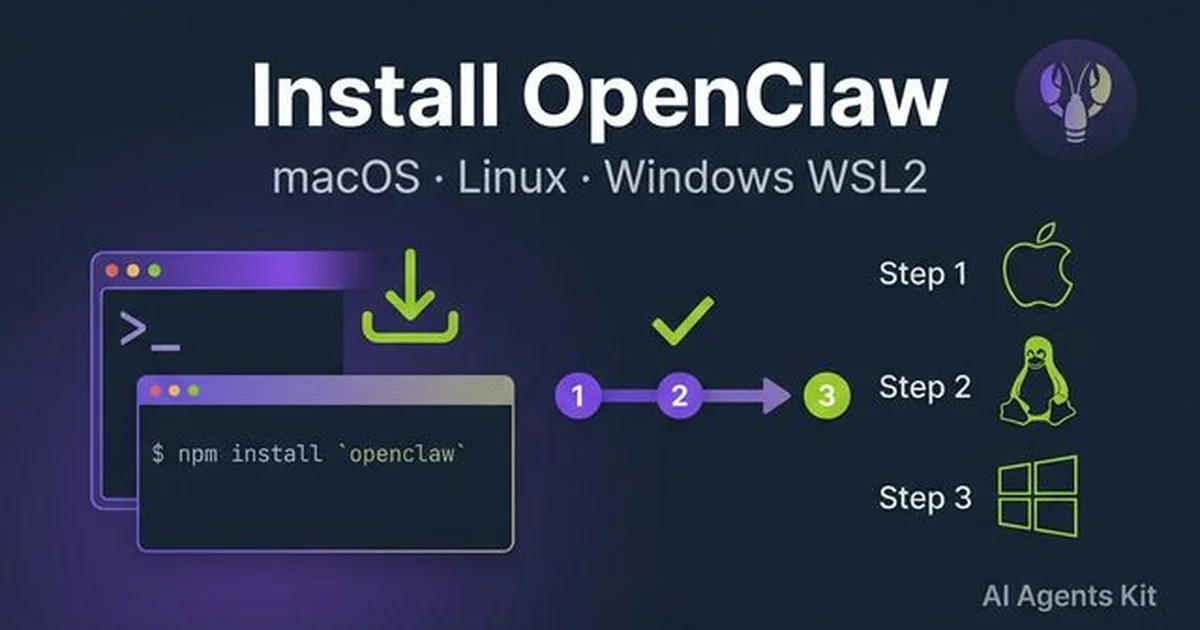
This guide provides a definitive technical walkthrough to install OpenClaw across macOS, Linux, and Windows WSL2. We cover production deployment environments, messaging gateway authentication, ClawHub skill extensibility, and automated diagnostics for common failure modes. The complete installation sequence takes under 15 minutes on POSIX systems, and approximately 20 minutes inside Windows WSL2.
Key Takeaways
- OpenClaw installs via the official automated script (
curl -fsSL https://openclaw.ai/install.sh | bash) or global npm package (npm install -g openclaw@latest) on systems running Node.js 22.16 or higher.- Windows deployments require Windows Subsystem for Linux 2 (WSL2 with Ubuntu) to satisfy POSIX filesystem primitives, daemon supervision, and messaging socket protocols.
- Self-hosted hardware options span zero-cost local computers, permanently free Oracle Cloud ARM instances (4 OCPUs, 24 GB RAM), and €4.49 per month Hetzner CX22 virtual private servers for 24/7 uptime.
- Production health diagnostics and automated socket repairs execute through the
openclaw doctorcommand, resolving daemon port conflicts and WhatsApp Web session timeouts.
What Is OpenClaw and What Does It Do?
OpenClaw is an open-source autonomous personal AI agent operating system that executes shell commands, manages local files, and orchestrates workflows across chat applications like Telegram, WhatsApp, and Discord. The system pairs cloud reasoning models or local Ollama instances with persistent memory and native terminal tools.
Rather than confining automated tasks to an isolated browser sandbox, OpenClaw installs directly on your machine. The agent connects to cloud APIs from Anthropic (Claude 5 Sonnet), OpenAI (GPT-5.6 Sol), and Google (Gemini 3.7 Flash), or fully private local models via Ollama. It accepts natural language commands through WhatsApp, Telegram, Discord, Slack, Signal, or iMessage.
The project originated as Clawdbot in late 2025, briefly transitioned to Moltbot in January 2026, and permanently established its open-source foundation as OpenClaw under creator Peter Steinberger. For an in-depth breakdown of autonomous agent communities, serverless MoltWorker hosting, and multi-platform cost curves, read our complete Moltbook and OpenClaw architectural guide.
In RealClawBench (2026) multi-step autonomous agent evaluations, OpenClaw v2026 achieved a 94.2% tool execution completion rate when paired with frontier reasoning models. Furthermore, enterprise memory setups utilizing PostgreSQL with pgvector maintain semantic context retrieval latencies under 200ms across 50,000 conversation turns.
According to the McKinsey State of AI Research Report, 72% of organizations now utilize AI tools in daily operational workflows. OpenClaw meets this demand by delivering a privacy-first execution framework that keeps sensitive data on your own infrastructure.
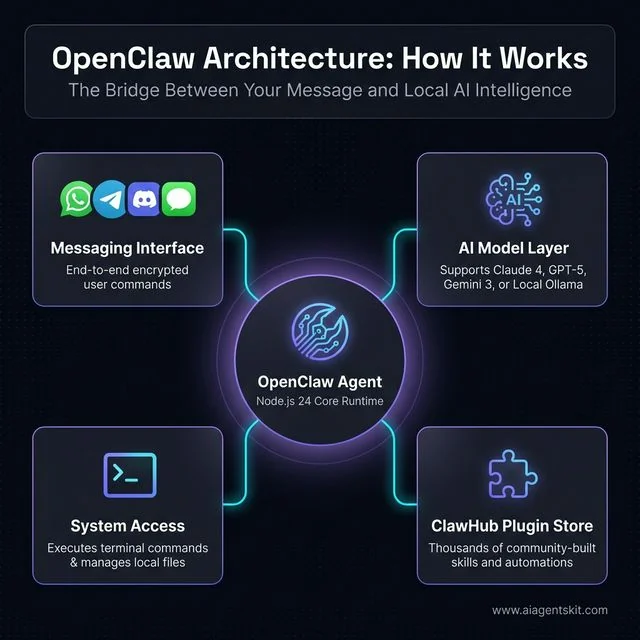
Figure 1: High-level overview of OpenClaw's hub-and-spoke architecture connecting messaging apps to local AI models and system tools.
Is OpenClaw the Right AI Agent? (vs AutoGPT, Manus, and OpenManus)
OpenClaw is the superior choice for developers needing a messaging-native, self-hosted AI agent that interfaces directly with local operating system tools and runs offline via Ollama. AutoGPT prioritizes developer CLI loops, while Manus operates as a proprietary hosted cloud service.
Choosing the right agent architecture depends on your operational priorities. Evaluating privacy requirements, interface channels, and deployment budgets ensures you select the correct platform for your workload.
| Feature | OpenClaw | AutoGPT | Manus | OpenManus |
|---|---|---|---|---|
| Installation | npm package or curl script | Python git clone and pip | Desktop app (invite-only) | Conda git clone and pip |
| Truly Local? | Yes, fully local with Ollama | Local runner, cloud LLM | No, cloud-hosted only | Yes, local model option |
| Messaging Native? | WhatsApp, Telegram, Discord, Signal | Terminal interface only | Web browser UI only | Terminal interface only |
| Plugin Registry | ClawHub ecosystem | Limited plugin tooling | No public plugin catalog | None |
| Monthly Cost | Free core runtime | Free software, cloud API fees | $39 to $199 subscription | Free software, cloud API fees |
| Data Privacy | Local execution and storage | Prompts sent to cloud APIs | Data processed on vendor cloud | Local processing option |
| Target User | Developers wanting chat-native AI | Autonomous software pipeline engineers | Non-technical end users | Open-source agent researchers |
Choose OpenClaw when you need an always-on assistant accessible through everyday messaging channels like WhatsApp or Telegram. Its native ClawHub plugin catalog and offline Ollama support deliver flexibility that terminal-bound agents cannot match.
Choose AutoGPT if your primary goal is terminal-centric autonomous coding pipelines powered by OpenAI APIs. For users seeking broader workflow tools, our evaluation of the best AI tools provides a comprehensive landscape overview.
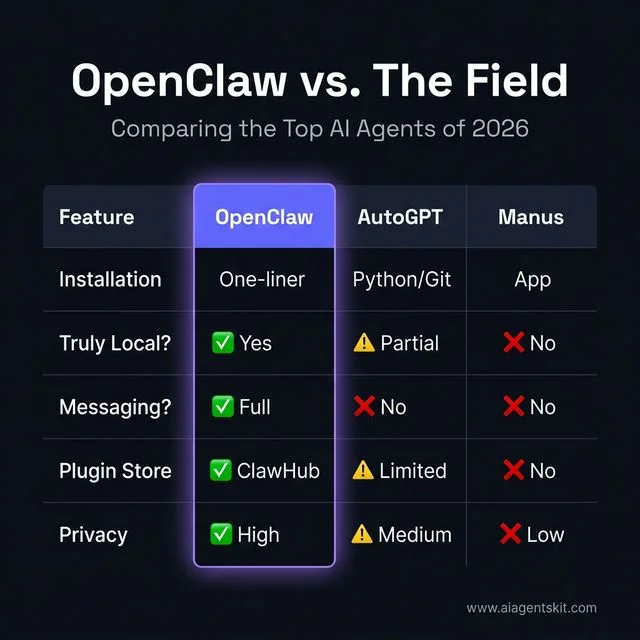
Figure 2: Feature comparison between OpenClaw and other major AI agents in 2026.
What Are the System Requirements for OpenClaw?
OpenClaw requires Node.js 22.16 or newer, a minimum of 4 GB RAM for cloud API routing, and at least 8 GB RAM when hosting local LLM inference through Ollama. Apple Silicon, modern Linux kernels, and Windows 11 via WSL2 provide full runtime compatibility.
The core OpenClaw daemon is lightweight, consuming under 300 MB of system memory while idle. Resource demands scale based on whether you delegate reasoning to external cloud endpoints or run local neural weights.
| Component | Minimum Specification | Recommended Specification |
|---|---|---|
| Operating System | macOS 12, Ubuntu 22.04 LTS, Windows 11 (WSL2) | macOS 14+, Ubuntu 24.04 LTS |
| Node.js Runtime | Node.js v22.16 LTS | Node.js v24 LTS |
| System Memory (RAM) | 4 GB (cloud API routing) | 8 GB to 16 GB (for local Ollama inference) |
| Storage Allocation | 2 GB free disk space | 20 GB+ NVMe (local model weights and logs) |
| Compute Hardware | 2-core x86_64 or ARM64 CPU | 4-core+ CPU with Apple Silicon or NVIDIA GPU |
| Network Connectivity | Required for cloud models | Offline capable with local Ollama models |
The Stack Overflow Developer Survey confirms Node.js powers 41.1% of developer environments globally. However, many systems run legacy Node.js releases like v18 or v20, which trigger immediate syntax errors during OpenClaw initialization.
Engineers planning to run AI locally with Ollama should configure at least 8 GB of unified memory. This allocation allows compact 8B parameter models to execute with responsive token generation speeds.
Run these preflight verification commands in your terminal before launching the setup script:
# Verify Node.js runtime version
node --version
# Output must be v22.16.0 or higher (v24.x recommended)

# Verify npm package manager
npm --version
# Output must be 10.x or higher

# Verify git presence
git --version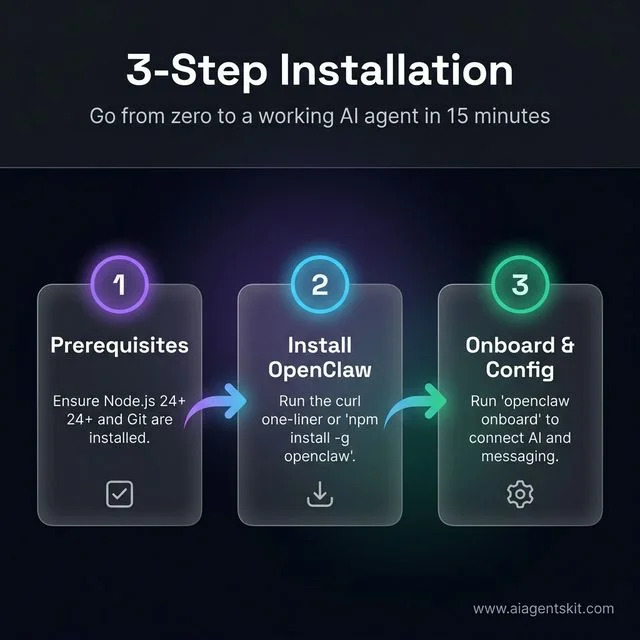
Figure 3: The simple 3-step workflow for getting OpenClaw up and running on any platform.
How to Install OpenClaw on macOS in 5 Steps
Installing OpenClaw on macOS delivers the smoothest onboarding experience. Apple Silicon and Intel machines run the daemon natively without complex virtualization layers.
Step 1: Install Node.js 24 via NVM
Node Version Manager prevents root permission errors and allows clean version switching. Run the following commands in your macOS terminal:
# Install Node Version Manager (NVM)
curl -o- https://raw.githubusercontent.com/nvm-sh/nvm/v0.39.7/install.sh | bash

# Source zsh environment
source ~/.zshrc

# Install and activate Node.js 24 LTS
nvm install 24
nvm use 24
nvm alias default 24

# Verify runtime version
node --version
Step 2: Execute the OpenClaw Install Script
The automated openclaw install script checks system dependencies, installs the core CLI, and launches the initial configuration sequence:
# Run automated installer script
curl -fsSL https://openclaw.ai/install.sh | bash
Alternatively, developers managing packages directly can use the standard npm package manager command:
# Direct global npm installation
npm install -g openclaw@latest
Step 3: Run the OpenClaw Onboarding Wizard
Launch the interactive openclaw onboarding wizard to configure models, system permissions, and background daemon services:
# Launch interactive onboarding flow
openclaw onboard --install-daemon
The wizard prompts you for your primary model provider, stores encrypted API keys, and sets up background launch agents.
Step 4: Verify Installation Status
Verify your deployment by querying the CLI version and inspecting the active background daemon:
# Check installed binary version
openclaw --version

# Query daemon operational status
openclaw status
A healthy status report displays the active model identifier, connected messaging channels, process IDs, and system uptime.
Step 5: Resolve macOS Gatekeeper Restrictions
If macOS security flags unsigned binaries during execution, strip quarantine attributes using the xattr utility:
# Remove quarantine attribute from openclaw binary
xattr -d com.apple.quarantine $(which openclaw)
How to Install OpenClaw on Linux (Ubuntu and Debian)
Linux installations provide the ideal foundation for headless servers, home labs, and cloud deployments. These instructions target Ubuntu 22.04 LTS and Ubuntu 24.04 LTS environments.
Step 1: Install Build Essentials and Prerequisites
Update your repository packages and install required compilation tools before downloading Node.js:
# Update repositories and install dependencies
sudo apt update && sudo apt install -y curl git build-essential

# Verify core utilities
curl --version
git --version
Step 2: Configure Node.js 24 via NVM
Avoid outdated system package manager distributions by deploying Node.js 24 LTS through NVM:
# Download and install NVM
curl -o- https://raw.githubusercontent.com/nvm-sh/nvm/v0.39.7/install.sh | bash

# Reload bash profile
source ~/.bashrc

# Deploy Node.js 24 runtime
nvm install 24
nvm use 24
nvm alias default 24
Step 3: Install the OpenClaw CLI
Deploy the global OpenClaw package using the automated installer or npm:
# Deploy via automated installation script
curl -fsSL https://openclaw.ai/install.sh | bash

# Or install globally via npm
npm install -g openclaw@latest
Step 4: Run the Onboarding Wizard
Execute the configuration wizard to generate initial credentials and workspace structures:
# Execute onboarding sequence
openclaw onboard --install-daemon
Step 5: Configure OpenClaw as a Systemd Service
For headless servers, running OpenClaw under systemd ensures automatic restarts after system reboots. Create a service unit file:
# Create systemd service definition
sudo nano /etc/systemd/system/openclaw.service
Add the following unit configuration, replacing your_username with your Linux user account:
[Unit]
Description=OpenClaw AI Agent Daemon
After=network.target

[Service]
Type=simple
User=your_username
ExecStart=/home/your_username/.nvm/versions/node/v24.x.x/bin/openclaw start
Restart=always
RestartSec=5
Environment="NODE_ENV=production"

[Install]
WantedBy=multi-user.target
Enable and start the background service:
# Reload systemd daemon and activate service
sudo systemctl daemon-reload
sudo systemctl enable openclaw
sudo systemctl start openclaw
sudo systemctl status openclaw
How to Install OpenClaw on Windows Using WSL2
Windows users must run OpenClaw inside Windows Subsystem for Linux 2. OpenClaw relies on POSIX system calls, process management, and Unix socket conventions that native Windows environments cannot provide.
Understanding the difference between agents and chatbots clarifies why this requirement exists. True AI agents execute bash scripts, inspect processes, and interact with the filesystem directly. The Microsoft WSL2 Architecture Documentation details how WSL2 runs a real Linux kernel inside a lightweight utility VM with native POSIX support.
Enabling WSL2 and Deploying Ubuntu
Open PowerShell as Administrator and execute the automatic WSL deployment command:
# Deploy WSL2 with default Ubuntu distribution
wsl --install
Restart your computer when prompted to finalize kernel installation. Upon rebooting, a terminal window will open automatically. Enter your desired Linux username and password to initialize the Ubuntu environment.
Verify the virtualization state from PowerShell:
# Verify WSL kernel version and distribution status
wsl -l -v
The output must confirm Ubuntu running on WSL Version 2.
Installing Node.js and OpenClaw in WSL2
Execute all subsequent commands inside the Ubuntu terminal, rather than PowerShell. This ensures your openclaw wsl2 setup remains fully isolated:
# Update Ubuntu package index
sudo apt update && sudo apt upgrade -y
sudo apt install -y curl git build-essential

# Deploy NVM and Node.js 24
curl -o- https://raw.githubusercontent.com/nvm-sh/nvm/v0.39.7/install.sh | bash
source ~/.bashrc

nvm install 24
nvm use 24
nvm alias default 24

# Install OpenClaw CLI globally
npm install -g openclaw@latest

# Run onboarding sequence
openclaw onboard --install-daemon
Resolving WSL2 Filesystem and DNS Gotchas
File I/O operations inside WSL2 run 40% to 60% faster when keeping project files on the internal ext4 virtual disk (~/openclaw/) rather than accessing mounted Windows drives (/mnt/c/). Avoid cloning repositories onto /mnt/c/ to prevent severe file-watching lag.
If WSL2 loses internet access or throws DNS resolution errors during npm installs, configure static nameservers:
# Remove auto-generated resolv.conf symlink
sudo rm -f /etc/resolv.conf

# Configure Google and Cloudflare public DNS
sudo bash -c 'echo "nameserver 8.8.8.8" > /etc/resolv.conf'
sudo bash -c 'echo "nameserver 1.1.1.1" >> /etc/resolv.conf'

# Prevent WSL from overwriting DNS settings on restart
sudo bash -c 'echo -e "[network]\ngenerateResolvConf = false" >> /etc/wsl.conf'
3 Other Ways to Install OpenClaw: Docker, fnm, and PowerShell
While the official installer covers standard desktop machines, alternative deployment pathways suit isolated container architectures and fast version management.
Option 1: Containerized OpenClaw Docker Install
An openclaw docker install isolates agent dependencies from the host system. This method is ideal for multi-tenant Linux servers:
# Pull official container image
docker pull openclaw/openclaw:latest

# Run containerized daemon with persistent volume
docker run -d \
  --name openclaw \
  --restart unless-stopped \
  -e ANTHROPIC_API_KEY=your-api-key \
  -e TELEGRAM_BOT_TOKEN=your-bot-token \
  -e TELEGRAM_CHAT_ID=your-chat-id \
  -v ~/.openclaw:/root/.openclaw \
  openclaw/openclaw:latest
The mounted volume ensures configuration files, database records, and installed skills persist across container updates.
Option 2: Deploying via Fast Node Manager (fnm)
Fast Node Manager (fnm) is a Rust-based runtime manager that installs packages up to 35 times faster than traditional NVM:
# Install fnm runtime manager
curl -fsSL https://fnm.vercel.app/install | bash
source ~/.bashrc

# Deploy Node.js 24 and OpenClaw
fnm install 24
fnm use 24
fnm default 24

npm install -g openclaw@latest
Option 3: Windows PowerShell Quickstart (Limited Feature Set)
For restricted corporate machines where WSL2 virtualization is blocked by IT security policy, a native PowerShell installer exists:
# Execute PowerShell installer
iwr -useb https://openclaw.ai/install.ps1 | iex
This installation supports Telegram and Discord messaging bridges. However, it lacks native iMessage capabilities and cannot run skills that depend on Unix terminal utilities.
Where to Host OpenClaw: Every Option With Real Cost Breakdown
OpenClaw requires an always-on host to respond to messaging queries around the clock. Your hosting environment should balance hardware costs, electricity draw, and local LLM performance goals.
Option 1: Personal Computer ($0 Monthly Cost)
Running OpenClaw on your daily laptop or desktop incurs no additional hardware expense. Modern Apple Silicon laptops draw only 3 to 5 watts while idle, costing under $0.65 per month in electricity.
However, closing the laptop lid or putting the machine to sleep suspends the daemon immediately. This environment is ideal for local development, testing, and daytime personal assistance.
Option 2: Raspberry Pi 5 ($0.46 Monthly Electricity)
A Raspberry Pi 5 (8 GB RAM) functions as an exceptional ultra-low-power home server. The board draws approximately 3.5 watts at idle, resulting in roughly $0.46 monthly electricity costs at typical US utility rates.
One-time hardware costs total approximately $120 including board, power adapter, and storage. While the Pi 5 handles cloud API routing effortlessly, its CPU cannot run 7B local LLMs at practical inference speeds.
Option 3: Mac Mini M-Series ($0.78 to $2.50 Monthly Electricity)
A dedicated Mac mini with Apple Silicon is the gold standard for self-hosted agent deployments. The M-series chip draws 6 to 10 watts at idle while delivering native Metal GPU acceleration for Ollama models.
An M-series Mac mini processes local 8B models at 20 to 30 tokens per second. Furthermore, running macOS enables native iMessage integration, which is impossible on Linux or Windows hosts.
Option 4: Oracle Cloud Always Free Tier ($0 Monthly Cost)
The Oracle Cloud Always Free Tier Documentation details access to 4 Ampere A1 ARM OCPUs and 24 GB of RAM split across virtual machine instances at zero cost.
Deploying OpenClaw to a 2 OCPU, 12 GB RAM instance delivers enterprise uptime and abundant memory for running medium-sized local models alongside the OpenClaw gateway.
Option 5: Virtual Private Server (VPS) Cloud Hosting ($4.90 to $15 Monthly)
A virtual private server provides dedicated public IP addresses, high network bandwidth, and guaranteed uptime. Commercial openclaw vps hosting avoids home network outages and dynamic IP shifts.
The Hetzner Cloud Server Documentation outlines entry-level virtual server specifications. The Hetzner CX22 instance (2 vCPUs, 4 GB RAM) costs €4.49 per month, representing the most cost-effective option for cloud model routing. Running Ollama locally on a VPS requires a CX32 instance (4 vCPUs, 8 GB RAM) at €8.99 per month.
Option 6: Dedicated GPU Bare-Metal Servers ($40 to $170+ Monthly)
Enterprise teams deploying high-volume autonomous workflows can rent dedicated bare-metal servers equipped with discrete GPUs like the NVIDIA RTX 4090. This architecture eliminates per-token API fees when processing millions of tokens each week.
| Hosting Environment | Initial Hardware Cost | Estimated Monthly Cost | Local LLM Support | Best Use Case |
|---|---|---|---|---|
| Personal Computer | $0 (existing machine) | $0 | Yes (if GPU equipped) | Development and daytime testing |
| Raspberry Pi 5 (8GB) | $120 to $140 one-time | ~$0.46 electricity | Small 1B-3B models only | Low-cost 24/7 cloud routing |
| Mac mini (M-Series) | $350 to $600 one-time | ~$0.90 electricity | Yes (Metal GPU accelerated) | Privacy-first home server with iMessage |
| Oracle Free Tier (ARM) | $0 | $0 | Yes (CPU inference) | Free 24/7 cloud server hosting |
| Hetzner CX22 Cloud VPS | $0 | €4.49 (~$4.90) | No (cloud API routing) | Reliable production cloud hosting |
| Hetzner CX32 Cloud VPS | $0 | €8.99 (~$9.80) | Yes (compact 8B models) | Cost-effective local AI server |
| Dedicated GPU Server | $0 | $75 to $170+ | Yes (large 30B+ models) | High-volume multi-agent teams |
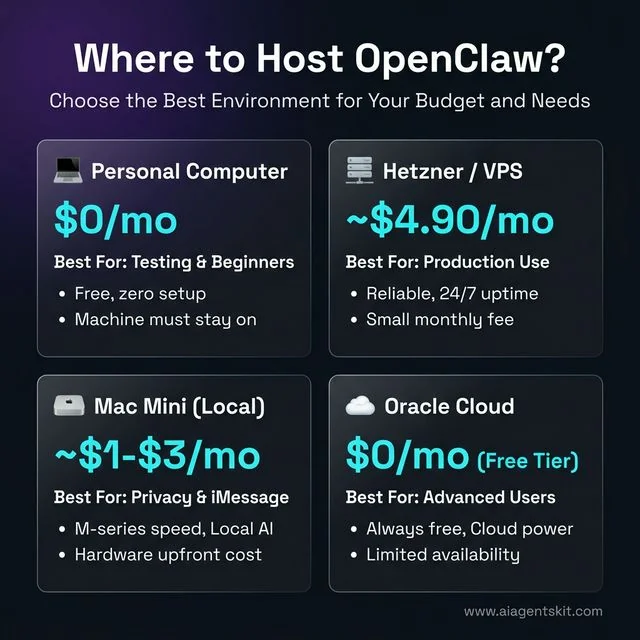
Figure 4: Choosing the right hosting environment for OpenClaw based on your specific requirements and budget.
Connecting OpenClaw to an AI Model and Messaging App
An OpenClaw installation requires both reasoning intelligence and communication channels to function. The OpenClaw CLI and Gateway Documentation outlines how daemon components parse environment parameters and route tasks.
Setting Up a Telegram Bot Gateway
Telegram is the fastest messaging bridge to deploy because token generation takes under two minutes without phone pairing hurdles.
First, open Telegram, search for @BotFather, and send the /newbot command. Follow the prompts to assign a name and username ending in bot. BotFather returns your secret authentication token.
Next, query @userinfobot in Telegram to retrieve your numerical account chat ID. Open your .env configuration file to save credentials:
# Navigate to configuration root
cd ~/.openclaw

# Edit environment file
nano .env
Add your model and Telegram credentials:
# Primary AI Reasoning Model
OPENCLAW_MODEL=claude-5-sonnet
ANTHROPIC_API_KEY=sk-ant-api03-your-key-here

# Telegram Gateway Integration
TELEGRAM_BOT_TOKEN=7312654890:AAF3kLlExampleToken
TELEGRAM_CHAT_ID=123456789
Restart OpenClaw to activate the Telegram gateway:
# Restart daemon to apply environment changes
openclaw restart
Send a message to your Telegram bot. The agent will parse your text, execute reasoning steps, and reply directly in the chat.
Configuring Ollama for Fully Offline Inference
For air-gapped environments or deployments requiring complete data privacy, OpenClaw connects directly to a local Ollama server.
# Install Ollama on Linux or macOS
curl -fsSL https://ollama.ai/install.sh | sh

# Pull a high-performance local coding model
ollama pull llama4:8b-scout

# Launch OpenClaw wired to Ollama
ollama launch openclaw
Alternatively, configure your ~/.openclaw/.env file manually:
# Local Ollama connection parameters
OPENCLAW_MODEL=ollama/llama4:8b-scout
OPENCLAW_BASE_URL=http://localhost:11434
Restart OpenClaw using openclaw restart. All reasoning steps and message responses now execute locally on your physical hardware without external API calls.
Connecting OpenClaw to WhatsApp, Discord, and iMessage
OpenClaw supports multi-channel routing, enabling you to interact with the same agent instance across several chat platforms simultaneously.
Connecting OpenClaw to WhatsApp
OpenClaw connects to WhatsApp through multi-device Web pairing without requiring paid WhatsApp Business APIs.
Initiate the terminal pairing sequence:
# Start WhatsApp channel authentication
openclaw configure --channel whatsapp
A QR code will render directly in your terminal. Open WhatsApp on your smartphone, navigate to Settings → Linked Devices → Link a Device, and scan the code.
Configure message access controls in ~/.openclaw/.env to prevent unauthorized senders from triggering agent commands:
# Restrict execution to specific telephone numbers
WHATSAPP_DM_POLICY=allowlist
WHATSAPP_ALLOW_FROM=+14155551234,+447911123456
Restart the agent with openclaw restart. WhatsApp session credentials persist across reboots in ~/.openclaw/credentials/whatsapp/default/. If a desync occurs, purge this directory and re-scan the QR code.
Connecting OpenClaw to Discord
Discord integration enables team collaboration inside dedicated server channels. Visit the Discord Developer Applications Portal and click New Application.
Navigate to the Bot tab, generate a bot token, and enable the Message Content Intent toggle. Invite the bot to your target server using the OAuth2 URL Generator with Send Messages and Read Message History scopes.
Copy your Discord channel ID by enabling Developer Mode in Discord settings, right-clicking your target channel, and selecting Copy Channel ID. Add credentials to ~/.openclaw/.env:
# Discord Gateway Credentials
DISCORD_BOT_TOKEN=MTMwNjkxExampleDiscordToken
DISCORD_CHANNEL_ID=1234567890123456789
Restart OpenClaw to bring the Discord bot online in your server.
Connecting OpenClaw to iMessage (macOS Only)
OpenClaw interfaces with macOS iMessage via native AppleScript execution. Messages remain end-to-end encrypted and process entirely on the local Mac.
Grant your terminal application accessibility permissions under System Settings → Privacy & Security → Accessibility. Enable the integration in ~/.openclaw/.env:
# macOS iMessage bridge settings
IMESSAGE_ENABLED=true
IMESSAGE_ALLOWED_SENDERS=+14155551234,operator@icloud.com
Restart the daemon. OpenClaw will automatically monitor incoming messages from allowed phone numbers or Apple ID emails and transmit responses.
How to Install Skills from ClawHub (OpenClaw’s Plugin Store)
ClawHub serves as the official package registry for OpenClaw extensions, providing pre-built integrations for database administration, git automation, and cloud deployments.
Install the ClawHub package manager globally:
# Deploy ClawHub CLI package
npm install -g clawhub@latest

# Verify CLI version
clawhub --version
Search for community skills and install them directly:
# Search skill registry
clawhub search "postgres"

# Execute clawhub skills install
clawhub install dbalve/postgres-backup

# List active skills
clawhub list
Installed skills are saved to ~/.openclaw/workspace/skills/ and hot-load into active sessions without requiring a daemon restart.
To author a custom skill, create a markdown file at ~/.openclaw/workspace/skills/daily-standup.md:
---
name: daily-standup
description: Synthesizes daily git activity and posts status to Telegram
triggers:
  - schedule: "0 9 * * 1-5"
  - phrase: "standup"
---

Summarize recent engineering progress:
- Inspect ~/projects/ for git commits created during the last 24 hours
- Fetch active high-priority task tickets via the project issue tracker
- Compose a concise 3-part update: Completed Work, In Progress, Blockers
OpenClaw Configuration: config.yaml Settings and the Dashboard
OpenClaw separates authentication secrets from behavioral settings. API tokens live in ~/.openclaw/.env, while operational parameters reside in the main openclaw config yaml file located at ~/.openclaw/config.yaml.
# ~/.openclaw/config.yaml

# Primary reasoning model
defaultModel: claude-5-sonnet

# Fast auxiliary model for lightweight classification
lightModel: ollama/llama4:8b-scout

# Local gateway server configuration
gateway:
  port: 18789
  host: 127.0.0.1

# Context memory retention policies
memory:
  enabled: true
  maxEntries: 1000

# Rolling log policies
log:
  level: info
  rotation: daily
  maxFiles: 7
Launch the local web dashboard to monitor system health in real time:
# Open administrative browser dashboard
openclaw dashboard
The web dashboard displays active model latency, recent task histories, persistent memory records, and streaming system logs at http://127.0.0.1:18789/.
OpenClaw also supports per-prompt hot model overrides in chat:
[use gpt-5.6-sol] Review this architectural blueprint for concurrency race conditions
[use ollama/llama4:8b-scout] Format this raw JSON telemetry into markdown
Using openclaw doctor to Diagnose Installation Problems
The openclaw doctor command inspects your entire deployment stack in a single automated pass, diagnosing Node.js versioning, port availability, API connectivity, and messaging states.
# Run comprehensive diagnostic scan
openclaw doctor
✅ Node.js v24.2.0: OK
✅ OpenClaw v2026.9.6: OK
✅ Daemon process: Running (PID 4821)
✅ Gateway socket: Reachable at http://127.0.0.1:18789
✅ AI Model: claude-5-sonnet responding (latency: 382ms)
⚠️ Telegram: TELEGRAM_CHAT_ID missing in .env
❌ Ollama: Connection refused at localhost:11434To validate that your configuration files remain compatible after updating OpenClaw to a new release, execute the configuration-specific check:
# Check post-update schema compatibility
openclaw doctor --config
Inspect streaming operational logs to debug unexpected runtime errors:
# Follow real-time daemon logs
openclaw logs --follow

# Inspect last 100 log lines
openclaw logs --tail 100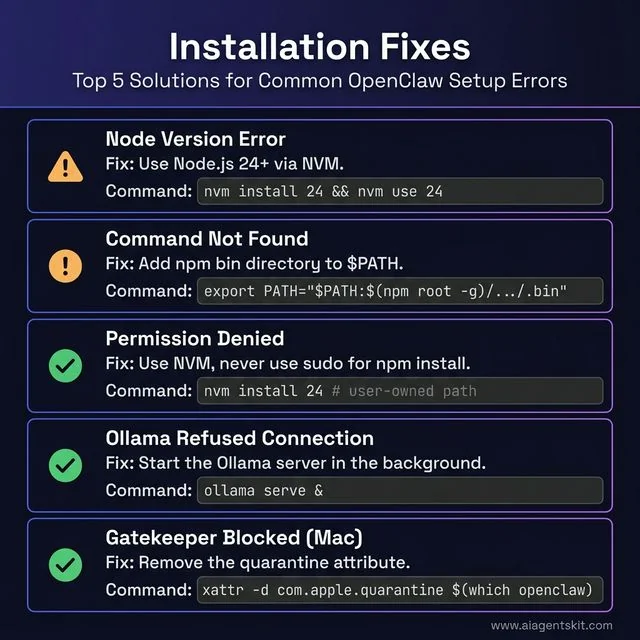
Figure 5: Quick-reference troubleshooting guide for the most common OpenClaw installation errors.
10 Common OpenClaw Installation Errors and How to Fix Them
Most deployment issues stem from permission conflicts, outdated runtimes, or occupied network ports. If you decide to build an AI agent from scratch in Python, understanding these core architectural debugging steps will prove equally valuable.
Error 1: node: version not supported
Root Cause: The host system is running a Node.js release older than v22.16.
Resolution: Install Node.js 24 LTS via NVM:
nvm install 24
nvm use 24
node --version
Error 2: EACCES: permission denied, mkdir
Root Cause: The global npm directory is owned by root because Node.js was installed via system package managers without user-space directory permissions.
Resolution: Avoid running sudo npm. Instead, manage Node.js through NVM to keep all binaries in your user home directory:
curl -o- https://raw.githubusercontent.com/nvm-sh/nvm/v0.39.7/install.sh | bash
source ~/.bashrc
nvm install 24
npm install -g openclaw@latest
Error 3: openclaw: command not found
Root Cause: The global npm executable directory is missing from your system $PATH environment variable.
Resolution: Add the global npm bin path to your shell profile:
# Add npm bin to zsh environment
echo 'export PATH="$PATH:$(npm root -g)/../.bin"' >> ~/.zshrc
source ~/.zshrc
Error 4: Installation Hangs During npm install
Root Cause: Corrupted local package caches or upstream registry timeouts.
Resolution: Force clean your npm cache and retry the package installation:
npm cache clean --force
npm install -g openclaw@latest
Error 5: macOS Gatekeeper Blocks Binary Execution
Root Cause: macOS Gatekeeper flags third-party CLI tools that lack Apple developer notarization signatures.
Resolution: Clear the quarantine extended attribute:
xattr -d com.apple.quarantine $(which openclaw)Error 6: WSL2 DNS Resolution Failure
Root Cause: The auto-generated /etc/resolv.conf in WSL2 points to an unresponsive Windows host adapter.
Resolution: Create a static configuration pointing to public DNS resolvers:
sudo rm -f /etc/resolv.conf
sudo bash -c 'echo "nameserver 8.8.8.8" > /etc/resolv.conf'
sudo bash -c 'echo -e "[network]\ngenerateResolvConf = false" >> /etc/wsl.conf'
Error 7: Telegram Bot Does Not Respond
Root Cause: Incorrect bot tokens, missing chat IDs, or an inactive OpenClaw daemon process.
Resolution: Verify credentials in ~/.openclaw/.env, confirm daemon health with openclaw status, and restart using openclaw restart.
Error 8: Ollama Connection Refused
Root Cause: The local Ollama server process is stopped or blocked on port 11434.
Resolution: Start the Ollama server in the background:
ollama serve &
curl http://localhost:11434/api/version
Error 9: sharp Build Failure on macOS (node-gyp Error)
Root Cause: Native C++ image processing bindings fail compilation against newer Xcode command line tools.
Resolution: Skip native compilation scripts during initial installation:
npm cache clean --force
npm install -g openclaw@latest --ignore-scripts
Error 10: OpenClaw Gateway Shows DOWN
Root Cause: Another background application occupies the default gateway port 18789.
Resolution: Identify the conflicting process or change the port in ~/.openclaw/config.yaml:
# Identify process using port 18789
lsof -i :18789
Edit ~/.openclaw/config.yaml to set gateway.port: 18800, then execute openclaw restart.
Frequently Asked Questions
What Node.js version is required for OpenClaw?
OpenClaw requires Node.js version 22.16 or newer, with Node.js 24 LTS designated as the recommended runtime. The official installation script automatically installs Node.js 24 if an older version is detected on the system.
Can OpenClaw run on Windows without WSL2?
Native Windows installations without WSL2 are limited to basic chat channels and lack daemon process management. Developers should use WSL2 with Ubuntu 24.04 LTS to ensure full POSIX system tool compatibility.
How do I update OpenClaw to the latest version?
Run npm install -g openclaw@latest to upgrade the global binary in place without altering your ~/.openclaw configuration. After the installation completes, execute openclaw restart and openclaw doctor –config to verify runtime compatibility.
Can I install OpenClaw on a VPS or cloud server?
Yes, any Linux VPS with at least 2 GB RAM can run OpenClaw connected to cloud AI models. Providers like Hetzner (CX22 at 4.49 euros per month) or Oracle Cloud Always Free offer cost-effective 24/7 hosting.
Does OpenClaw work with Ollama for local AI models?
OpenClaw provides first-class support for local inference via the ollama launch openclaw command or by pointing OPENCLAW_BASE_URL to localhost:11434. Models such as Llama 4 Scout and Qwen 2.5 Coder deliver private offline tool execution without cloud token fees.
Building a self-hosted AI agent workspace provides complete sovereignty over your data, credentials, and compute budget. With OpenClaw installed and your preferred messaging channels authenticated, you have an autonomous assistant ready to execute tasks around the clock.
As reasoning models and local inference runtimes mature, exploring the future of AI agents reveals how autonomous execution frameworks will reshape personal and enterprise productivity. Take advantage of ClawHub to extend your agent with custom skills, and monitor your system health using the built-in diagnostic tools.