Run AI on Mac: Apple Silicon Guide for 2026
Complete guide to running AI locally on Mac with Apple Silicon. Ollama setup, MLX framework, M5 hardware advice, Llama 4 support, and model recommendations for M1-M5 chips.
The “no CUDA, no AI” argument is collapsing fast. Apple Silicon’s unified memory architecture gives Mac users access to a fundamentally different — and in many cases superior — approach to running AI models locally. With the M5 generation delivering up to 4x faster AI performance than M4, the gap between Mac and dedicated GPU workstations has narrowed dramatically.
What still trips people up is understanding why Apple Silicon handles local AI differently and which setup actually fits their machine and model size. This guide covers the open source LLMs available for local use on Mac, the right tooling, and how to get up and running within the hour — whether there’s a baseline M4 MacBook Air or a top-spec M5 Max sitting on the desk.
Why Apple Silicon Is Built Differently for AI
The core difference isn’t raw compute speed — it’s memory architecture. Traditional AI setups split compute across two memory ecosystems: system RAM for the CPU and dedicated VRAM for the GPU. A high-end NVIDIA RTX 4090 ships with 24GB of VRAM. That’s a hard ceiling. Any language model that doesn’t fit inside that 24GB — no matter how much system RAM the PC has — falls back to the CPU or simply won’t run at usable performance.
Apple Silicon takes a different path. The CPU, GPU, and Neural Engine all draw from a single shared pool — unified memory. On an M5 Max configured with 128GB, every component of the chip can use all 128GB. There’s no separate VRAM limit creating an artificial ceiling. Practitioners who move from PC AI setups to high-memory Apple Silicon consistently report surprise at just how large a model they can load — and that it actually runs well.
The bandwidth figures are impressive. According to Apple’s official MacBook Pro specifications, the M5 Max delivers 614 GB/s of unified memory bandwidth, a significant jump over the M4 Max’s 546 GB/s. That bandwidth matters because AI inference is fundamentally memory-bound: the GPU reads model weights constantly during token generation, and faster access means more tokens per second. Understanding the VRAM requirements for different AI tasks shows why Apple’s unified memory model erases the most frustrating constraint in consumer AI hardware.
The Neural Engine adds another layer. The M4’s Neural Engine runs at 38 trillion operations per second — more than double the 18 TOPS of M3 — and is dedicated to accelerating the matrix operations that underpin transformer-based language models. The M5 generation extends this further with Neural Accelerators embedded directly into each GPU core, dramatically expanding parallel AI execution across the chip.
| Architecture | Traditional PC | Apple Silicon (M5 Max) |
|---|---|---|
| CPU Memory | System RAM (separate pool) | Unified shared pool |
| GPU Memory | VRAM (24GB hard cap, RTX 4090) | Same unified pool |
| AI Memory Ceiling | 24GB VRAM maximum | Up to 128GB+ |
| Memory Bandwidth | ~1 TB/s (RTX 4090) | 614 GB/s (M5 Max) |
| Power Draw (AI tasks) | 300W+ (GPU alone) | ~50W (entire system) |
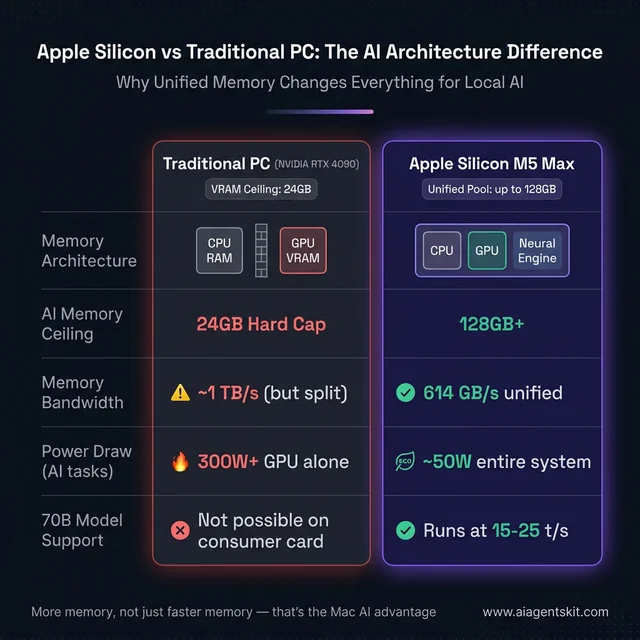
Apple Silicon’s unified memory pool eliminates the hard VRAM ceiling that limits consumer NVIDIA cards — a fundamental architectural advantage for running large AI models.
The power efficiency advantage is real and often underestimated. A Mac running a 70B model at around 10 tokens per second draws roughly 50W total system power. A comparable NVIDIA setup running the same model would draw 300W or more — and that assumes the model even fits in its VRAM (it often doesn’t on consumer cards).
How Much RAM Does Running AI on Mac Actually Need?
This is the question that matters most for anyone buying a Mac with AI in mind, and the answer is more nuanced than hardware vendors typically admit.
The key rule practitioners consistently discover: model weights should never exceed 60% of available unified memory. The remaining 40% is needed for the KV cache — the memory structure that stores conversation context and grows with every token generated. A 35GB model loaded into a 36GB Mac will run, but context-heavy conversations will hit memory pressure quickly. That tight margin shows up as performance degradation that’s often misdiagnosed as a chip limitation.
The second factor is quantization. Most local models are distributed in GGUF format with 4-bit or 8-bit quantization, significantly reducing memory footprint. A 7-billion-parameter model at 4-bit quantization (Q4_K_M) fits in roughly 4–5GB of RAM. The same model at full precision needs ~14GB. Understanding the difference between cloud and local AI tradeoffs helps contextualize when these memory constraints matter most for a given workflow.
With those rules established, here’s a practical guide:
| Unified Memory | Models That Run Well | Quality Level | Best Use Case |
|---|---|---|---|
| 8GB | SmolLM2-1.7B, Phi-4-mini, Gemma 2 2B | Limited | Learning, lightweight tasks |
| 16GB | 7B-8B models (Llama 4 8B, Mistral 7B) | Solid | Daily tasks, coding assistance |
| 24–32GB | 13B models; 34B models quantized | Good | Serious productivity work |
| 36–64GB | 34B–70B models (quantized) | Very Good | Code review, research, writing |
| 128GB+ | 70B at 8-bit; 100B+ quantized | Excellent | Production-level local AI |
| 192GB+ (Ultra) | Llama 4 Scout 109B, DeepSeek-V3 | Near-frontier | Advanced research and dev |
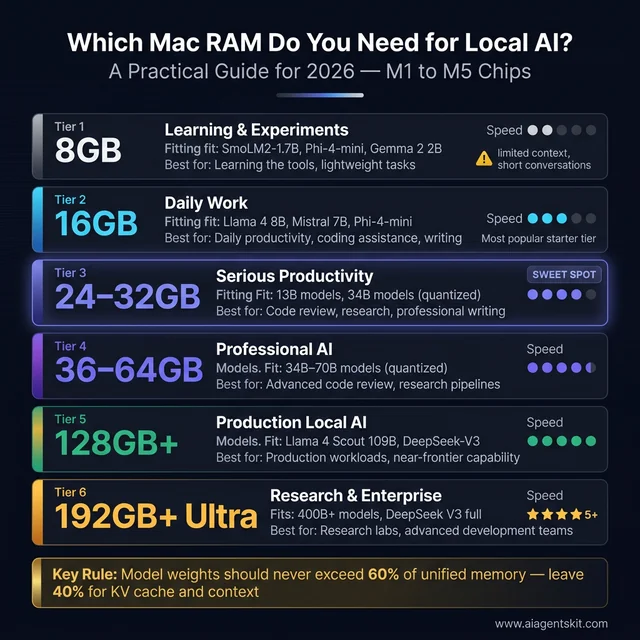
Model weights should never exceed 60% of unified memory — leave 40% for KV cache. The 24–32GB sweet spot unlocks serious productivity without enterprise-level spending.
The 16GB tier consistently surprises newcomers. Llama 4 8B and Mistral 7B both deliver competent reasoning, strong code completion, and solid general-purpose inference on a 16GB M4 or M5 MacBook Air. The 8GB tier is genuinely limited — models work but contexts are short and quality suffers noticeably. The upgrade cost at purchase time is almost always worth paying, because unified memory on Mac cannot be added or upgraded after purchase.
Best LLMs for Mac M1 8GB RAM
The M1 MacBook Air and MacBook Pro with 8GB unified memory were among the first Macs where local AI became genuinely accessible — and they remain a valid platform in 2026 if the right model sizes are targeted. Ollama, LM Studio, and MLX all run on M1 without any issue. The constraint is purely memory: 8GB minus macOS overhead leaves roughly 5–6GB available for model weights.
The best small language models for Mac M1 8GB RAM in 2026:
| Model | Size on Disk | Best Use Case | Ollama Command |
|---|---|---|---|
| SmolLM2-1.7B | ~1GB | Summarization, simple Q&A | ollama run smollm2 |
| Phi-4-mini (Q4) | ~2.5GB | Reasoning, coding on constrained RAM | ollama run phi4-mini |
| Gemma 2 2B (Q4) | ~1.8GB | General chat, clean output | ollama run gemma2:2b |
| Llama 3.2 3B (Q4) | ~2.2GB | Best 3B model for general use | ollama run llama3.2:3b |
| Qwen2.5 3B (Q4) | ~2.2GB | Coding, multilingual | ollama run qwen2.5:3b |
Performance on M1 8GB: These small models generate 60–100 tokens per second on M1, which feels fast in practice. The limitation isn’t speed — it’s context length. With only ~5GB free for model + KV cache, context windows are short and multi-turn conversations degrade faster than on 16GB+ systems. For focused, single-turn tasks (summarize this paragraph, write this function), M1 8GB handles them well.
The 7B ceiling: The smallest 7B model at Q4 quantization needs ~4.5GB, which technically fits on 8GB hardware — but combined with macOS memory usage, it runs with chronic memory pressure, frequent swapping, and noticeably degraded quality. The 3B tier is the practical ceiling for 8GB M1 Macs doing real work. If 7B quality is required, the upgrade to 16GB is the correct solution, not model configuration tweaks.
The practical sweet spot for developers doing consistent AI work is the 36GB M5 Pro configuration. It handles most professional model sizes with room for long contexts, and the M5 Pro’s 307 GB/s of memory bandwidth ensures fluid token generation even on demanding models. For teams weighing this against building a dedicated AI workstation, the Mac wins on portability and energy efficiency without sacrificing capability for most professional model sizes.
Best Mac for Running Large Language Models Locally in 2026
With the M5 generation now shipping across the Mac lineup, 2026 is arguably the best time yet to buy an Apple device for AI use. The right tier depends entirely on which model sizes matter for specific workloads.
MacBook Air M4/M5 (16–32GB unified memory)
The entry point, and meaningfully more capable than most expect. The M5 MacBook Air delivers AI task performance up to 4x faster than M4 and up to 9.5x faster than M1, according to Apple’s MacBook Air specifications. For running Llama 4 8B or Mistral 7B on a 16GB configuration, this machine handles daily AI tasks without strain. The 32GB Air opens up 13B model territory.
Best for: students, writers, knowledge workers, and developers doing occasional local AI. Not the right choice for sustained 70B inference or production AI workloads that run continuously.
MacBook Pro M5 Pro (up to 64GB unified memory)
The professional sweet spot in the lineup. According to Apple’s MacBook Pro specifications, the M5 Pro delivers LLM prompt processing up to 6.9x faster than M1 Pro and up to 3.9x faster than M4 Pro. At 36GB, it handles 34B models without strain. At 64GB, it enters genuine 70B territory with room to spare.
The performance-to-value ratio at this tier is the strongest in the Mac lineup for most professional AI use cases. The jump from M5 to M5 Pro matters more for AI than the jump between chip generations within the same tier.
MacBook Pro M5 Max (up to 128GB unified memory)
This is where Mac AI becomes unrestricted by consumer hardware limits. The 128GB M5 Max can run Llama 4 Scout (109B) in quantized form, delivering 15–25 tokens per second depending on quantization level — enough for interactive, practical use. M5 Max GPU AI compute is over 4x that of the M4 Max, with 614 GB/s bandwidth supporting even the largest locally viable models.
Best for: ML researchers, developers building AI products, and anyone running 70B+ models as a core part of their workflow rather than occasional experimentation.
Mac Studio M5 Ultra (up to 512GB unified memory)
No practical limits on current open-source models. The M5 Ultra connects two M5 Max dies into a single chip, doubling every resource including memory capacity and bandwidth. It can run fully quantized versions of Llama 4 Maverick (400B) and frontier-class open models that require professional server hardware on any other platform.
Best for: teams, research labs, and developers who genuinely need 200GB+ model territory. The price premium over M5 Max is substantial — worth justifying only when model sizes demand it.
One consistent principle: when choosing between a faster chip variant and more memory, choose more memory. The ceiling imposed by insufficient unified memory cannot be engineered around by any software optimization. A model either fits or it doesn’t.
How to Set Up and Run AI Models on Mac with Ollama
Ollama is the most widely used tool for running LLMs locally on Mac and the recommended starting point for nearly everyone. It handles Apple Silicon optimization automatically, runs as a local service with a REST API, supports virtually every major open-source model, and works with no cloud dependency or usage costs.
Installation
# Option 1: Install with Homebrew (recommended for developers)
brew install ollama

# Option 2: Download the native macOS app from ollama.com
# Drag to Applications, then launch from the menu bar
After installation, Ollama runs as a background service. It automatically detects the Mac’s unified memory, selects appropriate quantization levels, and configures batch sizes for available hardware — no manual configuration needed to get started.
Does Ollama use MLX on Apple Silicon?
This is one of the most frequently asked questions about Ollama on Mac. The short answer: Ollama does not use MLX. Ollama uses llama.cpp as its inference backend, which on Apple Silicon uses Metal (Apple’s GPU compute API, via the MPS — Metal Performance Shaders — framework) for hardware acceleration. Metal acceleration is enabled automatically on every Apple Silicon Mac.
The distinction matters:
- Ollama + Metal (MPS): Uses llama.cpp with Metal GPU acceleration. Works out of the box, supports GGUF format models, maximum compatibility.
- MLX: Apple’s own inference framework with a different model format. Requires manual setup but delivers ~20% better inference performance on the same hardware.
Both use Apple Silicon’s GPU — they just use different programming paths to reach it. For a first setup, Ollama’s Metal acceleration via llama.cpp is the practical choice. For maximum tokens-per-second throughput on a specific model, switching to MLX directly is worth the setup overhead.
Running Your First Model
# Start Ollama service (if not already running)
ollama serve

# Pull and run Llama 4 8B (recommended for 16GB systems)
ollama run llama4:8b

# Run Mistral 7B for fast, capable general inference
ollama run mistral

# For 36GB+ systems, try a 13B model for noticeably better reasoning
ollama run llama4:13b
The first run downloads the model from Ollama’s registry. Subsequent runs load from local cache and work fully offline. The complete Ollama tutorial covers API usage, multi-model routing, and advanced configuration for those going beyond basic CLI use.
Key Ollama Commands Reference
# List all downloaded models and file sizes
ollama list

# Pull a specific quantization variant
ollama pull llama4:8b-instruct-q4_K_M

# Remove a model to free disk space
ollama rm model-name

# Check which models are loaded in memory
ollama ps

# Run with extended context window for document analysis
ollama run llama4 --ctx-size 32768

# Expose Ollama API server for other app integrations
OLLAMA_HOST=0.0.0.0 ollama serve
Model Recommendations by Available RAM (as of 2026)
| Unified Memory | Recommended Models | Notes |
|---|---|---|
| 16GB | Llama 4 8B, Mistral 7B, Phi-4-mini | Solid for daily use |
| 32GB | Llama 4 13B, Qwen2.5-14B | Noticeably better reasoning |
| 36–64GB | Llama 4 70B (Q4), DeepSeek-Coder-33B | Professional-quality output |
| 128GB+ | Llama 4 70B (Q8), Llama 4 Scout 109B | Near-frontier capability |
5 Best Local AI Tools for Mac Users in 2026
The local AI tool ecosystem on Mac has matured considerably. These five options cover every use case from first-time exploration to production development workflows.
1. Ollama — Best for Developers
Ollama is the foundation layer for most Mac AI setups. It runs as a background service with a REST API compatible with OpenAI’s API format — any tool built for OpenAI’s API can often be redirected to a local Ollama instance with a single endpoint change. The model library covers hundreds of community and official variants, and the CLI makes scripting and automation straightforward.
2. LM Studio — Best GUI for Beginners
LM Studio wraps the complexity of local AI in a polished desktop interface. It includes model discovery and download from the Hugging Face hub, a built-in chat interface, and a local server mode — all without touching a terminal.
LM Studio MLX support on Apple Silicon: LM Studio version 0.3.4 and later ships with an integrated MLX inference engine. When LM Studio detects an Apple Silicon Mac, it automatically switches to the MLX backend for compatible model formats, delivering noticeably faster inference than the default llama.cpp path. In practice, this means LM Studio on an M4 or M5 Mac outperforms LM Studio on equivalent Intel hardware not just because of raw clock speed, but because of this MLX backend optimization. Users can see which backend is active in LM Studio’s model loading logs (look for mlx or llama.cpp in the status). For those interested in understanding the deeper tradeoffs between inference engines, the llama.cpp vs Ollama comparison provides useful technical context.
3. MLX Framework — Best for Performance
MLX is Apple’s own machine learning framework, designed specifically for Apple Silicon’s unified memory architecture. Unlike GGUF-based inference tools, MLX runs models using Apple’s native compute format with lazy evaluation and graph-based optimization. Community benchmarks consistently show MLX delivering approximately 20% better inference performance than llama.cpp-based tools on the same hardware.
# Install MLX
pip install mlx mlx-lm

# Run from the mlx-community Hugging Face hub
python -m mlx_lm.generate \
  --model mlx-community/Llama-3.2-3B-Instruct-4bit \
  --prompt "Explain unified memory in one paragraph"
Use Ollama for speed and convenience. Switch to MLX when squeezing maximum performance from the hardware becomes the priority.
4. Jan.ai — Best for Privacy
Jan.ai is a fully local, open-source desktop application built for air-gapped operation. It runs models entirely offline with no telemetry and no external calls. For sensitive use cases — legal documents, medical records, confidential business data — Jan’s privacy model is worth the slightly narrower model library compared to Ollama.
5. Continue.dev — Best for Coding Assistance
Continue.dev integrates directly with VS Code and JetBrains IDEs, using a local Ollama or LM Studio backend to provide in-editor autocomplete, chat-based code assistance, and codebase-aware Q&A. For developers who want Copilot-style assistance without cloud subscription costs or code leaving the machine, it’s the strongest available option.
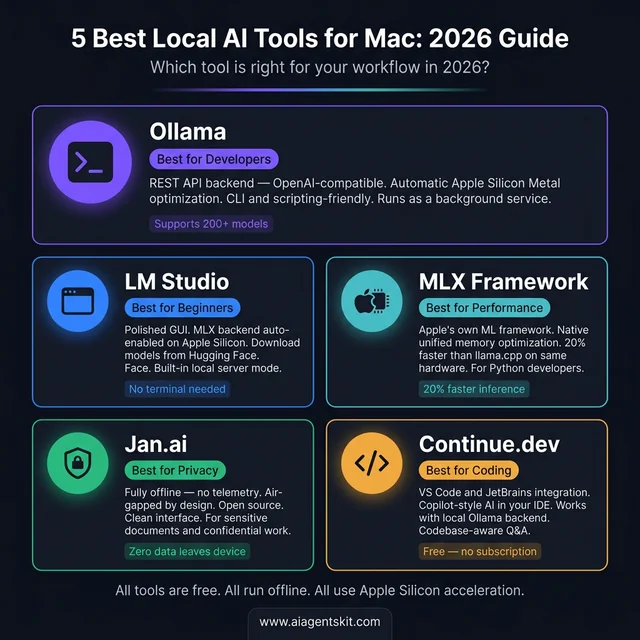
All five tools are free, run fully offline, and take advantage of Apple Silicon acceleration — the choice depends on whether you prefer a CLI, GUI, maximum performance, privacy, or IDE integration.
How to Run Specific AI Models on Mac: A Practical Reference
Every Mac user’s needs differ — a developer testing reasoning models needs different tools than a writer after private document analysis. This reference table maps the most popular open-source models to the Mac configuration they actually require, along with the one-line Ollama command to get started.
| Model | RAM Required | M4 Mac mini (24GB) | M5 Pro (36GB) | Best For | Ollama Command |
|---|---|---|---|---|---|
| Phi-4-mini | 8GB | 90–110 t/s | 100–130 t/s | Fast experiments, low-RAM Macs | ollama run phi4-mini |
| Mistral 7B | 16GB | 45–55 t/s | 55–70 t/s | Speed + quality balance | ollama run mistral |
| Llama 4 8B | 16GB | 40–52 t/s | 50–65 t/s | Daily chat, coding help | ollama run llama4:8b |
| Qwen2.5 14B | 24GB | 28–38 t/s | 35–50 t/s | Multilingual tasks, coding | ollama run qwen2.5:14b |
| DeepSeek-R1 14B | 24GB | 22–32 t/s | 30–45 t/s | Reasoning, math | ollama run deepseek-r1:14b |
| Llama 4 70B (Q4) | 64GB | ❌ too large | 12–18 t/s | Professional-quality output | ollama run llama4:70b |
| DeepSeek-R1 70B | 64GB | ❌ too large | 8–14 t/s | Advanced reasoning | ollama run deepseek-r1:70b |
| Llama 4 Scout 109B | 96GB+ | ❌ too large | ❌ too large | Research, long documents | ollama run llama4:scout |
Notes on Model Selection
For 8GB Macs: Phi-4-mini and TinyLlama are the only realistic options. Quality is limited — this configuration is suitable for learning the tooling, not demanding workloads.
For 16GB Macs: Llama 4 8B and Mistral 7B are the practical ceiling. Both deliver genuinely useful output for writing, coding assistance, and general questions. Don’t try to run 13B+ models at this memory tier — the overhead will cause constant memory pressure.
For DeepSeek models: DeepSeek-R1 models use explicit chain-of-thought reasoning, which produces better answers on complex tasks but generates more tokens before the final response. This shows up as a longer wait before the first reply. The quality improvement for reasoning-intensive work is substantial. For understanding why DeepSeek performs differently from Llama-family models, the DeepSeek vs Llama model architecture comparison covers the underlying design tradeoffs.
Choosing quantization level: When multiple quantization options appear (Q4, Q5, Q8), use Q4_K_M as the default — it offers the best size-to-quality compromise for most hardware. Q8 at higher memory consumption is worth it for 36GB+ machines doing precision-sensitive tasks like legal document review or technical code analysis.
Who Should Run AI on Mac? Use Cases by Audience
The right local AI setup depends as much on what the work involves as which Mac is on the desk. Here’s how different audiences get practical value from the same hardware.
For Developers
Mac is increasingly the primary platform for AI developers who want a build-test loop that doesn’t route through paid cloud APIs. The workflow that resonates most widely: Ollama as the local inference backend, Continue.dev in VS Code or Cursor as the AI coding assistant, and LM Studio for quick model comparisons without firing up a script.
Coding assistant setup (under 5 minutes):
# Install Ollama and pull a code-focused model
brew install ollama
ollama pull llama4:8b     # Fast, solid code completion
ollama pull deepseek-r1:14b  # Better for complex reasoning tasks

# In VS Code, install the Continue extension, then
# point it to http://localhost:11434 in settings
For AI agent development, local Ollama acts as the inference backend for frameworks like AutoGen, LangChain, and CrewAI. Testing agent flows locally before deploying to a paid API provider eliminates the development cost that accumulates fast during iterative testing. Developers building production AI systems can validate the full agent loop, including tool use and multi-turn memory, entirely on the Mac before touching cloud infrastructure. The comprehensive guide on building AI agents with Python covers how to wire a local Ollama backend into production agent code.
For Writers and Researchers
The privacy advantage resonates clearly with writers handling confidential material. A journalist protecting source identities, a lawyer drafting strategy memos, or a researcher analyzing unpublished data all benefit from an AI assistant that never phones home.
Best configurations for writers:
- 16GB Mac + Mistral 7B via LM Studio: Handles document drafting, editing, and research summarization at quality comparable to mid-tier cloud models. GUI-based — no terminal needed.
- 32GB Mac + LM Studio document chat: Upload PDFs directly into LM Studio and ask questions about the content. Contracts, research papers, lengthy reports — everything stays local.
- Jan.ai for maximum isolation: For true air-gapped security, Jan.ai has no telemetry, runs offline by design, and ships with a clean interface suitable for non-technical users.
Researchers running literature reviews particularly benefit from local RAG setups. Loading 20–30 academic papers into a local vector database and querying across them with a 14B model produces results that would cost significant API credits to replicate in the cloud — on a Mac, it’s free after the hardware cost.
For Students
Student use cases cluster around a few practical needs: essay assistance, note summarization, code help for CS coursework, and studying complex topics with a conversational partner.
The case for local AI over cloud subscriptions is simple for students: $0/month vs. $20/month, and it works without campus WiFi restrictions or IT policy concerns about what data leaves the university network.
For a 16GB MacBook Air or MacBook Pro, the practical workflow:
- Install Ollama (free, one command)
- Pull
llama4:8b(4–5GB download, runs indefinitely after) - For a chat interface without terminal: install Open WebUI (browser-based, connects to Ollama automatically)
The models suitable for a 16GB student Mac handle essay feedback, code debugging, concept explanation, and foreign language practice at quality well above what was available from any local model just two years ago.
For Enterprise and Legal Teams
Enterprise adoption of Mac for AI is accelerating rapidly. A 2025 survey found that 73% of CIOs cited AI processing as the top reason for increasing Mac hardware investment. The drivers are security, privacy, and hardware performance — in that order.
For organizations handling sensitive information, the compliance argument for local AI is straightforward: client data never leaves the device, no GDPR or HIPAA exposure from API providers, and audit trails are entirely internal. A Mac mini M4 with 64GB unified memory, configured as a department-wide inference server, replaces cloud API costs that exceed the hardware cost within months for high-volume teams.
Common enterprise use patterns on Mac:
- Contract review and summarization via LM Studio with document chat
- Internal documentation Q&A with a local RAG system (ChromaDB + Ollama)
- Code review automation using Continue.dev connected to a departmental Mac mini server
- Confidential meeting notes summarized by Whisper (local transcription) + Ollama (local summarization)
The AI privacy and data protection landscape for enterprises covers the compliance considerations that drive these decisions in regulated industries.
Using Mac mini as a Local AI Server
The Mac mini M4 has become the quietly popular choice for local AI server deployments — home labs, small development teams, and enterprise department setups alike. It starts at $599, draws only 30W under sustained load, and operates silently without active cooling fans under typical inference workloads. The M4 Mac mini’s 16-core Neural Engine delivers 38 TOPS of AI compute, and the 64GB unified memory configuration runs 70B models at interactive speeds.
The Mac mini’s appeal for server use specifically: it runs macOS Server features, supports SSH access, integrates cleanly with Tailscale for secure remote access, and — critically for AI workloads — all of Ollama’s Apple Silicon optimizations apply fully without any configuration overhead.
Setting Up a Mac mini as a Network AI Server
# 1: Install Ollama
brew install ollama

# 2: Configure Ollama to accept network connections
# Add this to your shell profile (~/.zshrc or ~/.bash_profile)
export OLLAMA_HOST=0.0.0.0

# 3: Start Ollama as a network-accessible service
ollama serve

# 4: Pull models suitable for server use
ollama pull llama4:8b      # Default general model
ollama pull mistral        # Fast responses
ollama pull deepseek-r1:14b  # Reasoning tasks (36GB+ Mac mini only)

# 5: Install Open WebUI for a browser-based chat interface
# Any device on the local network can then access it at http://mac-mini-ip:3000
docker run -d -p 3000:8080 --add-host=host.docker.internal:host-gateway \
  -e OLLAMA_API_BASE_URL=http://host.docker.internal:11434/api \
  -v open-webui:/app/backend/data --name open-webui \
  ghcr.io/open-webui/open-webui:main
After this setup, every device on the local network — laptops, phones via browser, other computers — can access the shared AI backend. Family members and team members get AI access without individual subscriptions.
Mac mini M4 vs MacBook Pro for Local AI Server Use
| Factor | Mac mini M4 (64GB) | MacBook Pro M5 Pro (64GB) |
|---|---|---|
| Starting price | ~$1,399 (64GB config) | ~$2,999 |
| Power draw (24/7) | ~30W | Not suitable for 24/7 server use |
| Portability | Desktop only | Full laptop |
| Max unified memory | 64GB | 64GB |
| Ideal role | Dedicated server | Personal workstation |
| Network AI server | ✅ Excellent | ⚠️ Possible, not ideal |
For dedicated AI server use on a desk or rack, the Mac mini wins decisively on cost and power efficiency. For someone who also needs the machine as their primary daily computer, the MacBook Pro justifies its premium through portability and display. The cloud vs. local AI cost comparison helps quantify exactly when the hardware investment breaks even against ongoing cloud API expenditure.
Best Ollama Models for Mac mini Apple Silicon (M4)
The Mac mini M4 ships in 16GB and 24GB configurations (with a 64GB M4 Pro option). The 24GB variant is the recommended AI server configuration, and the M4 chip with its 10-core GPU and Metal acceleration delivers especially strong performance on small-to-mid models where it doesn’t hit memory limits.
Top picks for Mac mini M4 24GB running Ollama:
| Model | Why It Works Well on Mac mini M4 | Speed |
|---|---|---|
| Mistral 7B | Fast, reliable, fits with large context headroom | ~50 t/s |
| Llama 4 8B | Best all-purpose model for this memory tier | ~45 t/s |
| Qwen2.5 14B | Fills 24GB well; best model quality at this tier | ~30 t/s |
| DeepSeek-R1 14B | Excellent for reasoning tasks; runs at limit of 24GB | ~25 t/s |
| Phi-4-mini | Ideal when serving multiple users simultaneously | ~100 t/s |
| Gemma 2 9B | Google’s strong 9B model, efficient on Metal | ~40 t/s |
For Mac mini M4 in server mode: the sweet spot is running Mistral 7B or Llama 4 8B as the default model, with Qwen2.5 14B available for tasks that need higher-quality reasoning. This covers ~95% of typical team or home use cases while leaving sufficient memory headroom for macOS and Open WebUI to run without contention.
Apple Intelligence vs. Local Open-Source AI on Mac: Key Differences
A common point of confusion: Mac users who update to macOS 26 get Apple Intelligence built in — does that make Ollama or LM Studio redundant? The short answer is no. They solve different problems.
What Apple Intelligence Is
Apple Intelligence is a set of AI features built directly into macOS 26, iOS 26, and iPadOS 26. It uses a combination of small on-device models (Foundation Models, running entirely on the Neural Engine) and Private Cloud Compute for requests that need more capacity. The features it provides are deeply integrated into the operating system:
- Writing Tools: System-wide rewriting, proofreading, and summarization in any app
- Siri improvements: More natural conversation, in-app actions, cross-app context
- Mail intelligence: Priority inbox sorting, email summarization, smart reply
- Photo enhancements: Clean Up tool, natural language image search, Memory Movies
- Notification summaries: Condensed overviews across apps
All of this happens without any setup. Apple Intelligence is on by default on any M-series Mac running macOS 26. Apple has published that Private Cloud Compute data is never stored, never accessible to Apple employees, and independently verification-auditable — a strong privacy guarantee for built-in features.
What Apple Intelligence Cannot Do
Apple Intelligence doesn’t let users choose, download, or customize AI models. There’s no way to load Llama 4, test a custom fine-tuned model, run a local agent pipeline, use AI offline in environments without iCloud, or connect it to a developer workflow as an API backend. The feature set is useful but fixed.
Where Local AI (Ollama / MLX) Fits
| Capability | Apple Intelligence | Local AI (Ollama/MLX) |
|---|---|---|
| Setup required | None — built in | ~10 minutes |
| Model choice | Fixed (Apple’s models) | Hundreds of open-source options |
| Customization | None | Full (fine-tuning, system prompts, RAG) |
| Works offline | Partially (simple tasks only) | Fully offline, always |
| Developer API | Not available | Full REST API (OpenAI-compatible) |
| Privacy | Strong (Private Cloud Compute) | Absolute (never leaves device) |
| Price | Included with macOS | Free (hardware + electricity only) |
| Use in VS Code/IDE | No | Yes (via Continue.dev or API) |
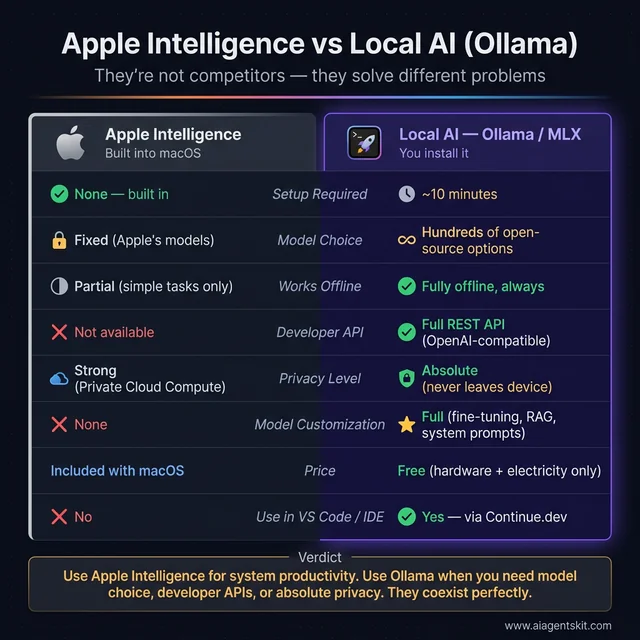
Apple Intelligence and Ollama aren’t competing tools — they serve different jobs. Run both on the same Mac without any conflict.
The practical decision framework: Use Apple Intelligence for the productivity features layered into everyday macOS use — text rewriting in emails, photo search, notification summaries. Install Ollama or LM Studio when there’s a need to choose specific models, build AI-powered workflows, run agents, or require absolute data isolation with no cloud involvement at all.
The two coexist without conflict. Many users run both — Apple Intelligence for system-level assistance, and Ollama for deliberate model selection and developer workflows.
Fine-Tuning AI Models on Mac with MLX and LoRA
For most users, running existing models via Ollama is sufficient. For developers and researchers who want models that behave in trained, specialized ways — following a specific output format, staying on-topic for a niche domain, mimicking an internal knowledge base — fine-tuning on Mac has become genuinely feasible with Apple’s MLX framework.
The technique that makes it practical is LoRA (Low-Rank Adaptation): instead of retraining all billions of model parameters, LoRA updates a small set of adapter weights that modify model behavior. A 7B model fine-tuned with LoRA uses only slightly more memory than the base model during inference, and the fine-tuning itself can complete in under 10 minutes on an M3 Pro.
Memory Requirements for Fine-Tuning
| Model Size | Minimum RAM for LoRA Fine-Tuning | Recommended |
|---|---|---|
| 3B (Phi-4-mini) | 8GB | 16GB |
| 7B (Llama 4 8B, Mistral) | 16GB | 32GB |
| 13B models | 32GB | 48GB |
| 34B models | Not feasible on LoRA alone | 96GB+ with advanced config |
Quick Fine-Tuning Workflow
# 1: Install MLX and the LLM fine-tuning library
pip install mlx mlx-lm

# 2: Prepare a JSONL training dataset
# Each line in train.jsonl should follow the chat format:
# {"messages": [{"role": "user", "content": "..."}, {"role": "assistant", "content": "..."}]}

# 3: Run LoRA fine-tuning on a quantized base model
python -m mlx_lm.lora \
  --model mlx-community/Llama-3.2-3B-Instruct-4bit \
  --train \
  --data ./data \
  --iters 600 \
  --batch-size 4 \
  --lora-layers 16

# 4: Fuse the LoRA adapter into the base model
python -m mlx_lm.fuse \
  --model mlx-community/Llama-3.2-3B-Instruct-4bit \
  --adapter-file adapters.npz \
  --save-path ./fine-tuned-model

# 5: Test the fine-tuned model
python -m mlx_lm.generate \
  --model ./fine-tuned-model \
  --prompt "Your domain-specific prompt here"
The mlx-community Hugging Face organization maintains pre-converted MLX versions of all major open-source models, removing the conversion step entirely. Training data in JSONL format can be prepared from any structured text source: internal documentation, Q&A pairs, example interactions, or domain-specific datasets.
After fine-tuning, the resulting model can be converted to GGUF format for deployment via Ollama — meaning the fine-tuned model integrates into all the same workflows as standard downloaded models. The comprehensive guide to fine-tuning LLMs covers dataset preparation strategies and advanced LoRA configuration in depth.
What Fine-Tuning Is Useful For
- Internal documentation chatbots: Train on company wikis, Notion exports, or Confluence pages
- Custom code style: Teach a model the specific patterns and libraries used in a codebase
- Specialized domains: Medical, legal, or scientific terminology that general models handle loosely
- Output format compliance: Ensure models consistently return structured JSON, specific templates, or required citation styles
- Brand voice: Writing assistants that match a publication’s specific style and tone
Fine-tuning is generally not necessary for general productivity use or standard coding assistance — the base models handle those well already. It becomes valuable when there’s a consistent, domain-specific deviation between what general models produce and what the application actually requires.
Advanced AI Workflows on Mac: Agents, RAG, and Automation
Running individual models via chat interfaces is the starting point. Mac’s local AI stack supports considerably more sophisticated setups — agent pipelines that take actions, RAG systems that query custom document collections, and automated workflows that chain AI with other tools.
Local RAG (Retrieval-Augmented Generation)
RAG allows a local AI model to answer questions based on specific documents that weren’t part of its original training. The model doesn’t “know” the content — it reads relevant passages supplied at query time by a vector database. This pattern is essential for building:
- Internal knowledge base chatbots
- Customer-facing documentation search
- Research paper analysis tools
- Private code repository Q&A
Minimal local RAG setup on Mac:
# Install required libraries
pip install chromadb langchain langchain-ollama

# Python script for document ingestion + querying
from langchain_community.vectorstores import Chroma
from langchain_ollama import OllamaEmbeddings, OllamaLLM
from langchain.text_splitter import RecursiveCharacterTextSplitter
from langchain_community.document_loaders import PyPDFLoader
# Load and split a document
loader = PyPDFLoader("your-document.pdf")
docs = loader.load()
splitter = RecursiveCharacterTextSplitter(chunk_size=1000, chunk_overlap=200)
chunks = splitter.split_documents(docs)
# Store in a local ChromaDB vector database
embedding = OllamaEmbeddings(model="llama4:8b")
vectorstore = Chroma.from_documents(chunks, embedding, persist_directory="./chroma_db")
# Query with a local model — everything stays on Mac
retriever = vectorstore.as_retriever(search_kwargs={"k": 4})
llm = OllamaLLM(model="llama4:8b")
query = "What are the key clauses in section 3?"
context_docs = retriever.invoke(query)
context = "\n\n".join([d.page_content for d in context_docs])
response = llm.invoke(f"Using the following context, answer: {query}\n\nContext:\n{context}")
print(response)This runs entirely on the Mac — ChromaDB stores vectors locally, Ollama serves the model, and no data leaves the device at any point.
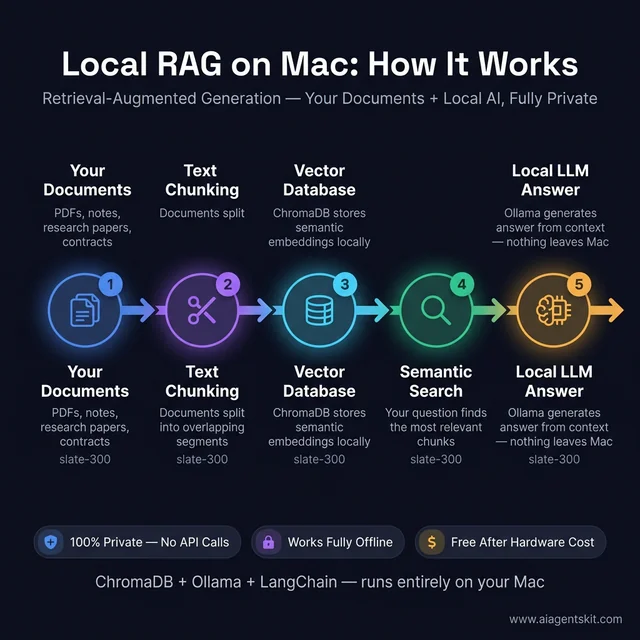
The complete local RAG stack runs on any Mac with 16GB+ — ChromaDB, LangChain, and Ollama working together entirely offline with zero API costs.
Local AI Agents on Mac
AI agent frameworks that support local model backends work fully on Mac via Ollama. The primary options:
AutoGen (Microsoft): Supports ollama as an inference backend for multi-agent orchestration. Suitable for research agents, code execution loops, and tool-using workflows.
CrewAI: Role-based multi-agent framework with Ollama integration. Particularly useful for multi-step research, content generation pipelines, and report-drafting workflows.
LangChain Agents: Tool-using agent framework with first-class Ollama support. Easiest entry point for connecting local models to web search, calculators, code execution, and file system tools.
# CrewAI with local Ollama backend
from crewai import Agent, Task, Crew
from langchain_ollama import OllamaLLM

local_llm = OllamaLLM(model="llama4:8b", base_url="http://localhost:11434")

researcher = Agent(
    role="Research Analyst",
    goal="Find and synthesize information on the given topic",
    llm=local_llm,
    verbose=True
)
Hardware note for agents: Agent workflows generate significantly more tokens per actual response than direct chat — the model is reasoning through tool calls, intermediate outputs, and multi-step plans internally. A 36GB Mac with a 14B model handles most agent tasks at usable speeds. For complex research agents with long tool chains, 64GB configurations with 70B models deliver noticeably more reliable reasoning and fewer hallucinated tool calls in deep loops.
n8n Workflow Automation with Local Ollama
n8n, the self-hosted workflow automation platform, integrates with Ollama directly as an AI node. Running n8n locally on the Mac (via Docker or native install) alongside Ollama creates an AI-powered automation stack that processes emails, webhooks, databases, and file systems through locally-running language models.
Practical automations this enables:
- Automatically classify and route support tickets using a local model
- Summarize daily emails into a briefing document
- Extract structured data from unstructured PDFs
- Trigger AI-driven responses to webhook events from other tools
The full guide on building AI agent workflows with n8n covers the complete setup including the Ollama integration node configuration.
Why Running AI Locally on Mac Protects Your Privacy
Every prompt sent to a cloud AI service leaves the device. The provider logs it, potentially uses it in future model training pipelines, and stores it on servers subject to the provider’s security posture and applicable legal obligations. For many use cases, that’s an acceptable tradeoff. For others — legal documents, medical records, unreleased code, confidential business analysis — it’s not.
Running AI locally on Mac eliminates that exposure entirely. When Ollama or LM Studio serves a model locally, prompts and responses never travel over any network. There’s no API key, no server log, no third-party data access. That’s the kind of AI privacy and data protection model that compliance-focused teams increasingly require as AI becomes embedded in everyday professional workflows.
The offline capability adds another dimension of practical reliability. Local models work without internet access — on a plane, in restricted network environments, at remote sites. There’s no service disruption to plan around, no rate limits during intensive use sessions, no unexpected model version changes that break established workflows.
The economics are also compelling at scale. Cloud AI APIs charge per token. For teams running high-volume inference — code review pipelines, document processing, automated analysis — cloud costs mount quickly. A well-configured Mac with 64GB unified memory replaces thousands of dollars per year in API costs once the software capability is comparable. The open-source model quality gap that made cloud AI nearly mandatory in 2023 has largely closed by 2026, particularly for code generation, reasoning, and writing tasks.
Apple has also introduced its “Private Cloud Compute” system for Apple Intelligence features that can’t run fully on-device. Data processed by this system isn’t stored, is used only to fulfill the specific request, and is verifiably inaccessible even to Apple staff — a thoughtful middle tier between full local inference and traditional cloud APIs.
Apple Silicon vs NVIDIA for Local LLMs: An Honest Comparison
The “Macs can’t do AI” claim persists largely because CUDA’s dominance in model training and the raw tokens-per-second benchmarks favoring NVIDIA for models that fit in VRAM are both real. They don’t tell the complete story of practical AI use.
Where NVIDIA wins: For running a 7B or 13B model that fits comfortably within 24GB of VRAM, an RTX 4090 generates tokens faster than any current Apple Silicon chip. Community benchmarks place a 4090 at 100–150 tokens/s for 7B models, versus 40–50 tokens/s for M5 Max. If raw generation speed on small models is the priority and budget is unconstrained, NVIDIA has the edge for throughput.
Where Mac wins: The moment model size exceeds 24GB VRAM, everything changes. A 30B model needs ~18GB at 4-bit quantization — it fits on a 4090, but barely, and KV cache is severely limited. A 70B model at 4-bit requires ~35GB — it cannot run on a single consumer NVIDIA card at all. On an M5 Pro with 64GB or M5 Max with 128GB unified memory, these models run without compromise, with room for extended contexts. For those choosing the PC GPU path instead, our guide to the best GPUs for running AI locally covers the 2026 Blackwell lineup, used RTX 3090 value, and AMD RDNA 4 options in detail.
The energy efficiency gap is striking. A Mac running a large model at 10 tokens/s draws roughly 50W total from the wall. A multi-GPU NVIDIA rig needed to run the same model would consume 600W or more — plus active cooling infrastructure.
For most real-world use cases — interactive chat, document analysis, code review, writing assistance — 10–15 tokens/s is entirely adequate. The experienced rate at that speed is faster than most people read. The practical experience feels fluid even when benchmark comparisons favor NVIDIA on raw throughput.
Even among experts, there’s genuine debate about where the practical crossover sits. The answer depends heavily on which model sizes matter, how much inference volume is expected, and how much weight to place on non-performance factors like energy use, portability, and software ecosystem coherence.
Frequently Asked Questions: Running AI on Mac
How much RAM do I need to run AI on Mac?
The practical minimum for useful local AI is 16GB, which supports 7B-8B models like Llama 4 8B and Mistral 7B at solid quality. The recommended configuration for serious professional use is 36GB (M5 Pro), which handles 34B models comfortably. For 70B models, 64–128GB is the target range. The core principle: model weights plus KV cache overhead shouldn’t exceed total unified memory — target model weights at no more than 60% of available RAM to preserve performance headroom for context.
Can an M1 Mac run local AI models?
Yes. M1 Macs with 16GB unified memory run Llama 4 8B and Mistral 7B at approximately 15–20 tokens per second — a fully usable rate for interactive tasks. Ollama, LM Studio, and MLX all fully support M1. The M5 generation is significantly faster for AI — Apple’s benchmarks show up to 9.5x improvement over M1 — but M1 is not a disqualifier for local AI use. How much memory is available matters more than chip generation for determining what models will run at all.
Is Apple Silicon good for AI inference?
Apple Silicon is exceptionally well-suited for consumer-class AI inference, particularly for models in the 7B–70B range. The unified memory architecture eliminates the VRAM ceiling that restricts consumer NVIDIA cards. The M4 and M5 Neural Engines — running at 38+ TOPS — are purpose-built for the matrix operations that power transformer-based models. For training (not just inference), NVIDIA still holds a substantial advantage due to CUDA ecosystem depth and raw floating-point throughput.
Can I run Llama 4 on a Mac?
Yes, at all memory configurations with the appropriate model size. Llama 4 8B runs comfortably on 16GB systems via Ollama. Llama 4 70B requires 64GB+ unified memory at 4-bit quantization. Llama 4 Scout (109B), the mixture-of-experts variant, runs on 96–128GB in quantized form. M5 Max and M5 Ultra machines handle the full Llama 4 lineup without issues. The Meta Llama 4 guide covers available model variants and their resource requirements in depth.
How does MLX differ from Ollama for running AI on Mac?
Ollama is a service layer that manages model downloads, serving, and API access — it uses llama.cpp under the hood for inference on Apple Silicon. MLX is Apple’s own inference framework, purpose-built for Apple Silicon’s compute architecture with its own model format and execution engine. MLX typically delivers around 20% better performance than llama.cpp-based inference on the same hardware. In practice: start with Ollama for ease of use and ecosystem compatibility, switch to MLX when performance optimization becomes the explicit priority.
Does Ollama use MLX on Apple Silicon?
No — Ollama uses llama.cpp as its inference backend, not MLX. On Apple Silicon, llama.cpp accelerates inference through Metal (Apple’s GPU compute API), specifically via the Metal Performance Shaders (MPS) framework. This Metal acceleration is automatic on every M-series Mac and provides meaningful GPU speedup over CPU-only inference. MLX is a separate, Apple-developed framework that requires different model formats (.safetensors converted to MLX format, or models from the mlx-community Hugging Face hub). Both Ollama and MLX use Apple Silicon hardware efficiently — they just use different software layers to do so. For most users, Ollama’s Metal-accelerated llama.cpp is the practical starting point; MLX is worth switching to when extracting maximum throughput matters.
Does Ollama use Metal (GPU) acceleration on Mac?
Yes. Ollama automatically uses Metal Performance Shaders (MPS) on Apple Silicon Macs for GPU-accelerated inference. There’s no manual configuration required — Metal acceleration is active the moment Ollama runs on any M-series Mac. This is why Ollama on an M4 MacBook Air generates tokens 20–30x faster than running the same model on a CPU-only system. To verify that Metal is being used, run ollama ps while a model is loaded — the output will show whether the model is GPU-accelerated. On Apple Silicon, it always will be.
Can Mac run AI models completely offline?
Yes, fully offline operation is one of the clearest advantages of local AI on Mac. Once a model is downloaded through Ollama, LM Studio, or MLX, it runs entirely without any network connection. This makes Mac-based local AI particularly suitable for sensitive use cases, travel, and any environment where reliable internet access isn’t guaranteed. No API keys, no server calls, no rate limits, no service outages affecting local work.
Does Stable Diffusion work on Mac?
Yes. Stable Diffusion runs well on Apple Silicon via the MPS (Metal Performance Shaders) backend, and Apple’s Core ML optimizations make image generation notably efficient on Mac hardware. Apps like DiffusionBee and Automatic1111 (with MPS support) offer Mac-native interfaces. Generation speed is slower than a high-end NVIDIA GPU for image diffusion workloads, but fully practical for experimentation, creative work, and iterative image generation.
Should I prioritize RAM or chip speed when buying a Mac for AI?
RAM, almost always. Insufficient unified memory creates a hard barrier — a model either fits or it doesn’t, regardless of how fast the chip is. Choosing 64GB over 36GB unlocks an entirely different tier of model capabilities. Choosing M5 Max over M5 Pro at the same memory configuration is a meaningful but smaller improvement specifically for AI inference. When forced to choose between more memory and a faster chip variant at similar price, more memory wins definitively for AI use cases.
What is the best free tool to run AI locally on Mac?
Ollama is the most widely recommended tool for local AI on Mac and is genuinely free with no usage limits. It’s open source, actively maintained, and supports the full major open-source model library. LM Studio offers a free tier with a graphical interface for those who prefer not to use a terminal. Both run locally with no cloud account required — the only costs are model storage on disk and the Mac hardware itself.
How fast is AI inference on M5 compared to M4 Mac?
According to Apple’s MacBook Pro specifications, the M5 Pro delivers LLM prompt processing up to 3.9x faster than M4 Pro, and the M5 Max delivers up to 4x faster LLM prompt processing than M4 Max. In real-world token generation speed, the improvements track roughly proportionally. An M4 Max running a 70B model at 8 tokens/s can expect around 28–32 tokens/s on an equivalent M5 Max — well into comfortable interactive territory for even the largest locally viable models.
Is 8GB Mac enough to run AI models?
An 8GB Mac can run local AI, but with meaningful limitations. The only models that fit are small 1B–3B parameter models like Phi-4-mini and TinyLlama. These handle simple questions and basic text tasks but struggle with complex reasoning, long context, multi-turn conversation depth, and code generation at the level most professionals need. The 8GB tier is the right starting point for learning local AI tools and understanding the ecosystem — it’s not the right configuration for anyone making local AI a consistent part of serious work. At purchase time, the incremental cost to upgrade from 8GB to 16GB pays back continuously in model capability.
Can I use a Mac mini for local AI?
Yes — and the Mac mini M4 has become one of the most popular platforms for local AI home lab setups. At $599 base price (64GB configuration available for ~$1,399), it delivers 16-core Neural Engine compute at 38 TOPS, runs models with zero fan noise under most inference loads, and draws only ~30W — making 24/7 AI server operation practical and affordable. With Ollama configured to accept network connections (OLLAMA_HOST=0.0.0.0), the Mac mini serves as a shared AI backend for every device on the local network. Open WebUI provides a browser-based interface accessible from phones, tablets, and laptops alike.
What is the difference between Apple Intelligence and Ollama?
Apple Intelligence is a set of system AI features built into macOS — Writing Tools, improved Siri, photo editing, mail summaries — that run automatically using Apple’s own on-device models or Private Cloud Compute. Users can’t choose which model runs or access it as an API. Ollama is a tool that downloads and runs any open-source language model locally, exposing it via a REST API that integrates with development tools, agent frameworks, and custom applications. Apple Intelligence is for system-level productivity features; Ollama is for deliberate model selection, developer workflows, and custom AI applications. Both coexist on the same Mac without conflict.
Can I fine-tune an AI model on a Mac?
Yes. Apple’s MLX framework makes LoRA fine-tuning of 7B models feasible on 16GB Macs, with fine-tuning sessions completing in under 10 minutes on M3 Pro or faster. The mlx_lm Python package provides the tooling, and models from Hugging Face convert automatically to MLX format. The typical workflow: prepare a JSONL dataset of example interactions, run LoRA fine-tuning with mlx_lm.lora, and fuse the resulting adapter into the base model for deployment via Ollama. This makes Mac a practical platform for building custom domain-specific models without cloud GPU costs.
How do I run DeepSeek locally on Mac?
DeepSeek-R1 models run on Mac via Ollama with a single command. The 14B variant requires 24GB unified memory; the 70B variant needs 64GB+. To install: brew install ollama && ollama run deepseek-r1:14b. DeepSeek-R1 uses explicit chain-of-thought reasoning — it “thinks” through problems visibly before delivering its final answer — which produces stronger results on math, logic, and complex reasoning tasks compared to same-size Llama models. The tradeoff is longer first-response latency as the model processes its reasoning chain.
Is Mac a good platform for AI developers?
Mac is one of the strongest platforms available for AI development in 2026, particularly for developers who need both a portable daily driver and a capable local inference machine. The unified memory architecture allows running 70B models on a laptop that also handles all standard development tasks. The ecosystem covers the full stack: Xcode with AI assistance for Apple platform development, VS Code + Continue.dev for local AI coding assistance, MLX for high-performance inference and fine-tuning, Python ecosystem fully compatible, and Ollama providing an OpenAI-compatible API for any existing tooling. The primary limitation is CUDA — workflows specifically requiring NVIDIA’s CUDA ecosystem (certain training frameworks, CUDA-specific libraries) are better served on Linux with NVIDIA hardware. For inference, application development, and agent experimentation, Mac is a first-class platform.
Apple Silicon Is the Most Practical Local AI Platform in 2026
The case for running AI on Mac has never been stronger. Any Apple Silicon machine with 16GB unified memory runs meaningful local AI today — and the M5 generation raises the performance ceiling to the point where 70B models become genuinely interactive, not just technically possible.
The range of practical applications has expanded well beyond simple chatting. Local RAG systems query private document collections without any data leaving the device. Agent frameworks run full autonomous workflows backed by local models. Fine-tuning with MLX produces custom, domain-specific models in minutes on hardware that fits in a laptop bag. The Mac mini turns the same Apple Silicon architecture into an always-on network AI server for teams.
The starting path remains straightforward. Install Ollama, pull a model that matches available memory, and start experimenting. LM Studio is the right entry point for those preferring a graphical interface. MLX rewards those who want maximum efficiency once they’ve found their preferred models. And for those building more sophisticated systems, the RAG and agent patterns above work reliably on any Mac with 16GB or more.
For developers interested in exploring local AI at the lowest possible hardware cost, running AI on a Raspberry Pi 5 demonstrates what’s achievable with a $150 setup — a useful lower bound for understanding the full local AI hardware spectrum.
Apple Silicon didn’t just close the gap with traditional GPU-based AI — it opened a qualitatively different kind of advantage. The combination of large unified memory pools, energy efficiency, a native developer ecosystem, and hardware that makes everything work without configuration complexity makes Mac the most practical all-purpose platform for serious local AI use.