llama.cpp vs Ollama: Which Local LLM Tool Is Right for You?
Compare llama.cpp vs Ollama for local LLM inference. Benchmarks, use cases, and a clear decision framework to choose the right tool for developers and teams.
Running a large language model locally became a real option for developers in 2023 — and by 2026, it’s a mainstream strategy for teams that care about privacy, cost, and control. Two tools dominate that landscape: llama.cpp and Ollama, each offering a radically different philosophy for how local LLM inference should work.
According to Gartner’s 2025 enterprise AI research, over 80% of enterprises are expected to deploy GenAI applications or APIs by 2026 — up from under 5% in 2023. Choosing a solid local inference tool matters more than it ever did, and the llama.cpp vs Ollama guide for local AI debate is one of the most common forks developers hit early.
This guide covers how both tools work, where each wins on performance and usability, and the exact scenarios where one is the right call over the other.
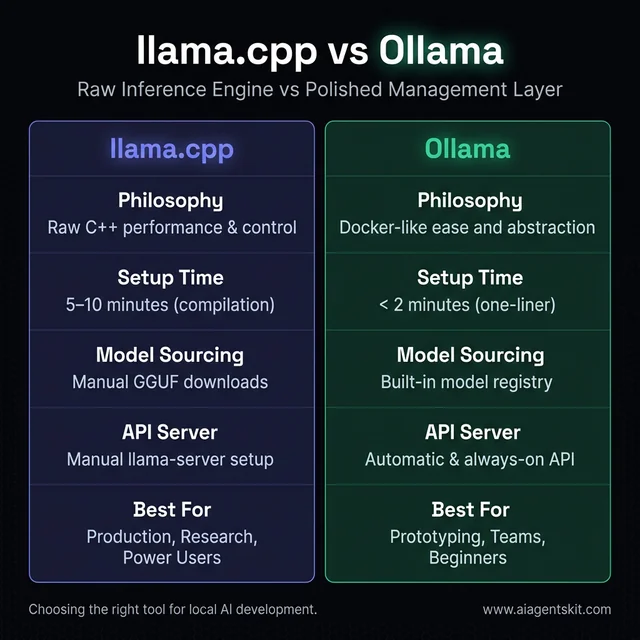
Figure 1: Comparison of llama.cpp and Ollama's core philosophies and features.
llama.cpp vs Ollama: A Quick Comparison at a Glance
Before getting into the technical details, here’s the core distinction: llama.cpp is the raw inference engine, while Ollama is a polished management layer built on top of it. They’re not competing tools — they solve different problems at different layers of the same stack.
| Feature | llama.cpp | Ollama |
|---|---|---|
| Primary Use Case | Direct inference, maximum control | Easy setup, model management |
| Installation | Manual compilation from source | Single-command installer |
| Performance | ~161 tokens/sec (benchmark) | ~89 tokens/sec (same hardware) |
| Model Management | Manual GGUF downloads | Built-in model library + pull commands |
| API | llama-server (OpenAI-compatible) | Built-in REST API (OpenAI-compatible) |
| GPU Support | CUDA, Metal, ROCm, Vulkan, SYCL | Via llama.cpp backend |
| Learning Curve | Steep (CLI + compilation) | Gentle (intuitive commands) |
| Best For | Developers, researchers, production | Beginners, prototypers, API builders |
| Hugging Face Integration | Native (post-Feb 2026 acquisition) | Via Modelfiles + GGUF import |
The right choice depends entirely on the workload, the team’s technical depth, and whether raw performance or rapid iteration matters more.
What Is llama.cpp and How Does It Work?
llama.cpp is an open-source C/C++ implementation of LLM inference, originally created by Georgi Gerganov. Its core design goal is to run large language models as efficiently as possible — on CPUs, GPUs, and hybrid configurations — without requiring cloud connectivity or enterprise-grade hardware.
The project started as a way to run Meta’s Llama models on a MacBook. It grew into one of the most significant open-source AI infrastructure projects, used by researchers, developers, and enterprises running everything from 7B parameter models to 405B parameter architectures.
In February 2026, the ggml.ai team — the creators behind llama.cpp and the foundational ggml tensor library — officially joined Hugging Face. That acquisition signals long-term institutional backing and is expected to bring tighter integration with Hugging Face’s vast model hub, along with faster delivery of quantized model support for new architectures.
Developers who work with open source LLMs and need the absolute maximum from their hardware consistently reach for llama.cpp as the backbone of their stack.
The GGUF Format: llama.cpp’s Secret Weapon
The GGUF format (GPT-Generated Unified Format) is the file container llama.cpp uses to store and run quantized models. It replaced the older GGML format in 2023 and has since become the standard for sharing quantized models on Hugging Face.
Quantization reduces the precision of model weights — from 32-bit or 16-bit floats down to lower-bit integers. The result is dramatically smaller file sizes and lower memory requirements, with a modest trade-off in output quality that most real-world tasks barely notice.
Common quantization levels and their practical implications:
| Level | Bits Per Weight | Quality | RAM (for 7B model) |
|---|---|---|---|
| Q8_0 | 8-bit | Near full-quality | ~8 GB |
| Q5_K_M | ~5-bit | Excellent | ~5 GB |
| Q4_K_M | ~4-bit | Very good | ~4 GB |
| Q3_K_M | ~3-bit | Good (minor degradation) | ~3 GB |
| Q2_K | ~2-bit | Acceptable for basic tasks | ~2.7 GB |
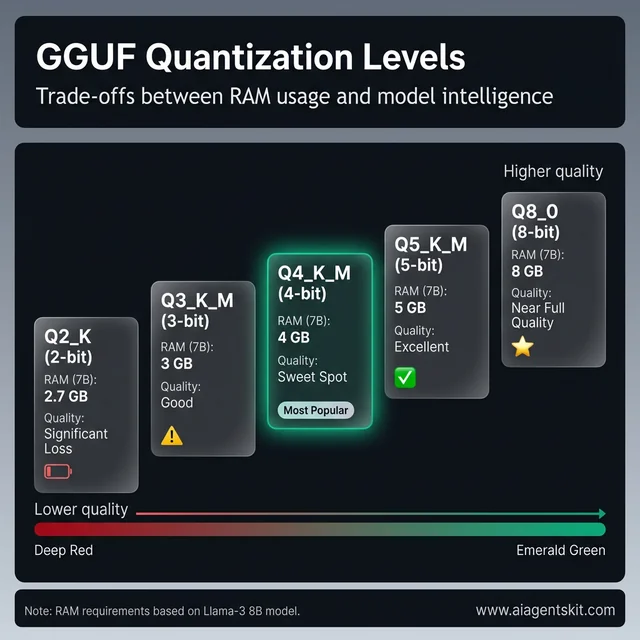
Figure 2: The spectrum of GGUF quantization levels, balancing RAM usage and output quality.
A 70B parameter model quantized to Q4 can run on a consumer GPU with 48GB VRAM — or even spread across multiple smaller GPUs using llama.cpp’s hybrid mode. That flexibility is genuinely hard to match with other tools.
Hardware Backends: CPU, GPU, and Hybrid Modes
llama.cpp supports a broader range of hardware acceleration backends than most inference tools:
- NVIDIA CUDA — full GPU acceleration for RTX and data center GPUs
- Apple Metal — optimized for M1, M2, M3, and M4 chip inference
- AMD ROCm — GPU acceleration for Radeon cards
- Vulkan — cross-platform GPU acceleration (Intel, AMD, NVIDIA)
- Intel SYCL — acceleration for Intel Arc and Xeon platforms
- Pure CPU — runs on x86, ARM, Raspberry Pi, and air-gapped servers
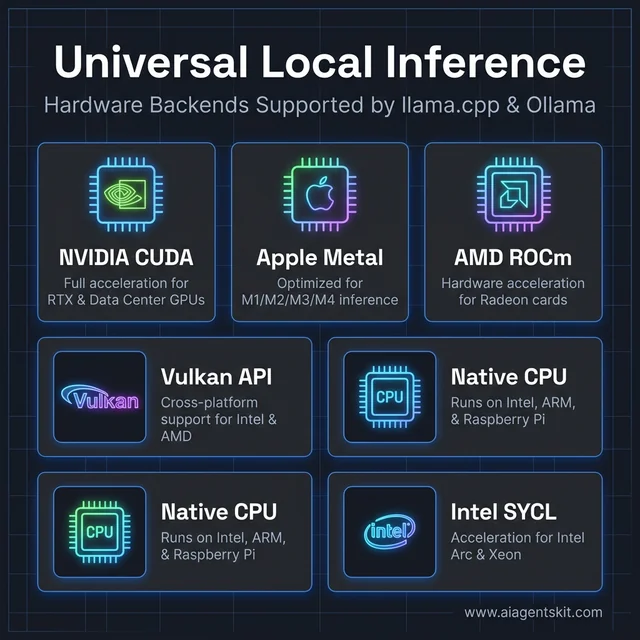
Figure 3: Universal local inference hardware backends supported by llama.cpp and Ollama.
The hybrid mode is particularly useful: developers can offload a portion of model layers to a GPU while running memory-intensive operations on the CPU. A 13B model, for example, might have 20 of its 40 layers on an 8GB GPU and the rest on the CPU — achieving meaningful GPU speedups without requiring full VRAM fit.
What Is Ollama and What Makes It Different?
Ollama launched in July 2023 with a simple premise: running a local LLM should feel like running Docker. One command downloads and runs the model. Another command checks what’s installed. Another removes a model cleanly. No manual compilation, no GGUF hunting, no config files for first-time setup.
Ollama is built on llama.cpp internally, which means it inherits most of llama.cpp’s hardware compatibility. The difference is what gets added on top: model management, a clean API server, and a structured way to configure models called Modelfiles.
Support for Llama 4 models — including the 8B, 70B, and 405B variants — is available in Ollama, making it straightforward to pull and test Meta’s latest open-source architecture without any manual conversion steps.
Modelfiles: Ollama’s Docker-Inspired Model Management
Modelfiles are text files that define how a model behaves in Ollama. They work conceptually like Dockerfiles — a human-readable configuration that Ollama uses to build a runnable model instance.
A basic Modelfile looks like this:
FROM llama4:8b

SYSTEM """
You are a concise technical assistant. Answer in plain language.
"""

PARAMETER temperature 0.7
PARAMETER num_ctx 8192
Running ollama create my-assistant -f Modelfile builds a custom named instance. That instance can then be pulled, run, and shared like any other model in the Ollama registry. It’s also possible to import an external GGUF file directly:
FROM /path/to/custom-model.ggufThis makes sharing fine-tuned custom models with teammates significantly simpler than managing GGUF files manually.
Ollama’s Built-In REST API and OpenAI Compatibility
One of Ollama’s strongest selling points is its automatic API server. The moment Ollama runs, it exposes a local REST API at http://localhost:11434 — no extra configuration required.
The API includes an OpenAI-compatible endpoint:
POST http://localhost:11434/v1/chat/completionsThat endpoint accepts requests in the exact same format as OpenAI’s API, which means any application already built for GPT can be redirected to a local Ollama instance with a single environment variable change. Popular frameworks like LangChain, LlamaIndex, and CrewAI have native Ollama integrations.
Official client libraries exist for Python, JavaScript, Go, and Rust. The Python library usage is about as simple as possible:
import ollama

response = ollama.chat(model='llama4', messages=[
    {'role': 'user', 'content': 'Explain GGUF quantization in one paragraph.'},
])
print(response['message']['content'])
Performance Showdown: Speed and Hardware Efficiency
Here’s where the tradeoffs get technical. Ollama’s abstraction layers introduce overhead that doesn’t exist in a raw llama.cpp setup. For casual single-user inference, that gap is nearly invisible. For high-throughput batch inference or tight latency requirements, the gap grows considerably.
What surprises most practitioners is how the performance gap behaves under load. At 1-2 concurrent users, both tools feel similarly fast. At 10+ concurrent requests, llama.cpp’s lower-overhead architecture starts to separate meaningfully from Ollama’s. That pattern consistently emerges in real-world production evaluations.
Token Generation Speed: Benchmark Results
Community benchmarks consistently show llama.cpp outperforming Ollama in raw token generation speed. In controlled tests using the same model (Llama 3 7B Q4_K_M), the same GPU, and the same hardware setup:
- llama.cpp (llama-server): ~161 tokens per second
- Ollama: ~89 tokens per second
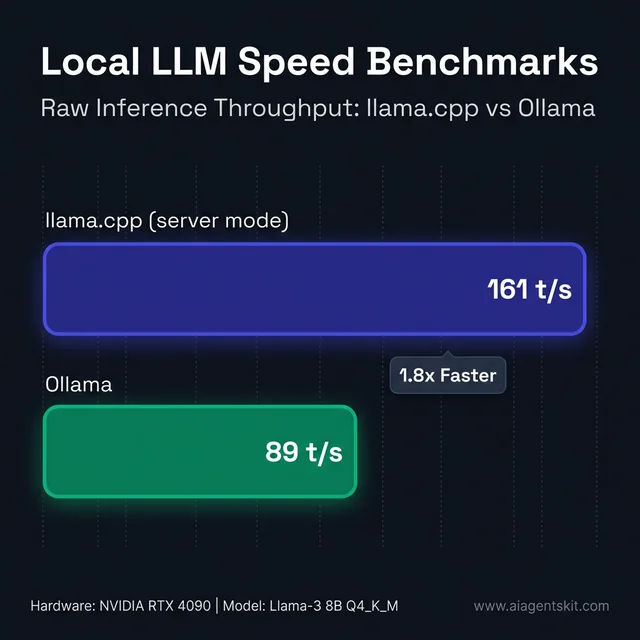
Figure 4: Raw token generation speed benchmarks comparing llama.cpp and Ollama.
That’s roughly 1.8x faster for llama.cpp in this benchmark. Across different models, hardware, and quantization levels, the advantage has been measured at anywhere from 13% to 80% — the gap widens in multi-GPU configurations where llama.cpp’s lower-level control allows for more aggressive optimization.
However, that benchmark tells only part of the story. For single-user interactive use — a developer chatting with a model, or a small team hitting a shared API — the raw speed difference rarely matters. The human typing speed and reading speed create a practical ceiling that makes the difference imperceptible.
The gap becomes meaningful for batch processing (running hundreds of parallel inference requests), embedding generation pipelines, and latency-sensitive production APIs where every millisecond compounds. Organizations benchmarking best GPU for AI inference for local LLM deployments typically discover that hardware selection matters more than tool selection in most practical scenarios. According to Forbes Enterprise Technology analysis, teams that invest heavily in local AI tooling often underestimate how much workload volume determines tool choice — and the llama.cpp vs Ollama performance gap is one of the clearest examples of that principle in practice.
Memory Management and VRAM Efficiency
llama.cpp offers more granular control over memory behavior. The --n-gpu-layers flag specifies exactly how many transformer layers to offload to the GPU — allowing layer-by-layer tuning for machines with limited VRAM.
Another advantage is llama.cpp’s token caching (KV cache management). In long-running server configurations, efficient context caching means repeated prefixes in multi-turn conversations load significantly faster — a real benefit for production deployments handling multiple concurrent users.
Ollama handles memory under the hood with reasonable defaults. For most users, those defaults work well. For teams that need to squeeze every GB of VRAM or optimize cache hit rates for specific workloads, Ollama’s abstraction becomes a limitation rather than a convenience.
5 Key Differences Between llama.cpp and Ollama
Practitioners evaluating these tools consistently encounter the same five points of divergence. Each reflects a fundamental design philosophy difference.
1. Installation and Setup Complexity
llama.cpp requires cloning the repository and compiling from source — a process that varies by platform and GPU backend. CUDA users need to pass specific cmake flags. Apple Silicon users need a separate Metal build. That’s not insurmountable, but it’s a genuine barrier for developers new to C++ toolchains.
Ollama installs with a single command on macOS (brew install ollama), a shell script on Linux, or a standard installer on Windows. A model can be running within two minutes of a fresh system setup.
2. Level of Control
llama.cpp exposes every inference parameter directly: context window size, batch size, thread count, GPU layer allocation, KV cache type, temperature, top-p, and dozens more. Teams that need fine-grained control — or that are running performance benchmarks — get access to the full knob panel.
Ollama provides a curated subset of those parameters through Modelfiles and its API. The defaults are sensible, and the most important parameters are accessible. But researchers or engineers who need exotic configurations will hit Ollama’s ceiling.
3. Model Ecosystem and Discovery
For llama.cpp, models come from Hugging Face as GGUF files. After the February 2026 acquisition of ggml.ai, the Hugging Face ecosystem is expected to offer deeper one-click integration for running quantized models directly through llama.cpp. Currently, finding the right quantization variant requires browsing Hugging Face manually.
Ollama has its own model library at ollama.com/library — a curated registry where models are available as named, versioned packages. Running ollama pull llama4:8b downloads the recommended quantization for the local hardware automatically.
4. API Maturity and Integration
Both tools expose OpenAI-compatible APIs, but with different developer experiences. llama-server (the built-in llama.cpp server) requires manual startup and configuration. Ollama’s API server starts automatically with the Ollama process and stays running as a background daemon.
For teams building applications, Ollama’s always-on API is significantly easier to integrate. For teams that want to run a tightly scoped inference server with specific startup parameters, llama.cpp’s approach gives more control.
5. Python Integration
llama-cpp-python provides Python bindings that run llama.cpp inference natively inside a Python process — no HTTP overhead, no separate server process. That makes it highly efficient for batch processing pipelines and for integrating LLM inference into data science workflows. According to DataInsightsMarket research, the on-device AI market is projected to grow from $10.6 billion in 2025 to $13.27 billion in 2026 — a trend that’s reshaping how developers think about inference tool selection.
Ollama’s Python library is cleaner for API-style interactions but goes through HTTP, which adds latency and process isolation overhead.
How to Install llama.cpp and Ollama: Platform-by-Platform Guide
Installation experience is where the two tools diverge most dramatically. Ollama is designed to be running within two minutes on any machine. llama.cpp requires a C++ build environment and varies significantly by GPU backend. Here’s exactly what’s required on each platform.
macOS
Ollama on macOS — the fastest path to a running model:
# Install via Homebrew
brew install ollama

# Start the Ollama server
ollama serve

# Pull and run Llama 4 8B in a new terminal
ollama pull llama4:8b
ollama run llama4:8b
Ollama auto-detects Apple Silicon and routes inference through Metal — no additional flags required.
llama.cpp on macOS — Metal is built in by default:
# Option 1: Homebrew (easiest)
brew install llama.cpp

# Option 2: Build from source (for latest features)
git clone https://github.com/ggerganov/llama.cpp
cd llama.cpp
cmake -B build
cmake --build build --config Release

# Run with all layers on Apple Silicon GPU
./build/bin/llama-cli -m models/llama4-8b-q4_k_m.gguf --ngl 99 -i
The Homebrew route installs llama-cli, llama-server, and all utilities in one step. Building from source takes 3–5 minutes but delivers the latest architecture support.
Linux
Ollama on Linux — one-liner install:
curl -fsSL https://ollama.com/install.sh | sh

# Ollama is now available as a systemd service
sudo systemctl enable ollama
sudo systemctl start ollama

# Verify
ollama --version
The installer detects NVIDIA, AMD ROCm, and CPU-only configurations automatically.
llama.cpp on Linux — CPU-only vs CUDA:
# Prerequisites
sudo apt update && sudo apt install build-essential cmake git -y

# Clone
git clone https://github.com/ggerganov/llama.cpp
cd llama.cpp

# CPU-only build
cmake -B build && cmake --build build --config Release

# NVIDIA CUDA build (requires CUDA Toolkit installed)
cmake -B build -DGGML_CUDA=ON
cmake --build build --config Release

# AMD ROCm build
cmake -B build -DGGML_HIP=ON
cmake --build build --config Release
For CUDA builds, install the NVIDIA CUDA Toolkit first — the exact version must match the GPU driver. Check compatibility at developer.nvidia.com before building.
Windows
Ollama on Windows — standard installer or Winget:
# Via Winget (Windows 10/11)
winget install Ollama.Ollama

# Or download the installer from ollama.com/download
# Standard Windows .exe — installs as a background service
llama.cpp on Windows — two options:
# Option 1: Winget (CPU-only pre-built binaries)
winget install llama.cpp

# Option 2: Download pre-built CUDA binaries from GitHub Releases
# https://github.com/ggerganov/llama.cpp/releases
# Look for: llama-[version]-bin-win-cuda-cu12.x-x64.zip

# Option 3: Build from source with CUDA (advanced)
# Requires: Visual Studio 2022, CUDA Toolkit, git, cmake
git clone https://github.com/ggerganov/llama.cpp
cd llama.cpp
mkdir build && cd build
cmake .. -DGGML_CUDA=ON -G "Visual Studio 17 2022" -A x64
cmake --build . --config Release
For most Windows users, downloading the pre-built GPU binaries from the GitHub releases page is the practical path. The source build requires matching Visual Studio, CUDA Toolkit, and driver versions — an afternoon of setup rather than minutes.
Installation Comparison at a Glance
| Platform | Ollama Time | llama.cpp Time | Ollama Complexity | llama.cpp Complexity |
|---|---|---|---|---|
| macOS | ~30 seconds | 3–5 min (source) | ⭐ (trivial) | ⭐⭐⭐ (moderate) |
| Linux CPU | ~1 minute | 5–10 min | ⭐ | ⭐⭐⭐ |
| Linux CUDA | ~1 minute | 10–20 min | ⭐⭐ | ⭐⭐⭐⭐ |
| Windows | ~2 minutes | 15–30 min (source) | ⭐ | ⭐⭐⭐⭐⭐ |
For teams getting started with running AI locally on Mac, Ollama’s near-instant setup is almost always the right first step.
When to Use llama.cpp: The Right Scenarios
llama.cpp is the natural choice when the priority shifts from convenience to control — and when the team can handle a steeper setup curve in exchange for measurable performance gains.
Performance-critical workloads: Any deployment where token generation speed or latency matters — batch embeddings, high-concurrency API servers, research benchmarks — benefits from llama.cpp’s lower overhead. The 1.8x speed advantage compounds at scale.
Research and experimentation: Academic teams and ML researchers testing quantization methods, custom architectures, or model compression techniques need the fine-grained control llama.cpp provides. Ollama’s curated interface makes research experiments harder to control precisely.
Edge and embedded deployments: Raspberry Pi clusters, air-gapped enterprise servers, embedded systems, and industrial IoT deployments benefit from llama.cpp’s lightweight footprint and ARM compatibility. Ollama’s daemon model is less suited to truly constrained environments.
Custom C++ integrations: Teams embedding LLM inference directly into C++ applications — game engines, industrial applications, embedded systems — can link against llama.cpp directly through its C API.
Privacy-first enterprise deployments: Organizations in healthcare, legal, defense, and finance that require full data residency and offline operation often choose llama.cpp for its minimal attack surface and absence of network dependencies. The tool does exactly what it’s configured to do — nothing more. Teams setting up fully isolated environments will find the step-by-step build offline AI guide covers the complete air-gap deployment process, including model transfer via physical media and network isolation verification.
Advanced quantization experiments: Testing Q2 vs Q4 vs Q8 quality tradeoffs at scale, custom quantization scripts, and GGUF format experimentation require direct access to llama.cpp tooling.
A typical llama.cpp server launch:
./llama-server \
  -m models/llama4-8b-q4_k_m.gguf \
  -ngl 35 \
  --host 0.0.0.0 \
  --port 8080 \
  --ctx-size 8192 \
  --n-predict 512 \
  --threads 8
That level of explicit configuration is verbose by design — every parameter is visible and controllable.
When to Use Ollama: Ideal Deployment Scenarios
Ollama earns its position as the entry point for most local LLM adopters. The tool’s strength is removing friction — from model discovery through to API integration — in a way that lets teams focus on building rather than configuring.
Rapid prototyping: Ollama is the fastest path from a new machine to a running model. That matters enormously during evaluation phases, hackathons, and early product exploration. According to aggregated 2025 LLM adoption research, 67% of organizations worldwide had adopted LLMs for GenAI operations — and for most of them, ease of deployment was a primary decision factor.
API-first application development: Building a chatbot, an internal knowledge assistant, or an LLM-powered feature? Ollama’s built-in REST API means zero server setup. Point the existing OpenAI SDK at localhost and the integration is done.
Team consistency and reproducibility: Ollama ensures every developer on a team runs the same model, with the same version, through the same interface. That eliminates the “it works on my machine” class of LLM debugging problems.
Agentic and structured output workflows: Ollama supports constrained JSON output (tool calling / structured outputs), which makes it compatible with agent frameworks that need predictable, machine-readable responses. Teams looking to build a RAG chatbot locally typically start with Ollama for this reason.
Beginners and LLM exploration: For teams or individuals who want to run Llama 4, Mistral, Gemma, or any popular open-source model without a PhD in C++ build systems, Ollama handles everything:
# Download and run Llama 4 8B
ollama pull llama4:8b
ollama run llama4:8b

# Switch to Mistral
ollama pull mistral
ollama run mistral
Modelfile-based customization: Teams that want to version-control their model configurations and share them across environments find Ollama’s Modelfile approach more maintainable than managing llama-server scripts.
How to Use llama.cpp and Ollama in Python Applications
Python is where most LLM application development happens — which makes the Python integration story a critical factor in tool selection. The two tools take fundamentally different approaches to Python: llama.cpp runs inference natively inside the Python process, while Ollama communicates through HTTP.
llama-cpp-python: In-Process Inference
llama-cpp-python is the official Python binding for llama.cpp. It runs the complete inference engine inside the Python process — no separate server, no HTTP requests, no inter-process communication overhead.
# Basic install (CPU only)
pip install llama-cpp-python

# macOS with Metal GPU acceleration
CMAKE_ARGS="-DGGML_METAL=on" pip install -U llama-cpp-python --no-cache-dir

# Linux with CUDA GPU acceleration
CMAKE_ARGS="-DGGML_CUDA=on" pip install -U llama-cpp-python --no-cache-dir
Basic usage — load a GGUF model and generate in-process:
from llama_cpp import Llama

# Load model with GPU layer offloading
llm = Llama(
    model_path="./models/llama4-8b-q4_k_m.gguf",
    n_gpu_layers=35,    # layers to offload to GPU
    n_ctx=8192,         # context window size
    n_threads=8,        # CPU threads for non-GPU layers
    verbose=False
)

# Generate text
response = llm(
    "Explain GGUF quantization in two sentences:",
    max_tokens=200,
    temperature=0.7,
    stop=["\n\n"]
)

print(response["choices"][0]["text"])
llama-cpp-python also exposes an OpenAI-compatible server mode and supports advanced features including speculative decoding, function calling, Vision API for multimodal models (via LLaVA), and full LangChain and LlamaIndex compatibility.
The biggest advantage is zero HTTP overhead — inference results are returned directly as Python objects without the round-trip latency of a REST API call. For batch processing pipelines processing thousands of documents, that elimination of per-request HTTP overhead is measurable.
Ollama Python Library: API-First Integration
Ollama’s official Python library is cleaner for applications that treat the LLM as a service:
pip install ollamaimport ollama
# Simple chat completion
response = ollama.chat(
model='llama4:8b',
messages=[
{'role': 'system', 'content': 'You are a concise technical assistant.'},
{'role': 'user', 'content': 'Explain GGUF quantization in two sentences.'}
]
)
print(response['message']['content'])
# Streaming response
for chunk in ollama.chat(
model='llama4:8b',
messages=[{'role': 'user', 'content': 'Count to 10.'}],
stream=True
):
print(chunk['message']['content'], end='', flush=True)The library communicates with a running ollama serve instance over HTTP. If Ollama isn’t running, the import succeeds but calls fail — a deliberate service-oriented design where the LLM server is treated as infrastructure.
LangChain Integration for Both Tools
Both tools work natively with LangChain, the most popular framework for building LLM-powered apps:
pip install langchain langchain-ollama langchain-communityLangChain with Ollama (recommended for most app builders):
from langchain_ollama import ChatOllama
from langchain_core.messages import HumanMessage

llm = ChatOllama(model="llama4:8b", temperature=0.7)

response = llm.invoke([
    HumanMessage(content="What's the difference between llama.cpp and Ollama?")
])
print(response.content)
LangChain with llama-cpp-python (better for offline/embedded apps):
from langchain_community.llms import LlamaCpp
from langchain_core.prompts import PromptTemplate

llm = LlamaCpp(
    model_path="./models/llama4-8b-q4_k_m.gguf",
    n_gpu_layers=35,
    n_ctx=4096,
    temperature=0.7
)

prompt = PromptTemplate.from_template("Explain {topic} in one paragraph.")
chain = prompt | llm

print(chain.invoke({"topic": "GGUF quantization"}))
Which Python Integration to Choose
| Scenario | Best Choice | Why |
|---|---|---|
| Batch document processing | llama-cpp-python | No HTTP overhead, direct memory access |
| Web app with LLM backend | Ollama Python library | Service isolation, easy model switching |
| Agentic workflows (LangChain) | ChatOllama | Cleaner API, streaming support |
| Offline/air-gapped environments | llama-cpp-python | No daemon dependency |
| Multiple models in one app | Ollama | Model switching without reloading |
| Embedding generation pipeline | llama-cpp-python | Lower per-call latency |
For teams building RAG pipelines or agentic systems, selecting the right open-source model matters as much as the inference tool itself.
Which Tool Handles Multimodal and Vision Models Better?
Local LLM inference has expanded well beyond text in 2025. Both llama.cpp and Ollama now support vision-language models — but with different levels of polish and developer experience.
Ollama’s Multimodal Engine
In May 2025, Ollama launched a dedicated multimodal engine purpose-built for vision and image understanding. The engine introduced native support for:
- Gemma 3 (Google) — 4B, 12B, and 27B multimodal variants
- Llama 4 (Meta) — multimodal architecture natively
- LLaVA 1.6 — improved visual reasoning, OCR, and spatial understanding
- Qwen 2.5 VL — strong multilingual vision capabilities
- Mistral Small 3.1 — compact vision model
Running a vision model in Ollama is nearly identical to running a text model:
# Pull LLaVA
ollama pull llava

# Chat with an image from the CLI
ollama run llava "What's in this image?" --image ./screenshot.png
For API usage with image input:
import ollama
import base64

with open("./diagram.png", "rb") as f:
    image_data = base64.b64encode(f.read()).decode()

response = ollama.chat(
    model='llava',
    messages=[{
        'role': 'user',
        'content': 'Describe the architecture shown in this diagram.',
        'images': [image_data]
    }]
)
print(response['message']['content'])
Ollama’s multimodal engine handles image preprocessing, tokenization, and the vision encoder automatically. The developer experience is identical to text inference — zero additional configuration.
llama.cpp Vision API
llama.cpp supports vision-language models through its Vision API, available via llama-cpp-python. The implementation is more manual but gives developers direct control over image processing:
from llama_cpp import Llama
from llama_cpp.llama_chat_format import LlavaChonkInfill

# Load a LLaVA model with vision support
llm = Llama(
    model_path="./models/llava-1.6-mistral-7b-q4_k_m.gguf",
    chat_handler=LlavaChonkInfill(),
    n_gpu_layers=35,
    n_ctx=4096
)

response = llm.create_chat_completion(
    messages=[
        {
            "role": "user",
            "content": [
                {"type": "image_url", "image_url": {"url": "./diagram.png"}},
                {"type": "text", "text": "Describe this architecture diagram."}
            ]
        }
    ]
)
print(response['choices'][0]['message']['content'])
Multimodal Comparison
| Feature | Ollama | llama.cpp |
|---|---|---|
| Dedicated vision engine | ✅ Yes (May 2025) | ❌ Via llama-cpp-python |
| Supported vision models | LLaVA 1.6, Gemma 3, Llama 4, Qwen VL | LLaVA variants |
| Image input via CLI | ✅ --image flag | ❌ Server-only |
| API image upload | ✅ Base64 in messages | ✅ OpenAI Vision format |
| Video/streaming frames | 🔜 Roadmap | ❌ Not yet |
| Speech/audio input | 🔜 Roadmap | ❌ Not yet |
For teams exploring image understanding, document analysis, or visual QA locally, Ollama’s dedicated multimodal engine is significantly more approachable. For maximum flexibility in custom vision pipelines, llama.cpp’s direct control is the better option. Understanding AI benchmark methodology helps evaluate vision model quality claims objectively before committing to a model.
Can You Use llama.cpp and Ollama Together?
Many practitioners assume this is an either/or decision. The reality is more interesting — llama.cpp and Ollama are architecturally compatible and genuinely complementary in several real-world workflows.
Ollama uses llama.cpp internally. The GGUF files that power Ollama models are the same format used by llama.cpp directly. Any model running in Ollama can be extracted and run with llama.cpp for performance testing, and vice versa — any GGUF file from Hugging Face can be imported into Ollama via a Modelfile.
Develop with Ollama, optimize with llama.cpp. A common pattern in production pipelines: use Ollama during development for its easy API and model management, then switch to llama.cpp for the production inference server where performance matters. The switch is straightforward because both tools expose OpenAI-compatible APIs — the application code doesn’t need to change, only the endpoint URL.
Consider a small product team building an internal document assistant. They prototype the whole thing with Ollama in a weekend — pulling Llama 4 8B, testing context window behavior, and wiring up their Python app to the local API. Six weeks later, when they deploy to a dedicated on-premise server handling 50 employees concurrently, they swap Ollama for llama-server with tuned GPU layers and thread counts. The model files are identical. The application code is unchanged. Only the inference backend changed.
Import custom GGUF into Ollama. Teams that fine-tune models or download specialized quantizations from Hugging Face can bring those into Ollama’s managed environment:
# Modelfile for a custom quantized model
FROM /path/to/my-fine-tuned-model.gguf

SYSTEM "You are a specialized assistant for legal document analysis."
PARAMETER temperature 0.2
The February 2026 convergence signal. With ggml.ai joining Hugging Face, the tooling ecosystem is moving toward tighter integration. Models on Hugging Face are already available as GGUF files compatible with both tools. Over the next 12-18 months, expect more seamless workflows where the line between “using llama.cpp” and “using Ollama” blurs further as shared model formats and standards mature.
Even among experts, there’s genuine debate about where Ollama’s overhead becomes meaningful vs negligible for typical web-serving workloads. The practical answer depends heavily on concurrent request volume, model size, and hardware configuration — making it worth benchmarking both for any serious production deployment. The answer genuinely varies: a team running 5 concurrent users on a 13B model will often find Ollama sufficient, while a team running 50 concurrent users on the same model will find llama.cpp’s efficiency gains are non-negotiable.
The most pragmatic approach many teams settle on: Ollama for local development and individual developer machines, llama.cpp-based servers for shared team infrastructure and production workloads. That separation captures the best of both philosophies without forcing a premature commitment.
Setting Up llama.cpp and Ollama for Multi-User Production Deployments
Single-user local inference is the easy case. The moment a team wants multiple developers hitting the same model endpoint, or a company wants to serve internal users from a shared server, the configuration picture changes significantly.
Configuring llama.cpp for Concurrent Requests
llama.cpp’s server mode supports parallel inference through two key flags: --parallel and --cont-batching. Together, they allow the server to handle multiple simultaneous requests efficiently:
# Launch llama-server with parallel request support
./llama-server \
  -m models/llama4-8b-q4_k_m.gguf \
  -ngl 35 \
  --host 0.0.0.0 \
  --port 8080 \
  --ctx-size 16384 \
  --parallel 4 \
  --cont-batching \
  --threads 8
How --parallel works: the total context (--ctx-size) is divided among the parallel slots. With --ctx-size 16384 and --parallel 4, each concurrent request gets a 4,096-token context window. Size the total context accordingly for the workload.
--cont-batching enables continuous batching — a technique where the server processes tokens from multiple requests in the same forward pass rather than sequentially. Without it, --parallel 4 simply queues requests, not processes them simultaneously. With it, throughput for concurrent users improves substantially.
Performance at scale with llama.cpp --parallel:
| Parallel Slots | Effective Throughput | Per-Request Latency |
|---|---|---|
| 1 | ~161 tok/s | Baseline |
| 4 | ~320–400 tok/s | 2–3x baseline latency |
| 8 | ~480–600 tok/s | 4–5x baseline latency |
Throughput scales significantly; per-request latency increases as the model splits compute across slots. The right parallel count depends on whether total throughput or individual response time matters more for the use case.
Running Ollama in Docker
Ollama’s official Docker image makes containerized deployment straightforward:
# CPU-only container
docker run -d \
  -v ollama:/root/.ollama \
  -p 11434:11434 \
  --name ollama \
  ollama/ollama

# NVIDIA GPU container
docker run -d \
  --gpus=all \
  -v ollama:/root/.ollama \
  -p 11434:11434 \
  --name ollama \
  ollama/ollama

# Pull a model into the container
docker exec -it ollama ollama pull llama4:8b
Ollama handles concurrent requests by processing them in sequence by default — a single model is loaded and requests queue. For true parallelism, run multiple Ollama containers behind an nginx load balancer:
upstream ollama_backends {
    server localhost:11434;
    server localhost:11435;
    server localhost:11436;
    least_conn;
}

server {
    listen 80;
    location / {
        proxy_pass http://ollama_backends;
        proxy_read_timeout 300s;
    }
}
Running three Ollama instances on a single multi-GPU machine (one per GPU) with an nginx load balancer is a common pattern for small teams needing 10–20 concurrent users.
Can Ollama Run Multiple Models Simultaneously?
Yes — Ollama supports running multiple models at the same time. When a request comes in for a different model than the currently loaded one, Ollama either loads it alongside (if VRAM allows) or swaps it in. The OLLAMA_MAX_LOADED_MODELS environment variable controls the maximum number of simultaneously loaded models (default: 3 on GPU, 1 on CPU):
# Allow up to 3 models loaded simultaneously
OLLAMA_MAX_LOADED_MODELS=3 ollama serve

# Keep models in memory longer (seconds)
OLLAMA_KEEP_ALIVE=300 ollama serve
Models are unloaded based on LRU (least recently used) policy when memory limits are hit.
Production Decision Guide
| Team Size | Concurrent Users | Recommendation |
|---|---|---|
| Solo developer | 1 | Ollama defaults — zero config |
| Small team (2–5) | 1–5 | Ollama with KEEP_ALIVE tuning |
| Internal tool (10–50 users) | 5–20 | llama.cpp with --parallel 4–8 |
| Department API (50–200 users) | 20–80 | llama.cpp + nginx OR vLLM |
| Enterprise production | 200+ | vLLM with Kubernetes orchestration |
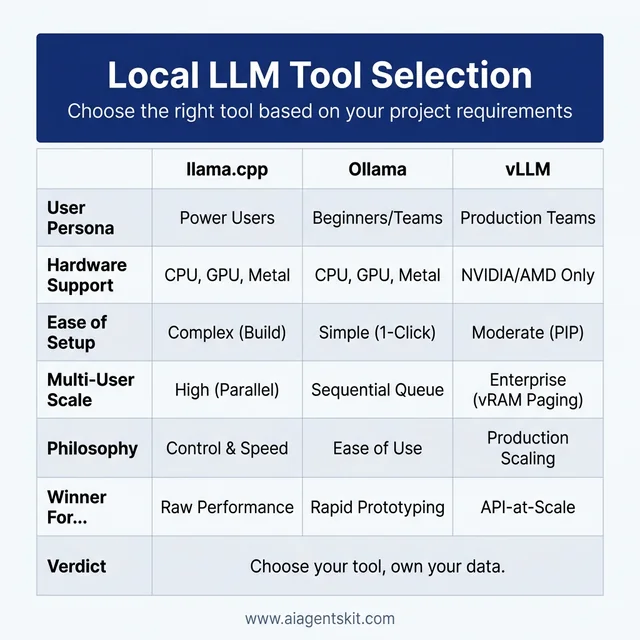
Figure 5: Decision matrix for selecting the right local LLM tool based on project requirements.
For data-sensitive deployments where all inference must stay on-premises with no cloud calls, see the AI data privacy and compliance guide for additional architectural considerations.
How Does vLLM Compare to llama.cpp and Ollama?
For teams that have outgrown both llama.cpp and Ollama, vLLM is the next step in the local inference stack. Understanding where vLLM fits clarifies why llama.cpp and Ollama occupy their specific niches — and when it’s worth moving to a third tool entirely.
What Makes vLLM Different
vLLM was built specifically for high-throughput production serving. Its core innovation is PagedAttention — a memory management algorithm that treats the KV cache like operating system virtual memory, eliminating fragmentation and enabling near-perfect GPU utilization during concurrent inference.
Combined with continuous batching (processing tokens from multiple requests in the same forward pass), vLLM achieves throughput numbers that llama.cpp and Ollama can’t match at scale:
- Ollama (single request): ~89 tokens/sec
- llama.cpp
--parallel 4: ~300–400 effective tokens/sec - vLLM (50 concurrent users): ~793 tokens/sec with P99 latency under 80ms
That gap only appears under concurrent load. For a single developer working alone, vLLM’s overhead makes it the wrong choice.
Three-Way Comparison: llama.cpp vs Ollama vs vLLM
| Dimension | llama.cpp | Ollama | vLLM |
|---|---|---|---|
| Best for | Performance, control | Ease of use, dev | High-concurrency production |
| Installation | Complex (compile) | Single command | pip install vllm |
| Hardware support | CPU, CUDA, Metal, ROCm, Vulkan | Via llama.cpp backend | NVIDIA CUDA, AMD ROCm |
| CPU inference | ✅ First-class | ✅ Via llama.cpp | ❌ GPU required |
| Apple Silicon | ✅ Metal | ✅ Metal | ❌ Unsupported |
| Multi-user throughput | High (with —parallel) | Medium | Very high (PagedAttention) |
| Kubernetes native | ❌ DIY | ❌ DIY | ✅ Production stack |
| Model format | GGUF | GGUF (+ Modelfiles) | HuggingFace safetensors |
| OpenAI API | ✅ llama-server | ✅ Built-in | ✅ Built-in |
| Quantization | GGUF (Q2–Q8) | GGUF via llama.cpp | FP8, AWQ, GPTQ |
| Flash Attention | ✅ | ✅ | ✅ |
When Each Tool Wins
Choose llama.cpp when:
- Running on Apple Silicon, AMD GPU, or CPU-only hardware
- Need GGUF model compatibility (vast Hugging Face library)
- Deploying to edge devices, Raspberry Pi, or embedded systems
- Want maximum control over inference parameters
- Concurrency needs are under 20 simultaneous users
Choose Ollama when:
- Developer environment or rapid prototyping
- Team needs easy model management and sharing
- Building an application that treats the LLM as a background service
- Non-technical team members need to run models
- Exploring multimodal models without configuration overhead
Choose vLLM when:
- NVIDIA GPU is available (required — vLLM doesn’t support CPU or Apple Silicon)
- Serving 50+ concurrent users with strict latency SLAs
- Kubernetes-orchestrated deployment is needed
- Using safetensors format models directly from Hugging Face
- Enterprise-grade observability, autoscaling, and KV cache sharing matter
For teams evaluating hardware to maximize inference performance across all three tools, the AI inference speed optimization guide covers the hardware factors that determine throughput ceilings.
llama.cpp vs Ollama: Frequently Asked Questions
Is Ollama based on llama.cpp?
Yes — Ollama is built on top of llama.cpp as its core inference engine. Ollama adds model management, a user-friendly CLI, an automatic REST API server, and Modelfile support on top of llama.cpp’s underlying capabilities. The GGUF model format used by both tools is the same, meaning any model that runs in Ollama can also run directly in llama.cpp, and most GGUF models from Hugging Face can be imported into Ollama via a Modelfile.
Which is faster: llama.cpp or Ollama for token generation?
llama.cpp is faster in direct benchmarks — approximately 1.8x faster in controlled tests (161 tokens/sec vs 89 tokens/sec on identical hardware). The gap exists because Ollama adds abstraction layers over llama.cpp that introduce processing overhead. However, for interactive single-user workloads, the speed difference is rarely noticeable in practice. The gap becomes meaningful for batch processing, high-concurrency APIs, and latency-sensitive production deployments where every millisecond compounds.
Can llama.cpp run without a GPU?
Absolutely. CPU-only inference is one of llama.cpp’s key design goals. The tool runs on pure CPU through optimized SIMD instructions for x86, ARM, and Apple Silicon. Running on CPU requires proper quantization — a Q4_K_M quantized 7B model runs comfortably on most modern laptops with 8GB of RAM. Performance is slower than GPU inference, but it’s fully functional and practical for many workloads, especially on Apple Silicon where the unified memory architecture blurs the CPU/GPU distinction.
What models does llama.cpp support in 2026?
llama.cpp supports any model in the GGUF format, which covers essentially all popular open-source architectures. Current support includes Llama 4 (8B, 70B, 405B), Mistral Large 2, Gemma 3, Phi-3, DeepSeek variants, Qwen 2.5, and hundreds of community fine-tunes available on Hugging Face. The February 2026 Hugging Face acquisition of ggml.ai is accelerating the addition of new architecture support. If a model has an active community and is on Hugging Face, there’s almost certainly a GGUF version available.
How do I install llama.cpp vs Ollama?
The installation experiences are radically different. Ollama installs with a single command: brew install ollama on macOS, a curl-piped shell script on Linux, or a standard Windows installer. llama.cpp requires cloning the GitHub repository and compiling from source using cmake — with different flags for CUDA builds, Metal builds, and ROCm builds. The compilation takes a few minutes and requires a working C++ build environment. Ollama’s installer is complete in under 30 seconds on a modern machine.
Is Ollama suitable for production deployments?
Ollama is increasingly used in limited production deployments — internal tools, team knowledge assistants, prototype APIs, and development environments. Its built-in REST API, automatic model management, and OpenAI-compatible endpoints make it viable for low-to-medium concurrency workloads. For high-throughput production inference with strict latency SLAs, llama.cpp directly (or vLLM, if VRAM budget allows) is generally a better choice. Ollama’s roadmap includes production hardening features, so its suitability for production will continue to improve through 2026.
What is GGUF format and why does it matter?
GGUF (GPT-Generated Unified Format) is the file format used to store and distribute quantized LLM weights. It replaced the older GGML format in 2023 and has become the standard for sharing local AI models on Hugging Face. GGUF files contain not just model weights but metadata about the architecture, tokenizer, and quantization settings — making them self-contained and portable. The quantization embedded in GGUF dramatically reduces model file sizes and RAM requirements: a 70B parameter model that would normally require 140GB of memory can run in 40-48GB with Q4 quantization.
Can I run Llama 4 with both llama.cpp and Ollama in 2026?
Yes. Llama 4 (including the 8B, 70B, and 405B variants) is available in GGUF format on Hugging Face and in Ollama’s model library. Running the 8B variant: with llama.cpp, download the GGUF file from Hugging Face and point llama-server at it. With Ollama, run ollama pull llama4:8b and then ollama run llama4:8b. The 70B and 405B variants require substantial VRAM (or CPU RAM with quantization), but both tools support running them across available hardware resources.
What GPU backends does llama.cpp support?
llama.cpp supports an extensive list of GPU acceleration backends: NVIDIA CUDA (for RTX, Quadro, and data center GPUs), Apple Metal (for all Apple Silicon including M1 through M4), AMD ROCm (for Radeon discrete GPUs), Intel SYCL (for Arc and Xeon Processor Graphics), and Vulkan (a cross-platform backend that works with most modern GPUs including Intel integrated graphics). The practical breadth of that support means llama.cpp runs with GPU acceleration on virtually any modern development machine, from MacBook Pros to Linux workstations to Windows gaming rigs.
How do Ollama Modelfiles work?
Modelfiles are configuration files — similar conceptually to Dockerfiles — that define how a model behaves in Ollama. A Modelfile specifies the base model (via FROM), a system prompt (via SYSTEM), and inference parameters (via PARAMETER directives like temperature, context size, and repeat penalty). Running ollama create my-model -f Modelfile builds a named, versioned model instance. Modelfiles can also point to local GGUF files, enabling teams to import custom fine-tunes from Hugging Face or local training runs into Ollama’s managed environment.
How many concurrent requests can llama.cpp handle?
llama.cpp handles concurrent requests through the --parallel flag in llama-server mode. Setting --parallel 4 with --cont-batching enables four simultaneous inference streams using continuous batching — where tokens from all active requests are processed together in each forward pass. In practice, --parallel 4–8 is the sweet spot for consumer GPUs: throughput roughly doubles or triples while per-request latency increases by 2–4x compared to single-request mode. At very high parallel counts (16+), GPU memory becomes the constraint. For context sizing: total --ctx-size is divided evenly across parallel slots, so a server with 16,384 context and 4 parallel slots gives each user a 4,096-token window.
Does Ollama support multimodal and vision models?
Yes — Ollama introduced a dedicated multimodal engine in May 2025, adding native support for vision-language models including LLaVA 1.6, Google Gemma 3 (4B/12B/27B), Meta Llama 4 Vision, and Qwen 2.5 VL. Running a vision model is identical to running a text model: ollama pull llava and ollama run llava. Image inputs are passed via the API as base64-encoded data in the messages array. The dedicated multimodal engine handles vision tokenization and preprocessing automatically. Ollama’s roadmap includes speech and audio modalities as future additions to the multimodal stack.
How does llama.cpp compare to vLLM for production serving?
For a single server handling under ~20 concurrent users, llama.cpp with --parallel and --cont-batching is fully viable and has the advantage of supporting non-NVIDIA hardware (Apple Silicon, AMD ROCm, CPU-only). For high-concurrency production — 50+ concurrent users with latency SLAs — vLLM’s PagedAttention and architectural optimizations achieve significantly higher throughput (793+ tokens/sec in multi-user benchmarks vs. llama.cpp’s 300–400). The practical tradeoff: vLLM requires NVIDIA CUDA (no Apple Silicon, no CPU-only), uses safetensors format rather than GGUF, and has more complex production setup. Teams with NVIDIA hardware and high concurrency needs should favor vLLM; everyone else should evaluate llama.cpp before committing to the operational complexity vLLM adds.
Is llama.cpp free to use commercially?
llama.cpp is released under the MIT License — one of the most permissive open-source licenses available. Commercial use, modification, distribution, and private use are all fully permitted with no restrictions beyond attribution. The MIT license applies to the llama.cpp codebase itself. The models run through llama.cpp have their own licenses: Meta’s Llama 4 permits commercial use under Meta’s Llama Community License for most organizations (with restrictions at very large scale), while other models like Mistral and Gemma have their own distinct license terms. Always verify the specific model’s license before commercial deployment, but the inference tool itself (llama.cpp) imposes zero restrictions.
Conclusion
The llama.cpp vs Ollama choice isn’t a competition — it’s a spectrum. Ollama is the fastest starting point for the vast majority of developers and teams. Its model management, API server, and zero-config setup remove the barriers that have historically made local LLMs intimidating.
llama.cpp is where practitioners go when Ollama’s defaults stop being enough. When latency needs to drop below a threshold, when full GPU layer control becomes necessary, when embedding 70B inference into a C++ application — that’s llama.cpp’s territory.
The recommended path for most teams: start with Ollama, build the prototype, validate the use case. When performance benchmarks become critical or the deployment environment gets constrained, graduate to llama.cpp for the production inference layer. Both tools use the same GGUF model format, so that migration is significantly easier than switching inference tools usually is.
For developers interested in going deeper on AI toolchain decisions, exploring AI coding assistants that pair well with local LLM setups is a natural next step in building a fully local AI development environment.