Run AI Offline: Complete Guide to Building an Offline AI
Learn how to build offline AI that works without internet. Run local LLMs, set up air-gapped AI, and keep your data completely private.
Cloud AI is powerful — but it’s also a dependency that breaks at exactly the wrong moment. Organizations relying entirely on cloud-based AI discover this the hard way when networks go down, API limits are hit, or a compliance audit reveals that sensitive queries have been leaving the building. Building offline AI that runs entirely on local hardware is no longer a niche concern — it’s becoming a strategic imperative for teams that value reliability, privacy, and control.
The challenge most teams face isn’t motivation — it’s knowing where to start. Selecting the right hardware, choosing between inference tools, transferring models to air-gapped machines, and verifying everything actually works offline all require knowledge that most guides don’t cover in one place.
This guide covers the complete process of building a fully offline AI system, from hardware selection through to the first working query — all without sending a single byte outside the local machine. Teams already exploring how to run AI locally with Ollama will find this a natural next step toward true air-gap capability.
What Is Offline AI and Why Does It Matter in 2026?
Offline AI refers to artificial intelligence systems that run entirely on local hardware — no cloud connection, no API calls, no data leaving the device. Model weights are downloaded once and then operate indefinitely without any network access. This includes language models for text generation, speech recognition systems, and vision models that can analyze images entirely on-device.
The market signals are unambiguous: the on-premise LLM serving platforms sector is projected to grow from $3.08 billion in 2025 to $3.81 billion in 2026, representing a compound annual growth rate of 23.8%. McKinsey’s State of AI report notes that 71% of organizations have deployed generative AI in at least one business function, with a significant cohort migrating workloads to on-premise or hybrid infrastructure to retain data control. That growth reflects a deliberate shift by organizations that can’t afford to depend on external infrastructure for their AI capabilities.
What’s changed in 2026 is accessibility. Models that once required data-center hardware now run comfortably on consumer GPUs. Quantization techniques have shrunk model weights without significant quality loss. Tools like Ollama have made local inference nearly as simple as using a cloud API. The remaining friction isn’t technical — it’s organizational. Many teams still assume local AI means a degraded experience, but that assumption is increasingly outdated.
The distinction between local AI (runs on a local network) and offline AI (requires zero network access) matters in regulated environments. Local AI might still phone home for model updates or telemetry. True offline AI — especially in air-gapped deployments — runs on machines physically disconnected from any network. This guide covers both, with explicit notes wherever the two diverge.
5 Reasons Organizations Are Moving AI Offline
The offline AI trend isn’t driven by one factor. Most organizations cite several converging pressures when explaining their move away from cloud-only AI. Understanding these drivers helps teams build the internal case for investment and anticipate the objections that inevitably come up in procurement discussions.
Privacy and Data Sovereignty: Nothing Leaves Your Machine
The privacy case for offline AI is straightforward: if data never leaves the device, it cannot be intercepted, logged, or used for training by third-party services. Cloud AI providers — even those with privacy-first positioning — process queries on infrastructure the organization doesn’t control. Every prompt sent to a cloud model passes through at least one set of servers that belong to someone else.
According to research from Market.us, 44% of enterprises identify data privacy as the top barrier to LLM adoption. That’s not a concern about capability — it’s a concern about trust. For industries handling medical records, proprietary source code, financial information, or legal documents, that trust problem has no cloud-based solution. Offline AI is the only architecture that makes privacy guarantees verifiable, not just contractual.
Data sovereignty requirements add regulatory weight to the privacy argument. Organizations subject to GDPR, India’s PDPB, or sector-specific regulations need to know exactly where data is processed — a guarantee that’s easiest to provide when data processing happens on infrastructure they own and control.
Reliability for Critical and Remote Environments
Cloud AI services fail. Network connections degrade. API rate limits halt workflows at peak demand. For teams that have integrated AI into core daily workflows, any of these failure modes becomes a productivity crisis rather than a minor inconvenience.
The reliability argument is strongest in three contexts: truly remote environments (ships, field operations, wilderness research stations, rural clinics), environments with unreliable connectivity (commercial flights, developing regions, construction sites), and critical operations where any interruption has serious consequences. Offline AI doesn’t care about any of these conditions — it runs on local power, local hardware, and produces outputs regardless of network status.
Even in environments with strong connectivity, offline capability as a fallback eliminates a class of single points of failure that most IT risk assessments have started to flag explicitly since major cloud AI outages in 2024 and 2025.
Regulatory Compliance: HIPAA, Defense, and Finance
Regulated industries often have no legal path to cloud AI for their most sensitive workloads. Healthcare organizations handling protected health information (PHI) under HIPAA need explicit data processing agreements and specific security guarantees. Defense contractors working with classified or controlled unclassified information (CUI) operate on networks that are physically air-gapped by requirement. Financial institutions subject to data residency regulation may be prohibited from sending certain categories of data to foreign-hosted infrastructure.
Gartner predicts that by 2026, over 80% of enterprises will have deployed GenAI-enabled applications, with running LLMs locally increasingly cited as a strategic move to balance innovation, security, and cost control — particularly in regulated sectors. The question for these organizations isn’t whether to use offline AI. It’s which configuration meets their specific compliance requirements.
For teams comparing infrastructure options, reviewing a best GPU for AI workloads guide early prevents costly hardware procurement mistakes that take months to reverse.
Hardware Requirements for Running AI Without Internet
The minimum viable hardware for offline AI has dropped dramatically over the past two years. A laptop purchased in 2024 or later can run genuinely useful AI models without a GPU. The experience improves significantly with dedicated GPU hardware, but the floor for “good enough for real work” is lower than most teams expect.
Minimum, Mid-Range, and Recommended Hardware Specs
CPU-only minimum (usable, slower):
- Modern 64-bit CPU (Intel 12th gen+, AMD Ryzen 5000+, or Apple Silicon)
- 16 GB RAM minimum; 32 GB strongly recommended
- 50 GB free SSD storage (NVMe preferable for faster model loading)
- Expected speed: 5–15 tokens/second on 7B parameter models
Entry-level GPU (practical sweet spot):
- GPU with 8+ GB VRAM (NVIDIA RTX 4060, AMD RX 7600)
- 16 GB system RAM
- 100 GB SSD storage
- Expected speed: 25–50 tokens/second on 7B–13B models
Enthusiast/enterprise (best experience):
- GPU with 24+ GB VRAM (RTX 4090, RTX Ada 6000, or equivalent workstation GPU)
- 64 GB system RAM
- 500 GB+ NVMe storage for maintaining a substantial model library
- Expected speed: 50–120 tokens/second; runs 34B–70B models with full comfort
GPU vs CPU Inference: Speed and Power Tradeoffs
The performance difference between GPU and CPU inference runs roughly 5–15× depending on the model and hardware combination. A 7B model running at 8 tokens/second on a modern CPU runs at 40–60 tokens/second on an RTX 4060. For interactive use, that difference is significant — the difference between waiting 30 seconds and waiting 3 seconds for a coding suggestion changes whether the tool feels useful or frustrating.
CPU inference remains valuable in two contexts. First, it works on any hardware without GPU driver setup, CUDA dependencies, or ROCm configuration — meaningful for heterogeneous enterprise deployments. Second, for Apple Silicon Macs, “CPU inference” is somewhat misleading. The Neural Engine and GPU cores in M-series chips handle inference through the unified memory architecture, delivering 40–80 tokens/second on M3 Pro and M3 Max chips — competitive with dedicated GPU setups at a fraction of the power consumption.
The detailed tradeoffs between the two main inference backends are covered in the llama.cpp vs Ollama comparison guide, including specific flags and configuration options for each.
Storage Planning: How Much Space AI Models Need
| Model Size | Q4 Quantized | Q8 Quantized | Full Precision (fp16) |
|---|---|---|---|
| 7B params | ~4 GB | ~7 GB | ~14 GB |
| 13B params | ~7 GB | ~14 GB | ~26 GB |
| 34B params | ~20 GB | ~34 GB | ~68 GB |
| 70B params | ~40 GB | ~70 GB | ~140 GB |
For setups maintaining 3–5 models across different use cases, 200–500 GB of fast NVMe storage is the practical target. Spinning HDDs work for archival model storage but noticeably slow model loading times — a frustrating delay when switching between models.
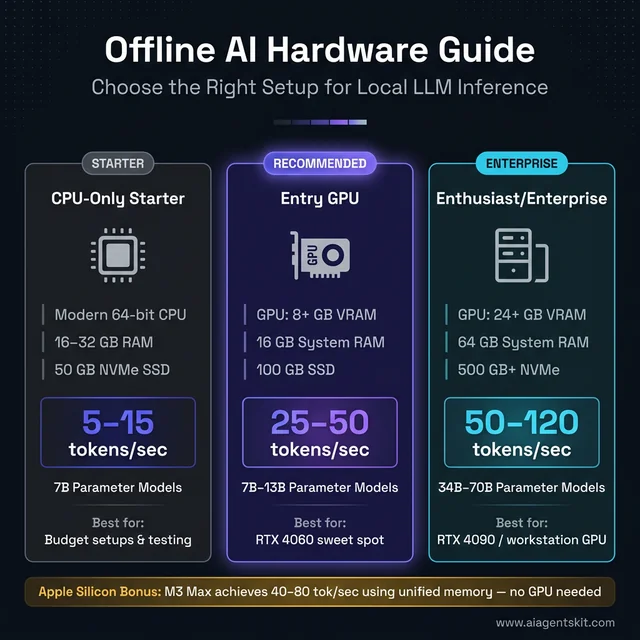
Hardware tiers for local AI inference — the entry GPU tier delivers the best price-to-performance balance for most teams.
How to Choose the Right Software Stack for Offline AI
Three tools dominate local AI inference. They’re not mutually exclusive — many setups combine elements of more than one — but each has a distinct design philosophy and a target user profile worth understanding before committing to a setup.
Ollama: Best Option for Most Offline AI Users
Ollama is the recommended starting point for the majority of offline AI deployments. It functions like a local AI service daemon: install once, pull models with single commands, and query through a REST API that mirrors OpenAI’s endpoint format. That OpenAI compatibility matters enormously in practice — any tool or script built for the OpenAI API works against Ollama with a single URL change.
Key characteristics:
- Single installer for macOS, Linux, and Windows
- Model library covering 100+ models including Llama 4, Phi-4, Mistral, Gemma, and Qwen
- Automatic GPU detection and hardware acceleration
- Runs as a background service on port 11434
- Supports concurrent model loading and rapid model switching
The meaningful limitation: Ollama sacrifices some fine-grained performance tuning for simplicity. Power users running inference at maximum throughput may eventually hit that ceiling — but the vast majority of offline AI use cases fall well within it.
LM Studio: Graphical Interface for Local Models
LM Studio provides a desktop application experience for users who prefer to avoid the terminal. Model browsing, downloading, and interactive chat happen through a GUI. It also functions as a local API server, making it compatible with the same ecosystem of tools that works with Ollama.
LM Studio fits when:
- The primary user isn’t comfortable with command-line tools
- Quick model testing and side-by-side comparison is the main use case
- The setup will be shared with non-technical colleagues who need a familiar interface
The tradeoff: the GUI consumes RAM and CPU that Ollama doesn’t use. On machines with under 32 GB RAM, that overhead meaningfully reduces the available model size.
llama.cpp: Maximum Performance, Maximum Control
llama.cpp is the underlying inference engine that powers much of the local AI ecosystem — including Ollama internally. Running it directly eliminates abstraction layers and gives full control over quantization format selection, context length, GPU layer offload ratio, and threading configuration.
llama.cpp is the right choice for:
- Environments where every token/second of throughput matters
- Resource-constrained deployments (Raspberry Pi, embedded systems, edge servers)
- Custom applications that need direct library integration
- Power users who want precise optimization control
For most deployments, the complexity tax of direct llama.cpp usage isn’t justified. Throughput gains over Ollama are real but incremental — typically 10–20% — at the cost of significant additional setup complexity. The Llama 4 family release notes document specific quantization options most relevant to both Ollama and llama.cpp users.
Tool Comparison at a Glance
| Feature | Ollama | LM Studio | llama.cpp |
|---|---|---|---|
| Setup difficulty | Low | Low | High |
| Performance ceiling | High | High | Maximum |
| GUI available | Via add-on | Built-in | No |
| API format | OpenAI-compatible | OpenAI-compatible | Custom |
| Best for | Most users | Non-technical users | Power users |
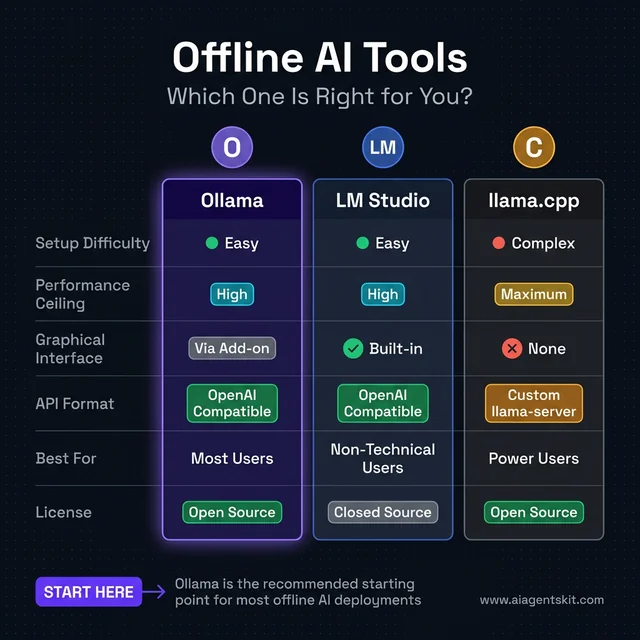
Ollama wins for most offline AI deployments — easy setup, OpenAI-compatible API, and a large model library make it the clear starting point.
Which AI Models Work Best for Offline Deployment?
Model selection for offline use involves different tradeoffs than selecting cloud models. Licensing matters — some “open” models restrict commercial use. Hardware fit is a hard constraint rather than a cost-performance optimization. And update mechanisms need rethinking, since offline models can’t auto-update.
Llama 4: Meta’s Best Model for Offline Use
Meta’s Llama 4 family, released in late 2025, is the current benchmark for open-weight models. Available in three sizes (8B, 70B, and 405B) under a research license that permits commercial use in most contexts, it’s the first choice for new offline AI deployments.
Llama 4 8B — The go-to for most consumer hardware:
- Hardware: 8 GB VRAM (Q4) or 16 GB RAM (CPU)
- Capability: Strong general-purpose reasoning, coding, writing, analysis
- Speed: 30–60 tokens/sec on mid-range GPU
ollama pull llama4
ollama run llama4 "Explain the difference between VRAM and RAM for AI inference"
Llama 4 70B — For enthusiast and small server deployments:
- Hardware: 24 GB VRAM (Q4) or 64 GB RAM (CPU, slow)
- Capability: Approaches cloud model quality on most benchmarks
- Speed: 10–25 tokens/sec on RTX 4090
ollama pull llama4:70b-instruct-q4_K_M
ollama run llama4:70b-instruct-q4_K_M
The quality difference between 8B and 70B is most noticeable in complex multi-step reasoning, nuanced instruction following, and creative tasks requiring contextual judgment. For code completion and factual Q&A, 8B is frequently sufficient.
Phi-4 and Mistral: Compact Models for Limited Hardware
Phi-4 from Microsoft performs impressively relative to its parameter count. On hardware limited to 4–8 GB VRAM or 16 GB system RAM, Phi-4 is currently the strongest available option:
ollama pull phi4Phi-4 runs at 40–60 tokens/second on MacBook Air M2 (16 GB unified memory) and handles Python, JavaScript, and structured reasoning tasks well. It’s also the recommended choice for Raspberry Pi 5 deployments.
Mistral models from the French AI lab offer excellent instruction-following and multilingual capabilities:
ollama pull mistral          # 7B — strong general use
ollama pull mistral-nemo     # 12B — stronger reasoning
Mistral’s models tend to excel at structured output generation and code tasks, making them a solid choice for developer tooling and automation pipelines.
Understanding Quantization: Q4, Q8, and Full Precision
Quantization reduces the bit-width representing model weights, shrinking file size and memory requirements at the cost of some numerical precision. In practice, Q4 quantization is nearly indistinguishable from full precision for most everyday tasks:
| Format | Bits per Weight | Quality vs Full Precision | Best For |
|---|---|---|---|
| fp16 | 16 | Baseline | Servers with abundant VRAM |
| Q8 | 8 | ~99% | Best quality on consumer hardware |
| Q4_K_M | 4 | ~96–97% | Best balance — recommended default |
| Q2 | 2 | ~88–90% | Severely constrained hardware only |
The _K_M suffix indicates a K-quant scheme that distributes precision more intelligently across model layers — preserving quality where it matters most. Q4_K_M is the default recommendation for most offline AI setups. Exploring the full range of available open-source LLM options reveals quantized versions available for virtually every popular model.
How to Build a Fully Offline AI System: Step-by-Step
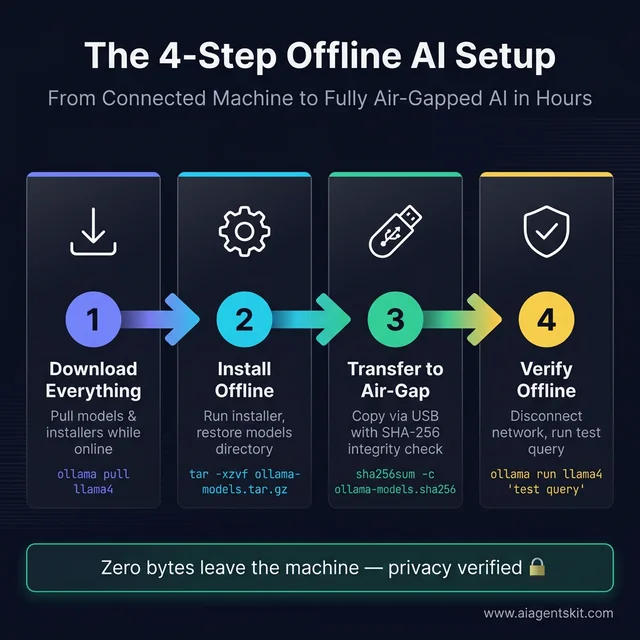
The four-step process to build a fully air-gapped AI system — all critical downloads happen before the machine goes offline.
The governing principle of offline AI setup: download everything while still connected to the internet. Once the target machine goes offline or moves to an air-gapped environment, no additional downloads are possible. This section covers the complete procedure for both consumer offline use and enterprise air-gap deployments.
Step 1: Download Everything Before Going Offline
On the internet-connected machine, gather all components:
- Download the Ollama installer for the target OS from ollama.ai (macOS .dmg, Windows .exe, or Linux install script)
- Pull each required model:
# General-purpose LLM
ollama pull llama4

# Code-focused model
ollama pull deepseek-coder-v2

# Compact model for fast responses on limited hardware
ollama pull phi4

# Vision model for image analysis
ollama pull llava:13b
Models are stored in Ollama’s local directory:
- macOS/Linux:
~/.ollama/models/ - Windows:
%USERPROFILE%\.ollama\models\
- If a web-based GUI is needed, download the Open WebUI Docker image:
docker pull ghcr.io/open-webui/open-webui:main
docker save ghcr.io/open-webui/open-webui:main > open-webui.tar- Confirm total asset size and ensure the transfer medium has sufficient capacity with room to spare.
Step 2: Install and Configure Ollama Without Internet
On the offline or air-gapped machine:
- Run the Ollama installer from the copied file — installation requires no internet.
- If models were pulled on a different machine, transfer and restore the models directory:
# Package models on the source machine
tar -czvf ollama-models.tar.gz ~/.ollama/models/

# After transfer to target machine (via USB or external drive):
tar -xzvf ollama-models.tar.gz -C ~/

# Confirm models are available
ollama list- Start the Ollama service:
# macOS: Ollama starts automatically after installation
# Linux: enable as system service
sudo systemctl enable ollama
sudo systemctl start ollama- If using Open WebUI, load the saved Docker image:
docker load < open-webui.tar
docker run -d -p 3000:8080 \
  --add-host=host.docker.internal:host-gateway \
  -v open-webui:/app/backend/data \
  --name open-webui \
  ghcr.io/open-webui/open-webui:main
The web interface becomes available at http://localhost:3000 — fully offline.
Step 3: Transfer AI Models to Air-Gapped Systems
For enterprise air-gap deployments, model transfer requires physical media. There’s no network path between internet-connected and air-gapped machines by design — all transfer happens through USB drives, optical media, or encrypted external SSDs.
Packaging models for physical transfer:
# On the internet-connected machine
# Verify the full model list that will be transferred
ollama list

# Archive the complete models directory
tar -czvf ollama-models-$(date +%Y%m%d).tar.gz ~/.ollama/models/

# For very large archives (100GB+), split into chunks for multi-drive transfer
split -b 50G ollama-models-20260304.tar.gz ollama-models-part-
Integrity verification (critical for compliance environments):
# Generate checksum before transfer
sha256sum ollama-models-20260304.tar.gz > ollama-models.sha256

# After transfer on the air-gapped machine, verify
sha256sum -c ollama-models.sha256
Restore on the air-gapped machine:
# Recombine split files if applicable
cat ollama-models-part-* > ollama-models-20260304.tar.gz

# Verify integrity first
sha256sum -c ollama-models.sha256

# Extract to Ollama's models directory
tar -xzvf ollama-models-20260304.tar.gz -C ~/

# Confirm models are recognized
ollama list
Organizations establishing permanent air-gap processes should document chain-of-custody for model transfers and establish a quarterly update cycle — models should be refreshed as new open-source releases become available. Teams adding image generation capabilities will find that local image AI with Stable Diffusion uses the same pre-download-then-transfer pattern for offline deployment.
Step 4: Verify Your Offline Setup Works Correctly
Before trusting the setup for real work, verify that it operates completely without network access:
Disconnect all network interfaces:
# Linux
sudo ip link set eth0 down
sudo ip link set wlan0 down

# macOS: Disable Ethernet and Wi-Fi in System Settings → Network
# Or enable Airplane Mode via Control Center
Run a test query:
ollama run llama4 "What are the three branches of the United States government?"A correct, detailed response confirms the model is running locally. An error about connectivity indicates Ollama may be attempting to reach external endpoints — check Ollama’s configuration for telemetry settings.
Test each downloaded model:
ollama run phi4 "Write a Python function that returns the nth Fibonacci number"
ollama run deepseek-coder-v2 "Explain the difference between a list and a tuple in Python"
For air-gapped compliance verification — monitor network traffic during inference:
# On Linux, run in one terminal:
sudo tcpdump -n -i any not src 127.0.0.1 and not dst 127.0.0.1

# In a second terminal, run a query:
ollama run llama4 "Compliance test query"

# No output in tcpdump = no outbound network traffic = verified offline operation
Adding Offline Speech and Vision to Your AI Setup
Text-only AI covers most use cases, but voice interaction and image analysis meaningfully expand what’s possible with an offline AI system. Both are achievable with tools that download their models once and operate indefinitely without internet access thereafter.
Local Speech Recognition with OpenAI Whisper Offline
OpenAI Whisper is a speech recognition system whose model weights are publicly available and can run entirely offline after initial setup. Despite being OpenAI’s creation, Whisper operates without any connection to OpenAI’s servers once downloaded:
# Install Whisper (requires Python 3.8+)
pip install openai-whisper

# Download and cache the model while online
python3 -c "import whisper; whisper.load_model('medium')"
# Cached to ~/.cache/whisper/ — no further internet needed
Offline transcription (after disconnecting):
import whisper

model = whisper.load_model("medium")  # Uses cached model — no network call
result = model.transcribe("meeting_recording.mp3")
print(result["text"])
The Whisper GitHub repository documents the full model range, from “tiny” (39M parameters, fast but rough) to “large-v3” (1.5B parameters, near-human accuracy). The “medium” model offers the best practical balance for most offline deployments — good accuracy, reasonable speed on CPU, and a manageable 1.5 GB download.
For voice-activated pipelines, Whisper output feeds directly into an Ollama API call: microphone → Whisper transcript → Ollama prompt → text response. Add a local text-to-speech tool like Piper TTS or Kokoro, and the entire voice interaction loop runs offline.
Offline Image Analysis with LLaVA and Ollama
LLaVA (Large Language and Vision Assistant) enables image analysis through Ollama, handling image description, visual question answering, and document image processing completely offline:
# Download while online
ollama pull llava:13b

# Use offline
ollama run llava:13b "Describe this image in detail" --image screenshot.png

# Or via API
curl http://localhost:11434/api/generate -d '{
  "model": "llava:13b",
  "prompt": "What text is visible in this image?",
  "images": ["'$(base64 -w0 document.png)'"]
}'
LLaVA 13B handles the most common practical vision tasks well: reading text from images, describing diagrams, answering questions about photographs, and analyzing document layouts. For document processing workflows in air-gapped healthcare or legal environments, LLaVA combined with a document scanner creates a fully local document intelligence pipeline that satisfies compliance requirements no cloud-based alternative can match.
Offline AI Tools Beyond Ollama: Jan AI, GPT4All, and Alternatives
Ollama is the recommended starting point for most setups, but it isn’t the only path. Several alternative tools approach offline AI with different priorities — some focusing on a polished GUI experience, others on running entirely without a GPU, and others on enterprise-oriented API serving. Knowing the landscape helps match the right tool to the right deployment context.
Jan AI: Open-Source Offline ChatGPT Alternative
Jan AI is an open-source desktop application designed to feel like a locally hosted version of ChatGPT. Models run entirely on the local machine after a one-time download, with no data leaving the device. Jan’s strongest differentiator is its hybrid model support — users can switch between locally running open-source models and cloud APIs (OpenAI, Anthropic, Groq) from a single unified interface, without reconfiguring tools.
Key characteristics:
- Clean chat interface resembling ChatGPT, accessible to non-technical users
- Supports Llama, Mistral, Gemma, Qwen, and DeepSeek model families
- Opens an OpenAI-compatible local API server automatically
- Fully open-source under Apache 2.0
- Available for macOS, Windows, and Linux
Jan is the right choice when the primary user isn’t technical and needs an interface that feels familiar, or when offline and cloud AI usage need to coexist in the same tool without workflow friction.
GPT4All: Best Offline AI for CPU-Only and Older Hardware
GPT4All, developed by Nomic AI, is designed specifically for hardware-constrained environments. It runs comfortably on CPU-only machines — laptops without dedicated GPUs, older workstations, and Windows machines with limited VRAM — making it the broadest-access option in the local AI ecosystem.
The standout feature is LocalDocs: a built-in offline RAG (Retrieval-Augmented Generation) capability that lets users point GPT4All at a folder of PDF, text, or Markdown files. The app indexes them locally (no cloud), and queries automatically incorporate relevant document content. For teams that need private document Q&A without building a custom pipeline, LocalDocs delivers it in five minutes.
# GPT4All is a desktop installer — no command line required
# Download from: https://gpt4all.io
# LocalDocs: Settings → Local Documents → Add Folder → Browse to your files
GPT4All also exposes an OpenAI-compatible REST API on localhost, making it compatible with apps built for OpenAI without code changes.
LocalAI: Docker-First OpenAI API Replacement
LocalAI is an enterprise-oriented alternative that runs as a Docker container and exposes a fully OpenAI-compatible API endpoint. Unlike Ollama’s proprietary format, LocalAI is designed to be a drop-in replacement — the same request body, the same endpoints, the same response format as OpenAI’s API, with zero application code changes needed.
docker run -ti --name local-ai \
  -p 8080:8080 \
  -v $PWD/models:/models \
  localai/localai:latest
LocalAI fits best when an existing application is built around the OpenAI SDK and the goal is to redirect inference to local hardware with no code modifications — a common scenario in enterprise environments migrating away from cloud AI dependencies.
Complete Offline Tool Comparison
| Tool | Best For | GPU Required | GUI | API Server | Source |
|---|---|---|---|---|---|
| Ollama | Most users, best balance | No | Via add-on | ✅ OpenAI-compatible | Open |
| Jan AI | Non-technical users, hybrid | No | ✅ Built-in | ✅ | Open |
| GPT4All | CPU-only, document chat | No | ✅ Built-in + LocalDocs | ✅ | Open |
| LM Studio | GUI-first beginners | No | ✅ Built-in | ✅ | Closed |
| LocalAI | Drop-in OpenAI replacement | No | ❌ | ✅ Full OpenAI API | Open |
| llama.cpp | Maximum performance | Optional | ❌ | ✅ llama-server | Open |
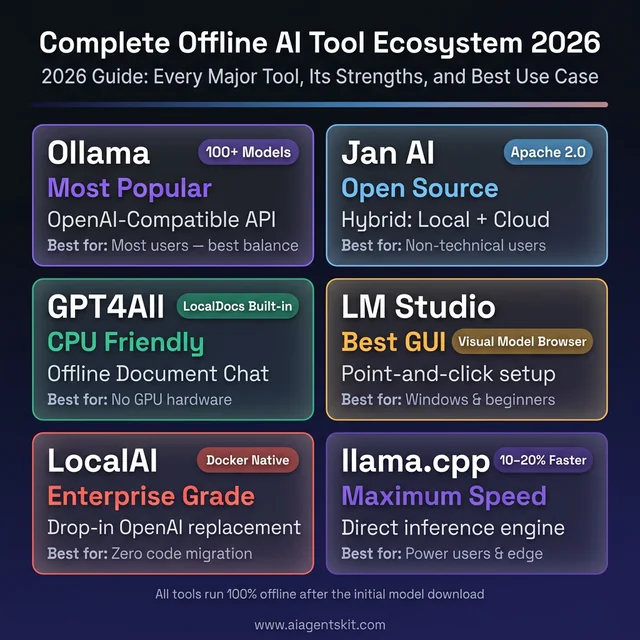
The complete offline AI ecosystem in 2026 — six battle-tested tools covering every deployment scenario from consumer laptops to enterprise air-gapped servers.
How to Build an Offline RAG System to Chat with Your Documents
One of the most powerful offline AI use cases isn’t general conversation — it’s querying a specific set of documents privately, without those documents ever touching a server. Offline RAG (Retrieval-Augmented Generation) enables this: the system converts local documents into searchable embeddings, retrieves relevant passages when a question is asked, and feeds them to a local LLM that generates a grounded answer.
This pattern is used for personal knowledge bases, legal document review, internal wikis, clinical note summarization, and any scenario where the AI needs to reason about proprietary content that can’t leave the organization.
The Zero-Code Option: GPT4All LocalDocs
For users who don’t want to write Python, GPT4All’s LocalDocs provides fully offline document Q&A in under five minutes:
- Install GPT4All (desktop installer, free)
- Open Settings → Local Documents → Add Collection
- Browse to the folder containing PDFs or text files
- Wait for local indexing to complete (no internet required)
- Use the LocalDocs toggle in any chat to ground responses in those files
LocalDocs handles embedding generation, vector storage, and retrieval automatically. No code, no terminal, no configuration files.
The Developer Option: Ollama + ChromaDB + LangChain
For teams that need programmatic control — custom document loaders, reranking, session memory, or integration into a larger pipeline — the Python stack below delivers a fully offline RAG system:
Install dependencies (once, while online):
pip install langchain langchain-community chromadb sentence-transformers pymupdf ollama
# Also pull an embedding model and LLM via Ollama
ollama pull nomic-embed-text  # local embedding model
ollama pull llama4            # local LLM for generation
Ingest documents into a local vector database:
from langchain_community.document_loaders import PyMuPDFLoader
from langchain.text_splitter import RecursiveCharacterTextSplitter
from langchain_community.embeddings import OllamaEmbeddings
from langchain_community.vectorstores import Chroma

# Load and split documents
loader = PyMuPDFLoader("company_policy.pdf")
docs = loader.load()

splitter = RecursiveCharacterTextSplitter(chunk_size=500, chunk_overlap=50)
chunks = splitter.split_documents(docs)

# Embed and store locally — no internet call made
embeddings = OllamaEmbeddings(model="nomic-embed-text")
vectorstore = Chroma.from_documents(chunks, embeddings,
                                     persist_directory="./chroma_db")
vectorstore.persist()
print(f"Indexed {len(chunks)} document chunks locally")
Query the system (fully offline):
import ollama
from langchain_community.vectorstores import Chroma
from langchain_community.embeddings import OllamaEmbeddings

# Load the persisted vector store
embeddings = OllamaEmbeddings(model="nomic-embed-text")
vectorstore = Chroma(persist_directory="./chroma_db",
                     embedding_function=embeddings)

def ask_documents(question: str) -> str:
    # Retrieve relevant chunks
    relevant_docs = vectorstore.similarity_search(question, k=4)
    context = "\n\n".join([doc.page_content for doc in relevant_docs])

    # Generate answer with local LLM
    response = ollama.chat(model="llama4", messages=[
        {"role": "system",
         "content": f"Answer questions based only on this context:\n\n{context}"},
        {"role": "user", "content": question}
    ])
    return response["message"]["content"]

print(ask_documents("What is our policy on remote work reimbursement?"))
After the initial setup while online, all components — the embedding model, the vector database, and the LLM — operate entirely offline. Document ingestion, query processing, and answer generation produce zero network traffic.
Running Offline AI on Mobile Devices and Raspberry Pi
The offline AI ecosystem has expanded well beyond laptops and servers. Smartphones, tablets, and Raspberry Pi hardware now support capable local AI inference — useful for field deployments, embedded applications, and genuinely portable offline AI systems.
Offline AI on Android Phones
Several Android applications run open-source LLMs entirely on-device:
Google AI Edge Gallery (open-source, Apache 2.0) — runs Gemma, Phi-3.5, and other small models directly on Android hardware using the device’s NPU via LiteRT and the LLM Inference API. No cloud dependency post-download. Available on Google Play; best on Pixel 8 Pro and newer devices with dedicated AI acceleration.
MLC Chat — MIT project running Llama 3.2, Mistral, Phi, and Qwen on Android and iOS using native GPU acceleration. Delivers 15–25 tokens/second on flagship devices.
H2O AI Personal GPT — enterprise-grade on-device AI for Android with a focus on privacy and security, supporting Mistral and Llama model families.
Practical expectations for Android offline AI:
- 7B parameter models compressed to 3B–4B effective via quantization
- 10–20 tokens/second on 2024-era flagship Android devices
- 8–16 GB device RAM recommended for comfortable inference
Offline AI on iPhone and iPad
Apple’s Neural Engine gives iPhones and iPads a meaningful advantage for on-device inference:
Locally AI — runs Llama, Gemma, Qwen, and DeepSeek on iPhone and iPad offline, optimized specifically for Apple’s Neural Engine. Supports voice input via local Whisper integration.
Enclave AI — focuses on privacy-first, on-device AI for iPhone and Mac, with strong data isolation guarantees. Recommends 3B–7B quantized models for mobile devices.
Both applications use Core ML and the Neural Engine for acceleration, making the iPhone 15 Pro and later hardware genuinely capable offline AI platforms. An iPhone 15 Pro runs 3B–7B quantized models at 15–30 tokens/second — faster than many CPU-only laptops.
Offline AI on Raspberry Pi 5
The Raspberry Pi 5 (8 GB RAM variant) runs meaningful AI models offline, making it the standard platform for embedded and headless offline AI deployments:
# Install Ollama on Raspberry Pi 5 (ARM64 Linux)
curl -fsSL https://ollama.ai/install.sh | sh

# Start the service
sudo systemctl enable ollama && sudo systemctl start ollama

# Pull a model sized for Pi hardware
ollama pull phi4        # 2.5 GB — recommended for Pi
ollama pull tinyllama   # 640 MB — fastest option

# Run offline after pulling
ollama run phi4 "Summarize the following field report: ..."
Realistic Raspberry Pi 5 performance:
- Phi-4: 4–8 tokens/second (comfortable for non-interactive use)
- TinyLlama: 12–18 tokens/second (usable for interactive chat)
- Llama 4 8B: 1–3 tokens/second (too slow for interactive use; batch only)
For offline applications requiring faster response — voice assistants, embedded tools, robotics — pairing Raspberry Pi 5 with an AI accelerator card (Hailo-8, Coral TPU, or the LLM8850 accelerator module) improves throughput by 4–8x.
Setting Up an Offline AI Coding Assistant in VS Code
Developers who want code completion, chat, and agentic coding assistance without sending source code to cloud servers have a mature offline option stack available in 2026: Continue.dev + Ollama is the dominant combination, covering both chat and autocomplete within VS Code entirely through local inference.
Continue.dev + Ollama: The Standard Offline Coding Stack
Continue is an open-source VS Code and JetBrains IDE extension that supports plug-and-play integration with any OpenAI-compatible local inference server — including Ollama. Once configured, all code completions, chat responses, and agentic actions run through the locally running Ollama instance with no network calls.
Setup (requires Ollama running locally):
- Install the Continue extension from the VS Code Marketplace
- Pull coding-optimized models via Ollama:
ollama pull deepseek-coder-v2     # Best for code completion and debug
ollama pull qwen2.5-coder:14b    # Strong multilingual code support
ollama pull codellama:13b # Meta's code-specialized model- Configure Continue to use the local Ollama endpoint (
~/.continue/config.json):
{
  "models": [
    {
      "title": "DeepSeek Coder V2 (Local)",
      "provider": "ollama",
      "model": "deepseek-coder-v2",
      "apiBase": "http://localhost:11434"
    }
  ],
  "tabAutocompleteModel": {
    "title": "CodeLlama Autocomplete",
    "provider": "ollama",
    "model": "codellama:13b"
  }
}- Verify offline operation by disabling network adapters and confirming completions still work.
After this setup, every Tab autocomplete, every chat message in the Continue sidebar, and every codebase indexing operation runs locally. Source code never leaves the machine.
Additional Offline Coding Tools
llama.vscode — direct VS Code extension for llama.cpp inference. More setup than Continue but runs inference in-process without a separate Ollama server.
Tabnine (Local Mode) — Tabnine’s enterprise tier supports local model deployment. The local mode runs autocomplete models entirely on the developer machine using secure, on-premise infrastructure. Well-suited for regulated teams (financial, healthcare, defense) that need code completion with documented data residency guarantees.
Roo Code — open-source agentic coding extension that supports LM Studio as a backend. Appropriate for teams who prefer LM Studio’s GUI for model management alongside VS Code as the development environment.
The key consideration for offline coding AI: model quality for coding tasks at 7B–13B parameter sizes is significantly below what cloud coding tools offer. The tradeoff is worthwhile when source code privacy is non-negotiable. For teams where privacy matters but full offline isn’t required, a hybrid approach (local completions, cloud chat for complex questions) often delivers the best balance.
Deploying Offline AI in HIPAA-Regulated Healthcare Environments
Healthcare organizations face a clear conflict when evaluating cloud AI: the efficiency gains are compelling, but the legal exposure from sending patient data through third-party infrastructure creates regulatory risk that most compliance teams won’t accept. Offline AI deployment resolves this at the architecture level — Protected Health Information (PHI) stays within the organization’s controlled network and never appears in a vendor’s processing logs.
Why Cloud AI Creates HIPAA Exposure
Standard cloud AI APIs — including those offered by major AI vendors — are not HIPAA-compliant by default. Using them for PHI requires:
- A signed Business Associate Agreement (BAA) with the vendor
- Confirmation that PHI is excluded from model training
- Audit trail access to prove data handling compliance
Most general-purpose cloud AI vendors either don’t offer BAAs or offer them with significant scope limitations. Local AI deployment sidesteps this entirely: PHI processed by a local LLM generates no vendor contract exposure because no third party touches the data.
Core Use Cases for Healthcare Offline AI
Clinical note summarization: LLMs process encounter notes and generate structured summaries at 40–50% time savings. Running this locally on a clinical workstation means PHI stays on the hospital network.
Lab result interpretation: Local models answer physician queries about lab values, drug interactions, and clinical guidelines — without sending the specific patient context to external APIs.
Document processing: LLaVA-based offline vision models process medical images, handwritten forms, and scanned records locally, enabling document intelligence without cloud OCR exposure.
Security Requirements for Healthcare Offline AI Deployments
HIPAA-compliant offline AI deployments need additional hardening beyond standard offline setup:
# 1. Encrypt the model storage volume (macOS FileVault / Linux LUKS)
# On Linux — encrypt the models partition:
cryptsetup luksFormat /dev/sdb
cryptsetup open /dev/sdb ollama-models

# 2. Restrict Ollama API access to localhost only
# Edit: /etc/systemd/system/ollama.service
# Add to [Service]: Environment="OLLAMA_HOST=127.0.0.1"
# This prevents any network-accessible API

# 3. Enable audit logging for all LLM queries
# Log every Ollama API call through auditd or a custom logging middleware

# 4. Verify no outbound connections at runtime
sudo tcpdump -n -i any not src 127.0.0.1 and not dst 127.0.0.1 &
curl http://localhost:11434/api/generate \
  -d '{"model":"llama4","prompt":"Patient follow-up note...","stream":false}'
# tcpdump should produce zero output during the above call
Minimum security checklist for healthcare offline AI:
- Model storage encrypted at rest (AES-256)
- Ollama API bound to localhost only (no network exposure)
- All LLM query/response pairs logged with timestamps and user IDs
- Network isolation verified via packet capture at deployment
- Role-based access controls applied to clinical workstations running AI
- Quarterly model update procedure documented and signed off
- Incident response plan updated to include LLM-related data exposure scenarios
Offline AI on Windows: Setup Guide and Common Issues
Windows users running offline AI encounter several platform-specific quirks not present on macOS or Linux. Understanding them upfront prevents the most common frustrating failures.
Windows-Specific Ollama Setup
The Windows installer from ollama.ai sets everything up automatically — no administrator privileges required for basic installation. The key difference from other platforms is the model storage location:
# Windows model directory (not ~/.ollama)
%USERPROFILE%\.ollama\models\

# Equivalent path for archiving models
tar -czvf ollama-models.tar.gz $env:USERPROFILE\.ollama\models\

# Verify Ollama is running after installation
curl http://localhost:11434/api/tags
Windows Defender False Positives
Windows Defender flags GGUF model files and Ollama’s runner binary as suspicious on first use — this is a false positive triggered by executable-like binary patterns in model weight files. The fix is a targeted exclusion:
- Open Windows Security → Virus & Threat Protection → Exclusions
- Add folder exclusion:
%USERPROFILE%\.ollama\models\ - Add process exclusion:
ollama_llama_server.exe
Without this, Defender may quarantine model files mid-inference, causing cryptic errors.
GPU Acceleration Verification on Windows
CUDA acceleration requires both the NVIDIA driver and CUDA runtime to be correctly installed. Verify the full stack is working:
# Check NVIDIA driver
nvidia-smi

# Check CUDA availability through Ollama
ollama run phi4 "test" --verbose
# Look for: "GPU layers: 32/32" in verbose output
# If it shows "GPU layers: 0/32", CUDA isn't being utilized
If GPU layers show as 0, the most common cause is a CUDA version mismatch between the driver and toolkit. Reinstalling the NVIDIA driver to match the CUDA version Ollama requires (listed in Ollama’s release notes) resolves this.
LM Studio as the Recommended Windows GUI
For Windows users who want a graphical interface, LM Studio is the most polished option — it handles GPU detection automatically, provides a visual model browser, and includes one-click offline model loading. For non-technical Windows teams setting up shared offline AI workstations, LM Studio reduces setup friction significantly compared to Ollama’s CLI-first approach.
Windows 11 Copilot+ NPU: What It Actually Offers
Windows 11 Copilot+ PCs include a Neural Processing Unit (NPU) built into Qualcomm Snapdragon X, Intel Lunar Lake, or AMD Strix Point chips. The honest assessment for offline LLM inference as of early 2026: NPU acceleration for GGUF-format models is nascent. Ollama and llama.cpp don’t yet route inference through the NPU by default on Windows — processing goes through the CPU or CUDA GPU as normal. NPU usage for local LLMs requires DirectML backends currently in development. Within 12–18 months, NPU acceleration on Windows Copilot+ hardware should deliver measurable improvements for CPU-class inference.
What Offline AI Can’t Do: Honest Limitations to Know
Most offline AI content, including this guide, understandably emphasizes capability. But a realistic deployment decision requires understanding where offline AI genuinely falls short of cloud alternatives — not to discourage adoption, but to avoid deploying offline AI where it’s the wrong architectural choice.
No Real-Time Information
Offline models have a knowledge cutoff — the date when training data was last collected. A local Llama 4 model trained with data through early 2026 won’t know about events, software releases, or regulatory changes that happened after that date. It can’t search the web, check current documentation, or pull live prices.
For use cases requiring current information — news analysis, live product documentation, real-time compliance updates — cloud AI with web-connected retrieval is architecturally better. Offline AI is best for tasks where the required knowledge is stable: code reasoning, document processing, writing assistance, and internal knowledge bases.
Initial Download Requirement
Setting up offline AI requires a working internet connection for the initial download phase — model weights are multi-gigabyte files that must be transferred before going offline. For truly air-gapped environments, this means a deliberate online-then-transfer workflow. Organizations discovering this during a compliance audit or emergency offline deployment have sometimes been surprised by it.
Context Window Constraints
Consumer-grade local model serving imposes practical context window limits that cloud models don’t face. While cloud models like GPT-4 offer 128K+ token contexts, running a 70B parameter model at 128K context on consumer hardware requires enormous VRAM (~200+ GB for full context). In practice, most local deployments cap context at 8K–32K tokens to stay within hardware limits. For long-document tasks — processing entire books, large codebases, or extensive legal files — cloud models with large context windows have a genuine architectural advantage.
Model Quality Gap on Complex Reasoning
The capability gap between local 70B models and frontier cloud models (GPT-5, Claude 3.7 Sonnet) is real and widening on the most demanding tasks: complex multi-step reasoning, advanced mathematics, nuanced creative tasks requiring broad world knowledge, and tasks requiring careful judgment across many constraints simultaneously. For everyday workflows, the gap is often imperceptible. For high-stakes reasoning tasks — medical diagnosis support, legal analysis, complex financial modeling — the quality difference should be evaluated carefully before committing to local-only inference.
Model Maintenance Overhead
Cloud AI updates automatically; offline AI requires deliberate model update procedures. Organizations running offline AI need processes for:
- Monitoring open-source model releases quarterly
- Testing new model versions before deploying to production
- Transferring updated models through whatever physical transfer process exists
- Communicating model version changes to users who’ve developed workflows around specific model behavior
This operational overhead is manageable but real — it’s a recurring cost that cloud AI users don’t face.
When Cloud AI Remains the Better Choice
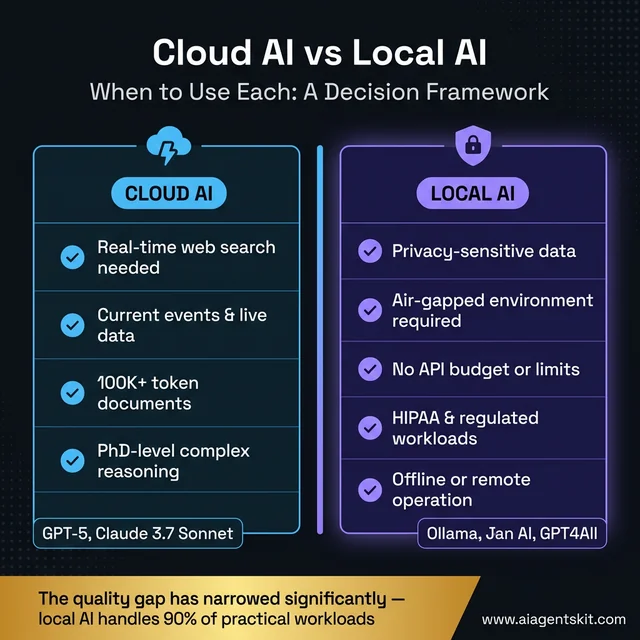
Use this decision framework to match your requirements to the right AI architecture — most privacy-sensitive and regulated workloads belong on local AI.
| Scenario | Cloud AI Better | Local AI Better |
|---|---|---|
| Real-time web search needed | ✅ | ❌ |
| Current events / live data | ✅ | ❌ |
| 100K+ token documents | ✅ | ❌ |
| PhD-level complex reasoning | ✅ | ❌ |
| Privacy-sensitive data | ❌ | ✅ |
| Air-gapped environment | ❌ | ✅ |
| No API budget | ❌ | ✅ |
| Offline/remote operation | ❌ | ✅ |
| HIPAA/regulated workloads | ❌ | ✅ |
Frequently Asked Questions About Offline AI
Can you run ChatGPT offline without an internet connection?
ChatGPT cannot run offline — it’s a cloud service requiring a connection to OpenAI’s servers. The underlying technology (transformer-based language models) absolutely can run offline, however, using open-source models like Llama 4 via Ollama. These local models don’t match GPT-5’s performance on complex reasoning tasks, but for everyday writing, coding assistance, summarization, and Q&A, the gap has narrowed substantially since 2024. Llama 4 70B on capable hardware approaches cloud model quality for most practical workloads.
How much RAM does an offline AI model need to run?
RAM requirements depend on model size and quantization format. A 7B parameter model in Q4 quantization (the recommended default) requires approximately 4–5 GB of VRAM for GPU inference, or 8–10 GB of system RAM for CPU-only operation. A 13B model needs roughly 8–10 GB VRAM or 16 GB system RAM. The general rule: have at least 2× the model’s file size available as RAM. Running with less forces swapping to disk, which degrades inference speed dramatically — sometimes by 10× or more.
What is the best offline AI model for coding tasks?
DeepSeek-Coder-V2 consistently performs best for pure coding tasks in offline deployments, handling code completion, debugging, test generation, and documentation at a level competitive with cloud tools for most practical programming work. Alternatively, Llama 4 70B is a strong generalist with solid coding capability across more languages and frameworks. For hardware-constrained setups, Phi-4 delivers surprisingly strong Python and JavaScript output relative to its model size and memory footprint.
How do I transfer AI models to an air-gapped computer?
Transfer Ollama’s entire models directory (~/.ollama/models/ on macOS/Linux) via USB drive or external SSD after archiving with tar. Generate a SHA-256 checksum before transfer and verify it after unpacking to confirm file integrity. On the air-gapped machine, extract to the same path location, then run ollama list to confirm all models are recognized. The detailed four-step procedure — including split archive handling for large model sets — is covered in the Step 3 section of this guide.
Does running AI locally really protect my privacy?
Local AI deployment is the only architecture that makes privacy verifiable rather than contractual. Cloud AI privacy depends on trusting vendor policies, legal jurisdictions, and third-party infrastructure security. With local AI, data processing is directly observable: network monitoring tools like tcpdump or Wireshark confirm no outbound connections during inference. Organizations under regulatory audit can demonstrate data locality with actual packet captures — a level of verifiable evidence that cloud privacy certifications can’t match.
Can I run offline AI on a laptop without a GPU?
Yes, with realistic expectations. On modern Intel 13th/14th generation or AMD Ryzen 7000 series laptops with 32+ GB RAM, 7B parameter models run at 8–15 tokens/second — functional for non-time-sensitive tasks like document review, batch summarization, or code explanation. Apple Silicon laptops are the notable exception: the M2 Pro, M3 Max, and newer chips handle offline AI inference through unified memory, achieving 40–80 tokens/second on current models — competitive with many dedicated GPU setups at a fraction of the power consumption.
What is a quantized AI model and should I use one offline?
Quantization reduces the numerical precision of model weight values from 16 or 32 bits to 4 or 8 bits, dramatically shrinking file size and memory requirements. Q4_K_M quantization — the standard default in Ollama — reduces a 7B model from roughly 14 GB to about 4 GB, with approximately 3–4% quality degradation on benchmark tasks. For offline use cases, Q4_K_M is almost always the correct choice: it makes larger, more capable models accessible on consumer hardware with minimal real-world quality impact for text generation, coding, and analysis tasks.
How does offline AI quality compare to cloud AI like GPT-5?
There’s a genuine gap, and practitioners who’ve used both consistently note it. GPT-5 outperforms Llama 4 70B on complex multi-step reasoning, highly nuanced instruction interpretation, and tasks requiring unusually broad world knowledge. For most practical applications — summarization, code assistance, writing editing, structured data extraction, and conversational Q&A — Llama 4 70B delivers results that the majority of users find acceptable or better than acceptable. On Apple Silicon M3 Max or RTX 4090 hardware, the difference often becomes imperceptible for everyday work, which is why practitioners consistently report that the quality concern was larger before they actually tried it than after.
Is Ollama free to use for offline deployments?
Ollama is fully open-source under the MIT license and free to use, including for commercial deployments at any volume. The models accessed through Ollama carry their own licenses: Llama 4 uses Meta’s Llama License (permissive for most commercial uses; verify for high-volume or redistribution applications), Mistral models use Apache 2.0 (permissive commercial use), and Phi-4 uses a Microsoft research license. The Ollama application itself has no licensing restrictions regardless of deployment scale or commercial context.
What offline AI tools work best on Apple Silicon Macs?
Apple Silicon Macs are particularly effective for offline AI due to unified memory architecture that allows CPU, GPU, and Neural Engine to share the same memory pool without PCIe transfer bottlenecks. Ollama runs natively on Apple Silicon and automatically utilizes Metal acceleration. An M3 Max with 48 GB unified memory runs Llama 4 70B in Q4 quantization at 15–25 tokens/second — competitive with many dedicated NVIDIA GPU setups. LM Studio also offers strong Apple Metal support. The practical recommendation for most Mac users: Ollama with a 7B–14B model for daily interactive use, and 70B models for tasks where quality matters more than latency.
What is the best offline AI app for iPhone and iPad?
The strongest offline AI options for iPhone and iPad in 2026 are Locally AI and Enclave AI. Both run models entirely on-device using Apple’s Neural Engine through Core ML, with no data leaving the device. Locally AI supports Llama, Gemma, Qwen, and DeepSeek models with a voice input feature powered by local Whisper integration. Enclave AI focuses on strong privacy isolation and recommends 3B–7B quantized models for the best mobile performance. The iPhone 15 Pro and later hardware runs 3B–7B quantized models at 15–30 tokens/second — better than many CPU-only laptops. For iPad Pro M4, that speed increases further, making it genuinely capable for document summarization and writing assistance tasks fully offline.
Can I run an offline AI chatbot on my Android phone?
Yes — several Android applications support fully offline AI inference on modern devices. Google AI Edge Gallery (Developer Preview) runs Gemma and Phi-3.5 models using Android’s NPU hardware. MLC Chat from MIT supports Llama 3.2, Mistral, and Qwen on Android using native GPU acceleration at 15–25 tokens/second on flagship devices. H2O AI Personal GPT targets enterprise privacy use cases with on-device Mistral and Llama models. Realistic hardware requirements: 8–16 GB device RAM and a 2023-or-later flagship processor for comfortable inference. Midrange phones with 6 GB RAM can run very small models (1B–3B parameters) but with limited capability.
How do I use AI to chat with my documents without internet?
The easiest path is GPT4All’s LocalDocs feature: install GPT4All (free desktop app), go to Settings → Local Documents, add a folder of PDFs or text files, and toggleing LocalDocs in any chat automatically grounds responses in those documents — no internet, no code required. For developers who need more control, the Ollama + ChromaDB + LangChain stack (detailed in the Offline RAG section above) provides a fully programmable document Q&A pipeline. Both approaches use local embedding models to convert documents into searchable vectors and retrieve relevant passages before sending anything to the local LLM — all processing stays on the machine.
Does Jan AI work completely offline?
Yes, Jan AI works completely offline when configured with a locally downloaded model. After the initial app installation and model download (which requires internet), Jan AI runs entirely on-device with no cloud dependency. Jan’s chat interface, model loading, and API server all operate locally. The one nuance: Jan’s hybrid mode allows optionally switching to cloud APIs like OpenAI or Anthropic from within the same interface — but this is entirely optional and never activates automatically. When set to use a local model, Jan generates zero outbound network traffic during inference, which can be confirmed with network monitoring tools.
What is the difference between offline AI and edge AI?
The terms overlap but describe different scopes. Offline AI specifically means AI that operates without an internet connection — the defining characteristic is no network dependency during inference. Edge AI is broader: it refers to AI that runs close to the data source (on edge devices, local hardware, or IoT devices) rather than in centralized cloud servers. Edge AI can be offline, but it doesn’t have to be — a smart camera that processes video locally and sends results to the cloud is doing edge AI but isn’t offline AI. Most local LLM deployments are both: they run on edge hardware (local devices) and operate offline. The distinction matters for architecture planning — edge AI is about latency and data locality; offline AI is specifically about network independence.
Building an Offline AI Capability: What Comes Next
Three things become clear after working through a complete offline AI deployment. First, the technical barrier is genuinely lower than most teams expect — getting from zero to working local AI takes hours, not weeks or months. Second, the value compounds: once the foundation is in place, adding specialized models, building automation pipelines, and integrating offline AI into existing workflows become progressively easier. Third, the quality ceiling is rising rapidly — the gap between local and cloud AI that existed in 2023 has narrowed to the point where it doesn’t affect most practical workloads.
The next logical extensions after establishing a working offline setup are specialization (custom system prompts and Modelfiles in Ollama), multimodal expansion (speech-to-text and vision pipelines as covered above), and lightweight application development around the local API. All of these extensions follow the same core pattern: download dependencies and verify behavior while online, then operate indefinitely without network access.
For teams working primarily on macOS, a deep dive into running AI on Mac covers Apple Silicon-specific optimizations including Metal configuration, memory management for large models, and recommended hardware configurations at different budget levels. The local AI ecosystem continues to mature at a pace that makes today’s offline setups more capable every few months — the infrastructure built now handles significantly more powerful models with the same hardware as the open-source model ecosystem continues its rapid improvement trajectory.