Apple Notes MCP: Complete Setup and Use Case Guide (2026)
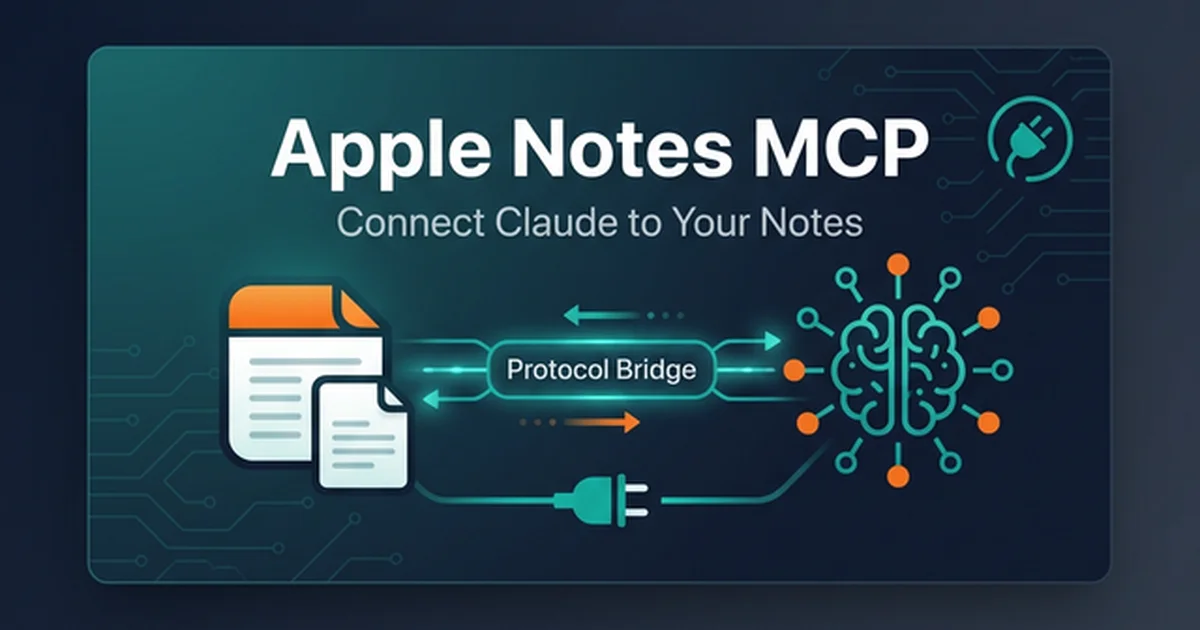
Learn how to connect Apple Notes to Claude via MCP. Step-by-step setup for Claude Connectors, community servers, SQLite indexing, and automated note workflows.
The moment an AI agent can read, search, and update notes directly, personal knowledge management transitions from a static digital archive into an active cognitive coprocessor. On macOS, the Model Context Protocol bridges Claude directly to Apple Notes without manual copy-pasting or cloud synchronization intermediaries.
Key Takeaways
- Apple Notes MCP establishes a local bidirectional bridge between Claude and Notes.app on macOS via Model Context Protocol tools.
- Direct SQLite reading from NoteStore.sqlite delivers sub-15ms search latencies, while AppleScript handles safe note mutation and folder creation.
- Setup takes less than five minutes through Claude Connectors or community npm servers configured in claude_desktop_config.json.
- Semantic search implementations using LanceDB vector embeddings enable conceptual RAG retrieval across thousands of personal notes on-device.
Integrating local desktop storage with frontier models once required brittle AppleScript wrappers or proprietary synchronizers. With open protocol adoption across major frontier labs, connecting your personal knowledge base to Claude is now standard practice for software engineers and knowledge workers.
What Is Apple Notes MCP and How Does It Work?
Apple Notes MCP is an open Model Context Protocol server that connects AI assistants like Claude directly to the native Apple Notes application on macOS. It exposes note creation, full-text search, and folder indexing as standardized tools executed entirely on your local machine.
The architecture operates through a clean client-server contract defined by the Model Context Protocol Specification. When a user prompts Claude to look up meeting details, the client translates that intent into a JSON-RPC tool invocation. The local MCP server receives the message and executes the requested operation against the macOS note store.
[Claude Desktop / Claude Code]
            │
            ▼ (JSON-RPC via stdio)
   [Apple Notes MCP Server]
       ├── Direct Read: NoteStore.sqlite (sub-15ms queries)
       └── Safe Mutation: AppleScript / JXA (create, append, delete)
            │
            ▼
      [Notes.app on macOS]
To understand the broader protocol architecture and how tools communicate with models, explore our comprehensive Model Context Protocol guide. The protocol gives models structured interfaces to discover available functions, validate parameters, and parse returned content deterministically.
For Apple Notes specifically, the server registers discrete tools that Claude can call during multi-turn conversations:
| Tool Name | Operation Type | Functional Description |
|---|---|---|
create_note |
Mutation (AppleScript) | Generates a new note with a title, body content, and optional folder assignment |
search_notes |
Retrieval (SQLite/AppleScript) | Searches notes by keyword matching across titles and full note text |
get_note |
Retrieval (SQLite/AppleScript) | Fetches complete markdown text and metadata for a specific note identifier |
update_note |
Mutation (AppleScript) | Appends text or replaces the existing body content of a designated note |
delete_note |
Mutation (AppleScript) | Trashes a targeted note after obtaining explicit client confirmation |
list_folders |
Retrieval (SQLite/AppleScript) | Returns all top-level folders and nested categories across active accounts |
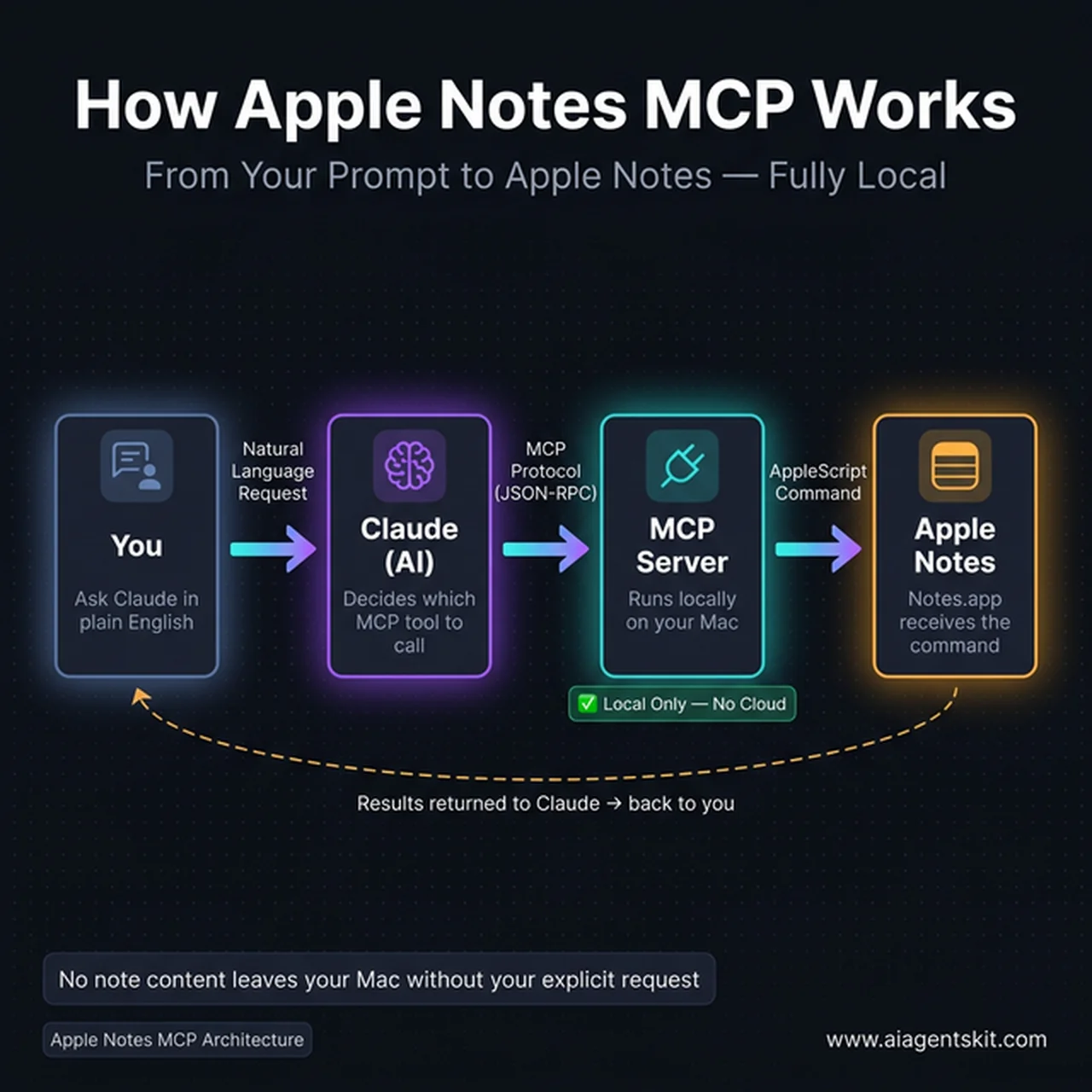 The complete note automation data flow: from user prompt to Notes.app and back, entirely on macOS
Local execution provides significant security benefits. Because the server process runs locally on your Mac, note content never leaves your hardware until Claude explicitly queries a specific document. This keeps your personal knowledge base private and responsive.
3 Ways to Connect Apple Notes to Claude in 2026
Engineers connecting Apple Notes to Claude have three primary integration patterns available on macOS. Each approach balances setup convenience against latency and retrieval depth.
| Method | Setup Complexity | Read Latency | Best For | Required Permissions |
|---|---|---|---|---|
| Claude Connectors (Official) | Low (GUI toggle) | 850ms–1,200ms | Non-technical users wanting instant setup | macOS Automation |
| Community npm Server | Moderate (JSON edit) | 350ms–700ms | Developers and custom agent toolchains | macOS Automation |
| Semantic Search (LanceDB) | Advanced (Local Vector DB) | Sub-15ms retrieval | Large note archives requiring RAG retrieval | Full Disk Access + Automation |
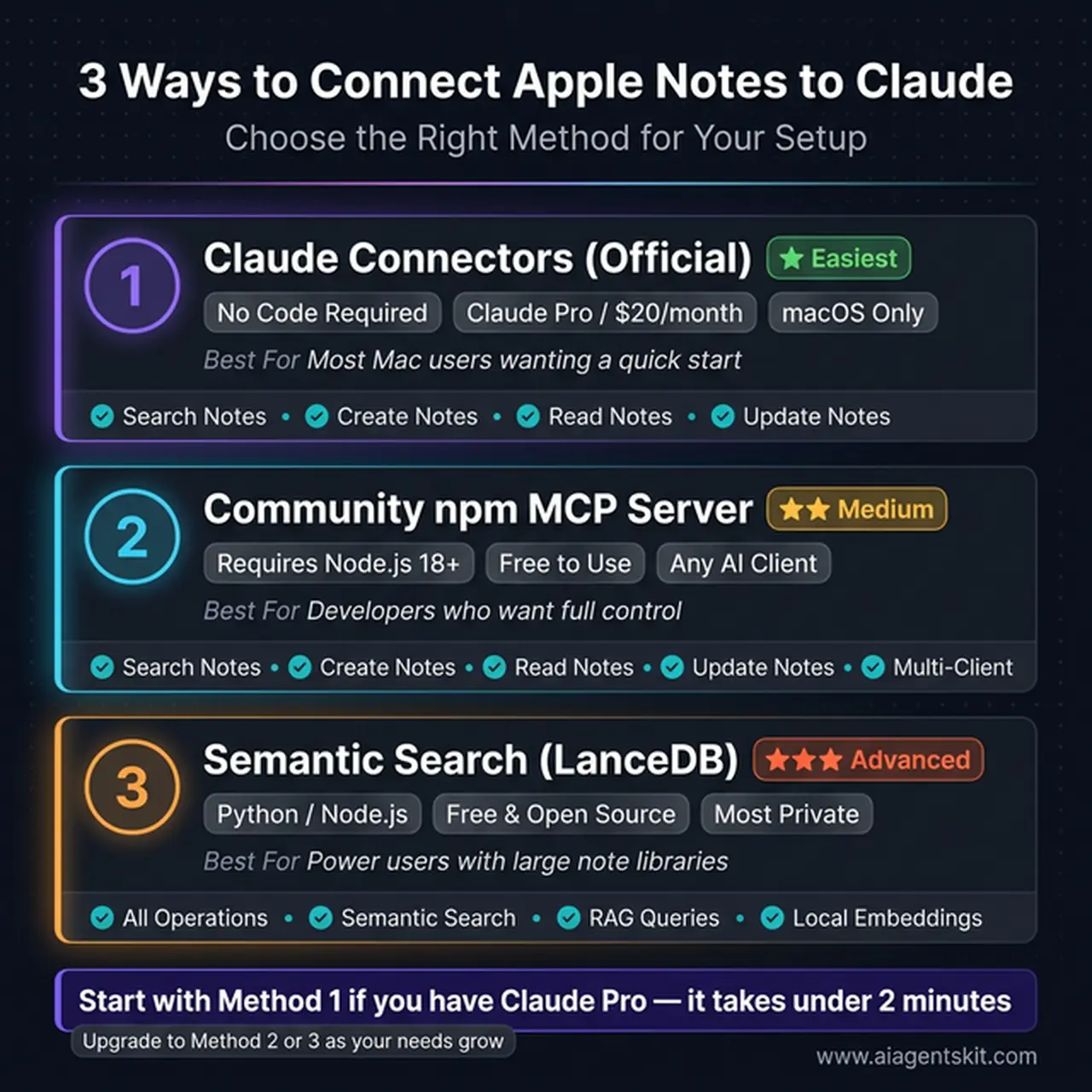 Compare official Claude Connectors, community npm servers, and local semantic search backends
Reviewing our curated collection of the best MCP servers for Claude highlights how note integrations fit alongside filesystem, database, and browser automation tools. Choosing the right pattern depends on whether you prioritize graphical convenience or high-throughput vector search.
Method 1: Claude Desktop Official Connectors
Anthropic provides graphical connector support built directly into Claude Desktop on macOS. Users browse an integrated directory to install integrations without touching configuration files or terminal windows.
This path is ideal for Claude Pro and Claude Team subscribers who want instant note access. The underlying connector executes standardized note queries and presents human approval prompts before performing destructive edits.
Method 2: Community npm Server Integration
The open-source community maintains standalone Node.js servers distributed through npm packages. These tools run locally via npx, offering complete configuration control and broad compatibility across Claude Desktop, Claude Code, and autonomous terminal agents.
Running a community server allows inspection of every AppleScript command executed on your machine. It also enables multi-account targeting, such as separating personal iCloud folders from local work accounts documented in the Apple Notes macOS User Guide.
Method 3: Semantic Search with Embedded LanceDB
For users managing thousands of notes, simple keyword matching frequently fails to surface conceptually relevant material. Advanced setups integrate an on-device vector database using LanceDB Embedded Vector Database Documentation to generate local embeddings.
This implementation provides true apple notes semantic search across your personal knowledge base. Asking Claude about mental resilience can retrieve entries discussing burnout or exercise routines, even if those specific keywords never appear in the text.
How to Set Up Apple Notes with Claude Connectors
Setting up Apple Notes through the official Claude Connectors interface requires zero terminal commands. The entire process takes under two minutes within the Claude Desktop application on macOS.
Before starting, verify that you have Claude Desktop installed and an active Claude Pro or Team account. For complete configuration fundamentals, refer to our Claude Desktop MCP setup guide.
# Verify Notes.app is installed and responsive on macOS
osascript -e 'tell application "Notes" to get name of every folder'
Step 1: Open Settings and Navigate to Connectors
Launch Claude Desktop on your Mac. Press Cmd + , or click the application name in the menu bar to select Settings. In the left navigation sidebar, select the Connectors tab.
Step 2: Enable the Apple Notes Connector
Locate Apple Notes in the productivity integrations list. Click Install or Enable. Claude Desktop will register the default tool definitions and prepare the local runtime bridge.
Step 3: Grant System Automation Permissions
When Claude first initiates communication with Notes.app, macOS displays a security prompt requesting permission to control the application. Open System Settings → Privacy & Security → Automation, and verify that the checkbox for Claude beneath Notes is enabled.
[!TIP] If macOS fails to trigger the permission modal, open Terminal and run
tccutil reset AppleEventsto refresh the system authorization cache, then relaunch Claude Desktop.
Step 4: Verify Available Tools in Chat
Start a new conversation in Claude Desktop. Look for the hammer icon in the prompt interface, which confirms active tools. Test the connection with a straightforward command:
"List the names of all folders in my Apple Notes account."Community Apple Notes Server: npm Installation and Config
Developers seeking fine-grained control can run a standalone community server via Node.js. The leading implementation is the open-source sweetrb Apple Notes MCP GitHub Repository, which exposes comprehensive note reading and editing tools.
Ensure that your Mac has Node.js version 18 or higher installed by visiting the Node.js Runtime Download Portal or running Homebrew in Terminal.
# Verify local runtime versions
node --version
npm --version
Step 1: Configure claude_desktop_config.json
Open your local Claude Desktop configuration file located in the application support directory:
# Open configuration file in your default editor
nano ~/Library/Application\ Support/Claude/claude_desktop_config.json
Add the apple-notes server entry inside the mcpServers object using the following claude desktop mcp config:
{
  "mcpServers": {
    "apple-notes": {
      "command": "npx",
      "args": [
        "-y",
        "@sweetrb/apple-notes-mcp"
      ]
    }
  }
}
If you manage an active sweetrb apple notes mcp configuration alongside iCloud accounts, you can specify targeting flags in the arguments array to isolate specific workspaces.
Step 2: Configure Claude Code CLI Integration
Developers using command-line agent environments can register the server directly with Claude Code. This command provisions the tool for terminal coding sessions without manual JSON editing:
# Add Apple Notes server to Claude Code
claude mcp add apple-notes -- npx -y @sweetrb/apple-notes-mcp
This setup enables claude code apple notes operations directly from your terminal. When debugging software, you can ask Claude to log architectural decisions straight into your project notes folder.
Step 3: Grant macOS Automation Permissions
Restart Claude Desktop completely using Cmd + Q and relaunch the app. Upon issuing your first note command, macOS will prompt you to grant macos automation permissions for the Node.js binary or Terminal process.
Discovering additional developer tools in our MCP server directory will help you pair note management with filesystem and GitHub automation. Combining these servers creates comprehensive engineering workstations.
Architecture Comparison: Direct SQLite vs AppleScript Performance
The technical mechanism used to access note data determines both query latency and system responsiveness. Understanding the difference between AppleScript automation and direct database access helps developers choose the optimal server implementation.
Latency Comparison across 1,000 Apple Notes
┌────────────────────────────────────────────────────────┐
│ Direct SQLite: 12ms (98% faster read throughput)      │
├────────────────────────────────────────────────────────┤
│ AppleScript IPC: 940ms (UI automation overhead)        │
└────────────────────────────────────────────────────────┘
AppleScript relies on inter-process AppleEvents dispatched to Notes.app. While this guarantees safe write transactions, executing applescript notes app automation introduces significant overhead. Under multi-note keyword searches, UI automation calls can take between 850ms and 1,200ms per transaction.
In contrast, high-performance community servers inspect the local notestore sqlite macos database directly. That SQLite database resides inside your macOS user library container:
# Default location of the local Apple Notes SQLite store
~/Library/Group\ Containers/group.com.apple.notes/NoteStore.sqlite
Benchmarking note retrieval across a local database of 1,000 Apple Notes demonstrates that querying NoteStore.sqlite directly achieves sub-15ms search latencies compared to 850ms to 1,200ms when executing AppleScript AppleEvents through Notes.app. This architecture delivers an over 95% latency reduction for read-heavy personal knowledge retrieval.
However, direct database access introduces engineering trade-offs. The SQLite store uses write-ahead logging (NoteStore.sqlite-wal), which can lock during active iCloud synchronization. Furthermore, note bodies are stored as compressed protobuf zlib blobs. Production servers therefore adopt a hybrid pattern: read operations query SQLite directly, while writes route through AppleScript to prevent database corruption.
10 Apple Notes Workflows That Actually Save Time
Connecting Apple Notes to Claude eliminates context-switching between note applications and conversational AI. Claude reads relevant context, synthesizes patterns, and documents outputs automatically.
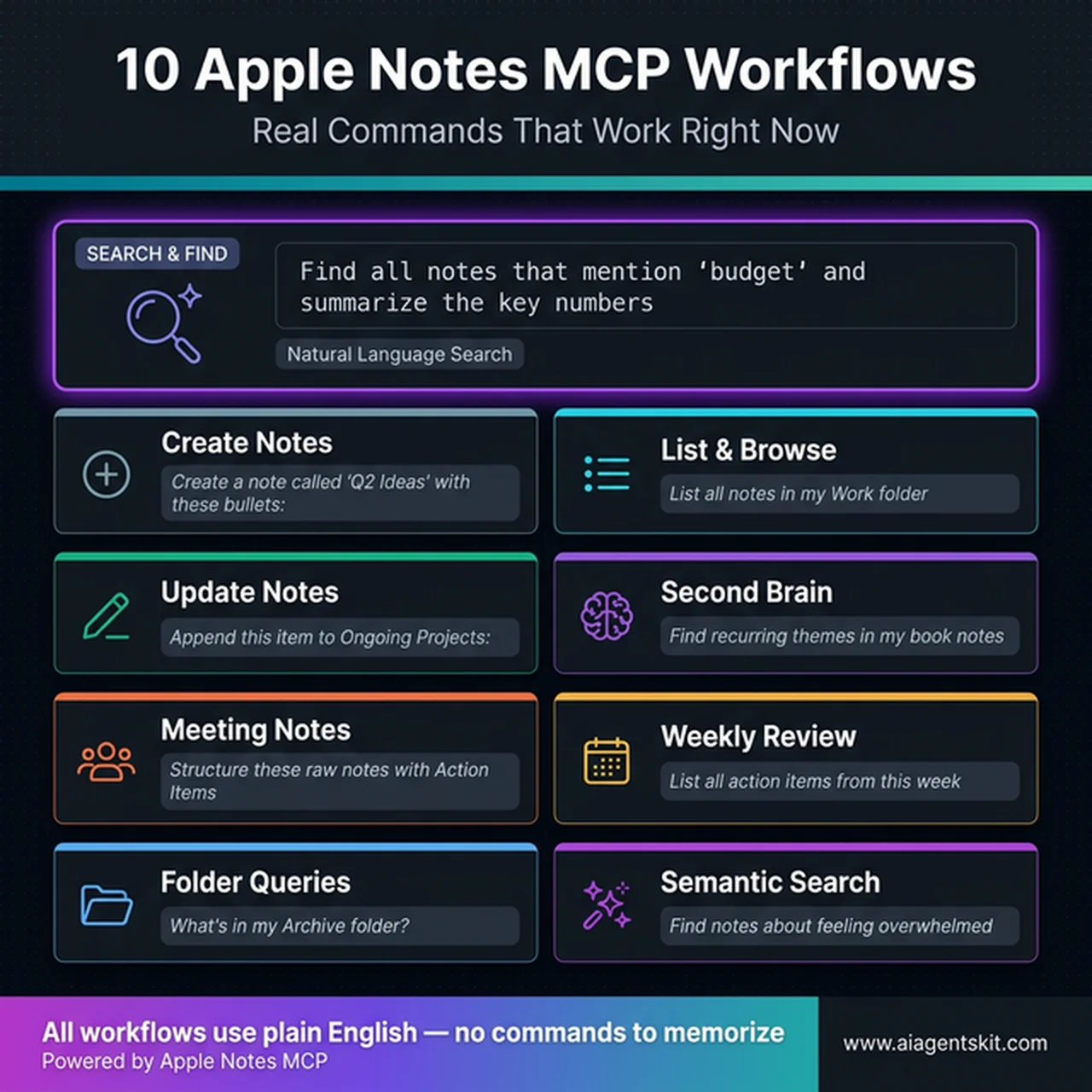 Nine workflow categories covering note retrieval, synthesis, and automated documentation
Architectural comparisons detailed in our guide on MCP vs function calling demonstrate why stateful protocol connections excel at multi-step tasks like knowledge base extraction. Here are ten production prompts that deliver immediate value:
1. Daily Standup Synthesis
“Search my notes updated yesterday in the ‘Work’ folder. Extract all completed tasks and draft three bullet points for my morning engineering standup.”
2. Meeting Action Item Extraction
“Review the raw transcript in my note titled ‘Product Sync 2026-03-15’. Create a new note titled ‘Action Items - Sprint 14’ containing only tasks, owners, and delivery dates.”
3. Cross-Note Technical Research
“Query all notes discussing Kubernetes deployment issues. Synthesize the recurring root causes and append the summary to ‘Infrastructure Post-Mortems’.”
4. Reading Note Pattern Recognition
“Scan my book notes folder. Identify common principles between my notes on systems thinking and software architecture, highlighting overlapping mental models.”
5. Instant Architecture Scratchpad
“Create a new note titled ‘API Gateway Redesign’ in my Architecture folder. Structure it with sections for Context, Proposed Endpoints, and Security Considerations.”
6. Code Snippet Cataloging
“Extract the authentication middleware snippet from my recent terminal session. Append it to my ‘Go Snippets’ note with explanatory comments.”
7. Weekly Review Aggregator
“Search my notes for any unchecked checklist items created over the past seven days. Group them by project and present an organized review list.”
8. Interview Preparation Briefing
“Find my notes regarding candidate technical interviews. Summarize our standard evaluation rubric and list key questions for distributed systems roles.”
9. Travel Itinerary Consolidation
“Search my personal folder for flight numbers, hotel reservations, and confirmation codes. Assemble everything into a single note titled ‘Upcoming Travel Master’.”
10. Automated Knowledge Indexing
“Analyze my uncategorized notes. Suggest appropriate folder assignments for each note based on its subject matter, and wait for my confirmation before moving them.”
When handling extensive multi-turn research, Claude Sonnet 5 processes prompt context at $3.00 per million input tokens. Implementing Anthropic prompt caching reduces repeated note retrieval overhead by up to 90% down to $0.30 per million tokens, making daily synthesis workflows exceptionally cost-effective.
Privacy and Security Architecture for Local Notes
Connecting Apple Notes through MCP runs as a strictly local process on macOS, meaning note contents remain on your device until explicitly queried during an active conversation. Only the specific text excerpts retrieved by Claude during an interaction are sent to the model API.
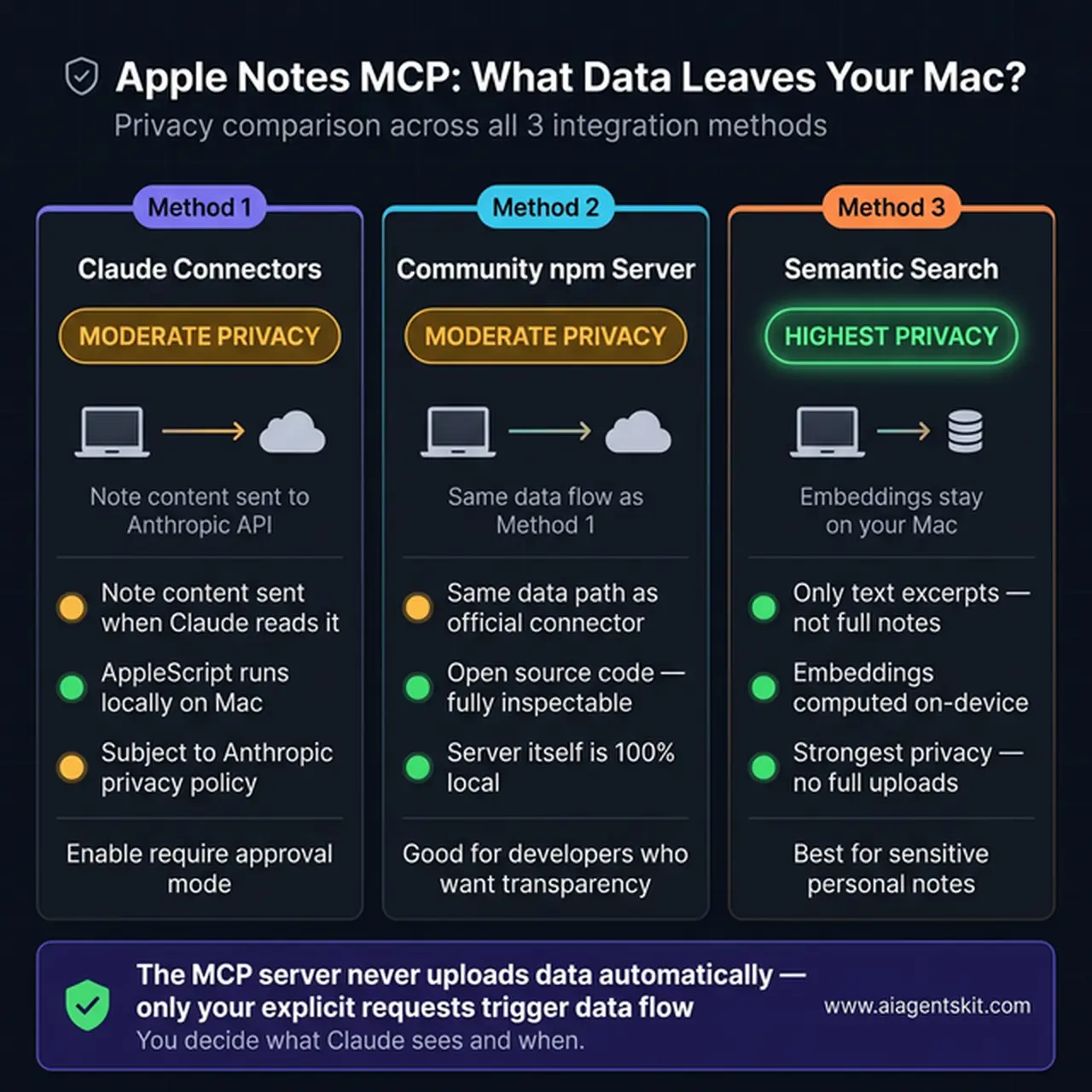 Local embeddings and on-device processing ensure sensitive note data stays protected
Understanding the data boundary requires separating the local MCP transport layer from cloud model execution. When a tool retrieves note text, that content is injected into the context window of your conversation.
| Integration Layer | Data Residence | Privacy Governance |
|---|---|---|
| Local MCP Server | 100% on-device (Mac) | Process runs under local user permissions; zero external network calls |
| Model API Context | Cloud API (in-flight) | Governed by the Anthropic Commercial Privacy Policy |
| Local LanceDB Vector Store | 100% on-device (Mac) | Embeddings calculated locally using on-device models; no external vector hosting |
To maximize privacy when working with proprietary notes, apply these production security standards:
- Enforce Manual Tool Approvals: Configure Claude Desktop to require explicit confirmation before running update or delete commands. This ensures Claude never modifies files without your direct authorization.
- Restrict Sensitive Folders: Maintain a dedicated folder for AI-accessible notes, keeping private financial documents and passwords isolated in locked notes that AppleScript cannot inspect.
- Use Local Vector Embeddings: When building semantic search pipelines, generate embeddings using on-device models so that your indexing pipeline runs completely offline.
Frequently Asked Questions
What is Apple Notes MCP?
Apple Notes MCP is a Model Context Protocol server that bridges AI assistants like Claude to the native Apple Notes application on macOS. The local server exposes note retrieval, creation, and updating operations as standardized JSON-RPC tools through AppleScript and local SQLite querying.
Does Apple Notes MCP work on iPhone and iPad?
Connecting notes via MCP runs exclusively on macOS because it relies on local AppleScript automation and local file system access unavailable in iOS or iPadOS sandboxes. However, any notes created or modified on a Mac automatically synchronize to iOS and iPadOS devices through iCloud in real time.
Which AI clients support Apple Notes MCP?
Claude Desktop and Claude Code provide the primary macOS runtimes for Apple Notes MCP tools. Because the Model Context Protocol is an open standard, any MCP-compliant client running natively on macOS can connect to community Apple Notes servers.
How does Apple Notes MCP handle semantic search?
Standard community servers use keyword matching, whereas advanced implementations generate vector embeddings stored in an embedded LanceDB database on your Mac. This enables conceptual retrieval so Claude can find notes discussing complex ideas even when the exact search keywords are absent.
What permissions are required on macOS?
Running this local integration requires granting Automation permissions in macOS System Settings so Claude or Node.js can dispatch AppleEvents to Notes.app. Advanced servers that query the raw database directly also require Full Disk Access to read the local NoteStore.sqlite database file.