Playwright MCP: AI-Powered Browser Automation Guide
Learn how Playwright MCP connects AI agents to real browsers using the Model Context Protocol. Setup guide for Claude Desktop, VS Code & Cursor.
Something quietly changed in how development teams think about browser automation in 2025. The shift wasn’t about faster test execution or prettier dashboards — it was about giving AI agents real, deterministic control over the browser itself.
Playwright MCP is the tool driving that change. Teams that connect it to Claude, GitHub Copilot, or Cursor have stopped writing brittle automation scripts and started instructing AI agents in plain language — with results that actually hold up across UI updates.
This guide covers how Playwright MCP works architecturally, why accessibility-tree-based automation outperforms screenshot approaches, and the exact steps to configure it across every major AI tool — including Claude Desktop, VS Code, and Cursor — alongside the Model Context Protocol that makes it all possible.
What Is Playwright MCP and How Does It Work?
Playwright MCP is a server that implements Anthropic’s Model Context Protocol and exposes the full capabilities of the Playwright browser automation framework as MCP “tools” that any compatible AI agent can invoke. First released officially as @playwright/mcp by Microsoft in early 2025, it had already become one of the most widely adopted best MCP servers for Claude in production use by mid-year.
The architecture follows a deliberate request-response loop that distinguishes it from older automation approaches:
- AI Client Sends Command — An AI agent running inside Claude Desktop, VS Code Copilot, or Cursor receives a user instruction like “check whether the login form submits correctly on the staging environment.”
- Playwright MCP Translates — The server translates the AI’s intent into specific, typed Playwright actions: navigate to a URL, locate interactive elements via their accessibility properties, click, fill, and verify.
- Browser Executes — A real browser instance — Chromium, Firefox, or WebKit — performs those actions against the live page, executing JavaScript and loading dynamic content just as a human user would.
- Structured Feedback Returns — Instead of a screenshot, the server returns an accessibility tree snapshot — a structured, text-based representation of all interactive elements and their current states.
- AI Iterates — The agent reads the snapshot, decides what to do next, and the loop repeats until the task is complete or an error state is reached.
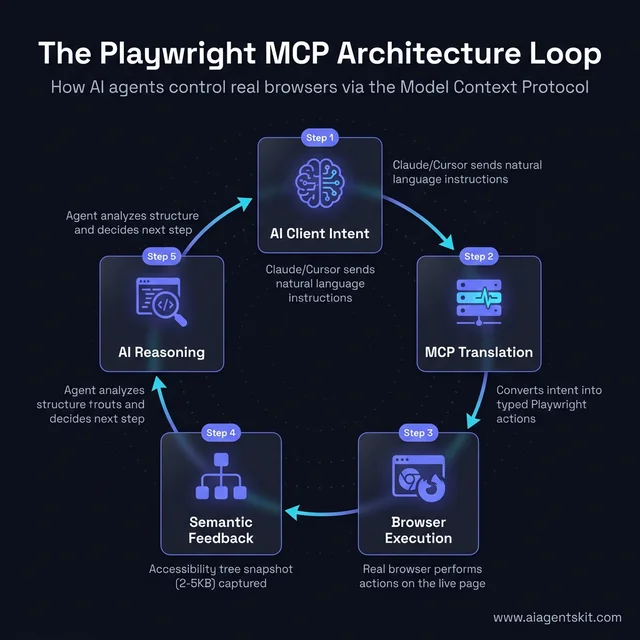
The Playwright MCP Architecture Loop: How AI agents translate intent into real browser actions using the Model Context Protocol.
What makes this fundamentally different from traditional Playwright scripting isn’t just the AI integration. It’s that AI agents interact with pages through roles, labels, attributes, and states — not through pixel coordinates or fragile CSS selectors. An element is “the Submit button in the login form” rather than button.btn-primary:nth-child(2). That structural awareness makes automation far more stable across the kind of routine UI changes — restyling, refactoring, element repositioning — that constantly break selector-based test suites.
According to MorphLLM’s 2025 Playwright MCP analysis, accessibility snapshots average just 2-5KB compared to 100KB+ for equivalent screenshots. That size difference compounds significantly across long agentic workflows — fewer tokens consumed, faster iterations, meaningfully lower operational costs when AI API usage is metered.
The open-source nature of the project matters too. Microsoft maintains the @playwright/mcp repository under Apache 2.0 licensing, meaning teams can inspect, fork, and customize the server’s behavior — unlike proprietary automation bridges that create vendor lock-in.
Why Playwright MCP Changes Browser Automation
The dominant approach before Playwright MCP — using screenshot-based vision models to “see” a page and decide where to click — works in many scenarios, but carries persistent failure modes that frustrate teams at scale. Screen size, zoom level, rendering variation, dynamic content loading timing, and overlapping elements all affect what the model sees. A three-pixel shift in a button position causes a click to miss. A tooltip appearing over a form element confuses the agent. A slight theme change makes a previously-reliable visual pattern unrecognizable.
Accessibility-tree automation sidesteps all of that. The tree describes what each element is and what it does, not how it appears visually. That distinction matters enormously at scale: the Submit button is always “a button with accessible name ‘Submit’ in a form labeled ‘Login,’” regardless of whether the design team changed its color, moved it to the right, or added an icon.
Teams exploring Claude Desktop MCP setup for web automation consistently surface the same transition story: early workflows using vision-based models spent disproportionate time on error recovery from visual misinterpretation — the agent clicking slightly beside a target, misreading a disabled state, or confusing two similar buttons in a dense UI. Playwright MCP eliminates that entire failure category.
The business case compounds beyond just reliability. According to Mordor Intelligence’s 2025 market report, the global accessibility testing market is on track to reach $642.29 million in 2026, growing at a 4.32% compound annual growth rate driven by enterprise digital-first mandates and AI-assisted compliance tooling. Playwright MCP sits at the convergence of these forces — enabling both compliance auditing and intelligent automation from the same infrastructure investment.
The comparison between approaches looks like this in practice:
| Approach | Token Usage | Stability | Setup Complexity | AI Integration |
|---|---|---|---|---|
| Screenshot + Vision Model | Very High | Fragile | Low | Native |
| Traditional Playwright Scripts | Zero | High (requires engineering effort) | Medium | None |
| Playwright MCP (Snapshot Mode) | Low | Very High | Low-Medium | Native |
| Playwright MCP (Screenshot Mode) | High | Medium | Low-Medium | Native |
Playwright MCP offers two operating modes: Snapshot Mode (uses accessibility tree, default, strongly recommended) and Screenshot Mode (for pages where the accessibility tree is sparse or incomplete). Most production implementations use Snapshot Mode for 90% or more of their interactions, falling back to Screenshot Mode only for pages relying heavily on canvas elements, custom-rendered graphics, or WebGL content where semantic structure isn’t available.
Even among teams that initially chose screenshot-based automation for its perceived simplicity, the migration to Playwright MCP is typically driven by concrete production failures — agents consistently missing elements due to visual variation across environments, or incurring unexpectedly high API costs from large screenshot payloads sent on every interaction.
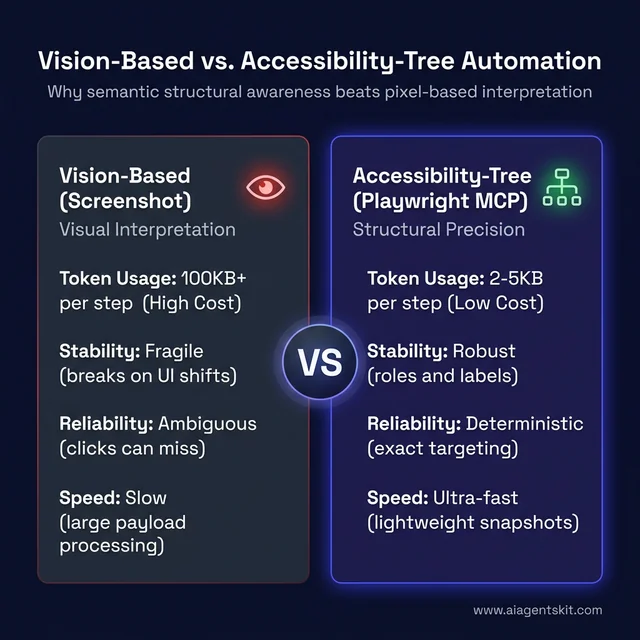
Comparing Vision-Based (screenshot) vs. Accessibility-Tree (Playwright MCP) automation: Why semantic structural awareness leads to higher stability and lower costs.
6 Core Capabilities of the Playwright MCP Server
The @playwright/mcp package exposes Playwright’s capabilities as callable MCP tools. Here’s a systematic look at what AI agents gain access to when connected:
Accessibility Snapshot Mode vs Screenshot Mode
Snapshot Mode captures the browser’s accessibility tree — a structured representation of every interactive element on the page with its role, label, value, and state. An example snapshot for a login form looks like this:
- form "Login Form" [role=form]
  - textbox "Email Address" [placeholder="you@example.com", value=""]
  - textbox "Password" [type=password, placeholder="Enter password"]
  - checkbox "Remember Me" [checked=false]
  - button "Sign In" [enabled=true]
  - link "Forgot password?" [href="/reset"]
This description tells the AI exactly what elements exist, what they do, and how to interact with them. There’s no visual ambiguity — the agent doesn’t need to “guess” where the password field is based on its visual position. It’s explicitly labeled as textbox "Password".
Screenshot Mode captures a visual image of the current page state and passes it to vision-capable models. It’s useful for pages with rich visual content — charts, canvas elements, custom graphics, interactive maps — where the accessibility tree is intentionally sparse. The tradeoff is significant: much higher token consumption and reintroduction of the visual interpretation challenges that make screenshot-only approaches unreliable on complex UIs.
According to TestDino’s 2025 Playwright trend analysis, Playwright now holds nearly 50% market share among modern automation teams — a figure that reflects the framework’s maturation and the developer community’s alignment on modern testing practices, well before the AI integration layer arrived.
The six core capabilities Playwright MCP exposes as MCP tools:
- Browser Navigation — Navigate to URLs, go back/forward in history, wait for page loads and network idle states, handle redirects and multi-step flows
- Element Interaction — Click elements by their accessible role and name, type text into inputs, select dropdown options, check/uncheck checkboxes, trigger keyboard events, perform drag-and-drop
- Snapshot Capture — Generate structured accessibility tree snapshots (2-5KB, highly token-efficient) for AI context
- Multi-Browser Support — Run automation against Chromium (Chrome, Edge), Firefox, and WebKit (Safari) from a single consistent API
- Device Emulation — Emulate 143 built-in device profiles including iPhone models, iPads, various Android devices, and custom viewport/DPI configurations
- Advanced Actions — Manage multiple browser tabs, intercept and modify network requests, upload files, generate PDFs, and handle dialogs (alerts, confirms, prompts)
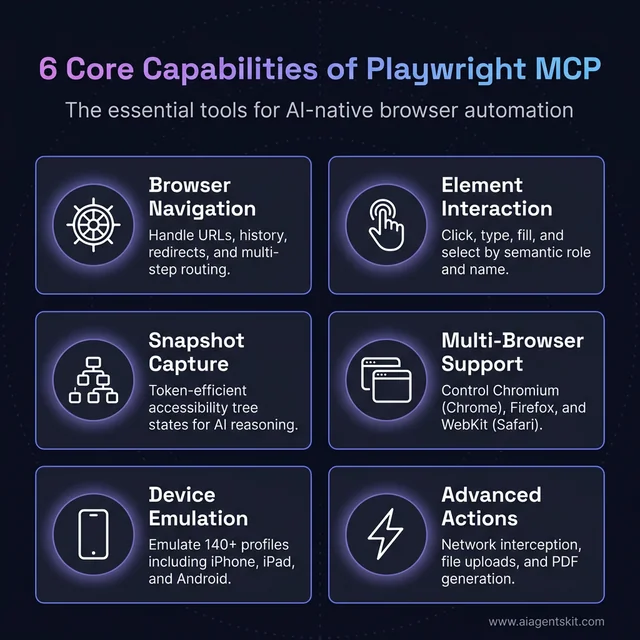
The 6 core capabilities exposed by the Playwright MCP server, providing AI agents with full control over browser navigation, interaction, and context.
How to Set Up Playwright MCP: Step-by-Step Guide
Getting Playwright MCP running requires Node.js 18 or later and npm. Run node --version in your terminal first — anything below v18 will silently fail to start the server. No separate Playwright installation is needed for basic use; the @playwright/mcp package handles browser management automatically, including downloading browser binaries on first run.
First-time setup tip: After adding the config, run
npx @playwright/mcp@latest --versionin a terminal to confirm the package resolves correctly before restarting your AI tool. If browser binaries are missing, runnpx playwright install chromiumonce to install them.
The configuration approach differs slightly depending on which AI tool is the client. Understanding building custom MCP servers helps contextualize how this works at the protocol level, though Playwright MCP requires zero custom server code — it’s a ready-to-use package.
Configuring Playwright MCP with Claude Desktop
Claude Desktop connects to MCP servers via a JSON configuration file. Here’s the complete setup process:
Step 1: Open Claude Desktop and navigate to Settings → Developer → Enable Developer Mode. This exposes the MCP configuration options.
Step 2: Open the MCP configuration file. Click “Edit Config” in the Developer settings, or open it directly. The file location varies by operating system:
- macOS:
~/Library/Application Support/Claude/claude_desktop_config.json - Windows:
%APPDATA%\Claude\claude_desktop_config.json
Step 3: Add the Playwright MCP server entry:
{
  "mcpServers": {
    "playwright": {
      "command": "npx",
      "args": [
        "@playwright/mcp@latest"
      ]
    }
  }
}
This minimal configuration launches Playwright MCP in headed mode (visible browser window) with Chromium as the default browser. The npx runner downloads the package on first run — no pre-install required.
Production teams: Pin a specific version instead of
@latestto prevent unexpected breakage in CI. Use"@playwright/mcp@1.2.0"(or whichever stable release your team validates against). Check the npm release history for the latest stable.
For headless mode (no visible browser — suited for server environments or background automation):
{
  "mcpServers": {
    "playwright": {
      "command": "npx",
      "args": [
        "@playwright/mcp@latest",
        "--headless"
      ]
    }
  }
}
For a specific browser (Firefox or WebKit instead of the default Chromium):
{
  "mcpServers": {
    "playwright": {
      "command": "npx",
      "args": [
        "@playwright/mcp@latest",
        "--browser",
        "firefox"
      ]
    }
  }
}
Step 4: Restart Claude Desktop completely — not just the conversation — to apply the configuration changes. MCP server connections are established at startup.
Step 5: Verify the connection. Open a new conversation and ask Claude: “Can you navigate to playwright.dev and tell me the main navigation links on the homepage?” Claude should launch a Chromium browser instance (visible if not in headless mode), navigate to the page, and return a structured description of what it found, including the exact navigation structure from the accessibility tree.
Setting Up Playwright MCP in VS Code with Copilot
GitHub Copilot in VS Code supports MCP servers through its Copilot agent configuration. This setup gives Copilot Chat the ability to open browsers, navigate pages, and verify UI behavior directly from the editor — closing the loop between writing code and verifying it in a live browser without switching tools.
Step 1: Open VS Code with the GitHub Copilot and GitHub Copilot Chat extensions installed and authenticated.
Step 2: Open User Settings (JSON) via Cmd+Shift+P (Mac) or Ctrl+Shift+P (Windows) → “Preferences: Open User Settings (JSON)”.
Step 3: Add the MCP configuration block:
{
  "github.copilot.chat.agent.mcp": {
    "playwright": {
      "command": "npx",
      "args": ["@playwright/mcp@latest"]
    }
  }
}
Step 4: Restart VS Code to apply the settings.
Step 5: Open GitHub Copilot Chat, switch to Agent mode (the dropdown next to the input field), and look for Playwright-related tools in the available tools list. Test with: “Use the Playwright MCP to navigate to example.com and describe all the links on the page.”
Getting More from GitHub Copilot + Playwright MCP
The VS Code integration unlocks specific capabilities beyond what Claude Desktop provides — most notably, Copilot’s inline editor context. Because Copilot sees the code file you have open alongside what the browser returns, it can generate test files that reference your actual component names, match your project’s existing import style, and integrate with the test setup patterns already in use in the codebase.
The most effective prompt patterns for the Copilot + Playwright MCP combination:
- “Navigate to [URL] and generate a Playwright test for the [feature] flow using our existing Page Object Model pattern in
tests/pages/” — Copilot’s codebase awareness lets it model new tests on the POM files already in the project. - “Open the staging URL and identify any accessibility issues with the checkout form” — Combines live browser access with Copilot’s code suggestion capabilities for writing remediation code.
- “Run the current test file, capture the accessibility tree for any failing assertions, and suggest updated locators” — The self-healing workflow directly in the editor.
- “Visit [competitor URL] and summarize the key UI patterns in their navigation structure” — Competitive research with no context-switching.
Microsoft also ships a “Fix with AI” button in the Playwright VS Code extension’s test runner panel. When a Playwright test fails, clicking this button triggers Copilot to use the Playwright MCP — navigating to the relevant URL, comparing the expected state to the current accessibility tree, and proposing a locator or assertion fix as an inline code edit. This closes the maintenance loop significantly faster than manually diagnosing selector drift.
Adding Playwright MCP to the Cursor IDE
Cursor has built-in MCP server support in its settings panel, making the configuration straightforward:
Step 1: Open Cursor Settings (the gear icon or Cmd+,), then navigate to the MCP Servers section.
Step 2: Click “Add new global MCP server” and enter the server configuration:
{
  "playwright": {
    "command": "npx",
    "args": ["@playwright/mcp@latest"]
  }
}
Step 3: Optionally, enable Auto-Run Mode under Cursor Features if the goal is uninterrupted agentic operation where Cursor executes browser actions without per-step confirmation prompts.
Step 4: Save and let Cursor restart its MCP connections.
Step 5: In the Cursor AI chat, ask a browser task like: “Navigate to our staging server at localhost:3000 and verify the checkout form shows validation errors when required fields are empty.” With Playwright MCP active, Cursor will open a browser, interact with the page, and report back with findings — all captured from the accessibility tree.
What Can AI Agents Do with Playwright MCP?
The use cases extend well beyond the automated testing scenario where most teams first encounter Playwright MCP. Much like how the MCP server for GitHub expanded from simple repository queries into full workflow automation, Playwright MCP tends to unlock capabilities teams didn’t initially anticipate.
AI-Powered Test Generation from Natural Language
The most immediate application is natural-language test creation. A developer tells Claude: “Write a Playwright test that verifies the checkout flow processes a purchase with Stripe’s test card number 4242-4242-4242-4242, checks that the order confirmation email is mentioned on the success page, and captures a screenshot of the final state.”
Claude, connected via Playwright MCP, navigates the site step by step — capturing the accessibility tree at each stage, observing element states, identifying locators by their semantic roles — then generates a complete, runnable Playwright test file with appropriate assertions and contextually meaningful variable names. The resulting test reflects the actual page structure, not a generic template.
According to Browserless.io’s 2025 performance analysis, Playwright runs 30-40% faster than Selenium with a 75% improvement in parallel testing efficiency — advantages that compound when AI agents are generating, validating, and iterating on test suites continuously rather than requiring engineering cycles between each update.
Self-Healing Locators and Test Maintenance
When a UI update breaks an existing test’s selector — an all-too-common occurrence in active codebases — teams traditionally face manual maintenance work: finding the broken locator, understanding what changed in the UI, and writing a replacement. With Playwright MCP, an AI agent can systematically address this: detect which tests are failing, navigate to the affected page, capture the current accessibility tree, identify elements by their semantic role and accessible name, generate updated locators, and propose a patch — all without human intervention.
The self-healing capability works because Playwright MCP gives the AI access to intent-level understanding of page elements. “The button that submits the registration form” can be found even if its CSS class, data attribute, or visual position has changed — as long as its accessible name and role remain consistent. Research from multiple testing platforms consistently shows self-healing locator strategies reduce test maintenance effort by 30–40% in active codebases.
Intelligent Web Scraping and Research Automation
Playwright MCP gives AI agents the ability to navigate complex multi-page workflows, handle JavaScript-rendered content, manage authenticated browser sessions, and extract structured data — all through natural language direction. Teams using it for competitive intelligence can instruct an agent: “Collect all product names, prices, and availability status from these seven competitor product pages and organize the results in a comparison table.”
This goes beyond what simple HTTP-based scrapers can handle — Playwright runs a real browser, so single-page applications, lazy-loaded content, and login-protected pages are all accessible.
Accessibility Compliance Auditing
Because Playwright MCP natively exposes the ARIA tree, AI agents can systematically audit pages for WCAG compliance — checking for missing alt text on images, incorrect heading level hierarchies, unlabeled form fields, insufficient color contrast descriptions, and keyboard navigation dead-ends. An audit that would take a developer hours to perform manually across dozens of pages can be executed programmatically with detailed reports in a fraction of the time.
Multi-Page Workflow Automation
Teams are deploying Playwright MCP for operational tasks that go beyond testing or research: automatically filling complex multi-step forms, processing approval workflows spanning multiple authenticated systems, or performing scheduled checks on third-party platforms where no API is available. Any workflow a human performs in a browser — if it doesn’t require discretionary human judgment at each step — becomes a candidate for Playwright MCP automation.
Playwright MCP Test Agents: Planner, Generator, and Healer
Microsoft’s Playwright team shipped three dedicated AI test agents — Planner, Generator, and Healer — that represent one of the most concrete implementations of Playwright MCP in a structured workflow. Understanding how they operate reveals the full potential of AI-native test automation.
The Planner Agent
The Planner agent takes an application URL (or a running dev server) and autonomously explores the application — navigating through screens, reading the accessibility tree at each step, and building a structured understanding of the user flows. The output is a Markdown test plan: a human-readable document that describes every scenario worth testing, organized by feature area.
Example output from the Planner for an e-commerce checkout:
## Checkout Flow Test Plan

### Scenario 1: Successful purchase with valid card
- Navigate to product listing
- Add item to cart via "Add to Cart" button
- Proceed to checkout
- Fill shipping form: name, address, city, postal code
- Enter test card 4242-4242-4242-4242, exp 12/28, CVV 123
- Submit order
- Assert: order confirmation page visible with order number

### Scenario 2: Cart persists across page refresh
...
This plan becomes the contract between what the business intends to test and what the Generator will actually build.
The Generator Agent
The Generator reads the Planner’s Markdown test plan and produces executable Playwright test files for each scenario. Critically, it uses semantic locators — getByRole(), getByLabel(), getByText() — rather than brittle CSS selectors or XPath expressions.
An example of what generated test code looks like for the Planner scenario above:
import { test, expect } from '@playwright/test';

test('successful purchase with valid card', async ({ page }) => {
  await page.goto('/products');
  await page.getByRole('button', { name: 'Add to Cart' }).first().click();
  await page.getByRole('link', { name: 'Proceed to Checkout' }).click();

  // Fill shipping details
  await page.getByLabel('Full Name').fill('Jane Smith');
  await page.getByLabel('Address').fill('123 Main Street');
  await page.getByLabel('City').fill('Austin');
  await page.getByLabel('Postal Code').fill('78701');

  // Payment
  await page.getByLabel('Card Number').fill('4242424242424242');
  await page.getByLabel('Expiry').fill('12/28');
  await page.getByLabel('CVV').fill('123');
  await page.getByRole('button', { name: 'Place Order' }).click();

  // Assert confirmation
  await expect(page.getByRole('heading', { name: /Order Confirmed/i })).toBeVisible();
  await expect(page.getByText(/Order #/)).toBeVisible();
});
The use of getByRole and getByLabel means these tests survive component restyling, layout changes, and minor HTML refactoring — as long as the accessible names remain consistent, the locators hold.
The Healer Agent
The Healer monitors CI test results and takes action when tests fail due to locator drift — when a UI element’s CSS class, position, or attribute changes but its functional purpose remains the same. Instead of a developer spending time diagnosing which locator broke and why, the Healer:
- Navigates to the URL where the failure occurred
- Captures the current accessibility tree
- Compares against the failing locator’s intent
- Identifies the most likely correct element by role and accessible name
- Proposes a patch to the test file
The result: CI pipelines that flag genuinely broken functionality rather than generating false failures from routine UI updates. Teams using the three-agent workflow report reclaiming significant engineering time previously absorbed by test maintenance.
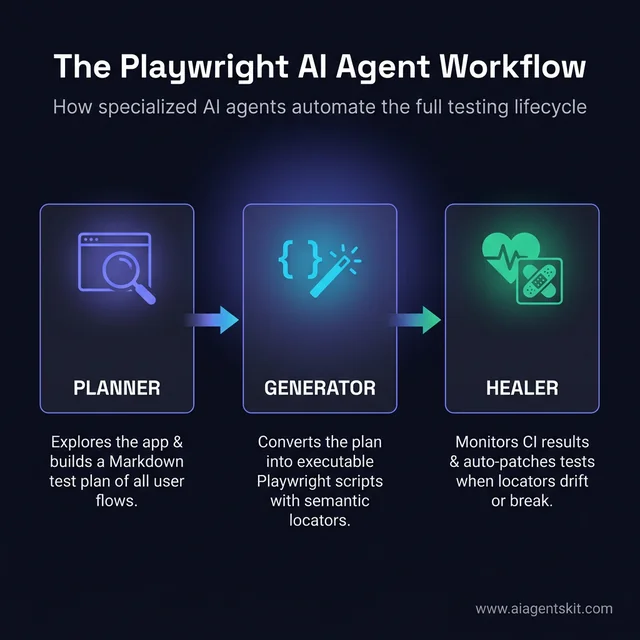
The three-agent Playwright workflow: Planner explores, Generator scripts, and Healer maintains the automation suite.
Playwright MCP vs Alternative Browser Automation Approaches
Understanding where Playwright MCP sits relative to other approaches helps teams make confident architecture decisions. The question of MCP vs function calling often surfaces alongside these discussions — both are mechanisms for giving AI models external tool access, with meaningful architectural tradeoffs at the protocol level.
| Approach | Best For | Token Usage | AI Integration | Stability |
|---|---|---|---|---|
| Playwright MCP (Snapshot Mode) | AI agent workflows, test generation, research automation | Low (2–5 KB/snapshot) | Native | Very High |
| Playwright MCP (Screenshot Mode) | Pages with canvas, WebGL, heavy visuals | High (100 KB+) | Native | Medium |
| Playwright CLI | Deterministic CI/CD suites, no AI needed | Zero | None | High |
| Selenium WebDriver | Legacy systems, maximum browser coverage | Zero | None | Medium |
| Puppeteer | Chrome-centric tasks, DevTools Protocol access | Zero | Requires custom bridge | High |
| Screenshot + Vision Models | Visual regression, graphics-heavy pages | Very High | Native | Low–Medium |
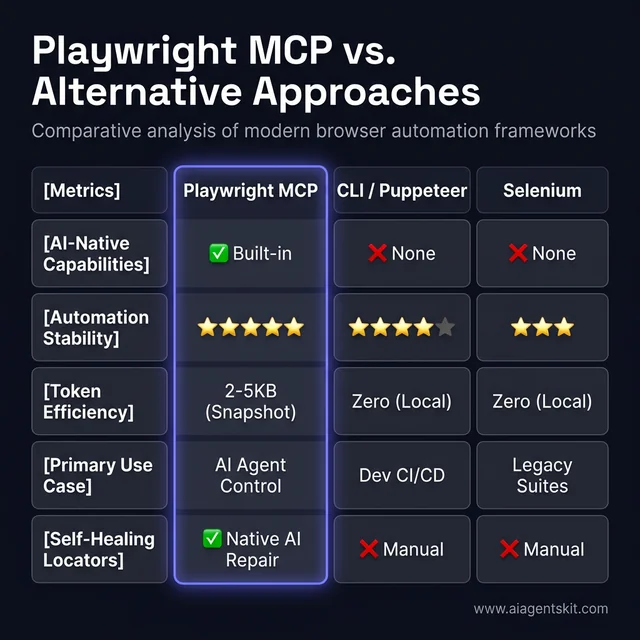
Feature matrix comparing Playwright MCP against CLI, Selenium, and Vision-based approaches across stability, cost, and AI integration.
Playwright MCP vs Playwright CLI
This is the comparison that causes the most confusion for teams already using Playwright. Playwright CLI runs tests deterministically from pre-written scripts — zero AI reasoning, zero adaptive behavior, maximum speed. Playwright MCP adds an AI reasoning layer on top of the same framework. The rule of thumb: use CLI for your production regression suite (speed, predictability); use MCP for exploratory testing, test generation, and research workflows. Most teams run both in parallel — MCP generates the tests, CLI executes them in CI.
Playwright MCP vs Traditional Playwright Scripts
Direct Playwright scripting remains the right choice for deterministic, pre-defined test suites in CI/CD pipelines where every path is known in advance and latency must be minimized. It doesn’t replace the framework, it extends it. Teams frequently run both: traditional scripts for the core regression suite, Playwright MCP for exploratory testing and test generation workflows.
Playwright MCP vs Selenium
Playwright leads the automation framework community with 78,600+ GitHub stars as of late 2025. The gap with Selenium reflects modern development teams’ preferences for Playwright’s faster execution, better async handling, and built-in multipage/multicontext support. Playwright MCP specifically extends this into AI-native territory where Selenium has no direct equivalent — Selenium has no MCP integration and no accessibility-tree-first automation mode.
Playwright MCP vs Puppeteer
Puppeteer excels for Chrome-specific, programmatic tasks where performance matters and the project language is JavaScript. It provides deeper DevTools Protocol access than Playwright but sacrifices cross-browser compatibility and, critically, lacks a native MCP interface. Integrating Puppeteer with Claude or Copilot requires custom bridging code — a meaningful implementation overhead that Playwright MCP eliminates. A Puppeteer MCP server exists in the community, but it’s not officially maintained and lags significantly in tooling compared to @playwright/mcp.
Playwright MCP vs Screenshot-Based AI Automation
The architectural contrast is fundamental. Screenshot approaches give the AI a visual image and ask it to interpret what to interact with. Playwright MCP gives the AI a structured semantic description of interactive elements and lets it act directly. The practical results: higher reliability across dynamic UIs, dramatically lower token consumption per interaction, and more consistent behavior across different environment configurations (screen resolutions, OS differences, browser zoom levels).
Even teams most invested in screenshot-based approaches hit the same breaking point: a production deployment where the visual environment differs subtly from development — different font rendering, slightly different element sizing — and automation that worked in testing starts failing in ways that are difficult to diagnose and expensive to fix. Playwright MCP’s accessibility-tree foundation eliminates this class of failure entirely.
Token Usage and Cost Optimization with Playwright MCP
For teams running Playwright MCP at scale — many sessions per day, long multi-step workflows, high inference API costs — token efficiency becomes an important architectural consideration. Understanding how context windows fill up and where to apply optimizations can meaningfully reduce costs without compromising automation quality.
How Playwright MCP Consumes Tokens
Every interaction in a Playwright MCP workflow involves sending context to the AI model. The main sources of token consumption are:
- Accessibility snapshots — Each call to capture the page state sends the full accessibility tree to the model context. In Snapshot Mode, this averages 2–5 KB per page. In Screenshot Mode, the same capture sends 100 KB or more as a base64-encoded image.
- Conversation history — Multi-step workflows accumulate prior snapshots, instructions, and responses in the context window. Long sessions compound quickly.
- Tool call results — Each browser action returns a confirmation and updated state, adding incrementally to the running context.
The cumulative effect: a 20-step workflow in Snapshot Mode might consume 50–100 KB of context total. The same workflow in Screenshot Mode could consume 2 MB or more — a 20x difference that becomes significant at scale.
Strategies to Minimize Token Usage
Scope your snapshots: Instead of capturing the full page tree on every step, focus the snapshot on the relevant section. Ask the AI to interact with specific regions — “focus on the checkout form” — to avoid including unrelated navigation, footer, and sidebar elements in every context window.
Decompose long workflows: Break complex multi-page tasks into smaller, discrete sub-tasks. Each sub-task starts a fresh context, preventing older snapshot data from accumulating in active context windows. A 30-step checkout audit is more token-efficient as three 10-step tasks than one continuous session.
Prefer Snapshot Mode: Reserve Screenshot Mode only for specific pages where the accessibility tree genuinely doesn’t provide enough structure — canvas-heavy visualizations, WebGL content, complex SVG interfaces. Default everything else to Snapshot Mode.
Reuse browser contexts: Playwright supports persistent browser contexts that maintain session state (cookies, localStorage, authentication) across multiple tasks within the same browser instance. Reusing a context avoids re-authentication overhead on every workflow.
Use Playwright CLI for execution, MCP for generation: One of the most cost-effective patterns is using Playwright MCP to generate test scripts once, then running those scripts via the Playwright CLI test runner (which uses zero AI tokens). You get the intelligence of AI for authoring and the efficiency of deterministic execution for running.
Playwright MCP vs Playwright CLI: The Token Tradeoff
| Metric | Playwright MCP | Playwright CLI |
|---|---|---|
| Token cost per test run | 50–500 KB context | Zero |
| Test authoring speed | Minutes (natural language) | Hours (manual scripting) |
| Adaptability to UI changes | High (AI re-evaluates) | Low (scripts break silently) |
| Best for | Generation, exploration, research | Regression suites, CI/CD |
The ideal production setup is a hybrid: Playwright MCP generates the test suite, Playwright CLI runs it on every commit. MCP re-runs only when tests fail or when new features need coverage added. This maximizes the intelligence of AI authoring while minimizing the ongoing inference cost of AI execution.
Running Playwright MCP in CI/CD Pipelines
Moving Playwright MCP from local development into continuous integration requires a few additional configuration decisions — primarily around transport mode (stdio vs SSE), browser binary availability, and headless operation. This is where most teams hit friction for the first time.
Headless Mode in CI
CI environments have no display server, so headed mode (the default) will immediately fail. Always configure headless mode explicitly:
{
  "mcpServers": {
    "playwright": {
      "command": "npx",
      "args": [
        "@playwright/mcp@latest",
        "--headless"
      ]
    }
  }
}
GitHub Actions Workflow Example
Here’s a complete GitHub Actions workflow that runs a Playwright MCP session as part of a CI pipeline — using the MCP server in stdio mode with a script that orchestrates the AI agent:
name: Playwright MCP CI

on:
  push:
    branches: [main, develop]
  pull_request:

jobs:
  playwright-mcp:
    runs-on: ubuntu-latest
    steps:
      - uses: actions/checkout@v4

      - name: Set up Node.js
        uses: actions/setup-node@v4
        with:
          node-version: '20'

      - name: Install dependencies
        run: npm ci

      - name: Install Playwright browsers
        run: npx playwright install chromium --with-deps

      - name: Run Playwright MCP tests
        env:
          ANTHROPIC_API_KEY: ${{ secrets.ANTHROPIC_API_KEY }}
        run: node scripts/run-mcp-tests.js
Key step:
npx playwright install chromium --with-depsinstalls both the browser binary and its OS-level dependencies (required on clean Ubuntu runners where shared libraries likelibgbmare not pre-installed). Skipping--with-depscauses a common “browser executable not found” error in CI.
Docker Setup for Shared Playwright MCP Infrastructure
For teams running Playwright MCP as a shared service — accessible by multiple AI clients or as part of a QA platform — containerization via Docker is the standard approach. This uses SSE transport instead of stdio, exposing the MCP server over HTTP:
Dockerfile:
FROM mcr.microsoft.com/playwright:v1.50.0-jammy

WORKDIR /app

COPY package*.json ./
RUN npm ci

# Install Playwright MCP
RUN npm install @playwright/mcp

# Expose SSE port
EXPOSE 8931

CMD ["npx", "@playwright/mcp@latest", "--port", "8931"]docker-compose.yml:
version: '3.8'
services:
  playwright-mcp:
    build: .
    ports:
      - "8931:8931"
    environment:
      - DISPLAY=:99
    restart: unless-stopped
    healthcheck:
      test: ["CMD", "curl", "-f", "http://localhost:8931/health"]
      interval: 30s
      timeout: 10s
      retries: 3
Using the official mcr.microsoft.com/playwright base image is strongly recommended — it includes all required browser binaries and system dependencies pre-installed, eliminating the dependency resolution failures that plague custom Playwright Docker setups.
Once the container is running, AI clients connect via SSE by pointing their MCP configuration to http://your-server:8931 instead of using the local npx command. This enables a single Playwright MCP instance to serve multiple team members or multiple AI pipelines simultaneously.
Playwright MCP Best Practices for Production Teams
Teams that have moved Playwright MCP from proof-of-concept into production use — running real automation workflows, integrating with CI pipelines, scaling across multiple developers — have surfaced a consistent set of patterns that separate reliable implementations from fragile ones.
Pin package versions, never use @latest in production
The @playwright/mcp@latest shorthand is convenient for local experimentation. In CI, it’s a reliability risk — a breaking change in a new release will silently break every automated workflow at next run. Pin a specific version and update deliberately after testing:
"args": ["@playwright/mcp@1.2.0"]Track the changelog on GitHub and treat version upgrades as a controlled change with its own test pass.
Scope accessibility snapshots to relevant sections
Large pages — dashboards, data-heavy admin panels, multi-widget pages — produce accessibility trees with thousands of nodes. Passing the full tree on every interaction consumes disproportionate context window space and can cause timeouts in the AI model’s reasoning. When writing prompts or orchestration scripts, direct the AI to focus on specific regions:
- “Focus on the checkout form section” rather than “describe the page”
- Use Playwright’s
locatorscoping to capture partial tree snapshots - Avoid requesting full-page screenshots unless specifically needed
Combine Playwright MCP with Page Object Model for large test suites
For teams with hundreds of test scenarios, a hybrid approach works best. Use Playwright MCP to discover page structure and generate initial locators, then codify those locators into Page Object Models (POMs). The POMs become the stable abstraction — Playwright CLI uses them for fast, deterministic execution; Playwright MCP consults them when healing or extending coverage:
// Generated by Playwright MCP Planner, codified into POM
export class CheckoutPage {
  constructor(private page: Page) {}

  async fillShipping(details: ShippingDetails) {
    await this.page.getByLabel('Full Name').fill(details.name);
    await this.page.getByLabel('Address').fill(details.address);
    await this.page.getByLabel('City').fill(details.city);
  }

  async submitOrder() {
    await this.page.getByRole('button', { name: 'Place Order' }).click();
  }
}
Never hard-code credentials in MCP configuration files
MCP configuration files (claude_desktop_config.json, VS Code settings.json) are often committed to repositories or synced through developer tools. Any credentials in the args array are exposed. Use environment variables for anything sensitive:
{
  "playwright": {
    "command": "npx",
    "args": ["@playwright/mcp@latest", "--headless"],
    "env": {
      "TEST_USERNAME": "${TEST_USERNAME}",
      "TEST_PASSWORD": "${TEST_PASSWORD}"
    }
  }
}
Load secrets from a secrets manager (AWS Secrets Manager, GitHub Actions secrets, 1Password CLI) rather than committing them to any configuration file.
Use headed mode for development, headless for CI
During prompt development and workflow iteration, run with the browser visible. Watching the browser execute AI instructions immediately reveals problems — the agent clicking the wrong element, missing a loading state, or misinterpreting an ambiguous label. Catching these issues visually is dramatically faster than diagnosing them from logs. Switch to headless only in CI where no display is available and run speed matters.
Handle the tool proliferation problem
Playwright MCP exposes a large number of tools (navigate, click, fill, select, screenshot, snapshot, and more). When an AI agent has too many overlapping options available, it can oscillate between approaches — using screenshot when snapshot is more efficient, or calling snapshot repeatedly unnecessarily. Constrain the available tools in your orchestration configuration where possible, or be explicit in prompts about which interaction pattern to prefer:
“Use accessibility snapshot mode for all interactions unless the target element is in a canvas or SVG. Do not take screenshots unless explicitly requested.”
This kind of system-level guidance at the start of sessions meaningfully improves efficiency and consistency across long automation workflows.
Playwright MCP Troubleshooting Guide
Most Playwright MCP problems fall into a small set of repeating patterns. Here’s a systematic guide to the issues teams encounter most often, with verified fixes.
Problem: “No Tools Detected” / Server Not Loading
Symptoms: Your AI tool (Claude Desktop, VS Code, Cursor) starts without showing Playwright-related tools. Asking the AI to use the browser results in “I don’t have browser access.”
Diagnosis checklist:
- JSON syntax error in config file — This is the most common cause. A single missing comma or extra bracket prevents the entire
mcpServersblock from parsing. Validate your JSON at jsonlint.com before restarting. - Node.js version below 18 — Run
node --version. Versions below 18 fail silently. Install Node.js 18 LTS or higher. - AI tool not fully restarted — Claude Desktop and VS Code cache MCP server connections at startup. Closing the window isn’t enough — fully quit the application and reopen it.
- npx cache conflict — Occasionally the npx cache holds a broken version. Clear it:
rm -rf ~/.npm/_npx && npx @playwright/mcp@latest --version
Problem: “Browser Not Found” / “Executable Doesn’t Exist”
Symptoms: The MCP server starts successfully (tools appear) but browser actions fail immediately with an executable path error.
Fix: Install browser binaries explicitly:
npx playwright install chromium
# For all browsers:
npx playwright install
# On CI/Linux, also install system dependencies:
npx playwright install chromium --with-deps
This is required when the Playwright MCP package was installed fresh but the browser binaries don’t yet exist on the system. The --with-deps flag is critical in Docker and CI environments where base OS libraries may be missing.
Problem: “Session Not Found” in Docker / SSE Transport
Symptoms: In containerized or remote deployments using SSE transport, requests to the MCP server return “Session not found” or the connection drops immediately.
Fix: Switch from SSE to stdio transport for local single-client configurations. If running in Docker, ensure:
- The container exposes the correct port (
8931by default) - The
--portflag matches the exposed port - Health checks pass before the client attempts to connect (use Docker
depends_onwithcondition: service_healthy)
Problem: Agent Clicking Wrong Elements
Symptoms: The AI agent reports success but interactions go to the wrong UI element — clicking “Cancel” instead of “Submit,” selecting the wrong dropdown option, or filling an unintended text field.
Root causes:
- Duplicate accessible names — Two elements on the page share the same accessible name (e.g., two buttons both labeled “Submit”). The AI picks one arbitrarily.
- Missing ARIA labels — Form fields without
<label>associations,aria-label, oraria-labelledbyattributes are described only by placeholder text or position, which is ambiguous. - Canvas or iframe content — Elements inside
<canvas>or cross-origin<iframe>elements don’t appear in the accessibility tree and can’t be reliably targeted.
Fix: Improve the page’s own accessibility markup (this is the correct long-term solution). As a short-term workaround, add explicit instructions to the AI’s prompt: “Click the Submit button inside the ‘Shipping Information’ form, not the one in the page header.”
Problem: Slow Performance / Timeout Errors
Symptoms: Long multi-step workflows time out. The AI takes very long to respond between steps. Complex pages cause the session to stall.
Fixes:
- Large accessibility tree: Very complex pages (dashboards with dozens of widgets) produce enormous snapshots. Break tasks into smaller scoped interactions.
- Too many concurrent tools: If running multiple Playwright MCP sessions simultaneously on the same machine, resource contention causes slowdowns. Use SSE transport with a shared server for multi-client scenarios.
- Accumulating conversation context: In very long sessions, the growing message history fills the model’s context window. Start fresh sub-sessions for distinct phases of a long workflow.
Quick-Reference Troubleshooting Table
| Symptom | Most Likely Cause | Fix |
|---|---|---|
| No tools in AI tool | JSON syntax error or not restarted | Validate JSON, fully quit and reopen |
| ”Browser not found” | Missing browser binaries | npx playwright install chromium |
| ”Session not found” in Docker | SSE transport misconfiguration | Check port, use --with-deps in container |
| Wrong element clicked | Duplicate or missing ARIA labels | Add explicit aria-label to page elements |
| Timeout on complex pages | Large accessibility tree / long session | Break into smaller tasks, scope snapshots |
| Works locally, fails in CI | Headed mode, missing --headless flag | Add "--headless" to args array |
| Version error after update | Breaking change in @latest | Pin to specific version number |
Frequently Asked Questions
What is the difference between Playwright MCP and regular Playwright?
Regular Playwright is a Node.js library for programmatic browser automation using JavaScript, TypeScript, Python, Java, or C#. Playwright MCP wraps this library in a Model Context Protocol server, making all of Playwright’s browser capabilities accessible to AI agents through natural language instructions. The underlying automation engine is identical — Playwright MCP adds an AI interface layer on top of the framework, translating model tool-calls into typed Playwright operations without requiring any human to write Playwright code.
How does Playwright MCP use the accessibility tree to interact with pages?
Playwright MCP captures the browser’s accessibility tree — the same structured data that screen readers use to interpret web pages for visually impaired users. This tree describes every interactive element by its role (button, textbox, link, checkbox), accessible name, current value, and state (enabled, disabled, checked, selected). When an AI agent needs to interact with an element, it references it by its semantic description rather than a visual coordinate or CSS selector. This structural approach is stable across UI changes that don’t alter element semantics — component restyling, responsive layout shifts, or minor HTML refactoring don’t break accessibility-tree-based interactions.
Which AI models can work with Playwright MCP?
Any AI model or agent running inside an MCP-compatible host can use Playwright MCP. Confirmed integrations include Claude 4 (via Claude Desktop or the API), GitHub Copilot in VS Code, Cursor IDE, and any custom AI application built using the MCP SDK. The protocol is intentionally model-agnostic — Playwright MCP exposes standardized tool definitions that any compliant MCP host can call regardless of the underlying language model. Teams using OpenAI models, Gemini via Vertex, or local models through Ollama can all connect through custom MCP client implementations.
How do I configure Playwright MCP for headless browser mode?
Add "--headless" to the args array in the MCP server configuration. For Claude Desktop, the mcpServers entry becomes: "args": ["@playwright/mcp@latest", "--headless"]. Headless mode runs the full Chromium, Firefox, or WebKit engine without rendering a visible browser window — all JavaScript executes and all network requests are made normally, but there’s no display output. This is the standard configuration for server deployments, CI/CD pipelines, and background automation where visual observation isn’t needed. Non-headless mode (the default) is recommended during initial setup and debugging because the visible browser window lets teams confirm that the agent is interacting with the right elements.
Can Playwright MCP generate and run Playwright tests autonomously?
Yes. When connected to Claude 4 or a similar reasoning model, an AI agent can receive a natural language description of a test scenario, navigate the target application using Playwright MCP tools, observe the page structure via accessibility snapshots at each step, generate a complete Playwright test file with assertions and locators based on accessible roles, execute the generated test to verify it passes, and return the final test file — all from a single instruction. Teams report this workflow reduces test creation time for standard user flows from several hours to under 20 minutes, with the additional benefit that generated tests use semantic locators that are inherently more maintainable than brittle CSS selectors.
Is Playwright MCP open source and free to use?
Yes. The @playwright/mcp package is open source, maintained by Microsoft, and available on GitHub at microsoft/playwright-mcp under the Apache 2.0 license. Like the Playwright framework itself, there are no licensing costs. Teams pay only for the AI model API usage — Claude API credits, GitHub Copilot subscriptions, or equivalent — that drives the automation workflow. The Playwright MCP server itself consumes no per-request fees.
What browsers does Playwright MCP support?
Playwright MCP supports all three browser engines included in the Playwright framework: Chromium (the engine behind Chrome and Microsoft Edge), Firefox, and WebKit (Apple’s browser engine, which powers Safari). Browser selection is configured via launch arguments in the MCP server configuration. Chromium is the default and handles the majority of production web applications correctly. Teams requiring cross-browser coverage or Safari compatibility testing can specify --browser firefox or --browser webkit in the args array. All three engines execute real JavaScript, support modern CSS, and handle authentication flows, so the choice primarily depends on which production browser environments need validation.
How does Playwright MCP handle authentication and login flows?
Playwright MCP supports persistent browser contexts that maintain cookies, localStorage, and session state across interactions within a single automation session. For authenticated testing, the standard approach is: have the AI agent perform login once through the normal UI (instructing it to enter credentials and submit the login form), then rely on the persisted session for all subsequent actions. For scenarios requiring repeated authentication across sessions, Playwright’s storageState feature can save and restore session data — teams configure this through the launch options. Credentials should always be passed via environment variables or a secrets manager, never hard-coded in configuration files.
What is the difference between stdio and SSE transport in Playwright MCP?
Playwright MCP supports two transport modes for the MCP protocol connection. stdio (standard input/output) runs the MCP server as a local subprocess — the AI host (Claude Desktop, VS Code, Cursor) spawns the server process and communicates via stdin/stdout pipes. This is the simplest configuration, requires no networking setup, and works well for individual developer machines. SSE (Server-Sent Events) runs the Playwright MCP server as a standalone HTTP service that AI clients connect to over the network. This mode enables multiple AI clients to share a single server instance, allows the server to run remotely (on a dedicated machine or cloud container), and fits enterprise architectures where teams need shared automation infrastructure. Most individual developers use stdio; teams running shared QA automation platforms typically migrate to SSE for scalability.
Can Playwright MCP access pages that require JavaScript rendering?
Yes, completely. Playwright MCP runs a full browser engine — not a headless HTTP client or HTML parser — so all JavaScript executes normally, dynamic content loads, and single-page application routing works as expected. React, Vue, Angular, Svelte, and any other JavaScript-rendered application is fully compatible. Teams don’t need to modify their web applications, add special endpoints, or expose backend APIs for Playwright MCP to function. The browser behavior is identical to a real user’s browser session, with the same JavaScript engine, same CSS rendering, same network behavior, and — if needed — the same cookie and session handling.
What is the Playwright MCP Planner agent?
The Playwright MCP Planner agent is one of Microsoft’s three official AI test agents for the Playwright ecosystem. It autonomously explores a web application — navigating screens, reading the accessibility tree, and identifying user flows — then produces a structured Markdown test plan that documents every scenario worth testing. The Planner’s output becomes the input for the Generator agent, which converts the plan into executable Playwright test files. This three-stage pipeline (Planner → Generator → Healer) represents the most structured AI-native test automation workflow currently available for Playwright teams.
What Node.js version does Playwright MCP require?
Playwright MCP requires Node.js 18 or later. This is a hard requirement — Node.js versions below 18 lack features the MCP SDK depends on and will fail to start the server, often without a clear error message. Run node --version before setup. If you see a version like v16.x.x or v14.x.x, upgrade to Node.js 20 LTS (the current recommended version) via the official Node.js website or a version manager like nvm.
How do I fix “no tools detected” in Playwright MCP?
The most common causes are: (1) a JSON syntax error in the MCP configuration file — validate at jsonlint.com; (2) the AI application was closed but not fully quit (on Mac, check the Dock for a running indicator); (3) Node.js version is below 18; (4) the npx package cache is corrupted — clear with rm -rf ~/.npm/_npx. After fixing any of these, do a full restart of the AI tool — not just a new conversation.
Does Playwright MCP work inside Docker containers?
Yes, with the right base image and configuration. Use the official mcr.microsoft.com/playwright Docker image, which includes all browser binaries and required system libraries pre-installed. Use the --port flag to expose the MCP server via SSE transport for Docker deployments (npx @playwright/mcp@latest --port 8931), and configure AI clients to connect via the SSE endpoint rather than launching a local subprocess. See the CI/CD section above for a complete Dockerfile and docker-compose.yml.
Can Playwright MCP run multiple concurrent browser sessions?
Yes. When running in SSE transport mode, the Playwright MCP server can serve multiple concurrent clients — each receiving its own browser context with isolated cookies, storage, and session state. This is the pattern for team-shared QA infrastructure or automated pipelines that run multiple test scenarios in parallel. In stdio mode (single-client subprocess), concurrency is limited to one client per server process. For high-concurrency needs, use SSE with a Docker-based deployment and appropriate resource allocation per browser instance.
Playwright MCP Represents the New Floor for AI Browser Automation
The trajectory is clear: automation workflows that once required dedicated QA engineers writing and maintaining scripts are moving toward AI agents that understand intent and adapt to UI changes automatically. Playwright MCP is the infrastructure that makes that shift possible without sacrificing the reliability that engineering teams require.
The accessibility-tree approach isn’t a workaround for a limitation — it’s architecturally superior to screenshot-based alternatives for the vast majority of automation tasks. Structured, semantic page understanding consistently outperforms visual interpretation at scale, and the token efficiency advantage compounds significantly across long agentic workflows where dozens of page interactions are required to complete a single task.
Teams starting with Playwright MCP today have a concrete advantage: the ecosystem is maturing rapidly, documentation is solid and actively maintained by Microsoft, and integrations with the major AI development tools — Claude, Copilot, Cursor — are stable. The setup investment is measured in hours, and the maintenance burden of traditional scripted automation it displaces is measured in ongoing engineering days.
For teams ready to extend their automation infrastructure beyond the browser, the MCP server directory covers the full landscape of available integrations — from database connections to file system access to API gateways — that can be combined with Playwright MCP in multi-step agentic workflows where browser automation is one component of a larger orchestration.