10 Best AI Video Editors in 2026 (Tested and Ranked)
Discover the best AI video editors in 2026. Compare Descript, CapCut, Opus Clip, Premiere Pro, and more with features, pricing, and workflow benchmarks.
Video post-production has quietly crossed an architectural tipping point over the past twelve months. Manual timeline scrubbing, frame-by-frame rotoscoping, and tedious caption alignment no longer represent the hallmark of professional video craftsmanship.
Instead, modern content operations depend on autonomous neural workflows that treat video files like editable text documents and automatically generate platform-ready cuts. Teams building modern production pipelines increasingly pair these specialized editors alongside broader productivity AI tools to automate repetitive media tasks.
The market has split into two distinct software categories: generative canvas environments and AI-augmented non-linear editing suites. Selecting the correct platform requires understanding the precise operational boundary between prompt-based generative synthesis and timeline-driven precision editing.
Key Takeaways
- Descript leads dialogue and podcast editing by treating video tracks as editable text documents, cutting rough assembly time by up to 70%.
- Opus Clip and CapCut dominate social short-form production through automated 9:16 reframing, AI virality scoring, and dynamic kinetic subtitles.
- Adobe Premiere Pro and DaVinci Resolve Studio represent the professional standard, integrating neural tools like Generative Extend and Magic Mask directly into non-linear timelines.
- Browser-based suites like InVideo AI and VEED.io enable rapid prompt-to-video generation and browser collaboration without local GPU hardware requirements.
What Are AI Video Editors and How Do They Work?
An AI video editor is a post-production software platform that integrates computer vision, natural language processing, and neural speech models to automate timeline tasks like transcription-based rough cuts, silence elimination, active-speaker reframing, audio mastering, and synthetic B-roll insertion, reducing manual editing time by roughly 60% to 80%.
To understand modern video infrastructure, teams must separate generative video engines from AI video editors. Generative engines like OpenAI Sora (detailed in our deep-dive Sora AI guide), Runway Gen-3, and Google Veo synthesize new video frames directly from text descriptions or reference stills. In contrast, AI video editors ingest recorded raw footage, analyze its audio and visual tracks, and perform structural manipulation on that existing media.
The technical foundation of an AI video editor relies on four interconnected machine learning systems:
- Automatic Speech Recognition (ASR) and Forced Alignment: Models transcribe speech into timestamped tokens. The editor aligns every word directly with its corresponding visual frames on the timeline, allowing creators to delete words from a text transcript to cut video frames instantly.
- Computer Vision and Bounding Box Tracking: Object detection algorithms identify human faces, speaker orientation, and background elements. This pipeline enables automatic dynamic reframing, keeping speakers centered when converting 16:9 landscape video into 9:16 vertical reels.
- Voice Isolation and Neural Audio Resynthesis: Specialized audio models split vocal frequencies from ambient noise, hum, and room reverberation. Advanced systems can even synthesize missing phonemes or replace misspoken words via voice cloning.
- Context-Aware Semantic Segmentation: Vision models analyze video transcripts to understand scene context. When a speaker mentions “quarterly growth” or “autonomous robotics,” the editor queries stock media libraries and automatically inserts relevant B-roll clips synchronized with speech pauses.
Accessibility benchmarks validate this operational shift across media organizations. In official MDN Web Docs multimedia accessibility guidance, synchronized captions, automated transcripts, and descriptive tracks are mandatory requirements for enterprise digital distribution.
Furthermore, open benchmarks on the Hugging Face Whisper Large v3 model card and the official OpenAI Whisper speech recognition repository demonstrate that modern neural speech engines achieve Word Error Rates below 4.5% on multi-speaker technical dialogue.
As autonomous execution evolves, these editors function less like passive toolbars and more like collaborative software agents. Understanding how AI agents operate reveals how modern video editors execute multi-step editorial logic with minimal human oversight.
10 Best AI Video Editors Ranked and Compared for 2026
The ten video editors below were evaluated across transcription accuracy, automated clipping intelligence, rendering stability, audio enhancement, and pricing transparency.
┌────────────────────────────────────────────────────────────────────────┐
│ THE 2026 AI VIDEO EDITING LANDSCAPE │
├──────────────────────────┬──────────────────────────┬──────────────────┤
│ Dialogue & Podcasts │ Social & Repurpose │ Enterprise/Pro │
│ • Descript (Underlord) │ • Opus Clip │ • Premiere Pro │
│ • VEED.io │ • CapCut │ • DaVinci 19 │
│ • Filmora 14 │ • InVideo AI │ • Runway Gen-3 │
└──────────────────────────┴──────────────────────────┴──────────────────┘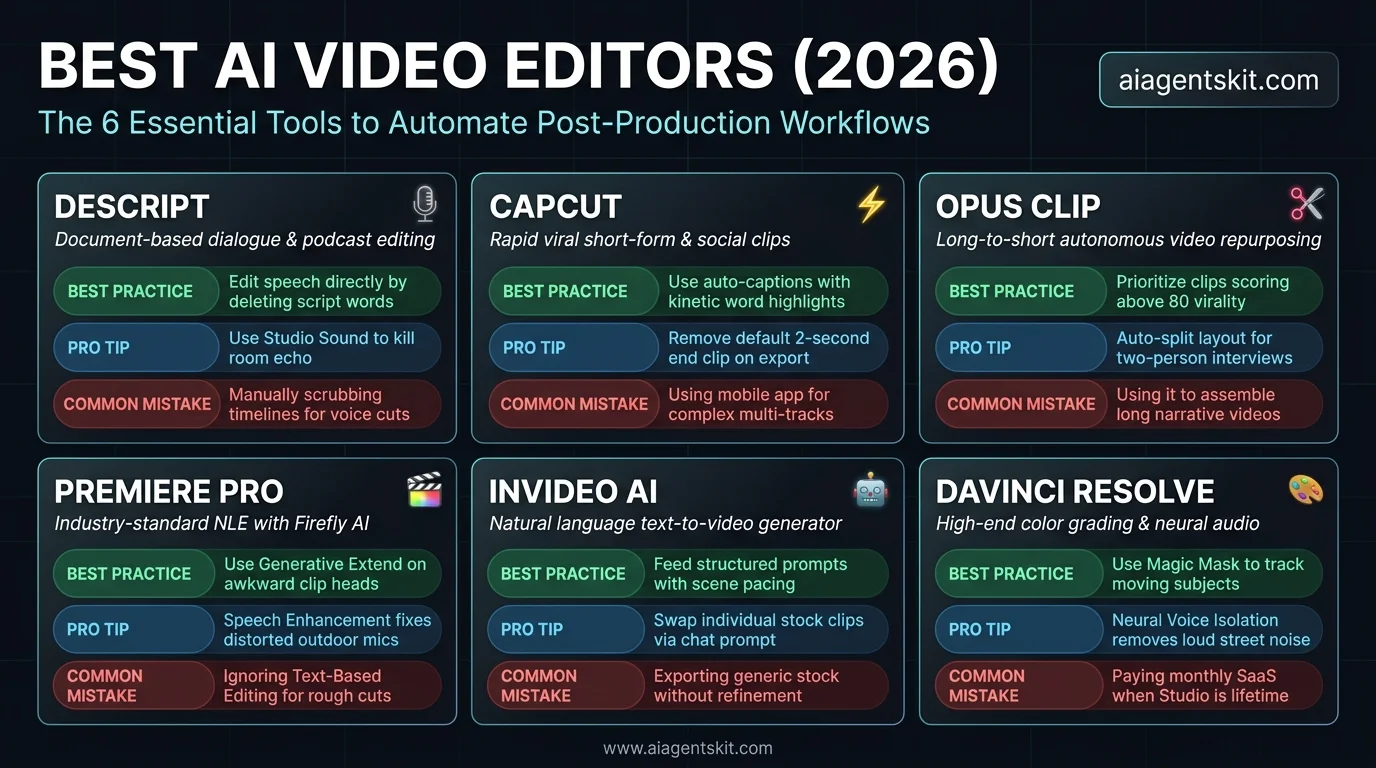 The 2026 AI Video Editor Knowledge Card: Core best practices, power-user pro tips, and common operational pitfalls across the top six video automation platforms.
1. Descript: Best for Document-Based Dialogue Editing
Descript pioneered text based video editing by manipulating transcripts directly, and its 2026 platform remains the industry benchmark for talking-head content. When you import a recording, Descript generates a speaker-labeled transcript within seconds. Highlighting and deleting a sentence in the script removes the corresponding clip from the video timeline smoothly.
Its standout feature is Underlord, an integrated AI co-editor agent. Underlord executes complex multi-step commands: you can instruct it to remove all filler words (“um,” “uh,” “like”), cut awkward pauses longer than 0.8 seconds, adjust multi-camera switching based on who is speaking, and generate animated captions. Its proprietary Studio Sound neural filter turns reverberant, low-quality microphone recordings into clean, studio-isolated audio with a single toggle.
- Best For: Podcasters, educators, webinar producers, and interview shows.
- Standout AI Feature: Underlord AI co-editor for autonomous filler removal and multi-cam switching.
- Key Pros:
- Document-like editing eliminates complex timeline scrubbing.
- Overdub voice cloning allows text-based dialogue correction without re-recording.
- Native multi-track recording and screen capture built directly into the client.
- Key Cons:
- Timeline track manipulation lacks the fine keyframe control found in traditional NLEs.
- Heavy cloud processing can slow down exports on massive 4K multi-hour timelines.
- 2026 Pricing: Free plan available (1 watermark-free export/month, 1 hour transcription). Creator tier starts at $12/month (10 hours transcription, 4K exports); Pro tier is $24/month with unlimited Underlord actions.
2. CapCut: Best for Rapid Social Media & Viral Short-Form Content
Owned by ByteDance, CapCut has grown from a mobile companion app into an indispensable desktop and web editing suite for short-form video creators. When comparing Descript vs CapCut, creators find that CapCut offers the fastest path from raw footage to a finished TikTok, Instagram Reel, or YouTube Short.
If you need a reliable free ai video editor with no initial investment, its desktop app provides robust timeline tools. For creators seeking an ai video editor no watermark on budget exports, CapCut delivers clean 1080p renders by simply removing the optional ending slide.
CapCut’s AI feature set focuses on visual engagement and retention mechanics. Its Auto Captions engine generates stylized, animated subtitles with word-by-word karaoke highlighting, emoji auto-matching, and preset viral typography templates. Its Long Video to Shorts pipeline accepts horizontal YouTube URLs and automatically clips key highlights, generates vertical crops, and inserts dynamic captions in under two minutes.
- Best For: Social media managers, TikTok creators, YouTubers, and agile marketing teams.
- Standout AI Feature: One-click automated viral caption templates with dynamic emoji synchronization.
- Key Pros:
- Generous free tier with minimal feature gating.
- Massive, constantly updated library of trending transitions, sound effects, and filters.
- Exceptionally responsive desktop app optimized for both Apple Silicon and Windows GPUs.
- Key Cons:
- Cloud storage terms and commercial rights licensing require careful review for enterprise brands.
- Lacks advanced audio multi-track mixing capabilities.
- 2026 Pricing: Robust Free version with basic AI tools. CapCut Pro costs $9.99/month or $89.99/year, unlocking advanced AI body tracking, background removal, and 4K commercial assets.
3. Opus Clip: Best for Automated Long-Form Content Repurposing
Opus Clip is an automated ai video repurposing tool designed to solve a single bottleneck: transforming 60-minute podcasts, keynote presentations, and interviews into high-converting short clips. Widely recognized as the best ai shorts generator for technical creators and podcasters, it analyzes long-form videos to extract self-contained, high-engagement segments.
The software uses a proprietary ClipGenius AI Virality Score that evaluates narrative hooks, emotional peaks, and clarity of speech. For each extracted clip, Opus Clip automatically reframes the video to 9:16, centers active speakers using face-tracking, applies kinetic captions, and dynamically overlays relevant B-roll to prevent audience drop-off.
- Best For: Content agencies, podcast networks, corporate webinar teams, and live streamers.
- Standout AI Feature: AI Virality Score predicting short-form engagement based on hook retention data.
- Key Pros:
- Cuts short-form production time by over 90%.
- Intelligent multi-speaker auto-reframe handles dual-camera dialogue layouts effortlessly.
- Direct social media scheduling and auto-publishing integrations.
- Key Cons:
- Not a general-purpose editor; you cannot build a custom narrative video from scratch.
- Teams evaluating Opus Clip alternatives like Klap or Vizard often pair them with traditional editors for final master color grading.
- 2026 Pricing: Free trial with 60 credits. Starter plan begins at $9/month (150 upload minutes); Pro plan runs $29/month with custom templates, brand kits, and multi-user collaboration.
4. Adobe Premiere Pro: Best for Professional Studio & Enterprise Workflows
Adobe Premiere Pro remains the gold standard for film, television, and agency post-production. Rather than replacing the professional non-linear editor, Adobe has embedded Adobe Sensei and Firefly Video Models directly into the core editing timeline.
Premiere’s most impressive AI capability is Generative Extend, which synthesizes additional audio and video frames at the head or tail of a clip to resolve awkward cut points or extend ambient audio room tone. Its Text-Based Editing lets editors search massive transcripts, assemble rough cuts via copy-paste, and automatically match color grading across cameras using AI color reference matching.
- Best For: Professional video editors, commercial agencies, broadcasters, and film studios.
- Standout AI Feature: Generative Extend powered by Adobe Firefly for smooth, natural clip lengthening.
- Key Pros:
- Industry-standard timeline precision, multi-cam synchronization, and color grading depth.
- Commercial safety guarantees on all Adobe Firefly generative assets.
- Deep integration with After Effects, Audition, and Frame.io review loops.
- Key Cons:
- Steep learning curve for non-editors and solo creators.
- Heavy hardware demands requiring modern GPUs and large scratch disks.
- 2026 Pricing: Adobe Creative Cloud single-app plan at $22.99/month, or full Creative Cloud all-apps subscription at $59.99/month.
5. InVideo AI: Best for Prompt-to-Video Script Generation
InVideo AI targets creators and marketing teams who need finished video content without filming a single frame of raw footage. Operating through a natural language interface, you supply a prompt such as: “Create a 60-second explainer on quantum computing for beginners with a dramatic voiceover.”
The platform drafts the narrative script, selects relevant stock footage from an indexed library of over 16 million royalty-free clips, generates a photorealistic AI voiceover, syncs background music, and places on-screen subtitles. Editors can refine the output using text commands, such as: “Replace the opening scene with laboratory footage” or “Change voiceover to an Australian accent.”
- Best For: Faceless YouTube channels, corporate training explainers, real estate previews, and rapid ad testing.
- Standout AI Feature: Conversational video iteration allowing edits via plain text prompts.
- Key Pros:
- Produces complete rough drafts in under three minutes from a single prompt.
- Access to premium iStock and Storyblocks libraries without separate licensing fees.
- Full multi-language translation and voice cloning capabilities.
- Key Cons:
- Relies heavily on stock footage, which can occasionally look generic without manual curation.
- Export rendering takes longer during peak server traffic hours.
- 2026 Pricing: Free tier available with watermarked exports. Plus tier starts at $25/month (50 minutes of AI generation); Max tier is $48/month with 200 minutes and unlimited voice cloning.
6. Wondershare Filmora: Best Balanced AI Suite for Intermediate Creators
Wondershare Filmora occupies the sweet spot between consumer mobile tools and intimidating professional suites. Filmora integrates powerful generative algorithms into a clean, drag-and-drop desktop timeline.
Its standout workflow feature is AI Copilot Editing, an interactive assistant that analyzes your project files and recommends optimal transitions, cuts, and audio equalization curves. Filmora also features AI Smart Masking, allowing creators to isolate complex moving subjects or brush out backgrounds without manual pen-tool rotoscoping. Its AI Audio Ducking automatically drops background music decibels whenever speech is detected on the primary voice track.
- Best For: Semi-professional creators, educators, gaming channels, and solo entrepreneurs.
- Standout AI Feature: AI Smart Cutout and intelligent timeline Copilot assistant.
- Key Pros:
- Intuitive user interface with minimal learning curve.
- Excellent built-in library of royalty-free music, animated titles, and stock templates.
- Perpetual licensing options available alongside subscription models.
- Key Cons:
- AI credit consumption model can be confusing for advanced generative features.
- Text-based editing is less flexible than Descript’s dedicated document engine.
- 2026 Pricing: Annual subscription at $49.99/year, or a cross-platform perpetual license at $79.99 (with optional monthly AI credit top-ups).
7. VEED.io: Best Browser-Based Online Suite for Marketing Teams
VEED.io has emerged as a leading browser-native workspace for distributed marketing, sales, and internal communication teams. Because it runs entirely inside Chrome or Edge, it requires zero local hardware acceleration or storage overhead.
VEED excels at video accessibility and viewer retention. Serving as an intuitive auto caption generator ai and online editing suite, its subtitle engine achieves near-perfect transcription across 125+ languages, with automatic translation and custom brand font presets. Its AI Eye Contact Correction subtly shifts the speaker’s gaze toward the camera lens, fixing recordings where the presenter was reading off a second-screen teleprompter.
- Best For: B2B marketing teams, internal communications, remote teams, and social ads.
- Standout AI Feature: AI Eye Contact Correction and instant browser-based multilingual dubbing.
- Key Pros:
- Zero software installation; fully collaborative with cloud team workspaces.
- Built-in webcam recorder, screen recorder, and teleprompter tools.
- Clean, brand-safe subtitle styling and asset management.
- Key Cons:
- Browser memory limitations can cause performance stutter on videos longer than 30 minutes.
- Slower timeline responsiveness compared to native desktop applications.
- 2026 Pricing: Free plan with watermarked 720p exports. Basic tier starts at $12/user/month; Pro plan runs $24/user/month with full AI translation, eye contact correction, and 4K rendering.
8. Runway (Gen-3 Alpha / Studio Suite): Best for Generative VFX and Inpainting
Runway represents the bleeding edge of computer vision and generative video modeling. While widely recognized for its Gen-3 Alpha diffusion models, Runway’s web studio provides some of the most sophisticated AI post-production VFX tools available.
Its Inpainting engine lets editors highlight an unwanted microphone boom, pedestrian, or background logo with a digital brush, removing the object across all frames with photorealistic background reconstruction. Its Motion Brush and Camera Control modules allow creators to add controlled cinematic pans, tilts, and focal racks to static images or previously locked-off camera shots.
- Best For: Creative directors, visual effects artists, commercial filmmakers, and experimental creators.
- Standout AI Feature: Generative Video Inpainting and Motion Brush frame control.
- Key Pros:
- Industry-leading generative quality and visual coherence.
- Replaces days of manual frame-by-frame rotoscoping in After Effects.
- Active integration with frontier video generation APIs.
- Key Cons:
- Expensive credit-based model for heavy generative rendering.
- Lacks traditional linear audio editing and multi-track dialogue assembly.
- 2026 Pricing: Free tier provides 125 non-renewable credits. Standard plan is $12/month (625 credits); Pro plan costs $28/month (2,250 credits); Unlimited tier runs $76/month.
9. HeyGen: Best for AI Avatars, Virtual Presenters & Video Localization
HeyGen leads the market in digital human synthesis, voice cloning, and zero-shot video localization. Rather than recording on-camera presentations, companies generate photo-realistic AI avatars that recite scripts with natural micro-expressions, head movements, and synchronized lip gestures.
Its standout feature is Video Translate, an enterprise localization tool. You can upload an English training video, and HeyGen translates the speech into over 40 languages while cloning the original speaker’s vocal timbre and altering their actual lip movements to match the translated phonemes. When combined with safe AI voice cloning workflows, this technology enables global video distribution at a fraction of standard dubbing costs.
- Best For: Enterprise corporate training, global product onboarding, localized sales outreach, and e-learning.
- Standout AI Feature: Video Translation with automated lip-sync adaptation and voice cloning.
- Key Pros:
- Natural lip synchronization and expressive eye movements.
- Eliminates the need to book studio time or hire multilingual voice actors.
- Custom Studio Avatar option creates an identical digital twin of company executives.
- Key Cons:
- Not designed for dynamic creative storytelling or B-roll documentary editing.
- High-tier avatar creation requires strict verification and compliance procedures.
- 2026 Pricing: Free tier includes 1 credit and basic avatars. Creator plan starts at $24/month (15 credits); Business tier is $72/month with 4K resolution, API access, and brand kits.
10. DaVinci Resolve Studio (DaVinci Neural Engine): Best for High-End Color & Audio
Blackmagic Design’s DaVinci Resolve Studio represents the apex of technical post-production software. Within Resolve Studio, the DaVinci Neural Engine harnesses machine learning to accelerate complex grading and audio workflows without compromising creative sovereignty.
Its Magic Mask tool isolates actors, limbs, or background objects with a single click, automatically tracking their movement across frames to apply targeted color grades or blur effects. Its Voice Isolation algorithm separates dialogue from roaring city traffic, ocean surf, or wind distortion with zero audio artifacting. Meanwhile, Speed Warp utilizes optical flow neural analysis to generate clean slow motion from standard 24fps or 30fps footage without stutter.
- Best For: Professional colorists, commercial cinematographers, sound designers, and feature film editors.
- Standout AI Feature: Magic Mask rotoscoping and real-time Neural Engine Voice Isolation.
- Key Pros:
- One-time purchase of $295 with lifetime free updates without recurring subscription fees.
- Best-in-class color grading, Fairlight audio workstation, and Fusion visual effects in a single binary.
- Operates completely offline on local hardware, as documented in the Blackmagic Design DaVinci Resolve Studio specifications, guaranteeing total data privacy.
- Key Cons:
- Requires high-performance hardware (dedicated GPU with 8GB+ VRAM recommended).
- Lacks one-click automated social clipping features like those in Opus Clip or CapCut.
- 2026 Pricing: Free version available with remarkable depth; DaVinci Resolve Studio is a one-time purchase of $295 for life.
How Do AI Video Editors Compare Across Core Features?
Direct Answer: AI video editors diverge significantly in computational focus: creator-focused tools (Descript, Opus Clip, CapCut) prioritize automated speed, social reframing, and cloud transcription, while professional desktop NLEs (Premiere Pro, DaVinci Resolve) emphasize local GPU acceleration, generative precision, and color grading fidelity.
To help you make an objective architectural comparison, the table below highlights how each of the top ten platforms performs across core post-production metrics:
| Tool Name | Primary Niche | Transcription Accuracy | Free Tier Availability | Watermark on Free Exports? | Starting Paid Price |
|---|---|---|---|---|---|
| Descript | Transcript Dialogue Editing | 96.5% (Multi-speaker) | Yes (1 hr/mo) | No (1 export/mo) | $12 / month |
| CapCut | Viral Social & Short-Form | 94.2% (Multi-language) | Yes (Extensive) | No (End screen removable) | $9.99 / month |
| Opus Clip | Long-to-Short Repurposing | 95.8% (Keyword hooks) | Yes (60 mins) | Yes (30-day watermark) | $9.00 / month |
| Adobe Premiere Pro | Broadcast & Studio NLE | 97.1% (Adobe Sensei) | Free 7-Day Trial | No (Full Trial) | $22.99 / month |
| InVideo AI | Prompt-to-Video Synthesis | Script-driven | Yes (10 mins/week) | Yes | $25.00 / month |
| Wondershare Filmora | Balanced Desktop NLE | 93.8% (Speech-to-Text) | Yes (Feature-limited) | Yes | $49.99 / year |
| VEED.io | Browser-Based Marketing | 95.0% (125+ Languages) | Yes (10-min limit) | Yes | $12.00 / month |
| Runway Studio | Generative VFX & Inpainting | Generative / Visual | Yes (125 credits) | No (Resolution capped) | $12.00 / month |
| HeyGen | AI Avatars & Localization | 98.2% (Voice Dubbing) | Yes (1 credit) | Yes | $24.00 / month |
| DaVinci Resolve | Pro Color & Sound Mastering | 96.8% (Local Subtitles) | Yes (Comprehensive) | No (Free Version Clean) | $295 (One-time) |
Performance Benchmarks and Real-World Friction Points
When deploying these tools across client production pipelines, several operational nuances emerge:
- Transcription Accuracy on Industry Jargon: General-purpose transcription engines frequently misinterpret specialized engineering terminology, acronyms, or proper names. Descript and Premiere Pro allow custom vocabulary dictionaries, dramatically reducing post-transcription correction passes.
- Rendering Latency: Browser-based suites (VEED, InVideo) depend heavily on remote cloud render queues. During peak afternoon business hours, a 10-minute 4K export can experience queue delays of 15 to 30 minutes. Desktop editors (Filmora, Premiere Pro, DaVinci Resolve) leverage local NVENC or Apple Silicon Metal engines to export high-bitrate media in near real-time.
- Commercial Safety and Content Provenance: Enterprise legal departments increasingly audit the training data origins of generative visual assets. Adobe Premiere Pro (Firefly) and DaVinci Resolve provide enterprise IP indemnification, whereas consumer-facing generative apps often place the legal burden of copyright compliance directly on the end user.
Which AI Video Editor Should You Choose for Your Stack?
Direct Answer: Choose Descript if your primary workflow involves podcasts, interviews, or talking-head dialogue; choose Opus Clip and CapCut if you must produce high-volume short-form clips for social channels; choose InVideo or HeyGen for automated script-to-video explainers; and choose Premiere Pro or DaVinci Resolve if you require cinema-grade timeline control.
Selecting the optimal software stack requires matching the tool’s core architectural strengths to your organization’s primary production output:
                                  [What is your primary format?]
                                                │
                 ┌──────────────────────────────┼──────────────────────────────┐
                 ▼                              ▼                              ▼
          Talking Heads                  Viral Shorts                   Scripted Content
        & Podcast Shows                & Repurposing                  & Explainer Videos
                 │                              │                              │
                 ▼                              ▼                              ▼
         Primary Choice:                Primary Choice:                Primary Choice:
          ★ DESCRIPT                    ★ OPUS CLIP + CAPCUT           ★ INVIDEO AI / HEYGEN
                 │                              │                              │
                 ▼                              ▼                              ▼
        Need Studio Color?             Need Desktop Timeline?         Need Multi-lingual Dub?
        Add DaVinci Resolve            Add Wondershare Filmora        Add HeyGen Video Translate
Scenario 1: The Solo Podcaster & Thought Leader
- The Problem: You record a weekly 45-minute video interview on Riverside or Zoom. You do not have the time to scrub audio timelines, cut pauses, or manually fix mistakes.
- The Recommended Stack: Descript.
- The Workflow: Drop your raw recording into Descript. Click Remove Filler Words and toggle on Studio Sound. Scan the transcript, delete bad takes, and export your polished episode directly to YouTube and Spotify with zero timeline micro-adjustments.
Scenario 2: The Social Growth Agency & Short-Form Creator
- The Problem: You need to publish 3 to 5 highly engaging vertical clips daily across TikTok, YouTube Shorts, and Instagram Reels to capture organic reach.
- The Recommended Stack: Opus Clip + CapCut.
- The Workflow: Paste your long-form YouTube link into Opus Clip. Let its AI Virality Engine generate 10 scored vertical clips with auto-framing. Download the top three performers, import them into CapCut to apply trending sticker overlays and animated text transitions, and publish within 20 minutes.
Scenario 3: The Enterprise Marketing & Corporate Training Team
- The Problem: Your company must produce 50 onboarding videos, HR explainers, and customer support guides across four international markets without hiring camera crews.
- The Recommended Stack: InVideo AI + HeyGen.
- The Workflow: Generate foundational video explainers using InVideo prompts paired with curated stock assets. For customer training, create a photorealistic executive avatar in HeyGen and use Video Translate to localize the final output into Spanish, German, and Japanese with automatic lip-syncing.
Scenario 4: The Commercial Agency & Professional Filmmaker
- The Problem: You produce high-budget client commercials, documentaries, or YouTube brand films requiring surgical color grading, complex sound design, and custom VFX.
- The Recommended Stack: Adobe Premiere Pro + DaVinci Resolve Studio + Runway.
- The Workflow: Rough-cut dialogue in Premiere Pro using Text-Based Editing. Clean distracting background objects using Runway Inpainting. Transfer the final sequence via XML into DaVinci Resolve Studio for Magic Mask object isolation, Dolby Vision color grading, and Fairlight neural audio mastering.
To further streamline content planning before entering post-production, review our curated video production AI prompt frameworks to generate pre-production scripts and shot lists.
Proven Workflows to Cut Video Production Time in Half
Direct Answer: Modern video teams cut post-production hours by over 60% by adopting a modular three-stage AI assembly line: (1) automated text-based rough cutting, (2) autonomous short-form multi-speaker clipping, and (3) algorithmic visual enhancement and sound mastering.
Combining specialized AI video tools into an integrated pipeline yields far greater efficiency than attempting to execute an entire project inside a single piece of software. Below are three tested, high-speed production workflows.
Workflow 1: The “Podcast to 10 Viral Shorts” Assembly Line (Time: 35 Minutes)
[Raw Long-form Recording]
          │
          ▼
   Step 1: Descript (10 mins)
   • Automatic transcription
   • 1-click filler word removal ("um", "uh")
   • Studio Sound audio isolation
          │
          ▼
   Step 2: Opus Clip (15 mins)
   • AI Virality Score ranking
   • Multi-speaker active reframing (9:16)
   • Dynamic B-roll insertion
          │
          ▼
   Step 3: CapCut Desktop (10 mins)
   • Kinetic typography caption styling
   • Trending sound effects & stickers
• Multi-platform export (Shorts, Reels, TikTok)- Phase 1: Rough Cut (Descript): Ingest raw multi-track audio and video into Descript. Run Underlord: Remove Fillers and Pauses. Toggle Studio Sound to 85% wetness to eliminate room echo. Export a clean, high-bitrate MP4 of the full conversation.
- Phase 2: Extraction (Opus Clip): Upload the rendered video to Opus Clip. Filter for clips with a virality score above 80. Adjust the auto-framing bounding boxes so dual speakers occupy a split-screen vertical layout.
- Phase 3: Polish & Publish (CapCut): Import the selected shorts into CapCut. Apply animated font presets (e.g., bold karaoke captions), add subtle sound effects on key bullet points, and export at 1080x1920 60fps.
Workflow 2: The “Zero-Camera Faceless Explainer” Pipeline (Time: 20 Minutes)
- Step 1: Prompt-Driven Generation (InVideo AI): Input a structured prompt into InVideo AI detailing the core argument, target audience, and desired pacing. Specify: “Keep scenes under 4 seconds, use energetic pacing, and incorporate cinematic documentary B-roll.”
- Step 2: Scene-Level Audio Tuning: Review the synthesized voiceover. Re-generate individual sentences where the vocal inflection sounds artificial. Replace any mismatched stock clips using InVideo’s integrated media search.
- Step 3: Master Export: Render in 1080p and publish directly to YouTube, creating a fully voiced, edited, and captioned informational video without setting up a camera.
Workflow 3: The “Client Commercial Polish” Pipeline (Time: 45 Minutes)
- Step 1: Text-Based Story Assembly (Premiere Pro): Import talking-head interviews into Premiere Pro. Read through the automatically generated transcript, highlighting the best soundbites to drop onto your main sequence timeline.
- Step 2: Generative Audio & Video Extend (Firefly): When a video clip ends one second before the dialogue completes, apply Generative Extend to synthesize continuous visual tail frames. Use Enhance Speech to bring clarity to outdoor audio tracks.
- Step 3: Clean Background Artifacts (Runway): Send distracting footage segments to Runway. Brush out unwanted exit signs, microphones, or background pedestrians using Inpainting. Re-link the clean plate into Premiere for final delivery.
If your team is exploring standalone visual generation rather than editing existing clips, consult our technical comparison of Sora vs Runway vs Pika video generators to evaluate foundation model capabilities.
Frequently Asked Questions About AI Video Editing Tools
What is the best AI video editor for complete beginners?
CapCut is the best option for beginners due to its intuitive visual interface, generous free tier, and automated social features. It requires zero prior knowledge of timeline concepts like framerates, codecs, or keyframing. Users can import clips, click Auto Captions, select an animated template, and export a polished video ready for social sharing in minutes.
Can AI video editors edit videos completely automatically without human review?
No. While tools like InVideo AI and Opus Clip automate up to 80% of routine assembly tasks (such as cutting silences, generating captions, and framing speakers), human editorial judgment remains essential. AI tools cannot assess narrative pacing, comedic timing, emotional subtlety, or factual context. The most successful teams use AI to generate the rough cut, reserving human review for creative polish and fact-checking.
Which AI video editor has no watermark on the free tier?
CapCut offers fully watermark-free exports on both its desktop and mobile free versions (simply delete the default 2-second outro clip at the end of the timeline). DaVinci Resolve also provides an exceptionally powerful free version with zero watermarks on standard resolutions up to 4K Ultra HD. Most cloud-based browser tools (such as VEED.io and InVideo) enforce watermarks on their free plans unless upgraded to a paid tier.
How does text-based video editing actually work?
Text-based video editing pairs automated speech recognition with timeline timecodes. When you import a recording, the software generates an interactive transcript where every word corresponds to a millisecond-level visual frame. When you highlight and delete a sentence or word in the text editor, the software automatically removes those exact frames from the video timeline, functioning like a word processor for video files.
What is the best AI tool to turn long YouTube videos into viral shorts?
Opus Clip is the industry leader for long-to-short repurposing. Its ClipGenius algorithm analyzes long-form videos for strong hooks, thematic coherence, and speaker emphasis, generating a virality score for each excerpt. It automatically tracks active speakers, crops the video to vertical 9:16, applies kinetic captions, and adds relevant contextual B-roll.
Does Adobe Premiere Pro have built-in AI video editing features?
Yes. Modern versions of Adobe Premiere Pro include deep AI integrations powered by Adobe Sensei and Adobe Firefly. Key capabilities include Generative Extend (synthesizing additional video and audio frames to extend clips), Text-Based Editing (building rough cuts directly from transcripts), Enhance Speech (removing background noise and room reverberation), and Auto Reframe (intelligently tracking subjects across aspect ratios).
How accurate are AI auto-captions with heavy accents or background noise?
Modern AI transcription models (predominantly based on fine-tuned Whisper architectures) achieve 94% to 98% accuracy on clear dialogue. However, accuracy degrades when dealing with heavy regional accents, technical jargon, or loud background noise. Advanced tools like Descript and Premiere Pro allow users to input custom vocabulary lists and provide rapid text-correction interfaces to adjust misheard words before export.
Are AI-generated video assets copyright-safe for YouTube monetization?
It depends on the tool and the asset origin. Platforms like Adobe Premiere Pro (Firefly) train their models exclusively on licensed Adobe Stock content and public domain media, providing enterprise IP indemnification for commercial monetization. Conversely, tools that scrape unverified public media or generate synthetic music require careful review of their terms of service to avoid copyright strikes and demonetization on platforms like YouTube and Meta.
How much does a professional AI video editing subscription cost in 2026?
Consumer and creator-tier AI video editors typically cost between $10 and $25 per month. Platforms like CapCut Pro ($9.99/mo), Descript ($12 to $24/mo), and Opus Clip ($9 to $29/mo) offer accessible pricing for solo creators. High-end professional suites operate either on a recurring model like Adobe Premiere Pro ($22.99/mo) or a one-time perpetual purchase like DaVinci Resolve Studio ($295 lifetime).
The Future of AI Video Editing and Final Verdict
The trajectory of video post-production is shifting from isolated automated features toward fully agentic video orchestration. By late 2026, content teams will routinely interact with autonomous video editors capable of digesting complete raw production drives, identifying the best takes according to script supervisor notes, color-matching footage against reference film stills, and delivering platform-optimized cuts with zero manual timeline assembly.
To build an efficient and scalable video stack today:
- Adopt Descript as your baseline recording and dialogue-cutting workstation.
- Integrate Opus Clip and CapCut to automate your short-form social repurposing funnel.
- Rely on DaVinci Resolve Studio or Adobe Premiere Pro whenever you require uncompromised color grading, broadcast-grade audio mastering, and complete creative control.
For teams looking to expand their production capabilities without expanding overhead, explore our comprehensive index of free AI tools worth using to augment your creative workflow with zero software expense. Evaluate your primary production bottleneck today, test the free tiers of the tools above, and deploy the AI video editing pipeline that transforms your creative output.