Apple Notes MCP: Complete Setup and Use Case Guide
Learn how to connect Apple Notes to Claude via MCP. Step-by-step setup for Claude Connectors & community servers, plus 10 real-world workflows. Updated 2026.
Something remarkable happens the moment an AI assistant can actually read, search, and organize notes — not just generate new ones. Apple Notes becomes an active part of a user’s thinking process rather than a passive archive, and the friction between stored knowledge and useful output collapses.
Getting there used to require significant technical overhead: custom scripts, complex configurations, or switching to a different note-taking app entirely. The rise of the Model Context Protocol as an open, industry-wide standard has changed what’s achievable on a macOS machine, and Apple Notes integrations are among the most compelling examples of that shift.
This guide covers everything about Apple Notes MCP: what it is, the three distinct ways to set it up in 2026, and the real-world workflows that Mac users are building with it once it’s running.
What Is Apple Notes MCP and How Does It Work?
Apple Notes MCP refers to a Model Context Protocol server that bridges AI assistants — primarily Claude — to the Apple Notes application on macOS. The result is an AI that can read, create, search, and manage notes through natural language conversation, without any manual copy-pasting required.
The underlying mechanism is elegantly simple. When Claude needs to interact with Apple Notes, it communicates through the MCP client layer, which then routes the request to the Apple Notes MCP server running locally on the Mac. That server uses AppleScript — Apple’s long-standing macOS automation language — or JavaScript for Automation (JXA) to send commands directly to the Notes.app. Notes.app executes the action, returns results to the server, which passes them back through the MCP protocol to Claude.
From a protocol standpoint, the server exposes note operations as MCP “tools” — discrete, nameable functions an AI can call. Common tools include:
| Tool | What It Does |
|---|---|
create_note | Creates a new note with title, body content, and optional folder |
search_notes | Searches notes by keyword in title or full text |
get_note | Retrieves the full content of a specific note by ID or title |
update_note | Appends or replaces the content of an existing note |
delete_note | Removes a note (gated behind permission controls) |
list_notes | Lists all notes, optionally filtered by account or folder |
list_folders | Returns available note folders and accounts |
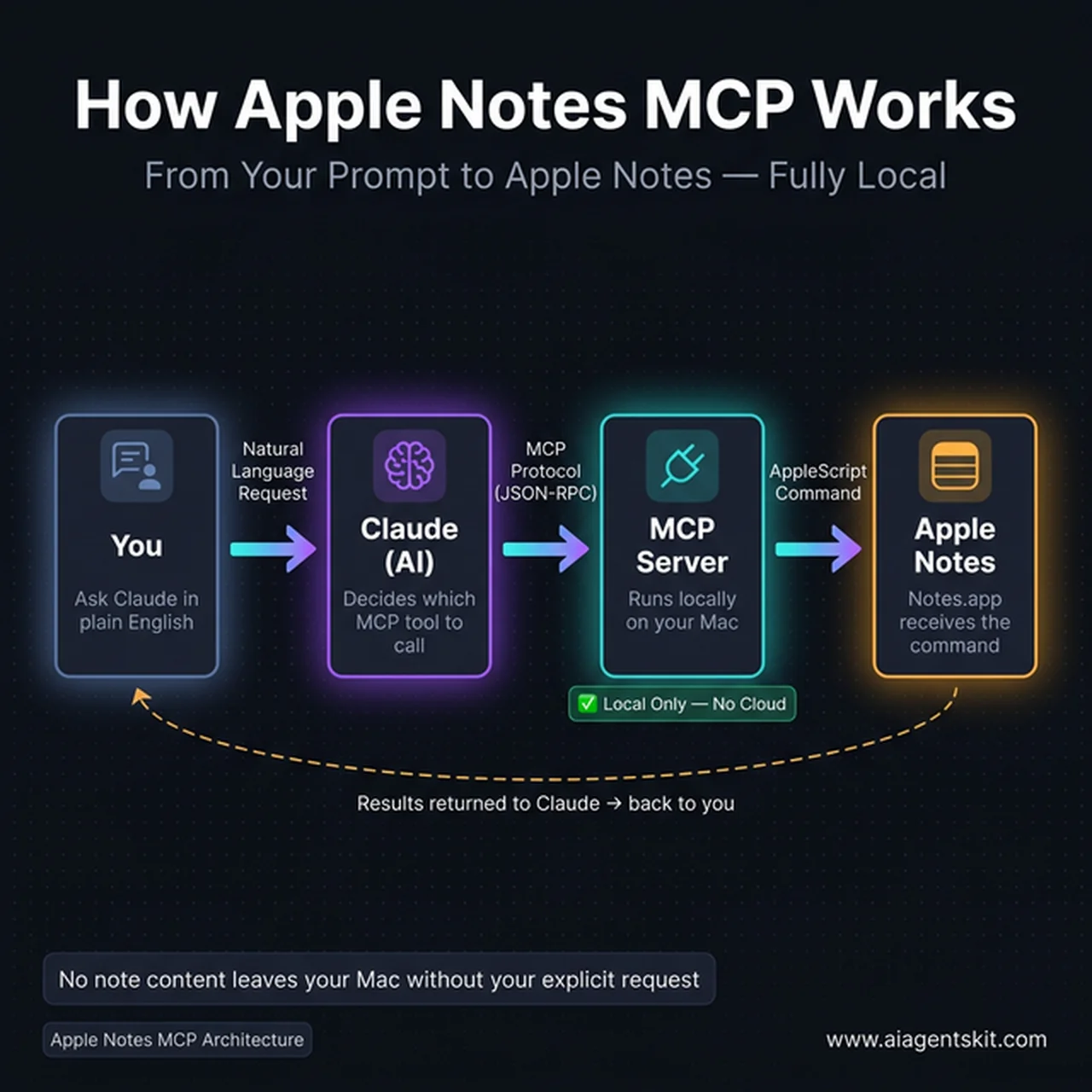 The complete Apple Notes MCP data flow — from your prompt to Notes.app and back, entirely on your Mac
What makes this architecture compelling is its locality. The MCP server runs entirely on the user’s machine. When Apple Notes MCP is configured with a local server, no note content is transmitted to any external service simply by virtue of the server running — only the explicit requests the user initiates result in data flowing to Claude’s API. For note-takers with substantial personal knowledge bases, that distinction matters considerably.
The Model Context Protocol was introduced by Anthropic in November 2024 as an open-source standard. In December 2025, Anthropic donated the protocol to the Linux Foundation’s newly formed Agentic AI Foundation, making MCP a true industry commons with governance no single company controls. OpenAI, Google, and Microsoft have all adopted it — meaning an Apple Notes MCP server built to the protocol spec works in principle with any MCP-compatible AI client, not just Claude.
Practitioners exploring the broader MCP ecosystem will find the guide on the best MCP servers for Claude useful context for understanding how servers expose capabilities and how Claude decides when to invoke them.
3 Ways to Connect Apple Notes to Claude in 2026
Three distinct integration paths exist for Apple Notes MCP, each with different complexity levels, capabilities, and privacy profiles. Choosing the right method depends primarily on technical comfort level and what workflows are actually needed.
| Method | Complexity | Best For | Requirements |
|---|---|---|---|
| Claude Connectors (official) | ⭐ Easy | Most Mac users, quickest start | Claude Pro/Team, Claude Desktop |
| Community npm MCP Server | ⭐⭐ Medium | Developers, multiple AI clients | Node.js 18+, Claude Desktop |
| Semantic Search (LanceDB) | ⭐⭐⭐ Advanced | Power users, large note libraries | Python/Node.js, Mac |
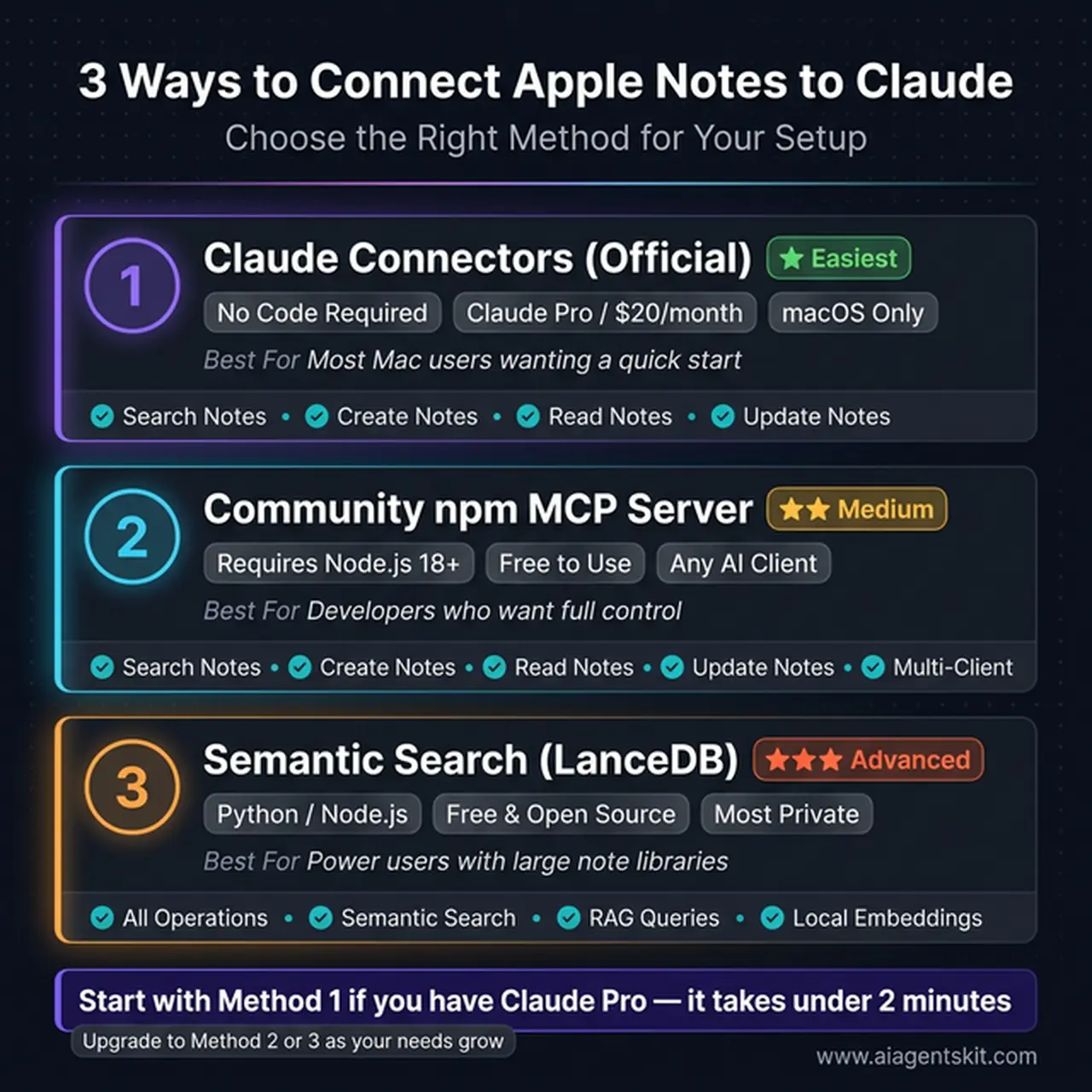 All three methods deliver the same core capability — choose based on your technical comfort and requirements
Method 1: Claude’s Official Apple Notes Connector
Anthropic’s Claude Connectors are official integrations built directly into the Claude desktop application. The Apple Notes connector appears in Claude’s growing Connectors directory, which surpassed 50 integrations by February 2026. This method requires no code, no JSON editing, and no Terminal commands — just navigating Claude’s settings interface.
The trade-off: it requires a Claude Pro or Team subscription and only works within Claude Desktop on macOS. For users already subscribed to Claude Pro on a Mac, it’s unambiguously the fastest path to a working integration.
Method 2: Community MCP Server via npm
Several open-source Apple Notes MCP servers are available as npm packages, installable with a simple npx command and a small addition to the Claude Desktop configuration file. Popular implementations include sweetrb/apple-notes-mcp, arslankhanali/apple-notes-mcp, and @iflow-mcp/mcp-apple-notes (which specifically supports iCloud Notes accounts separately from local notes).
This method works with any MCP-compatible client, gives more control over which operations are enabled, and allows inspection of the source code to understand exactly what’s happening. Setup takes 10-15 minutes for someone comfortable with a terminal window.
Method 3: Semantic Search with LanceDB
The most technically sophisticated option comes from projects like RafalWilinski/mcp-apple-notes, which adds on-device semantic search by generating vector embeddings of note content and storing them in a local LanceDB database. This means the AI can find notes by conceptual meaning, not just keyword matching — asking about “my thoughts on deep work” can surface notes that never use those exact words.
For users with hundreds or thousands of notes who want Retrieval Augmented Generation (RAG) capabilities over their personal knowledge base, this approach is considerably more powerful than keyword search alone.
Understanding the Claude Desktop MCP setup process provides helpful technical context before beginning any of these methods, particularly for the configuration file editing that Method 2 requires.
How to Set Up Apple Notes MCP with Claude Connectors
The official Claude Connectors method is the recommended starting point for most Mac users who already have a Claude Pro or Team subscription. The entire setup is graphical — no command line required.
Prerequisites:
- Claude Desktop for macOS (download from claude.ai — free to download)
- Claude Pro or Team account
- macOS with Apple Notes configured (local or iCloud account)
- Automation and Accessibility permissions (granted during setup)
Step 1: Open Claude Desktop Settings
Launch Claude Desktop and open Settings from the application menu or press Cmd + ,. Navigate to the Connectors section in the left sidebar.
Step 2: Find the Apple Notes Connector
Browse the Connectors directory. The Apple Notes connector appears under the “Productivity” or “Integrations” category. Click the connector to open its detail page, then click Install or Enable.
Step 3: Grant macOS System Permissions
During installation, macOS will prompt for two permissions:
- Automation — Allows the integration to send AppleScript commands to Notes.app
- Accessibility — Enables interface-level interaction when needed
These permissions are granted in System Settings → Privacy & Security → Automation and Accessibility. Both must be enabled for the connector to function correctly.
Step 4: Configure Interaction Permissions
After installation, the connector settings allow granular control:
- Always allow: Reading notes (search, retrieve)
- Require approval: Creating, updating, or deleting notes
The recommended configuration for most users is to allow reading automatically but require explicit approval for any modifications. This prevents Claude from altering notes without user confirmation in each session.
Step 5: Restart Claude Desktop
If the connector doesn’t appear active immediately after setup, close Claude Desktop completely and reopen it. The Apple Notes tools then become available in conversation.
Step 6: Test with a Sample Prompt
These prompts confirm the connection is working:
"Find all my notes that mention 'project deadline'""List all the folders in my Apple Notes""Create a note called 'MCP Test' with the content 'This is a test note created via Claude'"
Common Troubleshooting:
| Problem | Solution |
|---|---|
| Notes.app doesn’t respond | Check System Settings → Automation; Notes.app must be listed and enabled |
| Connector missing after restart | Sign out and back into Claude Desktop |
| Notes not found | Verify the correct Notes account is active (iCloud vs local) |
| Permission denied errors | Re-grant Accessibility permission for Claude in System Settings |
For developers keen to understand how this integration works under the hood, the guide on building custom MCP servers explains how the underlying protocol functions and how community servers extend these capabilities.
Community Apple Notes MCP Server: npm Installation Guide
The community npm approach offers more flexibility: it works with any MCP-compatible AI client, not just Claude, and gives full visibility into what operations are executed. The most straightforward package for most users is sweetrb/apple-notes-mcp, which provides a clean tool set for standard note operations.
Over 500 community MCP servers are now catalogued across directories like mcp.so and GitHub — a testament to how quickly the ecosystem has grown since the protocol launched. The Apple Notes implementations represent some of the more polished entries, given the universal familiarity with the app and the well-documented AppleScript support it offers.
Prerequisites:
- macOS with Node.js 18 or higher installed
- Claude Desktop (free tier works — no paid subscription required)
- Apple Notes with at least one note to test
Step 1: Verify Node.js Installation
node --versionThe output should be v18.0.0 or higher. If Node.js isn’t installed, download it from nodejs.org or install via Homebrew:
brew install nodeStep 2: Locate the Claude Desktop Configuration File
The config file lives at:
~/Library/Application Support/Claude/claude_desktop_config.jsonIf the file doesn’t exist yet, create it. Open Terminal and run:
mkdir -p ~/Library/Application\ Support/Claude
touch ~/Library/Application\ Support/Claude/claude_desktop_config.json
Step 3: Add the Apple Notes MCP Server
Open the config file in any text editor and add the following. If other servers are already configured, add the apple-notes entry inside the existing mcpServers object:
{
  "mcpServers": {
    "apple-notes": {
      "command": "npx",
      "args": [
        "-y",
        "@sweetrb/apple-notes-mcp"
      ]
    }
  }
}
For users with iCloud Notes accounts who want to specify a particular account explicitly:
{
  "mcpServers": {
    "apple-notes-icloud": {
      "command": "npx",
      "args": [
        "-y",
        "@iflow-mcp/mcp-apple-notes",
        "--account",
        "iCloud"
      ]
    }
  }
}
Step 4: Grant macOS Automation Permission
The first time Claude activates the MCP server, macOS will prompt for the Automation permission to allow Node.js to control Notes.app. Grant it in System Settings → Privacy & Security → Automation.
Step 5: Restart Claude Desktop and Verify
Fully quit Claude Desktop — not just close the window, but quit entirely from the Dock or using Cmd + Q. Reopen it. The hammer icon (🔨) in the bottom-left of the interface confirms at least one MCP server is active. Click it to see the list of available tools, which should include the Apple Notes operations.
Step 6: Test the Connection
"Search my Apple Notes for 'weekly review'"
"List all notes in my Apple Notes account"
"Create a note titled 'Test via MCP' with the text 'Hello from Claude via community server'"
Troubleshooting:
| Issue | Solution |
|---|---|
| Server not in tool list | Check JSON syntax — trailing commas break config files |
| ”Cannot find module” error | Run: rm -rf ~/.npm/_npx then restart Claude Desktop |
| Notes.app permission denied | System Settings → Automation → Enable for Terminal/node |
| Server appears then disappears | Check Node.js version is 18+; run node --version |
The MCP server directory documents dozens of other community servers that combine naturally with Apple Notes MCP — for example, pairing note retrieval with calendar servers or filesystem access to build richer research workflows.
10 Apple Notes MCP Workflows That Actually Save Time
The real test of any integration is whether it produces workflows that feel genuinely useful rather than technically clever but practically awkward. Apple Notes MCP tends to deliver most clearly in three categories of daily work.
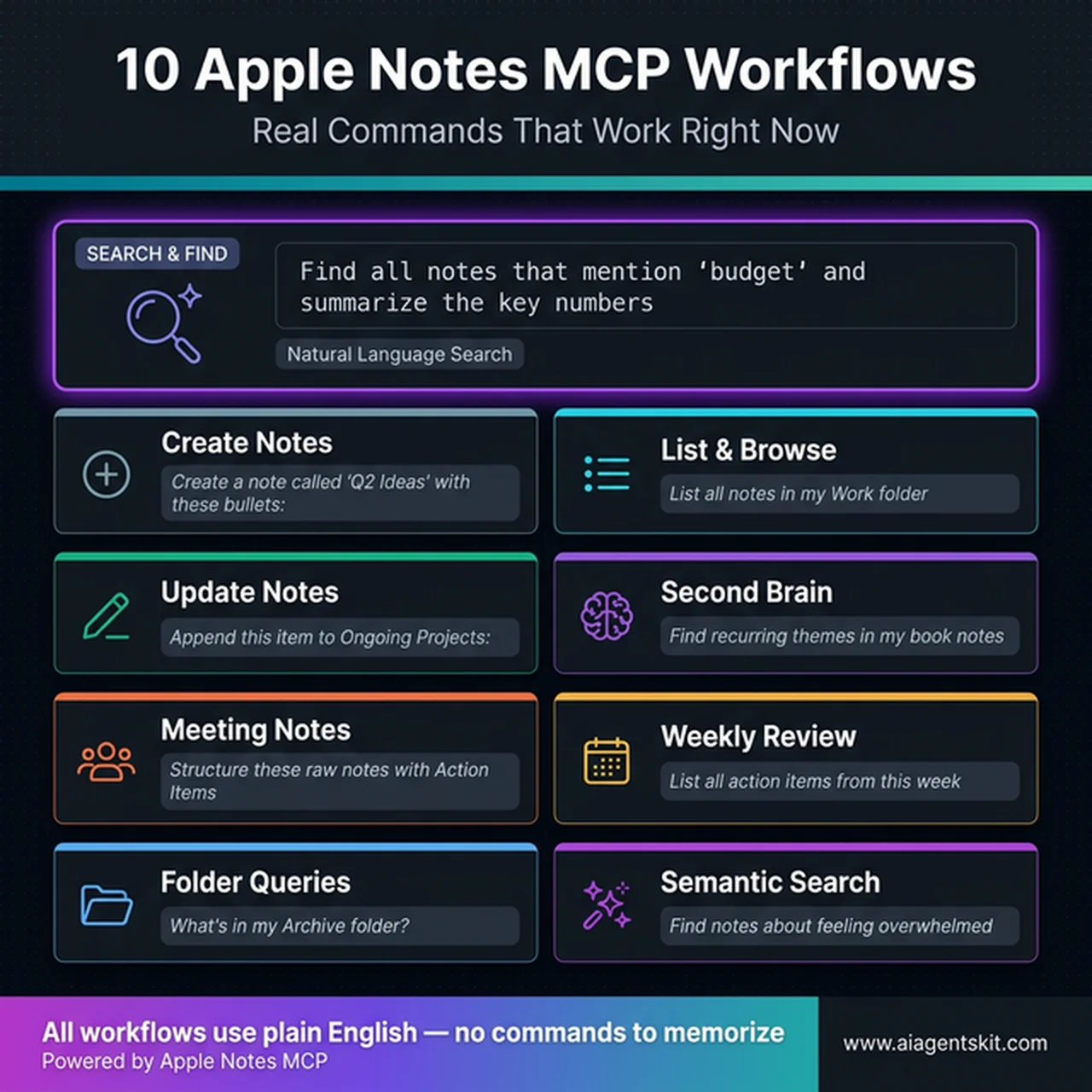 Nine workflow categories covering note management, knowledge retrieval, and automated meeting documentation
Managing Your Notes with Natural Language Commands
The most immediate benefit is the elimination of note-application context-switching. Instead of opening Notes.app, searching, navigating to a note, and copying content, users stay in Claude and interact naturally.
Practitioners who use this pattern daily report that the friction reduction is more significant than it first appears. Finding a note written under a slightly different keyword — or one whose title doesn’t match the contents well — becomes conversational rather than frustrating.
Ten commands that work reliably:
"Search my notes for anything related to the marketing campaign from last October""Find all notes that mention 'budget' and summarize the main numbers across them""Create a note called 'Ideas – Q2 2026' with these bullet points: [paste list]""List all notes in my 'Work' folder""Show me the content of my note called 'Reading List'""Update the note titled 'Ongoing Projects' — append this item: [new update]""How many notes do I have in total?""Find any notes I've written about [topic] in the last six months""Search my notes for the phrase 'follow up with' and list them""What's in my 'Archive' folder?"
Building a Second Brain Knowledge Base
For personal knowledge management (PKM) practitioners building a second brain system, Apple Notes MCP transforms the retrieval experience substantially. With semantic search enabled through Method 3, the integration supports genuine Retrieval Augmented Generation — Claude can reference actual notes when answering questions, attributing specific answers to specific note sources.
The workflow many PKM practitioners report as highest-value involves asking Claude to synthesize across multiple notes at once:
"Look through all my notes tagged 'book notes' and tell me what recurring themes appear""Find my notes about [topic] and write a summary of what I've learned about it""What have I written about project management in my notes? Give me the key principles I've captured"
This effectively makes Apple Notes a queryable knowledge layer, not a passive archive. The experience is meaningfully different from searching the notes app manually — Claude can compare across notes, identify patterns, and present synthesized findings rather than returning a list of matches.
Automating Meeting Notes and Action Items
One of the highest-return workflows involves meeting documentation. The typical pattern: after a meeting, paste raw notes or a transcript into Claude and ask it to create a structured note in Apple Notes.
"Take these meeting notes [paste text] and create a note titled 'Team Sync – March 2026' with sections for Attendees, Decisions, and Action Items""Look through my notes from this week and create a summary note of all action items I've recorded""Find my note from Tuesday's planning meeting and extract just the open questions"
Teams using this consistently report that structured output quality is higher than manual note-taking under time pressure. More importantly, structured notes become far more retrievable later — asking Claude to surface all action items from the past month becomes a reliable weekly review trigger rather than a manual scroll through notes.
Understanding why MCP enables multi-step workflows more naturally than alternative approaches is explained well in the guide on MCP vs function calling — the protocol’s stateful connection model is a meaningful architectural advantage for these kinds of chained operations.
How Private and Secure Is Apple Notes MCP?
Privacy is the most commonly raised concern when users consider connecting Apple Notes to an AI assistant. The honest answer depends significantly on which integration method is active — and understanding the distinction between “the MCP server” and “what gets sent to the API” is critical.
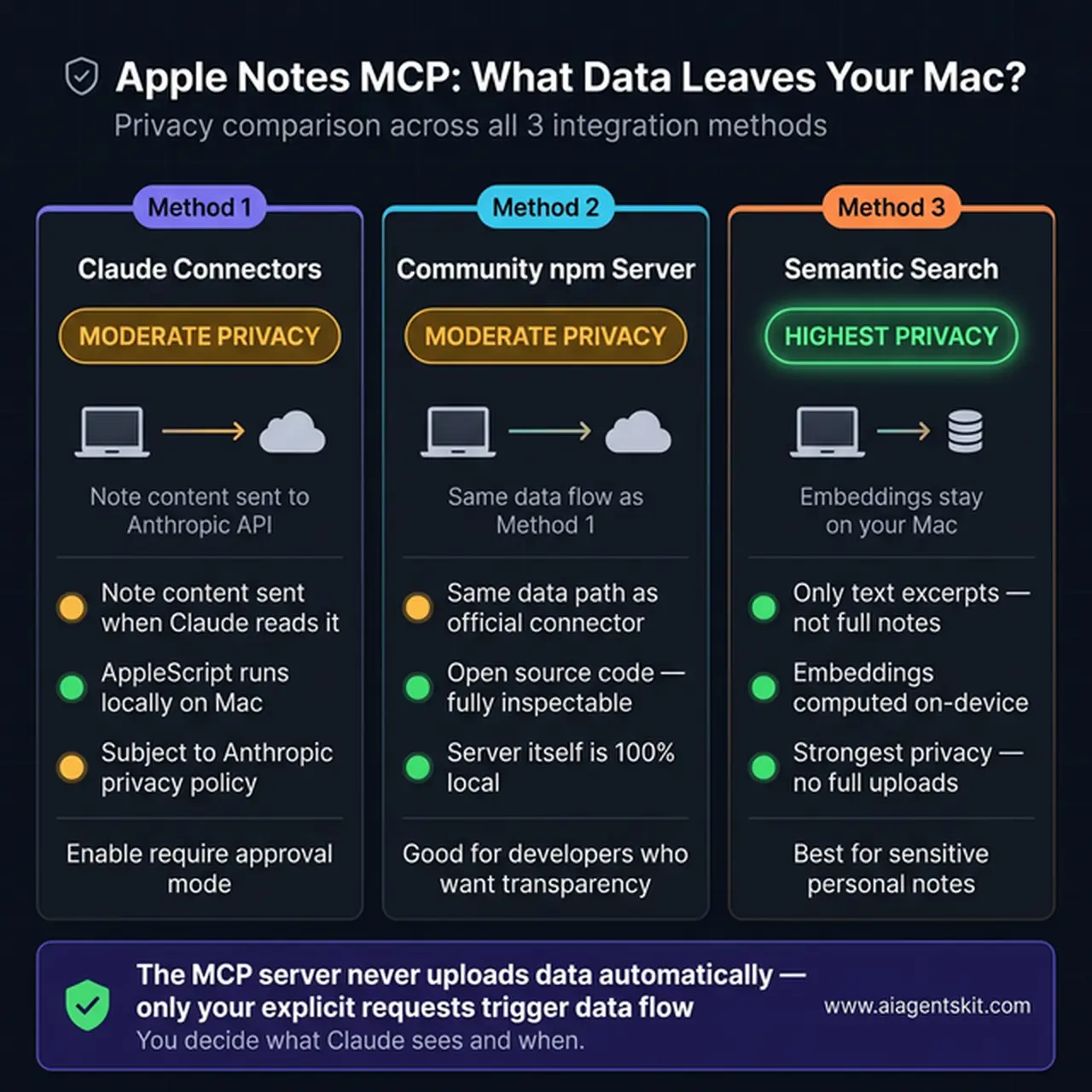 Method 3’s local embeddings approach offers the strongest privacy — note content stays on your Mac
The key distinction: The local MCP server running on the Mac is not the privacy boundary. The real boundary is what data gets transmitted to Claude’s API when a request is processed.
| Method | What Gets Sent to API | Data Handling |
|---|---|---|
| Claude Connectors (Official) | Note content Claude reads + user prompts | Governed by Anthropic’s privacy policy |
| Community npm server | Same — note content is sent when read | Same Anthropic policy applies |
| Semantic Search (LanceDB) | Only the user’s prompts + retrieved note excerpts | Most private — embeddings computed and stored locally |
The local MCP server itself doesn’t independently transmit data. It only activates when Claude explicitly requests a note operation during a conversation. No background scanning or continuous upload occurs — the server is reactive, not proactive.
Privacy best practices for Apple Notes MCP:
- Enable “require approval” mode in Claude Connectors settings when working with sensitive note content. This ensures Claude asks permission before reading any note in each session rather than accessing notes automatically.
- Be specific in requests. Asking Claude to find one note is less exposure than asking it to summarize all notes in a folder — the content of only the specific note requested is transmitted.
- Semantic search (Method 3) offers the strongest privacy guarantee. Vector embeddings are computed locally using on-device models. Only the retrieved text excerpts — not the full note library — are sent with the AI request.
- Avoid MCP access for notes containing credentials, private health data, or financial account details. Even with careful permission settings, a conversational AI session creates human review points during transcription that a locked note app does not.
From a macOS permissions perspective, the Automation permission granted during setup specifically allows the process (Claude Desktop or Node.js) to control Notes.app via AppleScript. This is architecturally comparable to how Shortcuts.app controls other applications — scoped, declarative, and revocable at any time in System Settings.
Users with Apple Notes as their primary personal information store should approach MCP access with the same care they’d apply to granting any third-party application access to Notes. The “require approval” mode for modifications, combined with thoughtful session hygiene, provides a practical balance between AI capability and data exposure.
Apple Notes MCP: Frequently Asked Questions
What is Apple Notes MCP?
Apple Notes MCP is a Model Context Protocol server that enables AI assistants like Claude to interact directly with the Apple Notes application on macOS. The server uses AppleScript to communicate with Notes.app, exposing note operations (create, search, read, update, delete) as MCP tools that AI can call through natural language. It transforms Apple Notes from a passive archive into an AI-queryable knowledge base. Both official (Claude Connectors) and open-source community implementations exist.
Does Apple Notes MCP work on iPhone and iPad?
Apple Notes MCP requires macOS and doesn’t currently support iOS or iPadOS. The limitation is architectural: the integration relies on AppleScript or JavaScript for Automation, both macOS-specific technologies unavailable on iOS. Users who sync Apple Notes via iCloud can access the same notes across devices, but the MCP server itself must run on a Mac. Any notes created or modified via MCP on a Mac sync to iOS automatically through iCloud, which partially addresses the mobile limitation.
Which AI assistants work with Apple Notes MCP?
Claude is currently the AI assistant with the most mature Apple Notes MCP support, available through both the official Connectors option and community npm servers configured in Claude Desktop. Since MCP is an open standard adopted by OpenAI, Google, and Microsoft, any AI client that implements MCP protocol support can use a community Apple Notes MCP server — the protocol is not Claude-exclusive. Practically, Claude Desktop offers the most complete MCP client implementation as of early 2026, making it the default choice for most users.
Is Apple Notes MCP completely free to use?
Community npm MCP servers are free and open-source at zero cost. Claude’s official Apple Notes Connector requires a Claude Pro or Team subscription (Claude Pro runs approximately $20/month in 2026). Claude Desktop itself is free to download, and free-tier Claude users can configure and use community npm MCP servers without a paid subscription. The free path requires slightly more technical setup (editing the JSON config file) but delivers equivalent core functionality.
How does Apple Notes MCP use AppleScript?
AppleScript is macOS’s native automation language that Apple Notes has supported for many years. Apple Notes MCP servers use AppleScript (or JXA) to send commands to Notes.app at the system level. For example, creating a note involves a command like: tell application "Notes" to make new note in folder "Notes" with properties {name:"Title", body:"Content"}. This approach runs entirely locally and requires no Notes API key — it uses the same automation pathway available to any macOS Shortcuts workflow or Automator action, which is well-documented and stable.
Can Apple Notes MCP search notes semantically?
Basic keyword search is included in all three integration methods. Semantic search — finding notes by meaning rather than exact keywords — requires the advanced Method 3 setup using LanceDB and on-device vector embeddings (projects like RafalWilinski/mcp-apple-notes). With semantic search active, asking Claude to find notes “about feeling burned out” can surface notes using phrases like “exhausted,” “overwhelmed at work,” or “need rest” without those exact keywords being present. This significantly improves retrieval for notes written in natural, unstructured language — which describes most notes people actually take.
What are the prerequisites for Apple Notes MCP?
Prerequisites differ by method. For Claude Connectors (Method 1): macOS, Claude Desktop, and a Claude Pro or Team subscription. For community npm servers (Method 2): macOS, Node.js version 18 or higher, and Claude Desktop (free tier works). For semantic search (Method 3): macOS, Python or Node.js, and comfort with command-line tools; a larger note collection benefits most from this setup. All methods require granting macOS Automation permission to allow the integration process to control Notes.app — this is a standard macOS security step that appears as a system prompt during first use.
How is Apple Notes MCP different from Apple Intelligence?
Apple Intelligence is Apple’s native AI system built into iOS 26, iPadOS 26, and macOS 26 that adds on-device AI capabilities directly inside the Notes app — including proofreading, text summarization, rewriting suggestions, and image generation via Image Playground. Macworld’s documentation of Apple Intelligence in Notes covers these native features in depth. Apple Notes MCP is an entirely different approach: it’s an external bridge that lets a third-party AI assistant (Claude) access note content through the MCP protocol to enable broader AI workflow automation. The two are complementary — Apple Intelligence handles in-app writing assistance natively, while Apple Notes MCP enables Claude to query, create, and integrate notes as part of multi-tool AI workflows.
Can Apple Notes MCP create, edit, and delete notes?
Yes — the full set of CRUD operations (Create, Read, Update, Delete) is supported by most Apple Notes MCP implementations. Creating notes with specified titles, content, and folder placement works across all methods. Updating supports both appending new content to existing notes and replacing note bodies entirely. Deleting notes is available but is typically gated behind the “require approval” permission setting — Claude requests confirmation before deleting in each session. The specific operations available depend on which MCP server or connector is in use; GitHub READMEs for each community server document their exact tool lists and any operation-specific limitations.
Can Apple Notes MCP access notes from multiple iCloud accounts?
Support for multiple accounts varies by implementation. The @iflow-mcp/mcp-apple-notes package specifically includes an --account parameter that lets users specify which Notes account to target (iCloud, local On My Mac, or third-party email accounts visible in Notes). The official Claude Connector accesses whichever accounts are visible in the Notes application. Users who maintain both a personal and work iCloud account in Notes should check the specific server documentation for account selection options before configuring.
Connecting the Dots: Apple Notes Meets AI
The most meaningful thing Apple Notes MCP delivers isn’t any single feature — it’s the reduction of friction between stored knowledge and active AI-assisted work. Notes become an on-demand data source rather than an archive that requires manual retrieval.
Three paths exist to enable this: the two-minute setup via Claude Connectors for Claude Pro subscribers, the more configurable community npm server approach for users who want control or cross-client compatibility, and the advanced semantic search implementation for power users managing extensive knowledge bases.
The recommended starting point for most Mac users is Method 1 — Claude Connectors — because it requires no technical setup and delivers immediate access to search, retrieval, and note creation workflows. Those who want more flexibility, lower cost, or visibility into the implementation should reach for Method 2’s community server approach.
For teams and individuals looking to build beyond Apple Notes alone, the MCP resources and tools collection documents the integrations that pair naturally with note access — calendar servers, document storage, web search, and more — forming the foundation of genuinely agentic personal productivity systems.