Moltbot (Clawdbot) Guide: Self-Hosted AI Setup & Tutorial
Master Moltbot (formerly Clawdbot): The open-source, self-hosted AI assistant. Learn setup, features, and how it compares to ChatGPT and Claude for total.
Here’s something that bothered me for months: every AI conversation with ChatGPT or Claude was happening on someone else’s server. Then I discovered Clawdbot (now rebranded as Moltbot)—a self-hosted AI assistant that runs entirely on your local machine.
⚠️ Rebranding Update (Jan 27, 2026): Clawdbot has been officially renamed to Moltbot following a trademark request from Anthropic. The project’s core mission, tooling, and goals remain identical. Throughout this guide, we will refer to the tool as Moltbot while keeping references to its original name, Clawdbot, for clarity and SEO. Additionally, the companion “Clawd” has been renamed to Molty.
Moltbot is an open-source alternative to cloud AI that gives you complete control over your data while connecting seamlessly to messaging apps like WhatsApp, Telegram, and Discord. Created by Peter Steinberger, it prioritizes privacy, customization, and system-level automation that cloud assistants simply can’t offer.
TL;DR: Moltbot (formerly Clawdbot) at a Glance
- 🤖 What is it? A self-hosted AI assistant that runs on your computer (Mac/Linux/WSL2).
- 🔒 Why use it? 100% data privacy, system-level control (files/terminal), and messaging app integration.
- 💰 Cost: Software is free/open-source; you pay for LLM API usage.
- 🎯 Best for: Developers, power users, and privacy-conscious professionals.
- ⚙️ Setup: Requires Node.js 22+ and basic terminal knowledge.
What is Moltbot? Understanding the Basics
Moltbot (formerly Clawdbot) is a self-hosted personal AI agent designed to run on your own devices rather than in the cloud. Think of it as “AI meets local control”—you get the intelligence of large language models like Claude or Gemini, but everything runs from your machine with your data staying under your control.
The project was created by Peter Steinberger, and the rebranding to “Molt” signifies growth—much like a lobster shedding its shell. The original name, Clawdbot (a mix of “CLAW + TARDIS”), paved the way for this powerful, versatile tool that feels dimensionally bigger on the inside than you’d expect.
The Local-First Philosophy
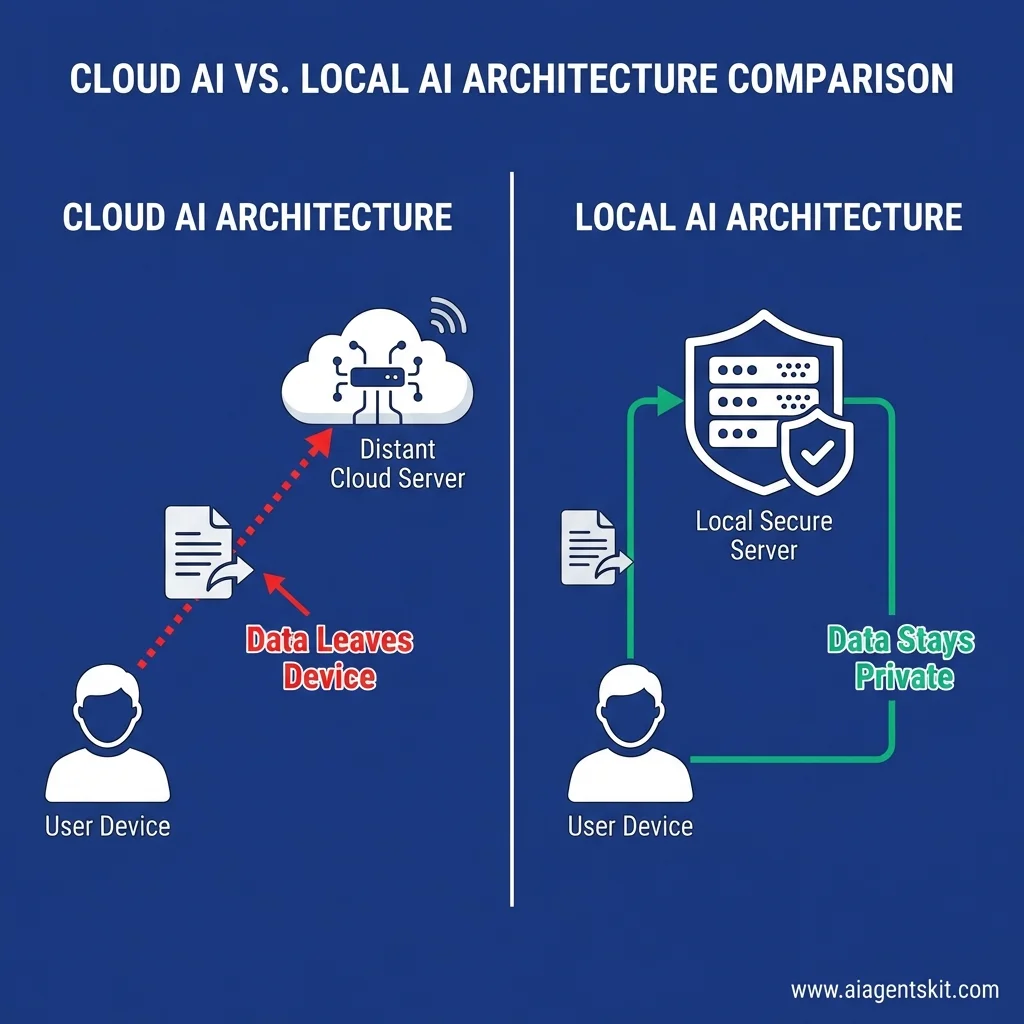
Unlike ChatGPT, Claude, or Gemini—which process everything on remote servers—Moltbot operates on a local-first architecture. Your settings, preferences, conversation memories, and personal information live as folders and Markdown documents right on your computer. This isn’t just about privacy (though that’s a huge benefit); it’s about having complete sovereignty over your AI assistant.
When I first set up Moltbot (back when it was still Clawdbot), I was struck by how different it felt. There was no account creation, no terms of service to accept, no worrying about rate limits from a corporate server. Just me, my machine, and an AI agent ready to work.
Built on TypeScript and Node.js
From a technical standpoint, Moltbot is built using TypeScript and Node.js, making it accessible to the JavaScript/TypeScript developer community. This foundation means it’s relatively straightforward to extend, customize, and integrate with other tools in the Node ecosystem.
The project is fully open source, with an active GitHub repository (now located at moltbot/moltbot) where the community contributes skills, reports issues, and collaborates on improvements. This transparency stands in stark contrast to the black-box nature of proprietary AI services.
How It Differs from Cloud-Based AI
The fundamental difference between Moltbot and tools like ChatGPT comes down to where the processing happens and who controls the infrastructure:
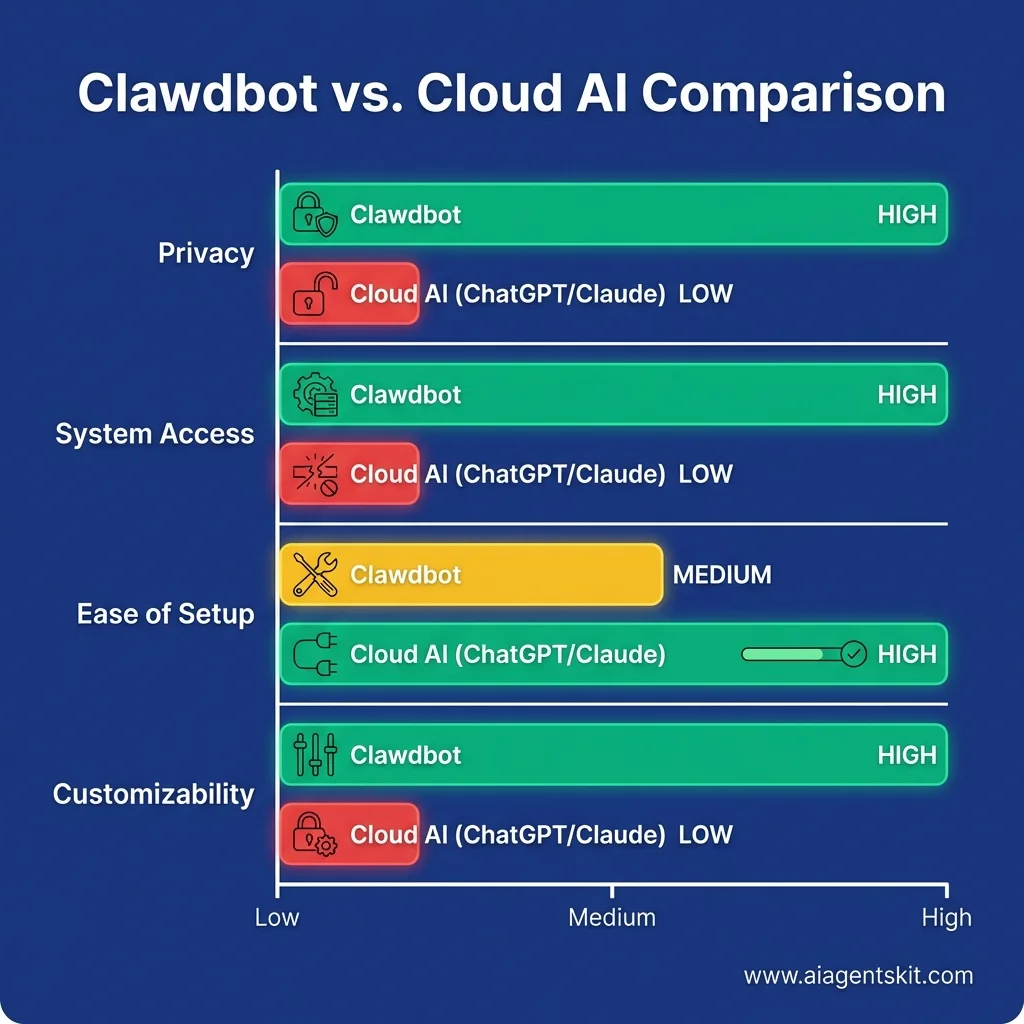
Data Location: With Moltbot (formerly Clawdbot), your data never leaves your machine unless you explicitly configure it to do so. With cloud AI, every prompt you send is transmitted, processed, and potentially stored by the provider.
System Access: Moltbot can execute terminal commands, manage files, control your browser, and even access your camera or screen—capabilities that cloud-based AI assistants simply cannot offer for obvious security reasons.
Customization: You can install custom skills, modify the source code, and configure Moltbot to work exactly how you want. Cloud AI tools offer customization through prompts and settings, but you can’t fundamentally change how they operate.
Cost Structure: Moltbot itself is free software. You only pay for the LLM API calls (like Claude or Gemini) and potential server costs if you run it remotely. There’s no monthly subscription fee for the assistant itself.
Multiple LLM Support
One feature I particularly appreciate is Moltbot’s flexibility with language models. It’s not locked to a single provider. You can use:
- Anthropic’s Claude (including Opus 4.5, Sonnet, and Haiku)
- Google’s Gemini models
- Other compatible large language models
This means you can choose the model that best fits your use case and budget, switching between them as needed. When Claude excels at reasoning, use Claude. When you need fast responses at lower cost, switch to a smaller model. You’re in control.
If you already have Clawdbot or OpenClaw running and just want the safest switching sequence, this guide on how to change the model in Clawdbot without breaking your setup walks through the low-risk order of operations.
Key Features and Capabilities of Moltbot
Now that we understand what Moltbot is conceptually, let’s dive into what it can actually do. The feature set is impressive, especially considering it’s an open-source project.
Messaging App Integration: The Gateway
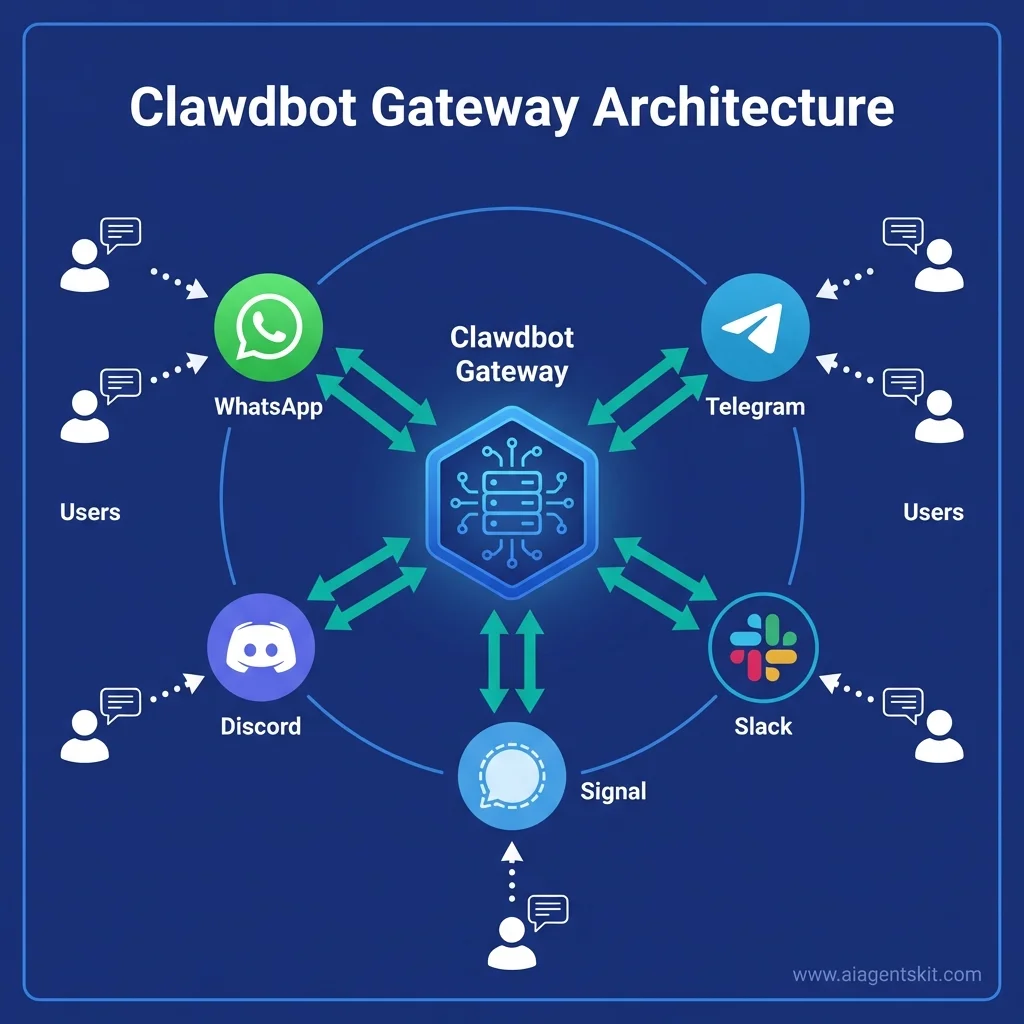
What makes Moltbot (rebranded from Clawdbot) genuinely practical is its “Gateway” feature—integration with the messaging apps you already use every day. Instead of opening yet another application or web interface, you interact with your AI assistant through:
- WhatsApp - Via QR code login
- Telegram - Through bot token integration
- Discord - As a bot in your servers
- Slack - For team workspaces
- Signal - For privacy-focused messaging
- iMessage - For Apple users
- Google Chat - For workspace integration
When I integrated Moltbot with Telegram, it felt like having a brilliant colleague available 24/7 in my chat list. I can send it a question while I’m on my phone, ask it to research something during lunch, or request file operations from my desk—all through the same messaging interface.
The system supports both direct messages and group chats, with mention-based activation in groups so it doesn’t spam conversations when not needed.
System Interaction Through Skills
This is where Moltbot truly differentiates itself from cloud AI. It has deep access to your local system through a concept called “skills”:
Terminal and Shell Access: Moltbot can execute command-line operations. Want to check disk space, run a build script, or restart a service? Ask it in plain English.
File Management: It can read, write, organize, and manage files across your filesystem. I’ve used it to batch-rename files, organize downloads, and even generate reports by scanning directory contents.
Browser Control: Moltbot can control a browser instance, navigate websites, fill forms, and extract data. This opens up powerful automation possibilities for web scraping, form submission, and research.
Camera and Screen Access: With appropriate permissions, it can capture screenshots, record video, or access your camera—useful for documentation or creating visual guides.
Code Execution: It can write and run scripts in various languages, making it a powerful development assistant that goes beyond just suggesting code.
I’ll be honest: giving an AI this level of system access felt risky at first. But the local-first architecture means you’re not giving a remote server these permissions—you’re giving your own assistant, running on your own machine, the ability to automate tasks you’d otherwise do manually.
Live Canvas: Visual Workspace
Moltbot supports what it calls a “Live Canvas”—a visual workspace that the AI agent can manipulate during conversations. Think of it as a shared whiteboard where the agent can draw diagrams, create visualizations, or organize information spatially.
This feature is still evolving, but I’ve found it useful for brainstorming sessions and when asking the agent to help structure complex ideas visually—it feels like a practical application of the vibe coding philosophy where checking your flow matters more than perfect syntax.
Persistent Memory and Context
Unlike stateless AI services that forget everything between sessions, Moltbot maintains persistent memory. It remembers your preferences, past interactions, and context across conversations.
For example, if I tell it once that I prefer Python over JavaScript for scripting tasks, it remembers and adjusts future suggestions accordingly. If I’ve asked it to monitor a specific directory for changes, it knows to check that location when I follow up later.
This continuity makes it feel less like a tool and more like an actual assistant who learns your workflow over time.
Proactive Capabilities: Heartbeats
Here’s something most AI assistants can’t do: reach out to you first. Moltbot has a feature called “heartbeats” that allows it to run tasks proactively at scheduled intervals.
You can configure it to:
- Send morning briefings based on your calendar and to-do list
- Check for specific events or conditions and alert you
- Generate periodic reports from data sources
- Remind you about tasks or deadlines
I have mine set up to send me a daily summary every morning at 8 AM, pulling from my calendar, Notion database, and recent email. It’s like having a chief of staff who actually understands what matters.
Self-Improvement and Community Skills
Perhaps the most fascinating aspect of Moltbot (formerly Clawdbot) is its ability to improve itself. The agent can write its own skills—TypeScript modules that extend its capabilities—based on your requests.
Want it to integrate with a specific API? Ask it to build that integration. Need a custom automation? It can write the code, test it, and add it to its own skill library.
Beyond self-generated skills, there’s the community directory of skills others have created. Popular skills include:
- Google Analytics data querying
- Smart home device control (Philips Hue, Sonos, etc.)
- GitHub repository management
- Notion database syncing
- Recipe management and meal planning
- Weather-based automation
The ecosystem is young but growing quickly, with developers contributing new integrations regularly.
How to Install and Set Up Moltbot (Clawdbot): Complete Guide
Let’s get practical. Here’s the step-by-step process to install and configure Moltbot on your system.
Prerequisites: What You Need Before Starting
Before you begin, make sure you have:
1. Node.js Version 22 or Newer
Moltbot requires a recent version of Node.js. Check what you have:
node --versionIf you see v22.x.x or higher, you’re good. If not, download the latest from nodejs.org.
2. Compatible Operating System
- macOS: Fully supported (recommended)
- Linux: Fully supported
- Windows: Use WSL2 (Windows Subsystem for Linux) with Ubuntu. Native Windows is largely untested and not recommended.
3. Optional but Recommended
- Brave Search API key - For web search capabilities (free tier available)
- Xcode or Command Line Tools - For macOS users who want to build applications
- An LLM API key - Claude, Gemini, or your preferred model
Installation Method 1: Recommended Installer Script (macOS/Linux)
This is the easiest path for most users:
curl -fsSL https://molt.bot/install.sh | bashThe script will:
- Install the Moltbot CLI globally
- Set up necessary dependencies
- Configure your PATH
- Prepare for the onboarding wizard
If you encounter issues, run it in verbose mode to see detailed output:
curl -fsSL https://molt.bot/install.sh | bash -s -- --verboseInstallation Method 2: NPM Global Installation (Using the New Package)
If you prefer manual control or the script fails:
npm install -g moltbotVerify the installation:
moltbot --versionInstallation Method 3: Using PNPM
For those who prefer pnpm:
pnpm add -g moltbotRunning the Onboarding Wizard
Once installed, start the onboarding process:
moltbot onboard --install-daemonThe wizard will guide you through:
- Gateway Configuration - Setting up the central process that manages connections
- Workspace Setup - Defining where Moltbot stores its data
- Channel Configuration - Connecting messaging apps
- Skills Installation - Adding initial capabilities
During my first setup, this took about 15-20 minutes. Take your time with each step—incorrect configuration here means troubleshooting later.
Setting Up the Gateway
The Gateway is Moltbot’s central nervous system—it manages all connections between messaging apps, LLMs, and your system. Start it with:
moltbot gatewayYou should see output indicating the Gateway is running, typically on port 18789. Leave this terminal window open or configure it to run as a background service.
For background operation (macOS/Linux):
moltbot daemon install
moltbot daemon start
Check status anytime with:
moltbot daemon statusConnecting Your First Messaging App
Let’s connect Telegram as an example (it’s one of the easiest):
Step 1: Create a Telegram Bot
- Open Telegram and search for @BotFather
- Send
/newbotcommand - Follow prompts to choose a name and username
- BotFather will provide a token like
123456789:ABCdefGhIJKlmNoPQRsTUVwxyZ
Step 2: Configure Moltbot
moltbot configure --section channelsSelect Telegram and enter your bot token when prompted.
Step 3: Test the Connection
- Find your bot in Telegram (search for the username you created)
- Send
/startcommand - The bot should respond with a pairing code
- In your Moltbot terminal, approve the pairing
- Now you can chat with your AI assistant!
For WhatsApp, the process involves QR code scanning. For Discord, you’ll create a Discord bot application. Each platform has slightly different setup, but the Moltbot CLI guides you through it.
Adding Your LLM API Key
To actually use AI capabilities, configure your language model:
moltbot models auth setup-token --provider anthropicEnter your Claude API key when prompted. Get one from the Anthropic console.
For Gemini:
moltbot models auth setup-token --provider googleYou can configure multiple providers and switch between them:
moltbot models list        # See available models
/model claude-opus-4.5      # Switch to Claude Opus (in chat)
/model gemini-pro          # Switch to Gemini
Verifying Your Setup
Run a comprehensive health check:
moltbot doctorThis will verify:
- Gateway is reachable
- Providers are configured correctly
- Channels are connected
- Skills are loaded
- No configuration errors
If you see any red flags in the output, address them before proceeding.
For a detailed status report:
moltbot status --allThis shows your OS details, update status, Gateway connectivity, and configuration. The output is safe to share (tokens are redacted) if you need help from the community.
Testing Your First Interaction
Once everything is set up:
- Open your connected messaging app (e.g., Telegram)
- Find your Moltbot bot
- Send a simple message: “Hello! Can you tell me about yourself?”
- If configured correctly, you should get a response powered by your chosen LLM
Congratulations! You now have a self-hosted AI assistant (formerly known as Clawdbot) running on your machine, accessible through your messaging apps.
Security Best Practices: Using Moltbot Safely
Since Moltbot has deep system-level access to your computer—carrying on the legacy of Clawdbot—following security best practices isn’t optional; it’s essential. This section will help you configure and use Moltbot in the most secure way possible.
Understanding the Security Model
Before diving into specific practices, let’s acknowledge what makes Moltbot different from cloud AI: it’s a “real agent with real powers.” Unlike ChatGPT, which can only respond with text, Moltbot can execute commands, manage files, browse the web with your credentials, and control applications.
This power comes with responsibility. The good news? Because everything runs locally, you have complete control over the security perimeter. The challenge? You need to actively manage that security—there’s no corporate security team doing it for you.
1. Run with Least Privilege Principles
Never run Moltbot as root or administrator. This is the most critical security rule.
Create a dedicated user account:
# On macOS/Linux
sudo useradd -m -s /bin/bash moltbot-user
sudo passwd moltbot-user
Run Moltbot under this limited user account. If the agent is compromised or makes a mistake, the damage is contained to what that user can access—not your entire system.
Restrict file system access:
Configure Moltbot’s workspace to only include directories it genuinely needs:
# Set workspace to a specific, limited directory
export MOLTBOT_WORKSPACE=~/moltbot-workspace

# Remove write access to sensitive directories
chmod 500 ~/Documents  # Read-only
chmod 500 ~/.ssh       # Read-only for SSH keys
What I do personally: I run Moltbot under my regular user account but maintain separate directories for sensitive work. Anything involving passwords, financial data, or confidential client information lives in a different directory structure that Moltbot’s workspace doesn’t include.
2. Secure Your API Keys and Credentials
Your LLM API keys are the gateway to potentially expensive API usage and access to your AI interactions.
Use environment variables, never hardcode:
# In your ~/.zshrc or ~/.bashrc
export ANTHROPIC_API_KEY="your-key-here"
export GOOGLE_API_KEY="your-key-here"
Set up API key restrictions:
In the Anthropic Console or Google Cloud Console:
- Enable IP allowlisting (only your home/office IP)
- Set monthly spending limits
- Enable usage alerts
- Create separate keys for different projects
Rotate keys regularly:
# Every 90 days, generate new API keys
moltbot models auth setup-token --provider anthropic
Monitor for unusual usage:
Check your API dashboard weekly for unexpected spikes in usage that might indicate key compromise or runaway processes.
3. Configure Gateway Security Properly
The Gateway is Moltbot’s central hub and must be secured appropriately.
Keep Gateway on localhost only:
By default, the Gateway should bind to 127.0.0.1 (localhost), NOT 0.0.0.0 (all interfaces):
moltbot gateway --host 127.0.0.1 --port 18789This ensures the Gateway is only accessible from your local machine, not from the network.
For remote access, use SSH tunneling:
If you need to access your Gateway from another machine, use SSH tunneling instead of exposing the port:
# On remote machine
ssh -L 18789:localhost:18789 user@your-home-machine
Now you can access the Gateway securely through the encrypted SSH tunnel.
Enable authentication if available:
Check if your Moltbot version supports Gateway authentication and enable it:
moltbot config set gateway.auth.enabled true
moltbot config set gateway.auth.token "generate-a-strong-random-token-here"
4. Messaging App Integration Security
Each messaging platform connection is a potential attack vector. Secure them carefully.
Enable DM (Direct Message) pairing only:
During channel configuration, restrict pairing to your own account. Never allow open pairing where anyone can connect:
moltbot configure --section channels
# Select "DM pairing only" when prompted
# Verify your own identity through the pairing code
Use dedicated phone numbers for WhatsApp:
Never connect Moltbot to your personal WhatsApp number. Every incoming message becomes potential agent input. Instead:
- Get a dedicated Google Voice or secondary number
- Use it exclusively for Moltbot
- Share it only with trusted contacts who understand it’s AI-controlled
For Discord/Slack, use private servers only:
Don’t add Moltbot to public Discord servers or large Slack workspaces where untrusted users could interact with it. Create a private server/workspace for personal use.
Telegram security:
Configure your Telegram bot with these privacy settings:
- Disable “Group Privacy Mode Disabled” (bot should only respond to direct commands)
- Enable username privacy
- Use a strong bot token and regenerate it if exposed
Review paired accounts regularly:
moltbot channels list  # See all connected accounts
moltbot channels remove <channel-id>  # Remove suspicious connections
5. Skill Installation and Sandboxing
Skills are powerful but can be dangerous if malicious or poorly written.
Review skills before installation:
Never blindly install community skills. Review the source code:
# Before installing a skill, read its code
cat ~/.moltbot/skills/community-skill-name/index.ts
Look for:
- Network requests to unknown domains
- File system operations outside the workspace
- Execution of shell commands without sanitization
- Credential handling or storage
Enable skill sandboxing:
If Moltbot supports skill sandboxing (check your version), enable it:
moltbot config set skills.sandboxing.enabled true
moltbot config set skills.sandboxing.mode strict
This isolates skill execution and limits their capabilities.
Use approved skills only:
Maintain an allowlist of approved skills:
moltbot config set skills.allowlist '["file-management", "terminal", "notion-integration"]'Audit installed skills regularly:
moltbot skills list  # Review what's installed
moltbot skills remove <skill-name>  # Remove unused or untrusted skills
6. Browser Automation and Cookie Security
When Clawdbot controls a browser, it can access your logged-in sessions.
Use a separate browser profile:
Never let Moltbot use your main browser profile with all your logged-in accounts:
# Configure Moltbot to use an isolated profile
moltbot config set browser.profile "moltbot-isolated"
Be cautious with authenticated sessions:
When asking Moltbot to perform web automation:
- Log out of sensitive accounts first
- Use read-only operations when possible
- Never have it interact with banking or financial sites
- Review browser history regularly:
moltbot config get browser.history
Clear cookies and cache regularly:
# Clear browser data weekly
moltbot browser clear-data --all
7. Prompt Hygiene and Data Minimization
What you tell Clawdbot matters for security.
Never include sensitive data in prompts:
❌ Bad: “Connect to database with password: MyP@ssw0rd123” ✅ Good: “Connect to database using the credentials from ~/.env”
❌ Bad: “Here’s customer data: [paste sensitive info]” ✅ Good: “Process the customer data from ~/secure/customers.csv”
Use references instead of direct data:
Train yourself to reference files and environment variables rather than pasting sensitive information into chat.
Redact before sharing:
If you need to share Moltbot logs for troubleshooting:
moltbot status --all --redact # Automatically redacts tokensUnderstand what gets logged:
Moltbot may log conversations for context. Check what’s being stored:
# View conversation logs location
moltbot config get logging.conversations.path

# Optionally disable conversation logging
moltbot config set logging.conversations.enabled false
8. Network Security and Firewall Configuration
Protect Clawdbot from network-based attacks.
Configure firewall rules:
On macOS:
# Block incoming connections to Clawdbot port
sudo /usr/libexec/ApplicationFirewall/socketfilterfw --add /path/to/clawdbot
sudo /usr/libexec/ApplicationFirewall/socketfilterfw --block /path/to/clawdbot
On Linux (using ufw):
# Allow only localhost connections to Gateway port
sudo ufw deny 18789
sudo ufw allow from 127.0.0.1 to any port 18789
Use a VPN for remote access:
If accessing your home Moltbot from remote locations, always use a VPN:
- Connect to your home VPN first
- Then access Moltbot through the secure tunnel
- Never expose the Gateway port directly to the internet
Monitor network connections:
Regularly check what Moltbot is connecting to:
# View active connections
lsof -i -n | grep moltbot

# Check for unexpected outbound connections
netstat -an | grep 18789
9. Regular Security Audits and Monitoring
Security isn’t a one-time setup; it requires ongoing vigilance.
Enable audit logging:
moltbot config set logging.audit.enabled true
moltbot config set logging.audit.level detailed
This logs all actions Moltbot performs for later review.
Review logs weekly:
# Check recent activity
moltbot logs --filter audit --since "7 days ago"

# Look for suspicious patterns:
# - File access outside workspace
# - Unexpected network requests
# - Failed authentication attempts
# - Unusual command executions
Set up alerts for critical actions:
Configure Moltbot to notify you when sensitive operations occur:
# Notify on file deletions
moltbot config set alerts.file.delete true

# Notify on sudo command usage
moltbot config set alerts.command.sudo true
Keep Moltbot updated:
Security patches matter:
# Check for updates weekly
moltbot update check

# Apply updates promptly
moltbot update apply
Conduct monthly security reviews:
Set a recurring calendar reminder to:
- Review installed skills
- Check paired messaging accounts
- Audit conversation logs
- Verify API key permissions
- Test backup restoration
- Review file system permissions
10. Backup and Recovery
Security includes being able to recover from incidents.
Regular backups of configuration:
# Backup configuration weekly
cp -r ~/.moltbot ~/backups/moltbot-$(date +%Y%m%d)

# Or automate it
echo "0 2 * * 0 cp -r ~/.moltbot ~/backups/moltbot-$(date +%Y%m%d)" | crontab -
Separate sensitive skills:
Keep custom skills that contain sensitive logic in version control:
cd ~/.moltbot/skills/custom
git init
git add .
git commit -m "Backup skills"
git remote add backup user@backup-server:moltbot-skills.git
git push backup main
Test restoration procedure:
Periodically verify you can restore from backup:
# On a test machine or VM
rm -rf ~/.moltbot
cp -r ~/backups/moltbot-20260126 ~/.moltbot
moltbot status --all  # Verify it works
11. Privacy Considerations
Beyond security, consider privacy implications.
Understand data flow:
- Local processing: Conversation context stays on your machine
- API calls: Prompts and responses go to LLM provider (Anthropic, Google)
- Messaging platforms: Messages transit through their servers (encrypted)
Minimize third-party data exposure:
For highly sensitive information:
- Consider using local LLMs (if Moltbot supports them)
- Avoid sending sensitive data to external API providers
- Keep confidential conversations in local-only mode
GDPR and compliance:
If you’re in the EU or handling EU citizen data:
- Review LLM provider data processing agreements
- Ensure API providers are GDPR-compliant
- Document your data flows for compliance purposes
- Consider data residency (where API servers are located)
12. Incident Response Plan
Be prepared for when things go wrong.
If you suspect compromise:
-
Immediately disconnect:
moltbot daemon stop moltbot gateway shutdown -
Revoke API keys:
- Go to Anthropic/Google Cloud Console
- Delete the compromised API key
- Generate a new one
-
Review logs:
moltbot logs --all --since "24 hours ago" > incident-$(date +%Y%m%d).log -
Check for unauthorized access:
moltbot channels list # Any unknown paired accounts? moltbot skills list # Any unexpected skills installed? -
Reset if necessary:
moltbot uninstall --all
# Then reinstall from scratch with fresh credentials
Have emergency contacts:
- Messaging platform support (to revoke bot tokens)
- API provider support (to freeze accounts if needed)
- Your IT/security team (if applicable)
Security Checklist: Quick Reference
Use this checklist when setting up or auditing your Moltbot (formerly Clawdbot) installation:
- Running as non-root user with limited permissions
- API keys stored in environment variables, not code
- API keys have usage limits and IP restrictions
- Gateway bound to localhost only (127.0.0.1)
- SSH tunneling configured for remote access
- Only trusted accounts paired with messaging channels
- Dedicated phone number for WhatsApp (not personal)
- All community skills reviewed before installation
- Skill sandboxing enabled
- Browser uses isolated profile, not main profile
- Firewall configured to block external Gateway access
- Audit logging enabled
- Regular backup schedule in place
- Backup restoration tested at least once
- Security review scheduled monthly
- Incident response plan documented
Bottom line: Moltbot’s power requires responsibility. By following these practices, you can enjoy the benefits of a self-hosted AI assistant (rebranded from Clawdbot) while maintaining strong security posture. Remember: security is a journey, not a destination. Stay vigilant, keep learning, and adjust your practices as threats evolve.
Moltbot vs Other AI Tools: When to Use What
Let’s be practical: Moltbot isn’t the right choice for everyone or every situation. Here’s how it compares to the major AI assistants and when you should choose which.
Comparison Matrix
| Feature/Aspect | Moltbot (Clawdbot) | ChatGPT | Claude | Gemini | Copilot |
|---|---|---|---|---|---|
| Hosting | Self-hosted (your machine) | Cloud (OpenAI servers) | Cloud (Anthropic servers) | Cloud (Google servers) | Cloud (Microsoft/OpenAI) |
| Data Privacy | Complete control (local) | Processed by OpenAI | Processed by Anthropic | Processed by Google | Processed by Microsoft |
| System Access | Full (terminal, files, camera) | None | None | None | Limited (VS Code only) |
| Messaging Integration | 8+ platforms (WhatsApp, Telegram, etc.) | Web/app only | Web/app only | Web/app only | Teams integration |
| Customization | Fully customizable + skills | Prompts + GPTs | Prompts only | Prompts only | Limited settings |
| LLM Flexibility | Multiple (Claude, Gemini, others) | GPT models only | Claude models only | Gemini models only | GPT models |
| Cost Structure | Free software + API costs (~$30/mo) | $20/mo (Plus) or free | $20/mo (Pro) or free | $20/mo (Advanced) or free | Included in Microsoft 365 |
| Setup Complexity | High (technical setup required) | None (instant use) | None (instant use) | None (instant use) | Low (Microsoft account) |
| Best For | Privacy-focused power users | General use, content creation | Deep reasoning, long documents | Research, multi-modal tasks | Developers, Office users |
| Offline Capability | Yes (with local models) | No | No | No | No |
When to Choose Moltbot (formerly Clawdbot)
You’re the right fit for Moltbot (rebranded from Clawdbot) if you:
-
Value privacy above convenience - If the idea of your conversations being processed on corporate servers bothers you, Moltbot’s local-first approach offers peace of mind.
-
Need system-level automation - Want your AI to actually execute commands, manage files, or control applications? That’s Moltbot’s home turf.
-
Want unified AI across messaging - If you live in WhatsApp, Telegram, or Discord and want AI there rather than switching to a separate app, the Gateway integration is perfect.
-
Enjoy tinkering and customization - Power users who want to modify, extend, and truly control their AI assistant will love the flexibility.
-
Use multiple LLMs - Being able to switch between Claude for reasoning and Gemini for research (or whatever combination works for you) is valuable.
-
Work with sensitive data - Lawyers, healthcare professionals, financial advisors, or anyone handling confidential information benefits from keeping data local.
When to Choose Cloud AI Instead
Let me be honest about when Moltbot isn’t the best choice:
Choose ChatGPT if you:
- Want instant setup with zero configuration
- Need image generation (DALL-E integration)
- Value the GPT store and pre-built GPTs
- Don’t have technical skills for self-hosting
- Primarily use it for content creation and brainstorming
Choose Claude if:
- You need industry-leading reasoning capabilities
- Work with very long documents (huge context window)
- Want the simplest, cleanest interface
- Don’t need system integration
- Primarily use it for writing and analysis
Choose Gemini if:
- You’re deep in the Google ecosystem
- Need strong multi-modal capabilities (image understanding)
- Want free access to capable models
- Use it primarily for research and learning
Choose Copper (Microsoft Copilot) if:
- You use Microsoft 365 heavily
- Want tight Office integration
- Work in enterprise environments
- Need collaboration features
The truth? I use both. Moltbot handles all my personal automation, system integration, and privacy-sensitive tasks. For quick queries while mobile or collaborative work, I still use ChatGPT. They serve different purposes.
Troubleshooting Common Installation Issues
Even with careful setup, you might encounter issues. I’ve hit most of these myself, so here are the solutions that actually work for Moltbot (and those migrating from Clawdbot).
Issue 1: “moltbot: command not found”
Cause: Your shell can’t find the Moltbot executable because it’s not in your PATH.
Solution:
First, check where npm installs global packages:
npm config get prefixThis typically returns /usr/local or ~/.npm-global.
Add it to your PATH. For bash (edit ~/.bashrc):
export PATH="$PATH:/usr/local/bin"For zsh (edit ~/.zshrc):
export PATH="$PATH:/usr/local/bin"Then reload your shell:
source ~/.zshrc # or ~/.bashrcIssue 2: Gateway Did Not Become Ready (macOS)
Cause 1: Gateway Needs More Time
The Gateway can take 15-30 seconds to fully initialize. Wait a bit longer before assuming it failed.
Cause 2: Port Conflict
Another process might be using port 18789. Check with:
lsof -i :18789If something’s there, either stop that process or configure Moltbot to use a different port.
Cause 3: Existing Gateway Running
Check if a Gateway is already running:
moltbot daemon statusIf so, stop it and try again:
moltbot daemon stop
moltbot gateway  # Run manually to see detailed output
Issue 3: Windows/WSL Installation Errors
Problem: OS/Platform Detection Issues
If you get errors about platform detection:
npm config set os linux
npm install -g moltbot --force --no-os-check
Problem: “exec: node: not found” in WSL
This means WSL is using Windows Node.js instead of Linux Node.js.
Verify your Node installation:
which node
which npm
These should show Linux paths like /usr/bin/node or /home/user/.nvm/..., NOT Windows paths like /mnt/c/Program Files/....
Solution: Install Node.js using NVM within WSL:
curl -o- https://raw.githubusercontent.com/nvm-sh/nvm/v0.39.0/install.sh | bash
source ~/.bashrc
nvm install 22
nvm use 22
Then reinstall Moltbot.
Issue 4: Multiple Installation Conflicts (macOS)
Symptom: You have both the macOS Menu Bar App and the CLI Gateway Service, and they’re conflicting.
Solution: Choose One Approach
Option A - Keep Menu Bar App (Simpler):
moltbot daemon stop
moltbot daemon uninstall
Let the app manage its own Gateway.
Option B - Keep CLI Gateway (More Control):
# Stop and uninstall app's daemon
moltbot daemon stop
moltbot daemon uninstall

# Then install CLI gateway
moltbot service gateway install --port 18789
moltbot daemon start
Issue 5: “Missing API Key for Provider”
Cause: The agent’s authentication store is empty or lacks credentials for the provider you’re trying to use.
Solution: Re-run provider setup:
moltbot models auth setup-token --provider anthropic  # For Claude
moltbot models auth setup-token --provider google     # For Gemini
Issue 6: Model Not Allowed Error
Symptom: You try to switch models with /model [name] and get an error saying the model isn’t allowed.
Cause: The agents.defaults.models configuration is set as an allowlist, restricting available models.
Solution: Check your allowlist:
moltbot config get agents.defaults.modelsAdd the model you want:
moltbot config set agents.defaults.models '["claude-opus-4.5", "gemini-pro"]'Or clear the allowlist entirely to allow all models:
moltbot config set agents.defaults.models nullDiagnostic Commands Reference
When troubleshooting, these commands are invaluable:
moltbot doctor           # Health check with diagnostics
moltbot status --all     # Detailed status report
moltbot status --deep    # Deep probes (including provider tests)
moltbot logs --follow    # Live log monitoring
The last one is particularly useful—you can watch the live logs in one terminal while operating Moltbot in another to see exactly what’s happening (or failing).
When All Else Fails
If you’re still stuck:
- Check the official troubleshooting documentation
- Join the Discord community—there’s usually someone who’s hit the same issue
- Search GitHub issues for your specific error
- If it’s a new bug, file an issue with your
moltbot status --alloutput (tokens are redacted automatically)
How to Uninstall Moltbot (Clawdbot)
Whether you’re troubleshooting, switching to a different solution, or simply no longer need Moltbot (formerly Clawdbot), here’s how to completely remove it from your system. The process varies depending on how you installed it and how thoroughly you want to clean up.
Quick Uninstall: Using the Built-in Command
Moltbot provides a dedicated uninstall command that handles most of the cleanup for you. This is the easiest method for most users:
moltbot uninstallThis command will:
- Stop the gateway service
- Remove the daemon/service configuration
- Delete local data and configuration files
- Keep the CLI installed (in case you want to reinstall later)
For a complete removal including all data:
moltbot uninstall --all --yesThe --all flag ensures everything including agent data and skills is removed, while --yes skips confirmation prompts for a non-interactive uninstall.
Step-by-Step Complete Removal
If you want more control or the quick command isn’t working, here’s the manual process:
Step 1: Stop and Uninstall the Gateway Service
First, stop the running gateway service:
moltbot daemon stopThen uninstall the gateway service:
moltbot gateway uninstallVerify it’s stopped:
moltbot daemon statusYou should see that no gateway service is running.
Step 2: Remove the CLI Installation
Remove Clawdbot CLI using the package manager you originally used for installation:
If installed with npm:
npm rm -g moltbotIf installed with pnpm:
pnpm remove -g moltbotIf installed with bun:
bun remove -g moltbotVerify removal:
moltbot --versionYou should get a “command not found” error, confirming the CLI is removed.
Step 3: Delete Configuration and Data Files
Remove the main Moltbot state directory:
rm -rf ~/.moltbot/If you used custom profiles (with --profile or MOLTBOT_PROFILE environment variable), remove those directories as well:
rm -rf ~/.moltbot-<profile-name>If you set a custom CLAWDBOT_CONFIG_PATH, delete that file:
rm -f /path/to/your/custom/config.jsonStep 4: Delete Your Workspace (Optional)
By default, Moltbot stores agent-related files in ~/molt. If you want to remove these:
rm -rf ~/moltWarning: This will delete all your skills, conversation history, and any files Clawdbot created in this workspace. Make sure you have backups of anything important.
Step 5: Remove macOS Application (macOS Only)
If you installed the macOS menu bar application:
rm -rf /Applications/Moltbot.appYou may also want to clean up application support files:
rm -rf ~/Library/Application\ Support/MoltbotManual Service Removal (If CLI is Unavailable)
If you’ve already removed the CLI but the gateway service is still running, you’ll need to manually remove the service files.
macOS (launchd)
The default service label is com.moltbot.gateway.
- Stop and remove the service:
launchctl bootout gui/$UID/com.moltbot.gateway- Delete the service configuration file:
rm -f ~/Library/LaunchAgents/com.moltbot.gateway.plistIf you used a profile, the label would be com.moltbot.<profile>. Replace accordingly:
launchctl bootout gui/$UID/com.moltbot.production
rm -f ~/Library/LaunchAgents/com.moltbot.production.plist
Check for any remaining Moltbot services:
launchctl list | grep moltbotLinux (systemd)
The default service name is moltbot-gateway.service.
- Stop and disable the service:
systemctl --user disable --now moltbot-gateway.service- Remove the service unit file:
rm -f ~/.config/systemd/user/moltbot-gateway.service- Reload the systemd daemon:
systemctl --user daemon-reload
systemctl --user reset-failed
If you used a profile, the service name would be clawdbot-gateway-<profile>.service:
systemctl --user disable --now clawdbot-gateway-production.service
rm -f ~/.config/systemd/user/clawdbot-gateway-production.service
systemctl --user daemon-reload
Verify removal:
systemctl --user list-units | grep moltbotCleaning Up Messaging App Integrations
Don’t forget to remove Moltbot from your messaging platforms:
Telegram:
- Open Telegram and find your Moltbot bot
- Send
/stopcommand - Block the bot or simply stop using it
- Optionally, delete the bot via @BotFather if you created it
Discord:
- Go to your Discord server settings
- Navigate to Integrations or Members
- Find Moltbot in the bot list
- Click “Kick” or “Remove Integration”
WhatsApp:
- Open WhatsApp and find the Moltbot chat
- Tap on the chat name at the top
- Scroll down and select “Delete Chat”
- Optionally block the number
Other platforms: Follow similar steps to remove or disconnect the bot integration.
Verifying Complete Removal
After uninstallation, verify everything is gone:
- Check for running processes:
ps aux | grep moltbot- Check for remaining files:
find ~ -name "*moltbot*" -o -name "*molt*" 2>/dev/null- Check for network listeners:
lsof -i :18789 # Default Moltbot portAll commands should return no results if the uninstall was successful.
Special Cases and Considerations
Remote Mode Setup: If you were running Moltbot in remote mode (gateway on a separate server), you need to perform the uninstall steps on both:
- Your local machine (where you ran commands)
- The remote gateway host (where the gateway service was running)
Multiple Installations: If you have both the macOS app and CLI-based installation, you might have conflicting setups. Remove both:
- First uninstall the daemon:
moltbot daemon uninstall - Then remove the app:
rm -rf /Applications/Moltbot.app - Finally remove the CLI:
npm rm -g moltbot
Preserving Configuration for Reinstall: If you plan to reinstall Clawdbot later and want to keep your configuration:
- Backup your config before uninstalling:
cp -r ~/.moltbot ~/moltbot-backup- After reinstalling, restore it:
cp -r ~/moltbot-backup ~/.moltbotTroubleshooting Uninstall Issues
Issue: “Permission Denied” when removing files
Use sudo for system directories, but be careful:
sudo rm -rf /path/to/fileIssue: Service won’t stop
Force kill the process:
# Find the process ID
ps aux | grep moltbot

# Kill it (replace PID with actual process ID)
kill -9 <PID>
Issue: Files remain after uninstall
Search for any remaining Moltbot files:
find / -name "*moltbot*" 2>/dev/nullThen manually remove them with rm.
Real-World Use Cases: What You Can Actually Do
Theory is nice, but let’s talk about practical applications. Here’s what Moltbot users (including myself) are actually using it for.
Personal Productivity and Email Management
The Use Case: Email and calendar overwhelm.
I used to spend 30-45 minutes every morning just triaging email and planning my day. Now, Clawdbot does most of that work while I’m having coffee.
My Setup:
- Moltbot checks my Gmail inbox every morning at 7:30 AM
- Summarizes unread emails by priority
- Automatically creates to-dos in my Notion database for actionable items
- Generates a daily briefing with my calendar, top-priority tasks, and any urgent emails
- Sends it all to me via Telegram by 8 AM
Result: I start each day already knowing what matters, without manually processing dozens of emails.
Similar workflows work for flight check-ins (it monitors confirmation emails and checks you in automatically), meeting prep (summarizes calendar events and relevant files), and inbox zero campaigns.
Smart Home Orchestration
The Use Case: Disconnected smart home devices.
I’ve got Philips Hue lights, a Sonos sound system, a Winix air purifier, and various Alexa-enabled devices. Each has its own app, its own interface, its own logic.
Now, I just tell Moltbot what I want:
- “Set up focus mode” - Dims lights, closes blinds, starts ambient music, turns on air purifier
- “Good morning routine” - Gradually brightens lights, starts coffee maker, reads weather and calendar
- “Movie time” - Dims lights, switches AV system to streaming device, sets to do-not-disturb
The Magic: Moltbot can control all these devices through their APIs or integrations. You write (or install) skills for each device, then orchestrate complex routines with simple natural language commands.
Setup Complexity: Moderate to High. Each device needs API access configured, and you need skills for each. But once working, it’s incredibly convenient.
Developer Workflows and Repository Management
The Use Case: Repetitive dev tasks and GitHub operations.
As a developer, there are dozens of small tasks I do repeatedly: checking logs, running tests, deploying to staging, reviewing pull requests, updating dependencies.
What Moltbot Handles:
“Check if the CI pipeline passed for the latest commit” - It checks GitHub Actions status
- “Run the test suite and let me know if anything fails” - Executes tests, reports results
- “Update all npm dependencies and create a PR” - Runs
npm update, commits, pushes, creates PR - “What errors appeared in the logs in the last hour?” - Parses log files, summarizes issues
The Value: It’s not that these tasks are hard—they’re just tedious. Combining Moltbot with effective AI coding prompts allows you to automate the grunt work while you focus on architecture.
Some developers have even created skills for automated code review, checking for common patterns or potential issues before submitting PRs.
Meal Planning and Shopping Automation
The Use Case: “What’s for dinner?” exhaustion.
This one surprised me—I didn’t expect AI to be useful for meal planning, but here we are.
The Setup:
Users have created workflows where Clawdbot:
- Generates weekly meal plans based on preferences and dietary restrictions
- Cross-references with local weather (suggests warm soup on cold days, salads when it’s hot)
- Checks your recipe database for variety (avoids repeating meals too often)
- Creates categorized shopping lists organized by store aisle
- Can even send reminders (“Start dinner prep in 30 minutes”)
Advanced Version: Some people integrate it with grocery delivery APIs, so it can actually order groceries for you based on the meal plan.
I’m not quite at that level yet, but I do use it to generate meal ideas when I’m stuck. “Suggest three quick dinners using chicken, rice, and whatever vegetables are typically in season in January” gives me surprisingly good, practical ideas.
Research and Document Synthesis
The Use Case: Information overload.
When researching a topic, I used to open 20 browser tabs, skim each one, take notes, then synthesize everything into coherent understanding. Time-consuming.
With Moltbot:
I give it a research topic and criteria:
“Research the current state of vector databases. I need to understand the top 3 solutions, their strengths/weaknesses, pricing, and ideal use cases. Compile it into a comparison document.”
Moltbot:
- Searches the web for recent articles and documentation
- Visits relevant websites and extracts information
- Compiles findings into a structured document
- Saves it to my Notion database or sends it as a file
Time Savings: What took me 2-3 hours now takes 15-20 minutes (most of which is Moltbot working while I do other things).
Caveat: You still need to verify the information. AI can hallucinate or misinterpret sources. But having a well-organized starting point with citations saves enormous time.
Proactive Monitoring and Alerts
The Use Case: Things you need to know but don’t want to actively check.
This is where the “heartbeat” feature shines. You can configure Clawdbot to proactively check conditions and alert you:
- Monitor a website for changes (price drops, new content, status updates)
- Check if a GitHub issue or PR has been updated
- Watch for specific keywords in news feeds or social media
- Alert you if disk space drops below a threshold
- Notify you of breaking changes in dependencies you use
- Track package deliveries and alert when status changes
I have it monitoring a few key indicators for my side project: server uptime, error rates in logs, and recent user signups. If anything unusual happens, I get a Telegram message immediately.
This shifts Moltbot from a reactive tool (you ask, it answers) to a proactive assistant (it watches things and informs you).
Content Creation and Podcast Note-Taking
Use Case: Extracting insights from podcasts and videos.
Here’s a workflow some users have built:
- Clawdbot downloads a podcast or YouTube video
- Transcribes it using a transcription service
- Summarizes key points and insights
- Organizes notes by topic
- Exports to Notion or Obsidian
For content creators, this is gold. You can “read” podcasts in minutes, extract quotable insights, and build a knowledge base without manual transcription and note-taking.
Skills, Plugins, and Extensions
The real power of Clawdbot lies in its extensibility. Let’s explore how skills work and what’s available.
Understanding Clawdbot Skills
A “skill” in Clawdbot is essentially a module that extends its capabilities. Think of it like a plugin or extension that teaches Clawdbot how to do something new.
Skills are TypeScript modules that define:
- What the skill can do (capabilities)
- How to invoke it (commands or triggers)
- What permissions it needs (file access, network, etc.)
- How it interacts with other parts of the system
Core Built-In Skills
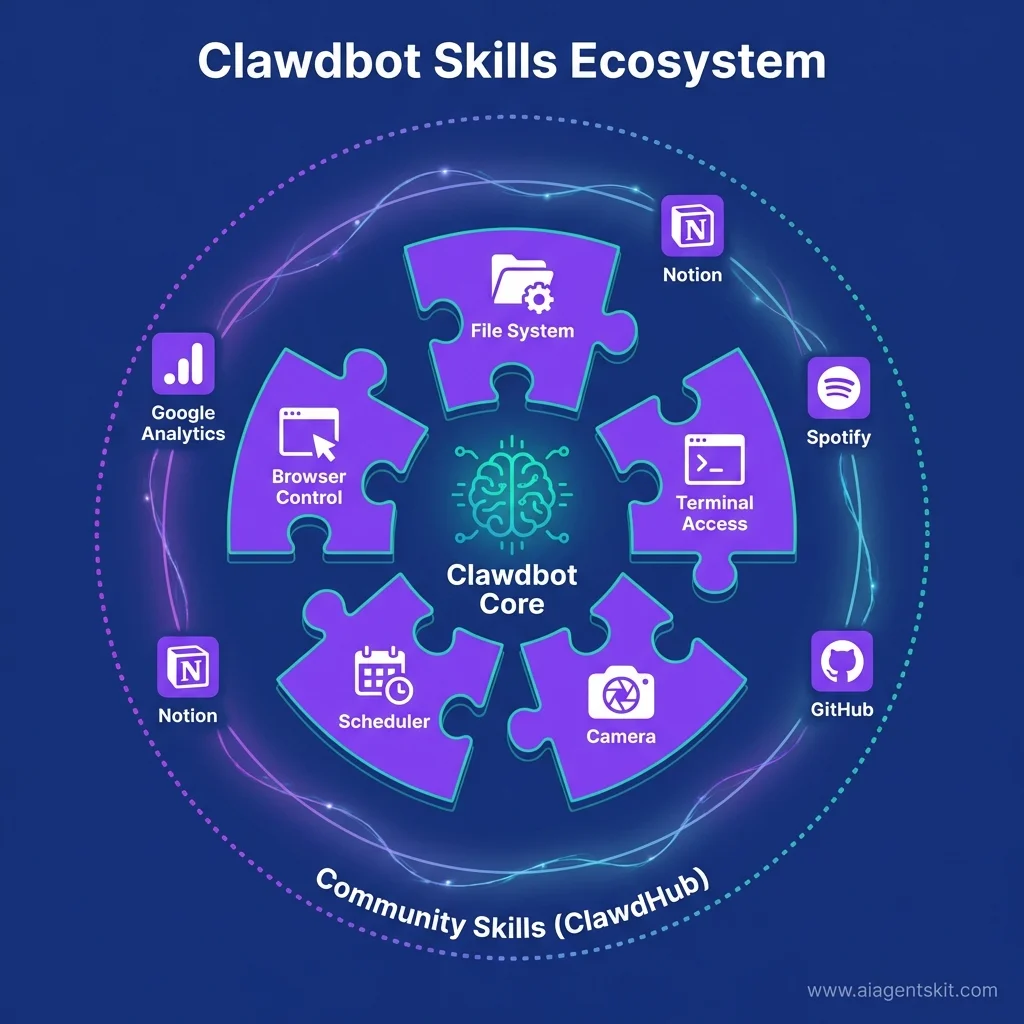
Clawdbot ships with several essential skills:
File System Operations:
- Read, write, move, rename, delete files
- Directory navigation and organization
- Permission management
- Batch operations
Terminal and Shell Access:
- Execute commands
- Run scripts (bash, Python, Node.js, etc.)
- Monitor running processes
- Check system resources
Web Browsing and Automation:
- Navigate websites
- Fill forms
- Extract data from pages
- Download files
- Manage browser sessions
Communication:
- Send messages through connected channels
- Create scheduled notifications
- Manage contacts and groups
Community Skills
Moltbot (formerly Clawdbot) has a vast community repository for skill discovery. Some popular ones:
Google Analytics Skill: Query your GA4 data directly through chat. “How many visitors did I have last week?” or “What’s my bounce rate for the homepage?”
Smart Home Integration:
- Philips Hue - Control lighting
- Sonos - Manage music playback
- Smart thermostats - Adjust temperature
- Ring/Nest - Check cameras and doorbells
Productivity Integrations:
- Notion - Read/write database entries, create pages
- Todoist - Manage tasks and projects
- Google Calendar - Create events, check availability
- Obsidian - Work with your knowledge base
Developer Tools:
- GitHub - Manage repositories, PRs, issues
- Docker - Container management
- npm - Dependency updates and checks
- VS Code - Open files, run commands
Content and Media:
- YouTube - Download videos, extract transcripts
- Spotify - Control playback, create playlists
- RSS Feeds - Monitor and summarize new content
Installing Community Skills
Installing a skill from ClawdHub is straightforward:
clawdbot skills install [skill-name]For example:
clawdbot skills install google-analyticsThe skill is downloaded, dependencies are installed, and it’s activated automatically.
List your installed skills:
moltbot skills listDisable a skill temporarily:
moltbot skills disable [skill-name]Creating Your Own Custom Skill
This is where things get really interesting. Moltbot (relying on its Clawdbot roots) can write its own skills based on your instructions. Here’s how:
Method 1: Ask Moltbot to Create It
In your chat with Moltbot:
“Create a skill that checks Bitcoin price from CoinGecko API every hour and alerts me if it drops below $40,000 or rises above $50,000.”
Moltbot will:
- Write the TypeScript code for the skill
- Set up API integration with CoinGecko
- Configure the heartbeat schedule
- Test the skill
- Install it and activate it
Method 2: Write It Yourself
If you’re comfortable with TypeScript:
// bitcoin-monitor.skill.ts
import { Skill } from '@moltbot/sdk';

export default class BitcoinMonitor extends Skill {
  name = 'bitcoin-monitor';
  description = 'Monitor Bitcoin price';

  async onHeartbeat() {
    const response = await fetch('https://api.coingecko.com/api/v3/simple/price?ids=bitcoin&vs_currencies=usd');
    const data = await response.json();
    const price = data.bitcoin.usd;

    if (price < 40000 || price > 50000) {
      await this.sendNotification(`Alert: Bitcoin is at $${price}`);
    }
  }

  scheduleHeartbeat = '0 * * * *'; // Every hour
}
Place this in your Moltbot skills directory, and it’s automatically loaded.
MCP (Message-Channel-Provider) Servers
For advanced integration, Moltbot supports MCP servers—standardized interfaces for connecting to external services. Think of MCP as a protocol that lets Moltbot talk to any service that implements it.
This is still evolving, but it enables things like:
- Connecting to enterprise databases
- Integrating with custom internal tools
- Building multi-agent systems
- Creating secure bridges to sensitive systems
Sandboxed Skills for Security
If you’re installing third-party skills and worried about security, Moltbot supports running skills in Docker containers. This sandboxing limits what the skill can access, reducing risk.
Enable sandboxing:
moltbot config set skills.sandboxed trueSandboxed skills can’t access your full filesystem or execute arbitrary system commands—they’re contained within their own environment.
Security, Privacy, and Data Protection
Let’s address the elephant in the room: giving an AI assistant deep system access is powerful but potentially risky. Here’s how to think about Moltbot’s security posture.
The Local-First Advantage
The fundamental security benefit of Moltbot (formerly Clawdbot) is that your data stays on your machine. When you ask Claude (via ChatGPT.com) a question, that data is transmitted to Anthropic’s servers, processed there, potentially stored, and subject to their privacy policy.
With Moltbot, the conversation happens locally. Your prompts, the responses, your conversation history—all of it lives in local files on your computer. The only time data leaves your machine is when you explicitly make an API call to an LLM provider (and even then, only the specific prompt is sent, not your entire conversation history or system data).
For professionals handling confidential information—lawyers with client details, healthcare workers with patient data, financial advisors with portfolio information—this architectural difference is crucial.
Data Storage and Configuration
Moltbot stores everything in ~/.moltbot/ by default (you can change this):
~/.moltbot/
├── config.yaml           # Settings and preferences
├── conversations/        # Chat histories
├── memories/             # Learned preferences
├── skills/               # Installed skills
└── credentials/          # Encrypted API keys
All of this is just files on your machine. You can:
- Back it up however you want
- Encrypt the directory with FileVault (macOS) or LUKS ( Linux)
- Delete it entirely to wipe all traces
- Move it to a different location
- Inspect exactly what’s stored
There’s no hidden cloud sync, no telemetry being sent back to a company server, no account linking. Just local files.
System Access: Understanding the Risk
Here’s where you need to think carefully. Moltbot can access your terminal, files, and system—because you’re giving it those permissions. This is analogous to installing software with administrator access. It’s powerful, but you’re trusting the software.
Permissions You Grant:
- File system access - Can read/write/delete files
- Terminal access - Can run any command you could run
- Network access - Can make web requests
- Camera/screen - If you enable those skills
Mitigation Strategies:
- Run Moltbot as a limited user - Don’t run it as root/admin unless necessary
- Use skill sandboxing - Enable Docker sandboxing for third-party skills
- Review skills before installing - Check the code of community skills before adding them
- Limit scope - Don’t give Moltbot access to directories it doesn’t need
- Firewall configuration - Restrict which network connections it can make
I run mine as my regular user account, with skills sandboxed, and I review any community skill code before installing it. That provides reasonable protection.
Messaging Platform Security: DM Pairing
When you connect Moltbot to messaging apps, there’s a risk of unauthorized users sending it commands. Moltbot handles this through “DM Pairing.”
How It Works:
When someone you haven’t approved tries to message your Moltbot:
- They receive a short pairing code
- Moltbot notifies you about the pairing request
- You explicitly approve or deny the request
- Only approved users are added to your allowlist
This prevents random people from accessing your AI assistant even if they find your bot’s username.
Policy Modes:
- Paired (default) - Requires pairing handshake for new users
- Allowlist - Only pre-configured users can interact at all
- Open - Anyone can message (requires explicit opt-in, not recommended)
I keep mine on “paired” mode. Only people I explicitly approve can interact with my Moltbot.
API Keys and Credential Management
Moltbot needs to store sensitive information like API keys for Claude, Gemini, etc. These are stored in ~/.moltbot/credentials/ in encrypted form.
Best Practices:
-
Use environment variables - For maximum security, set API keys via env vars:
export ANTHROPIC_API_KEY="your-key" export GOOGLE_API_KEY="your-key" -
Rotate keys regularly - Generate new API keys periodically
-
Use provider rate limiting - Set usage limits on your API keys at the provider level
-
Monitor usage - Check API usage dashboards for unexpected activity
-
Separate keys for different projects - Don’t reuse your Moltbot API key elsewhere
Comparison with Cloud AI Security
Let’s be balanced: cloud AI services have some security advantages too.
Cloud AI Strengths:
- Professional security teams monitoring infrastructure
- DDoS protection and redundancy
- Compliance certifications (SOC 2, GDPR, HIPAA for some)
- No local vulnerability to system compromises
Clawdbot Strengths:
- Data never leaves your control
- No risk of provider breach exposing your data
- Complete audit trail of what data exists
- No dependency on provider’s security practices
The right choice depends on your threat model. If you’re worried about your own conversations being data-mined or sold, Moltbot wins. If you’re worried about a sophisticated attacker compromising your personal machine, cloud AI might be more secure.
For me, the calculus was simple: I trust my own security practices more than I trust a corporation’s promise not to train models on my data.
Recommendations for Maximum Security
If you’re handling truly sensitive information:
- Use a dedicated machine - Run Moltbot on a separate computer, not your primary device
- Network segmentation - Put it on an isolated VLAN or subnet
- No cloud LLMs - Use local models only (e.g., Llama, Mistral) to avoid any data leaving your network
- Encrypted storage - Full disk encryption for the Moltbot machine
- No messaging integration - Interact only via CLI on the local machine
- Regular audits - Review logs and installed skills periodically
That’s probably overkill for most users, but the option exists.
Pricing and Cost Structure
Let’s talk money. How much does it actually cost to run Moltbot?
The Open-Source Advantage
Moltbot (formerly Clawdbot) is free. It’s open-source software released under a permissive license. You can download it, use it, modify it, and even redistribute it without paying a cent to anyone.
This is a huge difference from commercial AI assistants that charge monthly fees.
Operational Costs: Where You Actually Spend Money
While the software is free, running Moltbot does incur costs:
1. LLM API Usage
When you send a prompt to Moltbot, it typically needs to call an LLM API to generate a response. This is where most of your cost comes from.
Claude API (Anthropic):
- Haiku: ~$0.25 per million input tokens, $1.25 per million output tokens (cheapest, fast)
- Sonnet: ~$3 per million input tokens, $15 per million output tokens (balanced)
- Opus: ~$15 per million input tokens, $75 per million output tokens (most capable)
Estimated monthly cost: $10-30 depending on usage (moderate conversational use with Sonnet/Haiku)
Gemini API (Google):
- Gemini 1.5 Flash: Free tier available, paid tiers cheaper than Claude
- Gemini 1.5 Pro: ~$1.25-$2.50 per million tokens
Estimated monthly cost: $5-20
2. Server/Hosting Costs
If you run Moltbot 24/7 on a local machine, there’s no additional cost (just your electricity, which is negligible for a small computer or Raspberry Pi).
If you want it accessible remotely, you might use a VPS:
- Digital Ocean Droplet: $5-10/month
- AWS EC2 t3.micro: ~$7/month
- Linode/Vultr: $5-10/month
Most users: $0 (run on existing computer)
Remote access users: $5-10/month
3. Optional Services
- Brave Search API: Free tier usually sufficient, paid plans $5-10/month if you exceed limits
- Additional integrations: Depends on what services you integrate
Total Cost Estimate
Typical user (running locally, moderate use):
- Software: $0
- Claude API: $15-20/month
- Server: $0
- Total: $15-20/month
Power user (remote VPS, heavy usage):
- Software: $0
- Claude API: $25-30/month
- VPS: $10/month
- Other services: $5/month
- Total: $40-45/month
Minimal setup (local, using free Gemini tier):
- Software: $0
- Gemini API: $0 (within free tier)
- Total: $0/month (!)
Cost Comparison with Cloud AI
| Service | Monthly Cost | What You Get |
|---|---|---|
| Moltbot (typical) | $15-20 | Full privacy, system access, unlimited messages, your choice of LLM |
| ChatGPT Plus | $20 | GPT-4o, no privacy, message limits, cloud-only |
| Claude Pro | $20 | Claude Opus/Sonnet, no privacy, priority access, cloud-only |
| Gemini Advanced | $20 | Gemini best model, no privacy, Google storage, cloud-only |
| Microsoft Copilot | ~$20-30 (various plans) | GPT-4, Office integration, cloud-only |
The cost is comparable, but with Moltbot you get:
- Complete data privacy
- System-level integration
- Ability to switch between different LLMs
- Messaging app integration
- Automation capabilities
That’s meaningful value for a similar price point.
Optimizing Costs
If you want to reduce costs:
1. Use Efficient Models
Claude Haiku and Gemini Flash are 10-20x cheaper than top-tier models but still very capable for most tasks. Reserve Opus/Pro for complex reasoning.
2. Implement Caching
Use prompt caching to avoid re-processing the same context repeatedly. Anthropic’s Claude supports this, dramatically reducing token usage.
3. Set Usage Limits
Configure budget alerts in your API provider dashboard:
# Example: Set monthly limit
moltbot config set api.monthlyLimit 100  # $100/month
4. Use Local Models When Possible
For simple tasks that don’t require cutting-edge reasoning, use a local model (like Llama) that has zero API cost.
5. Batch Operations
Instead of making separate API calls for similar tasks, batch them together to reduce total token usage.
With some optimization, many users report keeping costs under $10/month while still using Moltbot extensively.
Advanced Tips and Best Practices
You’ve got Moltbot installed and working. Now let’s level up with advanced techniques.
Model Selection Strategy
Not all tasks need your most expensive model. Here’s my strategy:
Use Claude Opus (or GPT-5) for:
- Complex reasoning tasks
- Code architecture decisions
- Long-form content creation
- Research synthesis
- Anything where quality matters more than speed
Use Claude Sonnet (or GPT-4) for:
- General conversation
- Code explanations
- Document summarization
- Most daily tasks
Use Claude Haiku (or GPT-3.5) for:
- Simple queries
- Fact lookups
- Quick rewrites
- Automated notifications
Use local models (Llama, etc.) for:
- Categorization tasks
- Sentiment analysis
- Simple extraction
- Anything privacy-sensitive
Switch models on the fly:
/model claude-opus-4.5     # For a complex task
/model claude-haiku        # Back to cheap for simple stuff
Prompt Engineering for Moltbot
Moltbot has access to your system, so crafting prompts differently than you would for ChatGPT yields better results:
Be explicit about scope:
❌ Bad: “Organize my files”
✅ Good: “Organize all PDF files in ~/Downloads created in the last 30 days into folders by date (YYYY-MM format). Move them to ~/Documents/PDFs/”
Reference specific paths:
✅ “Check if there are any errors in /var/log/app.log from the last hour”
✅ “Count how many Python files are in ~/Projects/myapp/src/”
Chain commands:
✅ “Run the test suite, and if all tests pass, create a git commit with message ‘Tests passing’ and push to origin main”
Use memory:
✅ “Remember that I prefer Python for scripting tasks”
✅ “Remember my GitHub username is ‘janedoe’ for future commands”
Multi-Agent Routing for Specialized Tasks
Advanced users can configure multiple agent instances, each specialized for different tasks:
- Agent 1: Work tasks (has access to work directories, Slack integration)
- Agent 2: Personal assistant (calendar, email, home automation)
- Agent 3: Research agent (web access, note-taking, no system access for security)
Route to different agents through different messaging channels or naming conventions.
Power User Workflows
Morning Briefing Automation:
Create a skill that auto-runs every morning:
export default class MorningBriefing extends Skill {
  scheduleHeartbeat = '30 7 * * *'; // 7:30 AM daily

  async onHeartbeat() {
    const calendar = await this.checkCalendar();
    const todos = await this.getTopTodos();
    const weather = await this.getWeather();
    const emails = await this.summarizeUnreadEmails();

    const briefing = this.compileBriefing(calendar, todos, weather, emails);

    await this.sendNotification(briefing, 'telegram');
  }
}
Document Generation Pipeline:
“Generate a weekly report from my time tracking data, format it as a PDF, and email it to my manager every Friday at 4 PM”
This level of automation was previously the domain of custom scripts. Now you can describe it in natural language, and Moltbot handles the implementation.
Smart Email Filters:
“Monitor my inbox for emails from clients mentioning ‘urgent’ or ‘deadline’. Summarize them and send me a priority alert via Telegram immediately.”
Managing Multiple Messaging Platforms
If you’ve connected multiple messaging apps (WhatsApp, Telegram, Discord), you can:
Route different uses to different platforms:
- Telegram: Personal automation and quick queries
- Discord: Project management and team collaboration
- WhatsApp: Family and simple requests
Set context per platform:
In your config, set platform-specific agents or personas:
channels:
  telegram:
    agent: personal-assistant
  discord:
    agent: work-assistant
Now Moltbot “knows” to behave differently depending on where you’re messaging it from.
Maintenance and Updates
Keep Moltbot healthy:
Weekly:
- Check for updates:
moltbot update check - Review error logs:
moltbot logs --errors - Verify API costs haven’t spiked
Monthly:
- Update to the latest version:
moltbot update install - Review installed skills and remove unused ones
- Audit messaging app allowlists
Quarterly:
- Rotate API keys
- Review and clean up conversation history if needed
- Update third-party skills
Performance Tuning:
If Moltbot feels sluggish:
# Clear cache
moltbot cache clear

# Rebuild skill index
moltbot skills rebuild

# Check resource usage
moltbot doctor --performance
Community Engagement
Join the ecosystem:
- Discord Community - Ask questions, share workflows, get help
- GitHub - Report bugs, request features, contribute code
- ClawdHub - Publish your skills for others to use
- Reddit/Forums - Share use cases and learn from others
The Moltbot community is small but active, and people are genuinely helpful.
The Future of Moltbot and Personal AI
Where is this all heading?
Current State and Momentum
As of early 2026, Moltbot (rebranded from Clawdbot) is still a fairly “nerdy” project. It requires technical skill to set up, comfort with the command line, and willingness to tinker. It’s not going to replace ChatGPT for mainstream users anytime soon.
But that’s okay. It doesn’t need to.
What Moltbot represents is a different philosophy for how personal AI should work—one that prioritizes user control, privacy, and deep integration over simplicity and scale.
The Roadmap (Official and Community Wishes)
Things being worked on or requested:
Better UI/UX:
- Native desktop applications for macOS, Windows, Linux
- Improved web-based control panel
- Guided Setup wizard for non-technical users
Enhanced Skills:
- More pre-built integrations (Salesforce, Zendesk, etc.)
- Visual skill builder (no-code skill creation)
- Skill marketplace with ratings and reviews
Multimodal Capabilities:
- Better image understanding and generation
- Voice input/output (already possible but needs refinement)
- Video analysis skills
Enterprise Features:
- Team deployments with shared skills
- Admin controls and user management
- Audit logging for compliance
The Bigger Vision: Unified Agentic Interface
Steinberger has described the vision as creating a “Home Assistant for AI”—a unified, agentic interface across all your devices without being locked into a single proprietary platform.
Imagine:
- Same AI assistant accessible from your phone, computer, smart speakers, car
- Skills that work across all your devices
- Conversations that continue seamlessly regardless of device
- Complete data portability (take your AI with you if you switch platforms)
That’s the dream. We’re not there yet, but Moltbot is a step toward it.
The Local-First Movement
Moltbot is part of a broader trend toward local-first software—tools that work offline, store data locally, and prioritize user ownership over cloud dependence.
As AI becomes more powerful (and more invasive), I think we’ll see growing demand for alternatives to “AI-as-a-service.” People will want:
- Control over their data
- Ability to run AI without internet
- Freedom from subscription dependency
- Customization beyond what companies allow
Moltbot and similar projects (like LocalAI, Ollama, etc.) are pioneering this space.
Challenges Ahead
Let’s be real about obstacles:
1. Complexity Barrier: Most people won’t install Node.js and configure YAML files. For mainstream adoption, Moltbot needs dead-simple setup.
2. Cost Creep: If LLM API prices rise or users’ consumption grows, the cost advantage over cloud AI diminishes.
3. Competition from Big Tech: Google, Microsoft, Apple, and Meta are all investing billions in AI assistants. Moltbot is a community project. Resource asymmetry is real.
4. Security Concerns: As Moltbot gains system capabilities, it becomes a more attractive target for attackers. Security will need constant attention.
5. Sustainability: Open-source projects depend on maintainer passion. If key contributors move on, momentum can stall.
None of these are insurmountable, but they’re worth acknowledging.
Why I’m Optimistic
Despite challenges, I’m bullish on Moltbot’s future for a few reasons:
-
Privacy Concerns are Growing: Every data breach, every AI training controversy, every “how did they know that about me” moment pushes more people toward local-first solutions.
-
Developer Community is Strong: The people building skills and contributing to Moltbot are passionate and technically capable.
-
Open-Source Resilience: Even if the original creator steps back, the code is available. The community can fork and continue.
-
Niche is Valuable: Moltbot doesn’t need to compete with ChatGPT for hundreds of millions of users. Serving tens of thousands of power users extremely well is a sustainable niche.
-
Technology Trends Favor It: Local models are getting better, hardware is getting faster, and “edge AI” is becoming more feasible. All of this makes self-hosted AI more practical over time.
I don’t think Moltbot will “kill” ChatGPT or Claude. But I do think it represents an important alternative that will continue to exist and matter.
Conclusion
Let’s bring this home.
Moltbot (formerly Clawdbot) isn’t for everyone, and that’s fine. If you want an AI assistant you can start using in 30 seconds without thinking about installation, API keys, or configuration, ChatGPT or Claude makes more sense.
But if you value privacy, want deep system integration, need unified AI across your messaging apps, or simply enjoy having complete control over your tools, Moltbot offers something unique. It’s the only AI assistant I know of that truly feels like yours—running on your machine, storing data locally, customizable down to the source code.
The investment of time to set it up pays off if you’re someone who automates workflows, works with sensitive data, or just philosophically prefers tools that respect your autonomy.
My setup has become indispensable. Morning briefings save me 30 minutes every day. Smart home integrations make daily routines smoother. Development automation handles tedious tasks I used to context-switch for. And knowing that none of my conversations are being used to train someone’s next AI model gives me peace of mind.
Is it perfect? No. There are rough edges, occasional bugs, and moments where the configuration syntax frustrates me. But those trade-offs feel worth it for what I get in return.
If you’ve made it this far, you’re probably the kind of person who’d appreciate Moltbot. Give it a try. Start small—install it, connect one messaging app, try a few simple tasks. See if it fits your workflow.
The worst case? You spend an afternoon learning something interesting about self-hosted AI. The best case? You gain a powerful, privacy-respecting assistant that actually makes your daily life better.
Ready to take control of your AI assistant? Learn more about building AI agents for specific use cases or explore our guide to AI tools for developers.
The future of personal AI doesn’t have to live in someone else’s cloud. Sometimes, it can live right on your own machine.
Frequently Asked Questions
What is Moltbot?
Moltbot (formerly Clawdbot) is a self-hosted, open-source personal AI assistant that runs on your local computer (Mac, Linux, or Windows/WSL2) rather than in the cloud. It integrates with messaging apps like WhatsApp and Telegram, can access your system to automate tasks, and gives you complete control over your data and privacy. Think of it as ChatGPT, but running on your own machine with the ability to actually execute commands and manage files.
Is Moltbot free to use?
The Moltbot software itself is completely free and open-source. However, running it does incur operational costs. You’ll pay for LLM API usage (typically $10-30/month for Claude or Gemini API calls) and potentially server costs if you run it on a remote VPS ($5-10/month). Most users spend around $15-25/month total, comparable to ChatGPT Plus or Claude Pro, but with the added benefits of privacy and system integration.
How is Moltbot different from ChatGPT?
The fundamental difference is where processing happens. ChatGPT runs on OpenAI’s servers with your data transmitted and processed remotely. Moltbot runs on your personal computer with data staying local. Additionally, Moltbot can execute system commands, manage files, control browsers, and integrate with messaging apps—capabilities ChatGPT cannot offer. You can also switch between different LLMs (Claude, Gemini, etc.) with Moltbot, rather than being locked to GPT models.
What operating systems does Moltbot support?
Moltbot fully supports macOS and Linux distributions. For Windows users, it’s recommended to use WSL2 (Windows Subsystem for Linux) with Ubuntu, as native Windows support is largely untested and may have compatibility issues. You’ll also need Node.js version 22 or newer installed on your system.
Is Moltbot safe and secure?
Moltbot’s local-first architecture provides strong privacy advantages since your data never leaves your machine. However, you are granting it system-level access (terminal, files, etc.), similar to installing any software with administrator permissions. Security depends on how you configure it. Use skill sandboxing for third-party extensions, enable DM pairing for messaging apps, run it as a limited user (not root), and review community skills before installing them. For most users with reasonable security practices, Moltbot is very safe.
Can Moltbot access my files and computer?
Yes, if you configure it to. Moltbot can access your filesystem, execute terminal commands, manage files, control browsers, and even use your camera or screen—but only with permissions you explicitly grant. This system access is what enables powerful automation capabilities. You control the scope by running it as a specific user, limiting directory access, and using skill sandboxing for untrusted code.
What messaging apps work with Moltbot?
Moltbot integrates with WhatsApp, Telegram, Discord, Slack, Signal, iMessage, Google Chat, and Microsoft Teams. This “Gateway” feature lets you interact with your AI assistant through your preferred messaging platform rather than a separate app. Setup varies by platform—Telegram uses bot tokens, WhatsApp uses QR code scanning, Discord requires bot application creation, etc.
Do I need programming skills to use Moltbot?
Basic technical skills are helpful but deep programming knowledge isn’t required. You need to be comfortable with command-line operations, installing software via terminal, and editing configuration files. The initial setup requires following terminal commands and configuring API keys. Once running, you interact with Moltbot in natural language through messaging apps. However, creating custom skills or troubleshooting complex issues does benefit from programming knowledge, particularly TypeScript/JavaScript.
How much does it cost to run Moltbot monthly?
For typical usage with moderate conversation volume, expect $15-25/month. This breaks down to: Moltbot software ($0 - it’s free and open-source), LLM API costs ($10-20/month for Claude Haiku/Sonnet or Gemini), and optional server costs ($0 if running locally, $5-10/month for a remote VPS). Power users with heavy usage might spend $30-40/month. You can reduce costs by using cheaper models (Haiku instead of Opus), implementing caching, or using free-tier Gemini API for simple tasks.
Can Moltbot replace ChatGPT or Claude completely?
For some users, yes—but not for everyone. Moltbot excels at privacy-sensitive tasks, system automation, and workflows requiring local file access or terminal commands. It’s ideal for developers, power users, and anyone wanting complete control over their AI. However, ChatGPT and Claude still win on ease of use, instant setup, web browsing (built-in for ChatGPT), and features like DALL-E image generation. Many users (myself included) use both—Moltbot for automation and private tasks, cloud AI for quick queries and collaboration.
What are Moltbot skills?
Skills are TypeScript modules that extend Moltbot’s capabilities, similar to plugins or extensions. They define new actions Moltbot can perform, from controlling smart home devices to querying databases to sending automated notifications. Moltbot ships with core skills (file management, terminal access, web browsing), and you can create custom skills or ask Moltbot to write them for you based on your needs.
How do I troubleshoot Moltbot installation issues?
Start with diagnostic commands: moltbot doctor for health checks, moltbot status --all for detailed reports, and moltbot logs --follow for live monitoring. Common issues include PATH problems (“command not found”), Gateway initialization delays (wait 15-30 seconds), port conflicts (check lsof -i :18789), and WSL-specific Node.js issues (ensure Linux Node, not Windows). The official documentation at molt.bot and the Discord community are excellent resources for troubleshooting specific errors.
How do I uninstall Moltbot completely?
The easiest method is to use the built-in uninstall command: moltbot uninstall --all --yes. This removes the gateway service, deletes configuration files, and cleans up agent data. For manual removal, stop the daemon (moltbot daemon stop), uninstall the gateway (moltbot gateway uninstall), remove the CLI with your package manager (npm rm -g moltbot), and delete data directories (rm -rf ~/.moltbot and rm -rf ~/molt). On macOS, also remove the app from Applications if installed. Don’t forget to remove Moltbot from messaging apps like Telegram, Discord, or WhatsApp by kicking the bot or deleting the integration.
How can I secure Moltbot to minimize security risks?
Follow these critical security practices: never run Moltbot as root (use a dedicated limited user account instead), keep the Gateway bound to localhost only (127.0.0.1) and use SSH tunneling for remote access, store API keys in environment variables with usage limits and IP restrictions, use DM pairing only for messaging apps, enable skill sandboxing, and configure Moltbot to use an isolated browser profile. For WhatsApp, use a dedicated phone number, not your personal one. Enable audit logging, conduct monthly security reviews, and maintain regular backups. Never include sensitive data directly in prompts—reference files instead. Review all community skills’ source code before installation, and maintain an allowlist of approved skills.
Are Moltbot skills safe to install?
Core skills that ship with Moltbot are generally safe, but community skills require careful vetting. Before installing any community skill, review its source code (cat ~/.moltbot/skills/skill-name/index.ts) and look for suspicious patterns like network requests to unknown domains, file operations outside the workspace, unsanitized shell command execution, or credential handling. Enable skill sandboxing if your version supports it (moltbot config set skills.sandboxing.enabled true), maintain an allowlist of approved skills, and regularly audit installed skills with moltbot skills list. Remove any skills you’re not actively using. Think of skills like browser extensions—they can be powerful and useful, but they deserve scrutiny before granting system access.