Build Your First MCP Server: Python Tutorial with FastMCP
Learn to build an MCP server from scratch using Python and FastMCP 3.0. Step-by-step tutorial covering tools, resources, prompts, and Claude Desktop integration.
Something clicked when developers first started building custom MCP servers: suddenly, AI wasn’t just answering questions — it was calling their functions, reading their data, and doing exactly what their specific workflow needed. That moment is replicable, and the barrier to entry is lower than most expect.
Building an MCP server with Python requires only a few dozen lines of code, thanks to a framework called FastMCP. For developers who understand what MCP is and how it works, building a custom server is the natural next step toward making AI integrations that actually do something useful.
This tutorial walks through building a complete MCP server from scratch — tools, resources, prompts, testing, and production considerations included. Python 3.10+ and about 30 minutes are the only requirements.
What Does an MCP Server Actually Do for AI?
The Model Context Protocol defines a standard way for AI clients (like Claude, Cursor, or VS Code Agent) to talk to servers that expose capabilities. Think of MCP servers as plugins with a universal interface — any MCP-compatible AI client can connect to any MCP server without custom integration code.
Every MCP server can expose three types of capabilities, known as the MCP resources, tools, and prompts primitives:
Tools are functions the AI can execute. They accept parameters, do something, and return results. A tool might calculate a number, write a file, query a database, or call an external API. The AI decides when and how to use each tool based on the user’s request.
Resources are data the AI can read. Unlike tools, resources don’t perform actions — they expose information at a URI. Resources might return the current contents of a file, a list of database records, or real-time system metrics. Resources are read-only access points.
Prompts are reusable conversation templates. They help the AI approach specific tasks consistently — gathering context, structuring its approach, or setting up multi-step workflows.
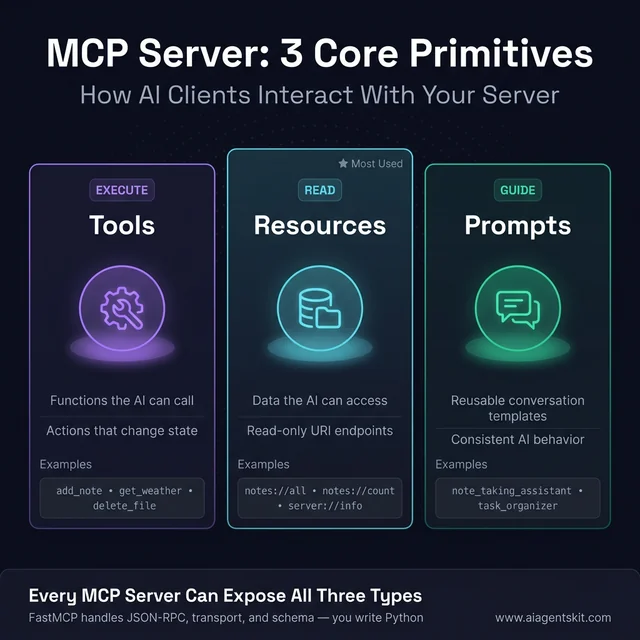 MCP’s three primitives: Tools execute actions, Resources expose read-only data, and Prompts guide AI behavior consistently.
Why FastMCP Is the Go-To Python Framework for MCP
FastMCP sits on top of the official MCP Python SDK and handles everything the protocol requires: JSON-RPC 2.0 message formatting, session management, capability negotiation, and transport setup. Developers write Python functions; FastMCP handles the protocol.
According to FastMCP’s official GitHub repository, the framework powers an estimated 70% of MCP servers across all languages — a remarkable share driven by how much simpler it makes the development experience. FastMCP 1.0 was integrated into the official MCP Python SDK in 2024, and the standalone FastMCP 3.0 (released January 2026) added enterprise features including component versioning, granular authorization, and OpenTelemetry instrumentation.
For most developers, FastMCP is the right starting point. The low-level MCP SDK exists for edge cases where full protocol control matters, but the abstraction FastMCP provides makes building servers dramatically faster.
MCP servers run in two transport modes:
- STDIO mode — The server communicates through standard input/output. Claude Desktop uses this for local servers. It’s the right choice for personal tools and development.
- Streamable HTTP mode — The server runs as an HTTP endpoint. This enables remote access, shared team servers, and production deployments. FastMCP 3.0 calls this “streamable HTTP” — a more capable variant than plain HTTP that supports real-time streaming responses.
The tutorial below uses STDIO mode, which is how most developers start.
FastMCP vs the Official MCP Python SDK: Which Should You Use?
A common point of confusion for developers new to MCP: there are two Python libraries to know about, and they’re related but not the same.
The official MCP Python SDK (pip install mcp) is the low-level implementation maintained by Anthropic. Building a server with it requires writing explicit JSON-RPC handlers, capability declarations, and transport management — about 40+ lines of boilerplate just for a hello-world server.
FastMCP (pip install fastmcp) is a higher-level framework built on top of the SDK. FastMCP 1.0 was integrated directly into the official SDK in 2024, which is why installing mcp today gives you FastMCP’s decorator syntax. The standalone fastmcp package (now at version 3.0) extends that with enterprise features.
| Feature | FastMCP | Official MCP SDK |
|---|---|---|
| Hello World lines of code | ~5 | ~40+ |
| Auto schema from type hints | ✅ Yes | ❌ Manual JSON |
| Built-in in-memory test client | ✅ Yes | ❌ None |
| OAuth proxy (FastMCP 3.0) | ✅ Yes | ❌ No |
| OpenTelemetry instrumentation | ✅ Yes | ❌ No |
| Low-level protocol control | ❌ Abstracted | ✅ Full access |
| Best for | 95% of use cases | Custom transports, embedded environments |
The recommendation from practitioners: start with FastMCP. Graduate to the raw SDK only when FastMCP’s abstractions become a constraint — which happens rarely in practice. Every code example in this tutorial uses FastMCP.
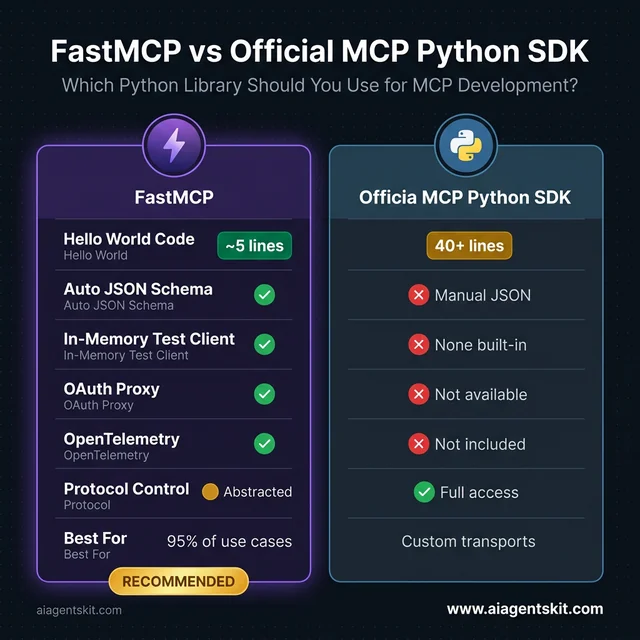 FastMCP vs the Official MCP Python SDK: FastMCP wins across nearly every practical metric for the 95% of use cases that don’t need raw protocol control.
5 Things You’ll Need Before You Start Coding
Getting the environment right before writing any server code saves considerable debugging time later.
1. Python 3.10 or higher
FastMCP 3.0 requires Python 3.10+. Run python --version or python3 --version to confirm. Python 3.9 works with older FastMCP versions, but 3.10+ is strongly recommended for the latest features.
2. pip or uv (package manager)
uv is the package manager Anthropic now recommends for MCP server development. It’s faster than pip and handles virtual environments cleanly. Install it with pip install uv or via the official installer. pip works fine for getting started — uv becomes more important for production and complex dependency management.
3. Basic Python knowledge Familiarity with functions, decorators, and type hints is sufficient. The tutorial explains MCP-specific patterns as they appear. No prior experience with JSON-RPC, async programming, or AI development is required.
4. A text editor or IDE VS Code, PyCharm, or any editor with Python support works. VS Code is particularly useful because it runs MCP servers natively in Agent mode.
5. Claude Desktop (recommended for testing) Claude Desktop is the most straightforward way to test MCP servers locally. For the Claude Desktop MCP setup and configuration, it takes about 5 minutes to connect a local server. MCP Inspector (a command-line tool from the MCP team) works for testing without Claude Desktop.
With those in place, the server is ready to build.
How to Create MCP Tools That AI Can Call
Tools are where most of the functionality lives. Every tool is a Python function decorated with @mcp.tool — FastMCP handles everything else automatically.
Start by creating a project directory and installing FastMCP:
mkdir my-mcp-server
cd my-mcp-server
python -m venv venv
source venv/bin/activate  # On Windows: venv\Scripts\activate
pip install fastmcp
Create a file called server.py and add the server initialization:
from fastmcp import FastMCP

# Initialize the MCP server with a name
mcp = FastMCP("notes-server")
That’s all the initialization required. Now add tools with the @mcp.tool decorator:
# Simple in-memory storage for notes
notes: dict[str, str] = {}

@mcp.tool
def add_note(name: str, content: str) -> str:
    """Add a new note with the given name and content.

    Args:
        name: The name/title of the note
        content: The content of the note
    """
    notes[name] = content
    return f"Note '{name}' added successfully."

@mcp.tool
def get_note(name: str) -> str:
    """Retrieve a note by its name.

    Args:
        name: The name of the note to retrieve
    """
    if name in notes:
        return notes[name]
    return f"Note '{name}' not found."

@mcp.tool
def list_notes() -> str:
    """List all available notes."""
    if not notes:
        return "No notes saved yet."
    return "Saved notes: " + ", ".join(notes.keys())

@mcp.tool
def delete_note(name: str) -> str:
    """Delete a note by its name.

    Args:
        name: The name of the note to delete
    """
    if name in notes:
        del notes[name]
        return f"Note '{name}' deleted."
    return f"Note '{name}' not found."
How Type Hints Power MCP’s Automatic Schema Generation
FastMCP reads Python type hints to build the JSON Schema that tells AI clients what parameters each tool accepts. This happens at startup, with no additional configuration needed.
For the add_note tool, FastMCP infers:
- Tool name:
add_note(from the function name) - Description: The full docstring text
- Parameters:
name(string, required) andcontent(string, required) - Return type: string
If a parameter has a default value, FastMCP marks it as optional. If it has Optional[str] typing, the schema reflects that. This automatic schema generation is one of the most practical differentiators between FastMCP and building on the raw MCP SDK — there’s no JSON to write or maintain manually.
For tools that call external APIs or do I/O, async support is equally straightforward:
import aiohttp

@mcp.tool
async def fetch_url(url: str) -> str:
    """Fetch the content of a URL.

    Args:
        url: The URL to fetch
    """
    async with aiohttp.ClientSession() as session:
        async with session.get(url) as response:
            return await response.text()
FastMCP handles both sync and async functions — use whichever fits the task.
Build a Real-World MCP Tool: Weather API Example
The notes server demonstrates the pattern — now see it applied to something a team would actually ship. Weather data is an ideal worked example: it requires a real HTTP call, handles API responses, includes error handling, and returns formatted data the AI can actually reason about.
This tool uses the Open-Meteo API — completely free, no API key required, production-grade reliability. The pattern scales to any REST API: replace the URLs and response parsing with whatever data source the application needs.
First, install httpx — a modern async HTTP client that pairs cleanly with FastMCP:
pip install fastmcp httpxThen add the weather tool to server.py:
import httpx
@mcp.tool
async def get_weather(city: str, country_code: str = "US") -> str:
"""Get current weather conditions for any city worldwide.
Args:
city: City name, e.g. 'New York', 'London', 'Tokyo'
country_code: Two-letter ISO country code (default: 'US')
"""
try:
async with httpx.AsyncClient(timeout=10.0) as client:
# Step 1: Geocode the city name to lat/lon
geo_url = (
f"https://geocoding-api.open-meteo.com/v1/search"
f"?name={city}&count=1&language=en&format=json"
)
geo_resp = await client.get(geo_url)
geo_data = geo_resp.json()
if not geo_data.get("results"):
return f"City '{city}' not found. Try a different spelling."
result = geo_data["results"][0]
lat, lon = result["latitude"], result["longitude"]
full_name = result.get("name", city)
country = result.get("country", country_code)
# Step 2: Fetch current weather at those coordinates
weather_url = (
f"https://api.open-meteo.com/v1/forecast"
f"?latitude={lat}&longitude={lon}"
f"¤t=temperature_2m,relative_humidity_2m,wind_speed_10m,weather_code"
f"&temperature_unit=celsius&wind_speed_unit=kmh"
)
weather_resp = await client.get(weather_url)
weather_data = weather_resp.json()
current = weather_data["current"]
temp = current["temperature_2m"]
humidity = current["relative_humidity_2m"]
wind = current["wind_speed_10m"]
return (
f"Weather in {full_name}, {country}:\n"
f" Temperature: {temp}°C\n"
f" Humidity: {humidity}%\n"
f" Wind speed: {wind} km/h"
)
except httpx.TimeoutException:
return "Weather service timed out. Try again in a moment."
except Exception as e:
return f"Error fetching weather: {str(e)}"With this tool active, asking Claude “What’s the weather in Tokyo right now?” triggers a live API call and returns real current conditions. No API key, no account — the AI gets accurate data on demand.
Why this pattern matters for production: Every real-world MCP server follows this exact structure — call an external service inside an async tool function, handle errors gracefully, return formatted strings the AI can read. Whether the API is weather data, a company’s internal ticketing system, a database, or a third-party SaaS tool, the decorator and async pattern remain identical. Swap the URL and parsing logic; FastMCP handles everything else.
Extending the pattern: Teams commonly add a units parameter to switch between Celsius and Fahrenheit, cache results for a few minutes to reduce API calls, or enrich the response with sunrise/sunset times from the same API. All of that is standard Python — no MCP-specific knowledge required.
Adding Resources and Prompts to Your MCP Server
Resources expose data for the AI to read. Prompts provide structured conversation templates. Both use decorator patterns similar to tools.
Resources: Exposing Data via URI
Resources are defined with the @mcp.resource decorator, which takes a URI string as its argument:
@mcp.resource("notes://all")
def all_notes_resource() -> str:
    """All saved notes as a formatted list."""
    if not notes:
        return "No notes available."
    return "\n".join([f"## {name}\n{content}" for name, content in notes.items()])

@mcp.resource("notes://count")
def notes_count_resource() -> str:
    """The current number of saved notes."""
    return f"{len(notes)} notes saved"
Resources support URI templates for parameterized access:
@mcp.resource("notes://{name}")
def specific_note_resource(name: str) -> str:
    """A specific note by name."""
    if name in notes:
        return notes[name]
    return f"Note '{name}' not found."
With this URI template, the AI can request notes://shopping-list or notes://meeting-notes and get different responses based on the URI parameter.
Static resources work the same way — just return fixed data:
@mcp.resource("server://info")
def server_info_resource() -> str:
    """Server metadata and configuration."""
    return "Notes MCP Server v1.0 | FastMCP 3.0 | Python 3.10+"
Security practitioners note that resource access requires careful thought in production: resources can expose sensitive data, and there’s no built-in authentication in STDIO mode. The MCP enterprise security best practices guide covers production-level access controls in detail.
Prompts: Structuring AI Behavior
Prompts provide conversation templates that guide how the AI approaches specific tasks:
@mcp.prompt
def note_taking_assistant(topic: str) -> str:
    """A prompt for helping organize notes on a specific topic.

    Args:
        topic: The topic to create notes about
    """
    return f"""You are a note-taking assistant helping organize information about {topic}.

When the user provides information:
1. Identify the key points
2. Suggest a note name
3. Use the add_note tool to save it

When the user asks about existing notes:
1. Use list_notes to see what's available
2. Use get_note to retrieve specific notes
3. Summarize the relevant information

Be organized and concise. Group related information together."""
Prompts are most useful when an application needs consistent AI behavior across sessions, or when setting up multi-step workflows where the AI needs to know which tools are available and why.
The Complete Server Code
Here’s the full server.py combining all three primitives:
from fastmcp import FastMCP

# Initialize the MCP server
mcp = FastMCP("notes-server")

# Simple in-memory storage for notes
notes: dict[str, str] = {}

# ============ TOOLS ============

@mcp.tool
def add_note(name: str, content: str) -> str:
    """Add a new note with the given name and content.

    Args:
        name: The name/title of the note
        content: The content of the note
    """
    try:
        if not name or not content:
            return "Error: Name and content are required."
        notes[name] = content
        return f"Note '{name}' added successfully."
    except Exception as e:
        return f"Error adding note: {str(e)}"

@mcp.tool
def get_note(name: str) -> str:
    """Retrieve a note by its name.

    Args:
        name: The name of the note to retrieve
    """
    if name in notes:
        return notes[name]
    return f"Note '{name}' not found."

@mcp.tool
def list_notes() -> str:
    """List all available notes."""
    if not notes:
        return "No notes saved yet."
    return "Saved notes: " + ", ".join(notes.keys())

@mcp.tool
def delete_note(name: str) -> str:
    """Delete a note by its name.

    Args:
        name: The name of the note to delete
    """
    if name in notes:
        del notes[name]
        return f"Note '{name}' deleted."
    return f"Note '{name}' not found."

# ============ RESOURCES ============

@mcp.resource("notes://all")
def all_notes_resource() -> str:
    """All saved notes as a formatted list."""
    if not notes:
        return "No notes available."
    return "\n".join([f"## {name}\n{content}" for name, content in notes.items()])

@mcp.resource("notes://count")
def notes_count_resource() -> str:
    """The current number of saved notes."""
    return f"{len(notes)} notes saved"

@mcp.resource("notes://{name}")
def specific_note_resource(name: str) -> str:
    """A specific note by name."""
    if name in notes:
        return notes[name]
    return f"Note '{name}' not found."

# ============ PROMPTS ============

@mcp.prompt
def note_taking_assistant(topic: str) -> str:
    """A prompt for helping organize notes on a specific topic.

    Args:
        topic: The topic to create notes about
    """
    return f"""You are a note-taking assistant helping organize information about {topic}.

When the user provides information:
1. Identify the key points
2. Suggest a note name
3. Use the add_note tool to save it

When the user asks about existing notes:
1. Use list_notes to see what's available
2. Use get_note to retrieve specific notes
3. Summarize the relevant information

Be organized and concise."""

# ============ RUN SERVER ============

if __name__ == "__main__":
    mcp.run()
About 90 lines of clean Python. That’s a complete MCP server with four tools, three resources, and a prompt — ready to connect to any MCP-compatible AI client.
How to Test Your MCP Server Tools with Pytest
Testing MCP servers before connecting them to AI clients saves significant debugging time. FastMCP ships with an in-memory test client that lets tests call tools, read resources, and retrieve prompts within the same Python process — no network, no subprocess, no Claude Desktop required.
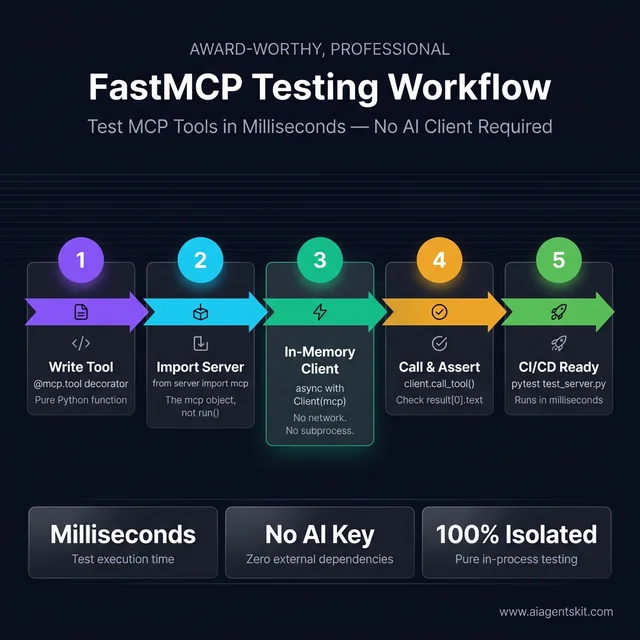 The FastMCP testing workflow: Write a tool → import the server object → open an in-memory client → call and assert → ship with confidence. No AI client, no network, no external dependencies.
Install the testing dependencies:
pip install pytest pytest-asyncioConfigure pytest for async in pyproject.toml:
[tool.pytest.ini_options]
asyncio_mode = "auto"
Or in pytest.ini:
[pytest]
asyncio_mode = auto
Write tests with the FastMCP in-memory client:
# test_server.py
import pytest
from fastmcp import Client
from server import mcp  # Import the mcp object, not mcp.run()


@pytest.mark.asyncio
async def test_add_and_retrieve_note():
    async with Client(mcp) as client:
        # Add a note
        result = await client.call_tool("add_note", {
            "name": "meeting-notes",
            "content": "Discussed Q2 roadmap"
        })
        assert "added successfully" in result[0].text

        # Retrieve it
        result = await client.call_tool("get_note", {"name": "meeting-notes"})
        assert result[0].text == "Discussed Q2 roadmap"


@pytest.mark.asyncio
async def test_list_notes_when_empty():
    async with Client(mcp) as client:
        result = await client.call_tool("list_notes", {})
        assert "No notes saved yet" in result[0].text


@pytest.mark.asyncio
async def test_delete_note():
    async with Client(mcp) as client:
        await client.call_tool("add_note", {"name": "temp", "content": "delete me"})
        result = await client.call_tool("delete_note", {"name": "temp"})
        assert "deleted" in result[0].text

        # Verify it's gone
        result = await client.call_tool("get_note", {"name": "temp"})
        assert "not found" in result[0].text


@pytest.mark.asyncio
async def test_get_nonexistent_note():
    async with Client(mcp) as client:
        result = await client.call_tool("get_note", {"name": "ghost-note"})
        assert "not found" in result[0].text


@pytest.mark.asyncio
async def test_resources_are_accessible():
    async with Client(mcp) as client:
        # Read the count resource
        resources = await client.list_resources()
        resource_uris = [str(r.uri) for r in resources]
        assert any("notes://" in uri for uri in resource_uris)
Run the tests:
pytest test_server.py -vThe Client(mcp) context manager starts the server in-process, runs the test against it, and tears it down cleanly — all in memory. Tests that take milliseconds will expose tool logic errors, missing error handling, and regression bugs before they ever surface in a live AI session.
Testing async tools like get_weather: The same pattern works for async tools. For tools that call external APIs, use pytest-mock or unittest.mock to patch the HTTP client and return controlled test data — this keeps tests fast and deterministic regardless of network conditions:
@pytest.mark.asyncio
async def test_weather_tool_invalid_city(monkeypatch):
    import httpx

    async def mock_get(url, **kwargs):
        # Simulate geocoding returning no results
        class FakeResp:
            def json(self): return {"results": []}
        return FakeResp()

    monkeypatch.setattr(httpx.AsyncClient, "get", mock_get)

    async with Client(mcp) as client:
        result = await client.call_tool("get_weather", {"city": "FakeCity99"})
        assert "not found" in result[0].text
For the full testing guide, the FastMCP Client documentation at gofastmcp.com covers advanced patterns including resource testing, prompt testing, and mocking MCP context.
How to Connect Your MCP Server to Claude Desktop
Claude Desktop is the most widely used MCP client for local development. Connecting it to a custom server involves editing a single configuration file.
Step 1: Find the config file
The Claude Desktop configuration file lives at:
- macOS:
~/Library/Application Support/Claude/claude_desktop_config.json - Windows:
%APPDATA%\Claude\claude_desktop_config.json
If the file doesn’t exist, create it. If it does exist, the mcpServers key is where custom servers get registered.
Step 2: Add your server configuration
{
  "mcpServers": {
    "notes-server": {
      "command": "python",
      "args": ["/absolute/path/to/your/server.py"],
      "cwd": "/absolute/path/to/your/project"
    }
  }
}
Use the absolute path to server.py — relative paths don’t work.
For projects using uv, the configuration looks like this:
{
  "mcpServers": {
    "notes-server": {
      "command": "uv",
      "args": ["run", "python", "server.py"],
      "cwd": "/absolute/path/to/your/project"
    }
  }
}
Step 3: Restart Claude Desktop completely
Quit Claude Desktop and reopen it. Configuration changes only take effect on full restart.
Step 4: Verify the connection
In Claude Desktop, look for the server’s tools in the interface. Try asking:
- “Add a note called ‘test’ with the content ‘Hello from my first MCP server’”
- “List all my notes”
- “Get the note called ‘test’”
If Claude uses the tools to perform these actions, the server is connected and working.
Optional: Pass environment variables
For servers that need API keys or configuration, use the env field:
{
  "mcpServers": {
    "notes-server": {
      "command": "python",
      "args": ["/path/to/server.py"],
      "env": {
        "API_KEY": "your-api-key-here",
        "DEBUG": "true"
      }
    }
  }
}
Environment variables are passed to the server process and accessed normally with os.environ.get('API_KEY').
Connect Your MCP Server to VS Code, Cursor, and Windsurf
Claude Desktop is one MCP client. The same server connects to every major AI coding tool — VS Code Agent mode, Cursor, and Windsurf — using nearly identical JSON configuration. The key insight: MCP’s open standard means one server file, configured once per client, works everywhere.
VS Code Agent Mode
VS Code added native MCP support in Agent mode (available in VS Code 1.99+ with GitHub Copilot). Add the server to VS Code’s settings.json:
{
  "mcp": {
    "servers": {
      "notes-server": {
        "type": "stdio",
        "command": "python",
        "args": ["/absolute/path/to/server.py"]
      }
    }
  }
}
Open the Command Palette → MCP: List Servers to confirm the server appears. In Agent mode chat, the tools become available automatically.
Cursor
Cursor stores MCP configuration in a .cursor/mcp.json file in the project directory (project-scoped) or in ~/.cursor/mcp.json (global):
{
  "mcpServers": {
    "notes-server": {
      "command": "python",
      "args": ["/absolute/path/to/server.py"]
    }
  }
}
Restart Cursor after saving the file. In the Cursor chat panel, click the Tools button — the server’s tools should appear in the list. Cursor supports both STDIO and HTTP transport modes.
Windsurf
Windsurf (by Codeium) reads MCP configuration from ~/.codeium/windsurf/mcp_config.json:
{
  "mcpServers": {
    "notes-server": {
      "command": "python",
      "args": ["/absolute/path/to/server.py"]
    }
  }
}
Restart Windsurf’s Cascade AI panel after saving. Windsurf’s Cascade assistant will automatically detect and offer the server’s tools during coding sessions.
Configuration at a Glance
| Client | Config file location | Key name | Restart required |
|---|---|---|---|
| Claude Desktop | ~/Library/Application Support/Claude/claude_desktop_config.json | mcpServers | ✅ Full app restart |
| VS Code | settings.json → mcp.servers | mcp.servers | ❌ Auto-reload |
| Cursor | .cursor/mcp.json or ~/.cursor/mcp.json | mcpServers | ✅ Restart Cursor |
| Windsurf | ~/.codeium/windsurf/mcp_config.json | mcpServers | ✅ Restart Cascade |
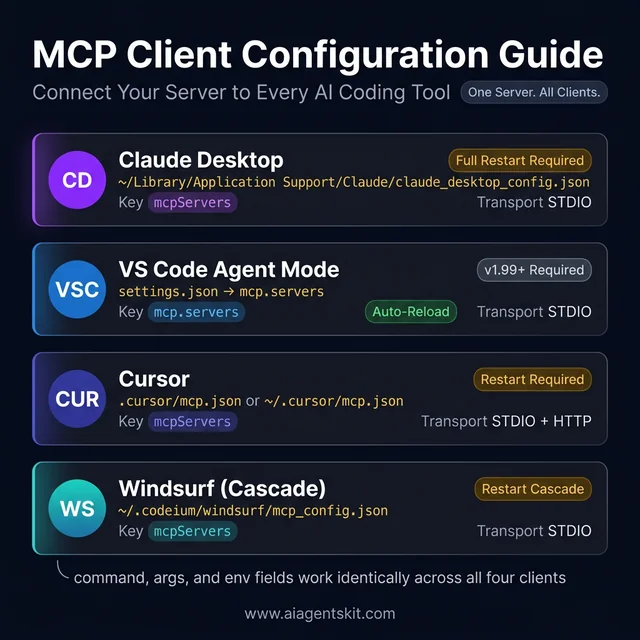 Quick reference for connecting your MCP server to all four major AI coding tools. The same server.py file works across all clients — only the config file location differs.
The command, args, and env fields work identically across all four clients. A server registered in all four tools with the same Python file becomes available to whichever AI assistant a developer is actively using — Claude for writing, Cursor for coding, VS Code Agent for refactoring — without any changes to the server code itself.
7 Common MCP Server Errors and How to Fix Them
Even well-written MCP servers run into configuration and runtime issues. These are the most frequently encountered problems and their solutions.
Error 1: Server won’t start (ModuleNotFoundError or SyntaxError)
Check that FastMCP is installed in the active Python environment: pip list | grep fastmcp. If it’s missing, run pip install fastmcp. For syntax errors, run python server.py directly in the terminal — Python will show the exact line causing the problem.
Error 2: Claude Desktop doesn’t see the server
The three most common causes: the path in the config file is relative instead of absolute, there’s a JSON syntax error in the config file (missing comma, unclosed brace), or Claude Desktop wasn’t fully restarted after editing the config. Validate the JSON at jsonlint.com and run the server manually from the terminal to confirm it starts cleanly.
Error 3: Tools appear but return unexpected results
Add print statements to the tool functions for quick debugging — Claude Desktop captures server stdout in the application logs. Verify that tools return strings, not other types. FastMCP handles basic type coercion, but explicit string returns are cleaner and more predictable.
Error 4: “Execution error” appears in Claude when calling a tool
This usually means the tool function is raising an unhandled exception. Wrap tool logic in try/except blocks and return error messages as strings rather than raising exceptions — MCP clients handle string error responses more gracefully than protocol-level errors.
@mcp.tool
def risky_operation(param: str) -> str:
    """A tool with proper error handling."""
    try:
        result = do_something_that_might_fail(param)
        return f"Success: {result}"
    except Exception as e:
        return f"Error: {str(e)}"
Error 5: Virtual environment not activating in Claude Desktop
When using a virtual environment, the Claude Desktop config must point to the Python interpreter inside the venv, not the system Python:
{
  "mcpServers": {
    "notes-server": {
      "command": "/path/to/project/venv/bin/python",
      "args": ["/path/to/server.py"]
    }
  }
}
Error 6: Dependency conflicts between packages
Complex dependency trees — common when servers use multiple AI libraries — can cause import errors at startup. The uv package manager is specifically designed to resolve these conflicts. Switching to uv run server.py as the server command resolves most dependency conflict issues without any configuration changes.
Error 7: MCP Inspector shows protocol errors
The MCP Inspector is a command-line debugging tool that sends raw MCP protocol messages to a server and shows the responses. Run it with npx @modelcontextprotocol/inspector python server.py. Protocol errors usually indicate a version mismatch between the client and server MCP spec versions — upgrading FastMCP to the latest version typically resolves this.
How to Deploy an MCP Server with Docker and Cloud Run
STDIO mode runs one server process per connected client — it works perfectly for local development but can’t serve multiple users simultaneously. Production deployment requires switching to streamable HTTP transport and containerizing the server with Docker.
Step 1: Switch to Streamable HTTP Transport
Update the server’s run configuration:
# server.py — bottom of the file
if __name__ == "__main__":
    import os
    port = int(os.environ.get("PORT", 8000))
    mcp.run(transport="streamable-http", host="0.0.0.0", port=port)
Streamable HTTP is FastMCP 3.0’s recommended transport for deployed servers — it supports concurrent clients, Server-Sent Events for streaming responses, and works with standard reverse proxies like nginx or cloud load balancers.
Test it locally before containerizing:
python server.py
# Server starts at http://localhost:8000
Step 2: Create a Dockerfile
# Dockerfile
FROM python:3.11-slim

WORKDIR /app

# Copy and install dependencies first (layer caching)
COPY requirements.txt .
RUN pip install --no-cache-dir -r requirements.txt

# Copy server code
COPY server.py .

# Expose the port
EXPOSE 8000

# Run the server
CMD ["python", "server.py"]
Create a requirements.txt:
fastmcp>=3.0.0
httpx>=0.27.0
Build and test the container locally:
docker build -t notes-mcp-server .
docker run -p 8000:8000 notes-mcp-server
Step 3: Deploy to Google Cloud Run
Cloud Run is the most straightforward cloud target for MCP servers — it auto-scales, handles HTTPS, and charges only for actual compute time. Fly.io and Railway are simpler alternatives if a Google Cloud account isn’t already set up.
# Authenticate with Google Cloud
gcloud auth login
gcloud config set project YOUR_PROJECT_ID

# Build and push container image
gcloud builds submit --tag gcr.io/YOUR_PROJECT_ID/notes-mcp-server

# Deploy to Cloud Run
gcloud run deploy notes-mcp-server \
  --image gcr.io/YOUR_PROJECT_ID/notes-mcp-server \
  --platform managed \
  --region us-central1 \
  --port 8000 \
  --memory 512Mi
Cloud Run returns a public HTTPS URL. That URL is the server’s endpoint — connect any MCP client to it by configuring HTTP transport instead of STDIO:
{
  "mcpServers": {
    "notes-server-remote": {
      "url": "https://notes-mcp-server-xxxxx-uc.a.run.app/mcp"
    }
  }
}
Step 4: Add Request Authentication
Never deploy an MCP server without authentication — the server executes functions and potentially accesses sensitive data. The simplest production-ready approach is API key validation via a middleware check:
from fastmcp import FastMCP
from fastmcp.server.middleware import Middleware
import os

mcp = FastMCP("notes-server")
API_KEY = os.environ.get("MCP_API_KEY", "")

# Pass MCP_API_KEY as an environment variable at deployment
# Clients include it in the Authorization header
For enterprise deployments requiring Google or Azure identity providers, FastMCP 3.0’s built-in OAuth proxy handles the full token lifecycle. The FastMCP documentation at gofastmcp.com covers the OAuth configuration in detail.
Fly.io and Railway as alternatives: Both platforms offer one-command Docker deployments without a Google Cloud account. Fly.io: fly launch && fly deploy. Railway: connect a GitHub repo and it deploys automatically on push. Either works well for MCP servers serving small teams — Cloud Run is the better choice for production workloads needing auto-scaling and enterprise SLAs.
What Comes Next: Production and Real-World MCP Servers
The notes server works, but production MCP servers need a few additional layers before they’re ready for real use.
Persistent data storage
In-memory dictionaries disappear when the server restarts. For real applications, save state to a file:
import json
from pathlib import Path

NOTES_FILE = Path("notes.json")

def load_notes() -> dict:
    if NOTES_FILE.exists():
        return json.loads(NOTES_FILE.read_text())
    return {}

def save_notes(notes: dict) -> None:
    NOTES_FILE.write_text(json.dumps(notes, indent=2))

# Initialize from file at startup
notes = load_notes()
For production systems that need concurrent access or complex querying, the MCP database tutorial covers connecting MCP servers to PostgreSQL, SQLite, and other databases.
Security fundamentals
MCP servers frequently have access to sensitive systems — file systems, APIs, internal data. The principle of least privilege applies: expose only what the AI genuinely needs. Validate inputs before using them in file paths, database queries, or API calls. Never trust user-provided strings without sanitization.
For remote or production servers, authentication becomes critical. FastMCP 3.0 includes an OAuth proxy that supports enterprise identity providers like Google and Azure — according to FastMCP’s release retrospective on jlowin.dev, this feature drove downloads from 200,000 to 1.25 million per day when released in August 2025.
Real-world server ideas
The notes server is a learning scaffold. The pattern scales to anything Python can do:
- Company API integration: Expose internal APIs as MCP tools — let the AI create tickets, look up customers, or query dashboards
- Database access: Query production databases with natural language via SQL-generating tools
- File system management: Index documents, search codebases, manage project files
- Workflow automation: Chain tools to execute multi-step business processes
The broader MCP ecosystem reflects this potential: according to Bloomberry’s MCP ecosystem analysis, the number of public MCP servers grew 232% in just six months — from 425 servers in August 2025 to 1,412 by February 2026.
Connecting to real data sources
The notes server pattern extends directly to real data: replace the in-memory dictionary with a database query, an API call, or a file system operation, and the MCP server connects AI to live data. For SQL databases specifically, the MCP database tutorial walks through connecting FastMCP servers to PostgreSQL and SQLite with full async support.
Frequently Asked Questions About Building MCP Servers
What is the difference between MCP tools and MCP resources?
Tools are executable functions — the AI calls them to perform actions and gets results back. Resources are read-only data endpoints — the AI reads them to understand context or retrieve information. A practical way to think about the distinction: if an action changes state (creates, deletes, sends), it’s a tool. If it just exposes information for the AI to read, it’s a resource. A file-writing function is a tool; the list of available files is a resource.
What Python version is required to run FastMCP?
FastMCP 3.0 requires Python 3.10 or higher. Earlier versions of FastMCP (1.x) worked with Python 3.9. The shift to 3.10+ enables use of the union type syntax (X | Y) and improved pattern matching. Before sending a bug report, verifying the Python version is the recommended first step — version mismatches cause a large share of FastMCP installation failures.
Can MCP servers make HTTP requests and access the internet?
Yes. MCP tools can do anything Python can do, which includes making HTTP requests, calling external APIs, reading web content, and interacting with cloud services. A tool that calls the OpenWeatherMap API, queries GitHub’s REST API, or fetches stock prices works exactly as expected. Network access inside tools is not restricted — responsibility for rate limiting, credential management, and error handling falls on the server implementation.
Is FastMCP the official Python SDK for Model Context Protocol?
FastMCP is the de facto standard Python framework for building MCP servers, and FastMCP 1.0 was integrated into the official MCP Python SDK on PyPI maintained by Anthropic. FastMCP (standalone) and the official MCP SDK coexist — FastMCP provides a higher-level API that most developers prefer. For the vast majority of use cases, choosing FastMCP means choosing the most widely adopted and actively maintained option in the ecosystem.
How do I add async support to MCP server tools?
Define the tool function with async def instead of def. FastMCP supports both synchronous and asynchronous tools — there’s nothing else to configure. Async tools are valuable when the function does I/O (network calls, file reads, database queries) that would block the event loop if synchronous. Import asyncio and use libraries like aiohttp for async HTTP, aiosqlite for async SQLite, or asyncpg for async PostgreSQL. The MCP client waits for async tools to complete before returning results — the async execution happens within the server process.
How do I pass environment variables to an MCP server on Claude Desktop?
The env field in the Claude Desktop config file passes environment variables to the server process. Add any key-value pairs needed: "API_KEY": "sk-...", "DATABASE_URL": "postgresql://...", "DEBUG": "true". Access them in the server code with os.environ.get('API_KEY'). This is the recommended approach for secrets — hardcoding secrets in the server code is a security risk, particularly for servers managed in version control.
Can MCP servers work with AI models other than Claude?
Yes. MCP is an open standard, not a Claude-exclusive protocol. The best MCP servers for Claude are also compatible with other MCP clients. OpenAI’s tools, Google’s Gemini 3, VS Code Agent mode, Cursor, Windsurf, and other AI coding tools all support MCP connections. A server built with FastMCP works across all of them without modification — that cross-client compatibility is one of MCP’s core design goals.
How do I deploy an MCP server so multiple users can access it?
STDIO mode runs a separate server process per client connection and only works for local single-user setups. For multi-user deployment, switch to HTTP transport: mcp.run(transport="http", host="0.0.0.0", port=8000). Deploy the HTTP server to any platform that runs Python processes — AWS EC2, Railway, Render, Fly.io, or a VPS. Add authentication (OAuth, API keys, or JWT) before exposing to multiple users. Container deployment with Docker is recommended for consistent environment management.
What is the MCP Inspector and how do I use it for debugging?
The MCP Inspector is an official debugging tool that lets developers send MCP protocol messages to a server and inspect the responses — without needing Claude Desktop or another full client. Run it with npx @modelcontextprotocol/inspector python server.py. The Inspector lists all tools, resources, and prompts the server exposes, lets developers call tools manually with custom arguments, and shows the raw protocol responses. It’s the fastest way to confirm a server starts correctly and its tools behave as expected before connecting to a full AI client.
How much does it cost to run an MCP server?
Running an MCP server itself has no direct cost — it’s a Python process, not a hosted service. The cost question typically arises from the AI model calls that use the server: connecting Claude Desktop to an MCP server requires a Claude subscription, and API-based setups incur per-token costs. The server process uses minimal compute resources for typical workloads. Production HTTP servers on cloud platforms incur standard hosting costs (often $5–10/month on entry-tier plans). Open-source MCP server implementations are free to self-host.
Should Python or TypeScript be used for building MCP servers?
Both languages are fully supported by the Model Context Protocol specification. Python is the better starting point for developers who work in data science, machine learning, or backend services — the FastMCP framework is mature, the async ecosystem (httpx, aiosqlite, asyncpg) is excellent, and type hints integrate cleanly with FastMCP’s schema generation. TypeScript is a stronger choice for teams already running Node.js backends or full-stack JavaScript codebases, since sharing types between frontend and server reduces integration errors. For pure beginners with no existing language preference, Python’s simpler syntax makes the learning curve shallower. Both languages reach the same final destination: a compliant MCP server any AI client can connect to.
What is the difference between FastMCP and the official MCP Python SDK?
FastMCP is a developer-friendly framework built on top of the official MCP Python SDK maintained by Anthropic. FastMCP 1.0 was integrated into the SDK itself — installing pip install mcp today includes FastMCP’s decorator syntax in the official package. The standalone fastmcp package extends this with enterprise features not in the core SDK: an OAuth proxy for identity providers, OpenTelemetry instrumentation, an in-memory test client, and component versioning. For most Python developers, the distinction is academic — both packages expose similar APIs. The practical difference is that the standalone FastMCP package receives feature updates faster and is the right choice for any server beyond basic experimentation.
How do MCP servers return structured data like JSON instead of plain text?
FastMCP tools return strings by default, which is the simplest approach and works well for most AI interactions. For structured data, return a JSON string using json.dumps(): return json.dumps({"status": "ok", "count": len(notes), "items": list(notes.keys())}). FastMCP 3.0 also supports returning Pydantic models directly — FastMCP serializes them to JSON automatically and infers the output schema, which helps AI clients understand the response structure. For resource endpoints, returning structured JSON is particularly useful when the AI needs to parse the data rather than just read it.
Can MCP server tools be tested without Claude Desktop?
Yes — FastMCP’s built-in Client class runs the server entirely in-memory with no network, no subprocess, and no AI client needed. Install pytest and pytest-asyncio, import the mcp server object (not mcp.run()), and call tools with await client.call_tool("tool_name", {"param": "value"}). This approach runs in milliseconds, integrates with standard CI/CD pipelines, and catches logic errors and regressions before they appear in a live session. The FastMCP Client documentation covers the full testing API including resource reads, prompt retrieval, and mock injection.
What is the difference between STDIO and streamable HTTP transport?
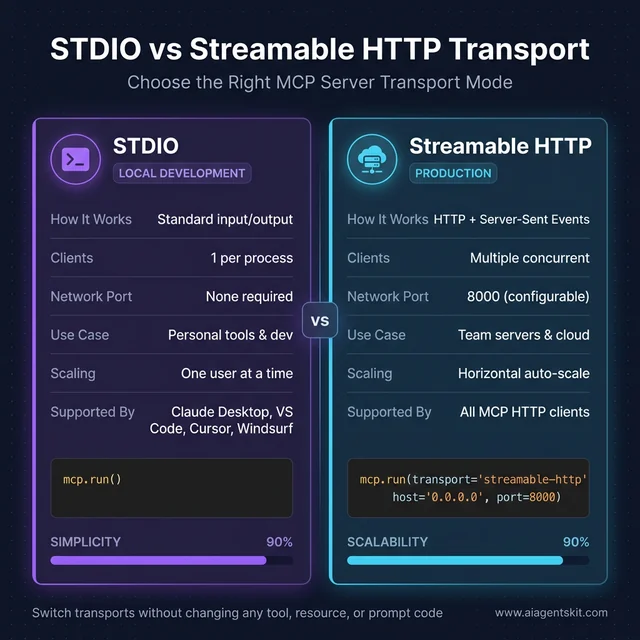 STDIO transport is for local, single-user development. Streamable HTTP is for production — switch modes with a single line change to
 mcp.run(), no other code changes needed.
STDIO transport runs the server as a subprocess that communicates through standard input/output. Claude Desktop and most AI coding tools use STDIO for local servers — one process per connected client, local machine only, no network port required. Streamable HTTP transport starts the server as an HTTP service that multiple clients connect to simultaneously over a network. “Streamable” refers to Server-Sent Events support, which allows the server to push incremental results back to the client during long-running operations. Use STDIO for personal local tools; use streamable HTTP for shared servers, team deployments, and anything running in the cloud. FastMCP makes switching transparent: changing mcp.run() to mcp.run(transport="streamable-http", host="0.0.0.0", port=8000) converts a local STDIO server to a deployable HTTP service with no other code changes.
Building the Foundation for AI Integration
A functional MCP server in Python takes fewer than 100 lines of code. The pattern is replicable: define tools for actions, define resources for data, define prompts for guidance, connect to a client, and iterate. Every practical MCP server — whether it connects to a company database, wraps an internal API, or manages a file system — follows this same structure.
The notes server built in this tutorial is a deliberate simplification. The sophistication comes from adapting the pattern to real contexts: replacing the in-memory dictionary with a real database, adding error handling for external API failures, scoping tool access to what the AI genuinely needs.
Understanding how the primitives fit together at the protocol level matters too — exploring MCP vs function calling helps clarify why the standardized MCP approach outperforms individual tool-calling implementations for cross-client compatibility.
The ecosystem is moving fast. FastMCP downloads are in the millions per day, and the number of public MCP servers continues to grow. The foundation for building on top of that ecosystem is now established — a working server, a connection to Claude Desktop, and the pattern to extend it.