Cursor vs Bolt vs Replit vs v0: Best Vibe Coding Tool
In-depth comparison of Cursor, Bolt.new, Replit Agent, and v0 by Vercel. Discover which AI coding tool is best for your workflow, skill level, and project.
I’ve been testing AI coding tools obsessively for the past few months. Cursor one day, Bolt.new the next, then back to v0, with Replit Agent thrown in for variety. My credit card statements tell a story of someone chasing the perfect vibe coding workflow.
Here’s what I’ve learned: there is no single “best” tool. But there absolutely are best tools for specific situations. The wrong choice can mean hours of frustration trying to force a tool to do something it wasn’t designed for.
This comparison breaks down exactly when to use each tool, based on hundreds of hours of actual usage. No sponsored content, no affiliate relationships—just honest experience from someone who’s shipped real projects with all four.
Quick Comparison: The 30-Second Version
Before diving deep, here’s the at-a-glance matrix that’ll save you time if you know what you need:
| Feature | Cursor | Bolt.new | Replit Agent | v0 |
|---|---|---|---|---|
| Best For | Full projects | Quick prototypes | Learning/experimenting | UI components |
| Environment | Desktop IDE | Browser | Browser | Browser |
| Output | Any code | Full-stack apps | Full-stack apps | React/Tailwind |
| Learning Curve | Medium | Low | Low | Low |
| Starting Price | Free (Limited) | Free (Limited) | Free (Limited) | Free (Limited) |
| Pro Price | $20/month | Token-based | $25/month | $20/month |
| Offline Work | Yes | No | No | No |
| Git Integration | Excellent | Limited | Good | None |
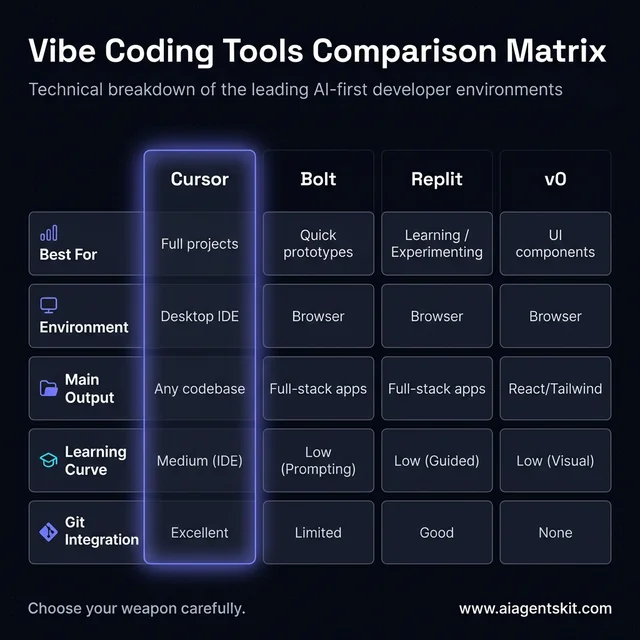 Vibe Coding Tools Comparison Matrix: A detailed breakdown of developer environments, main outputs, and core strengths across the leading platforms. This matrix serves as a quick-reference guide to help you choose the right tool based on your specific project needs—whether you prioritize deep codebase awareness or rapid, browser-based prototyping.
My quick takes:
- Need to build real production software? → Cursor
- Have an idea and want to see it working in 10 minutes? → Bolt.new
- Learning to code or exploring ideas? → Replit Agent
- Need beautiful UI components fast? → v0
Now let’s break down exactly why.
Cursor AI: The Professional’s Choice
Cursor is what happens when someone builds VS Code specifically for AI-assisted development. It’s a full desktop IDE with AI capabilities so deeply integrated that you’ll forget where the IDE ends and the AI begins.
What Cursor Does
Cursor is a code editor—think VS Code, but with AI understanding baked into every feature. You write code in it, edit existing projects, and use AI to assist with everything from autocomplete to full-feature implementation.
The key difference from other tools: Cursor works with your existing codebase. You open a project, and Cursor understands the whole thing. Ask it to “add user authentication” and it knows your file structure, your patterns, your dependencies.
Key features:
- Tab autocomplete: Predicts what you’re about to type, often correctly finishing entire functions
- Cmd+K editing: Highlight code and describe changes in natural language
- Composer: Multi-file editing where you describe a feature and Cursor implements across your project
- Agent mode: Fully autonomous task execution (still experimental but impressive)
- Chat: Ask questions about your codebase, get contextual answers
When Cursor Shines
Cursor is unbeatable when you’re:
- Working on an existing project with established patterns
- Building something that requires deep architecture understanding
- Need to make changes across multiple files simultaneously
- Want professional-level Git integration
- Working offline (it’s a desktop app)
Cursor Pricing
| Plan | Price | What You Get |
|---|---|---|
| Hobby | Free | Limited completions, basic features |
| Pro | $20/month | Unlimited completions, priority support |
| Business | $40/user/month | Team features, admin controls |
Cursor Pros & Cons
Pros:
- Works with any existing codebase
- Excellent multi-file editing
- Full IDE feature set
- Git integration just works
- Supports multiple AI models (GPT-5, Claude 4)
- Works offline (except AI features)
Cons:
- Steeper learning curve than browser tools
- Requires local setup
- Heavy on system resources
- Not great for quick experiments
My honest experience: Cursor is my daily driver for actual development work. I’ve shipped production features using Composer that would have taken 3x longer without it. But I don’t open it for quick experiments—that’s overkill.
Bolt.new: The Speed Demon
Bolt.new, built by StackBlitz, is pure velocity. Describe an app, watch it appear. It’s intoxicating the first time you use it.
What Bolt.new Does
Bolt.new runs a complete development environment in your browser using WebContainers technology. You describe what you want, it generates a full-stack application with frontend, backend, and database connections.
The magic: zero setup. No installing dependencies, no configuring environments. Just describe and watch it build.
Key features:
- Prompt-to-app: Describe an application in natural language, get working code
- Live preview: See your app running as it’s being built
- One-click deploy: Push to Netlify instantly
- Full Node.js environment: Real backend code, not just frontend
- Supabase integration: Database capabilities out of the box
When Bolt.new Shines
Bolt.new is your best choice when:
- You need a working prototype in under an hour
- Validating an idea before investing in full development
- Building internal tools or MVPs
- Learning by seeing how apps are structured
- Presenting concepts to stakeholders
Bolt.new Pricing
Bolt.new uses a token-based system that can get expensive for heavy use:
| Plan | Price | Tokens |
|---|---|---|
| Free | $0 | Limited daily tokens |
| Pro | Custom | Token packages |
The token consumption varies by prompt complexity. Complex apps can burn through tokens quickly.
Bolt.new Pros & Cons
Pros:
- Fastest idea-to-prototype I’ve seen
- Full-stack generation (frontend + backend)
- Zero local setup required
- Incredibly intuitive interface
- Great for non-developers
Cons:
- Token costs add up fast
- Code quality can be rough
- Limited customization control
- Not suitable for large, complex apps
- Git workflow is awkward
My honest experience: I use Bolt.new when I have a half-formed idea and want to see if it has legs. Last week I built a complete task manager with user auth in 20 minutes. Would I ship it to production? After significant cleanup, maybe. But for prototyping speed, nothing touches it.
Replit Agent: The Learning Companion
Replit Agent occupies a unique space—it’s less about speed and more about accessibility. It’s the tool I recommend to friends who want to “learn coding” in the AI era.
What Replit Agent Does
Replit is a browser-based IDE that’s been around for years. The Agent feature adds AI-powered app generation on top of that foundation. You describe what you want, and it builds—but within Replit’s collaborative, education-focused environment.
Key features:
- Natural language app creation: Describe and it builds
- Persistent workspaces: Your projects live online, accessible anywhere
- Collaboration: Real-time multiplayer coding
- Educational content: Built-in tutorials and courses
- Community templates: Start from existing projects
- Ghostwriter: AI-assisted completion beyond Agent
When Replit Agent Shines
Replit Agent is ideal when:
- Learning to code and wanting to understand what AI generates
- Collaborating with others in real-time
- Building smaller projects that don’t need heavy infrastructure
- Wanting to learn through guided tutorials
- Need your projects accessible from any device
Replit Agent Pricing
| Plan | Price | What You Get |
|---|---|---|
| Free | $0 | Limited Agent usage, basic features |
| Replit Core | $25/month | More Agent, faster AI, private repls |
| Teams | Custom | Collaboration features |
Replit Agent Pros & Cons
Pros:
- Excellent for learning
- Great collaboration features
- Projects accessible anywhere
- Strong community and templates
- Educational focus makes AI more understandable
Cons:
- Less powerful than Cursor for complex work
- Can feel slow for experienced developers
- Agent results less polished than competition
- Free tier is quite limited
- Not ideal for large production apps
My honest experience: Replit Agent is what I recommend when someone asks “how do I get started with AI coding?” The learning experience is gentler, and you understand what’s happening rather than just accepting outputs. But I’ve outgrown it for my own work.
v0 by Vercel: The UI Specialist
v0 is laser-focused on one thing: generating beautiful React components. And it does that one thing exceptionally well.
What v0 Does
v0 transforms natural language descriptions into production-ready React components styled with Tailwind CSS. That’s it. It’s not trying to build your whole app—it’s giving you beautiful UI building blocks.
Key features:
- Prompt-to-component: Describe UI, get React code
- Design-to-code: Upload Figma designs or screenshots
- Live preview: Watch components generate in real-time
- shadcn/ui integration: Components work with popular libraries
- Figma import: Convert designs directly to code
When v0 Shines
v0 is the right choice when:
- You need specific UI components quickly
- Converting Figma designs to code
- Building design systems
- Prototyping UI before full implementation
- Working within the React/Next.js ecosystem
v0 Pricing
| Plan | Price | Credits | Key Features |
|---|---|---|---|
| Free | $0 | $5/month | Basic model |
| Pro | $20/month | $20/month | Figma import, better model |
| Team | $30/user/month | $30/user | Collaboration |
v0 Pros & Cons
Pros:
- Best-in-class UI generation
- Clean, production-ready code
- Excellent Figma integration
- Seamless Vercel deployment
- Focused tool that does one thing well
Cons:
- Only UI—no backend
- React/Tailwind specific
- Need another tool for full apps
- Code still needs integration work
- Feature-limited compared to full tools
My honest experience: v0 is my secret weapon for UI work. When a client sends a Figma file, I run key screens through v0 and have working components in an hour. But I always pair it with Cursor for the actual integration and logic.
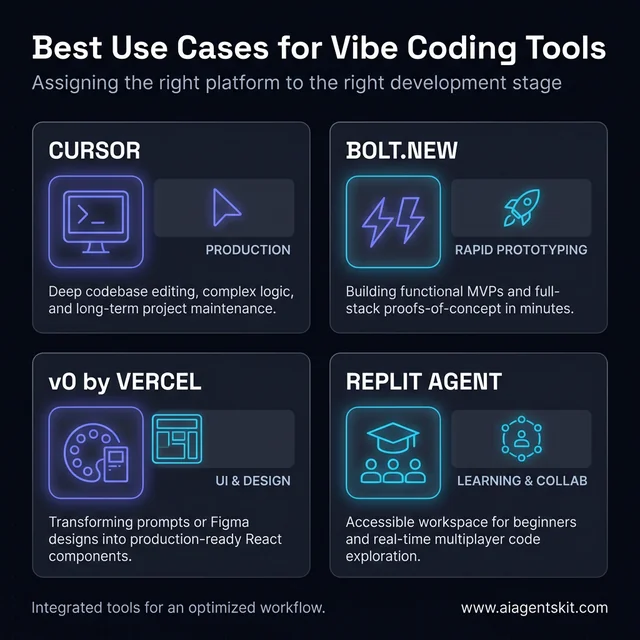 Strategic Use Cases for AI-First Coding Tools: Categorizing the leading ‘vibe coding’ platforms by their primary application areas. Use Cursor for production-ready development, Bolt.new for lightning-fast functional MVPs, v0 for high-fidelity UI components, and Replit Agent for collaborative learning environments.
Head-to-Head Comparisons
Let’s get specific about common decisions.
Cursor vs Bolt.new: When to Choose Each
Choose Cursor when:
- You have an existing codebase
- Project will need ongoing development
- Quality and maintainability matter
- You’re comfortable with IDEs
- Working with a team using Git
Choose Bolt.new when:
- Starting completely from scratch
- Need something working in minutes
- It’s a prototype or proof of concept
- You don’t have local dev setup
- Non-technical stakeholders need a demo
The truth: I often start in Bolt.new to prototype, then export and continue in Cursor for serious development. They’re complementary, not competitive.
v0 vs Bolt.new: The “Generate It” Decision
Choose v0 when:
- You specifically need UI components
- Working in React/Next.js
- Have Figma designs to convert
- Quality of generated code matters
- You’ll integrate into existing project
Choose Bolt.new when:
- You want a complete working app
- Need backend functionality
- Quick prototype more important than code quality
- Not specifically React-focused
- Want one-click deployment
The difference: v0 makes ingredients; Bolt.new makes meals. Sometimes you want a perfect sauce recipe, sometimes you just want dinner on the table.
Cursor vs v0: Professional Workflows
These tools serve completely different purposes:
Cursor = Your coding environment where you write, edit, and manage code v0 = A component generator you visit when you need UI pieces
How I combine them: Generate components in v0, paste into Cursor project, customize with Cursor’s AI features. Best of both worlds.
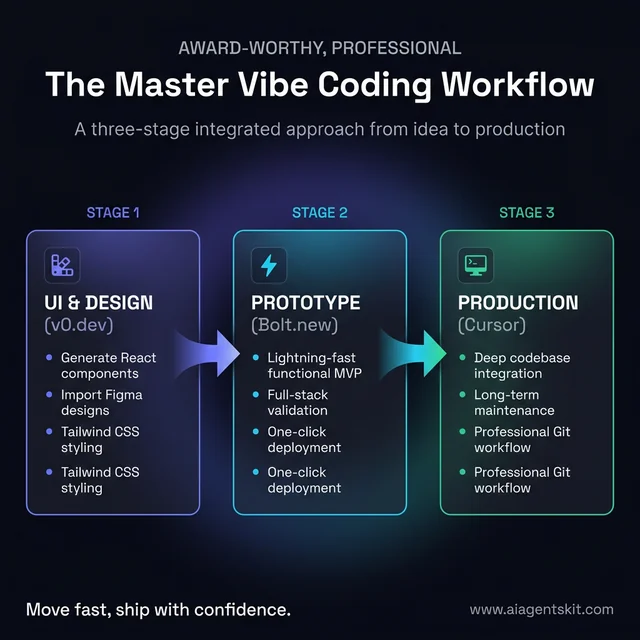 The Master Vibe Coding Workflow: An integrated, three-stage approach to modern software development. This cycle leverages the unique strengths of each tool—generating UI components in v0, validating concepts rapidly in Bolt.new, and finally scaling to a professional production codebase within the Cursor IDE.
Replit vs Everything: The Learning Context
Replit Agent is fundamentally different because it’s designed for understanding, not just output:
Choose Replit when:
- Learning is a goal, not just completion
- Collaborating with others in real-time
- Need projects accessible from any device
- Want community and templates
- Building smaller, simpler apps
Choose others when:
- Speed and output quality are priority
- Working on production systems
- Need specific UI or backend capabilities
- Working offline
Which Tool Should You Choose?
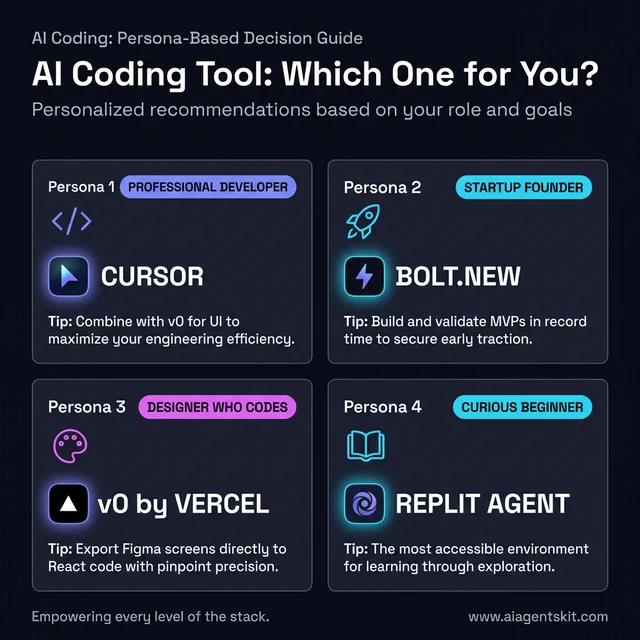 Persona-Based Decision Guide: A tailored framework for selecting the optimal AI coding tool based on your specific background and objectives. Whether you’re a seasoned developer seeking efficiency or a startup founder prioritizing speed, this guide matches your goals with the toolset best designed to achieve them.
Here’s my decision framework based on who you are and what you’re doing:
For Beginners / Non-Developers
Start with: Replit Agent or Bolt.new Why: Lowest friction, fastest results, no local setup needed
Build a few small apps, understand the patterns, then consider Cursor when you want more control.
For Professional Developers
Primary: Cursor Secondary: v0 for UI, Bolt.new for prototypes Why: Cursor integrates with real development workflows
Use the others as accelerators within your existing workflow.
For Designers Who Code
Primary: v0 Secondary: Bolt.new for quick prototypes Why: Your designs can become code directly
v0’s Figma integration is genuinely useful for design-to-development handoffs.
For Startup Founders / Product People
Primary: Bolt.new Secondary: Cursor (when you need to customize) Why: Speed to validate is everything
Build MVPs fast, test with users, rebuild properly when you have traction.
For Agencies / Freelancers
Primary: Cursor Secondary: v0 (client UI work), Bolt.new (quick demos) Why: Need flexibility across project types
Different clients need different approaches—having all tools available lets you adapt.
Frequently Asked Questions
Can I use multiple tools together?
Absolutely—and you probably should. Generate in v0, prototype in Bolt.new, build production in Cursor. Each has strengths.
Which has the best free tier?
Replit gives the most access at free tier for learning. Bolt.new and v0 have more limited but still useful free options. Cursor’s free tier is quite restricted.
Do any of these work offline?
Only Cursor (as a desktop app), but you’ll lose AI features without internet connection.
Which generates the highest quality code?
For UI: v0. For general code with context: Cursor. Bolt.new and Replit prioritize speed over code quality.
Can I export code from all of these?
Yes. Bolt.new and Replit projects can be downloaded or pushed to Git. v0 code can be copied or exported. Cursor is already working with local files.
Which is best for React development?
v0 for components, Cursor for full React development. Bolt.new also generates React but with less polish.
Conclusion
The vibe coding landscape is rich with specialized tools, and the best approach is knowing when to use each:
- Cursor for serious development work
- Bolt.new for rapid prototyping
- Replit Agent for learning and collaboration
- v0 for UI component generation
Don’t lock yourself into one tool. The developers getting the most from AI are using multiple tools strategically, choosing based on the task at hand.
Start with whatever matches your current needs, experiment with the others, and develop your own hybrid workflow. The goal isn’t tool mastery—it’s shipping great software.
For deeper dives into each tool, check out our Cursor AI tutorial, Bolt.new tutorial, Replit Agent guide, and v0 by Vercel tutorial.