How to Use ChatGPT: Complete Beginner's Guide + Best Prompts (2026)
Learn how to use ChatGPT step by step — from signing up free to mastering prompts, voice mode, file uploads, deep research, and the latest 2026 features. Beginner's complete guide.
Most people who try ChatGPT for the first time walk away underwhelmed. They type something vague, get a generic response, and assume the hype isn’t justified. Three weeks later, they see a colleague use it to draft a full proposal in four minutes—and suddenly everything changes.
The gap between a disappointing ChatGPT experience and a transformative one isn’t intelligence or luck. It’s knowing how to use it. This ChatGPT tutorial covers everything beginners need: how to sign up, navigate the interface, write effective prompts, and use the advanced 2026 features that most users never discover. The best ChatGPT prompts for every use case can accelerate results even further once the fundamentals are solid.
ChatGPT now serves over 800 million weekly active users globally — it has become the fastest-growing software tool in history, according to OpenAI’s official announcements. Forrester Research projects OpenAI will surpass 1 billion weekly users in 2026, with 62% of current generative AI users engaging with these tools at least weekly. The difference between users who get real value and those who don’t almost entirely comes down to how they ask.
What Is ChatGPT? A Clear Explanation for Beginners
ChatGPT is a generative AI chatbot built by OpenAI. It’s powered by large language models (LLMs) — sophisticated AI systems trained on vast amounts of text — that generate human-like responses to any question or instruction typed into the chat.
Think of it as a knowledgeable assistant available 24 hours a day, seven days a week, that can help with writing, research, coding, planning, learning, and dozens of other tasks — all through natural conversation.
What makes ChatGPT in 2026 significantly more capable than earlier versions:
- Document analysis — Upload a PDF, Word file, or spreadsheet and ask questions about it
- Image understanding — Show it a photo, diagram, or screenshot and get detailed analysis
- Real-time web search — Access current news, statistics, and up-to-date information
- Voice conversations — Speak naturally and hear spoken responses, hands-free
- Memory across sessions — ChatGPT Plus remembers preferences and context between chats
- Image generation — Create visuals from text descriptions via GPT-image-1.5
- Deep Research mode — Multi-source research reports produced in minutes (paid plan)
- Code execution — Write, run, and debug code in an interactive environment
ChatGPT vs Google Search: Key Differences
A question practitioners often encounter: when should someone use ChatGPT instead of Google?
Both tools serve different core purposes, and understanding the distinction drives better results:
| ChatGPT | Google Search | |
|---|---|---|
| Best for | Synthesis, explanation, writing, reasoning | Discovery, finding specific sites, real-time results |
| How it works | Generates a single synthesized response | Returns a list of links to existing pages |
| Follow-up questions | Natural back-and-forth conversation | New search each time |
| Accuracy | Broadly accurate; can hallucinate details | Links to original authoritative sources |
| Best use case | ”Explain this to me” or “Help me write this" | "Find the official source” or “What happened today” |
The most effective approach uses both: Google to discover, ChatGPT to understand and create.
How to Sign Up for ChatGPT: Step-by-Step Login Guide
Getting a ChatGPT account set up takes under two minutes. Here’s exactly how the ChatGPT login and sign-up process works.
Step 1: Navigate to ChatGPT
Open any web browser and go to chatgpt.com. The landing page shows options to log in or sign up.
Can you use ChatGPT without an account? Yes — there’s a limited guest mode that lets anyone try ChatGPT without signing up. Guest access has a lower message cap and doesn’t save conversation history. Creating a free account removes those limits and unlocks chat history, the Projects feature, and persistent memory.
Step 2: Create a Free Account
Click “Sign Up” and choose a registration method:
- Email — Enter an email address and create a password
- Google — Sign in with an existing Google account (fastest option)
- Apple — Use an Apple ID
- Microsoft — Use a Microsoft account
After choosing a method, verify the email address (check the spam folder if the message doesn’t arrive). The verification step takes about 30 seconds.
Step 3: Set Up the Profile
Once logged in:
- Set a display name
- Optionally add a profile picture
- Enable two-factor authentication under Settings for added security (strongly recommended)
One privacy setting worth knowing: under Settings → Data Controls, toggle off “Improve the model for everyone.” This prevents conversations from being used to train future AI models.
Step 4: Choose a Plan
The free plan provides genuinely useful access to ChatGPT for most beginners. Starting with the free version before deciding on an upgrade makes sense.
ChatGPT Plus costs $20/month and unlocks full GPT-5.2 access, unlimited voice mode, image generation, Deep Research, ChatGPT Memory, and higher usage caps across every feature.
Step 5: How to Use ChatGPT on iPhone and Android
ChatGPT has dedicated mobile apps available for free:
- iPhone/iPad — Search “ChatGPT” in the App Store and install the official OpenAI app
- Android — Search “ChatGPT” in Google Play Store
- Mac and Windows — Desktop apps are also available at chatgpt.com
The mobile apps are fully featured: they support voice mode, file uploads, image analysis, and sync all conversations with the web account in real time. Many users find that the ChatGPT iPhone and Android apps become their most-used AI tool because of convenient on-the-go access.
Getting started on mobile:
- Open the app and sign in (or create an account directly in-app)
- Tap the ”+” button to start a new chat
- Type in the text field or tap the microphone icon for voice input
- Tap the paperclip icon to upload files or images
Understanding the ChatGPT Interface Layout
The ChatGPT interface is well-designed for simplicity, but knowing each component speeds up the learning curve considerably.
The Sidebar (Left Side)
The sidebar holds chat history — every conversation gets automatically saved and searchable here. Key actions in the sidebar:
- New Chat button (or the ”+” icon) starts a fresh conversation
- Search bar finds any past conversation by keyword
- Projects section groups related conversations with shared context and files
The Main Chat Area (Center)
Messages appear in a familiar back-and-forth format: user messages on the right side, ChatGPT responses on the left. Each response includes options to copy, regenerate, give feedback, or continue the thread.
The Message Input Box (Bottom)
This is where prompts are typed. Icons alongside the input field provide access to:
- Paperclip icon — Upload images, PDFs, spreadsheets, or code files
- Microphone icon — Switch to voice mode
- Globe icon — Toggle web search on or off
- Model selector — Switch between available GPT models
The Top Bar
The top bar shows which AI model is currently active and includes options to share or export any conversation. The model selector is particularly important: GPT-5.2 mini runs for speed, while GPT-5.2 handles complex reasoning and detailed writing tasks.
For a deeper comparison of how ChatGPT’s models stack up against competing AI systems, the ChatGPT vs Claude vs Gemini comparison breaks down which tool performs best for specific tasks.
Your First ChatGPT Conversation: Prompts to Try Now
The fastest way to get comfortable with ChatGPT is to simply start. Open a new chat and type this first prompt:
Explain artificial intelligence like I'm 10 years oldChatGPT adjusts its language and complexity based on the instruction. That simple phrase — “like I’m 10 years old” — demonstrates the core principle: telling ChatGPT exactly what you want produces exactly the response you need.
Starter Prompts for Beginners
These prompts work immediately and show the range of what’s possible:
For summaries:
Summarize this text in 3 bullet points: [paste any text here]For emails:
Write a polite email declining a meeting invitation. Keep it short and professional.For learning:
Explain how solar panels work in simple termsFor ideas:
Give me 5 easy dinner ideas using chicken and vegetablesFor planning:
Create a simple to-do list for planning a birthday partyFor work productivity:
Draft a brief project status update for a client. The project is on track,
delivered on time, and the next milestone is in two weeks.
For studying:
Explain the causes of World War I like I'm a college student who needs
to understand the economic and political factors clearly.
The Conversation Part Most Beginners Miss
The biggest shift beginners make when ChatGPT finally “clicks” is realizing that responses aren’t meant to be final — they’re meant to be starting points. Practitioners consistently find that the follow-up questions produce better results than the initial response.
Try these follow-ups after any response:
- “Make that shorter.”
- “Can you give me more detail on the third point?”
- “Turn that into a numbered list.”
- “Now rewrite it for a non-technical audience.”
ChatGPT retains the full context of the conversation, so every follow-up makes use of everything said earlier. This is fundamentally different from a search engine, where each query starts from scratch.
15 Things You Can Actually Do with ChatGPT (Real Examples)
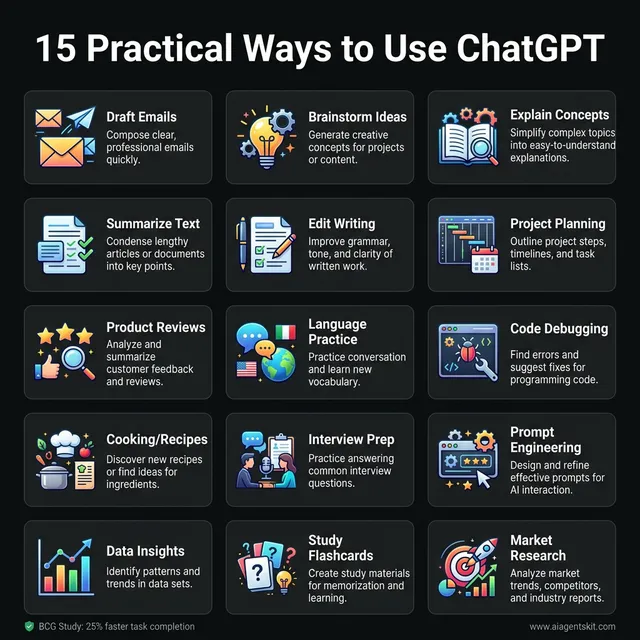
The Versatility of Generative AI: 15 High-Impact ChatGPT Use Cases. This visualization highlights the breadth of tasks ChatGPT 5.2 can handle in 2026—moving far beyond simple chat. From technical tasks like code debugging and data insights to personal productivity like meal planning and language practice, ChatGPT serves as a specialized multi-tool. Research from Harvard and BCG shows that professionals using AI for these types of tasks complete work 25.1% faster with 40% higher quality ratings. By treating ChatGPT as a collaborative partner rather than a simple search engine, users can automate routine drafting, synthesize complex research in seconds, and prepare for high-stakes professional moments like job interviews with tailored feedback and scenario simulations.
The breadth of tasks ChatGPT handles surprises most beginners. Here are 15 practical examples with copy-paste-ready prompts:
1. Write Professional Emails
Write a professional email asking my manager for time off next Friday.
I need to attend a family event. Keep it brief and respectful.
ChatGPT drafts complete, professional emails in seconds — users edit and send.
2. Brainstorm Ideas
I'm planning a surprise birthday party for a 40-year-old who loves hiking.
Give me 10 creative theme ideas.
ChatGPT functions as an always-available brainstorming partner for any creative challenge.
3. Learn New Concepts Quickly
Explain how compound interest works. Start with a simple analogy,
then show me a practical example with numbers.
ChatGPT adjusts the depth and complexity based on follow-up questions.
4. Summarize Long Documents
[Upload a PDF] Please summarize the key points of this document in 5 bullet points.
What's the most important conclusion?
Research from Harvard Business School’s landmark study of 758 consultants at BCG found that professionals using AI tools completed tasks 25.1% faster and produced work rated 40% higher in quality — with document analysis and summarization ranking among the highest-impact use cases.
5. Edit and Proofread Writing
Proofread this paragraph and fix any grammar or clarity issues: [paste text]Or for a more detailed pass:
Make this paragraph clearer and more concise while keeping the same meaning: [paste text]6. Plan Projects and Schedules
Create a week-by-week study plan for passing a Google Analytics certification exam in 6 weeks.
Assume 45 minutes of study per day.
ChatGPT breaks down complex goals into actionable, structured plans.
7. Get Product Recommendations
What's a good beginner camera for travel photography? My budget is $600.
I want something compact but with good image quality.
It explains trade-offs between options rather than just naming products.
8. Practice Languages
Let's practice Spanish. Play the role of a coffee shop barista.
I'll order in Spanish and you'll respond naturally. Correct any mistakes gently.
Role-play scenarios accelerate language learning more effectively than flashcard drilling.
9. Write and Debug Code
Write a Python script that reads a CSV file and calculates the average of a specific column.
Add comments explaining each step.
For those exploring coding with ChatGPT, the ChatGPT for coding and developer guide covers more advanced programming workflows.
10. Create Meal Plans
Create a 5-day healthy meal plan with simple recipes.
No shellfish. Budget-friendly ingredients only.
When requested, ChatGPT also generates a consolidated shopping list organized by store section.
11. Prepare for Job Interviews (For Students and Professionals)
I'm interviewing for a data analyst role at a marketing company.
Give me 10 likely interview questions and ideal answer frameworks.
Focus on behavioral and technical questions.
12. Write ChatGPT Prompts for Specific Tools
Write a detailed prompt I can use to generate a professional LinkedIn banner image
using an AI image tool. Include style, color palette, and composition details.
ChatGPT excels at writing prompts for other AI tools — a skill often called prompt engineering. McKinsey’s 2025 AI workplace report identifies prompt engineering as one of the most in-demand skills across industries, with 92% of companies planning to increase AI investment over the next three years.
13. Analyze Data or Charts
[Upload a screenshot of a chart] What trends do you see in this data?
What would you recommend based on this information?
Image understanding makes it possible to ask follow-up questions about any visual information.
14. Create Study Aids for Students
I'm studying the French Revolution for an exam tomorrow.
Create a one-page summary of the key causes, events, timeline, and outcomes.
Format it so it's easy to review quickly.
Students using ChatGPT for studying find it especially effective for turning long reading material into focused review materials.
15. Research Topics with Deep Research Mode (Plus)
Research the latest developments in solid-state battery technology.
Identify the top 5 companies, their progress, and what analysts project for commercial availability.
ChatGPT’s Deep Research mode analyzes dozens of sources and synthesizes findings into a structured report — a task that previously required hours of manual searching.
How to Write Better ChatGPT Prompts: 7 Techniques That Work
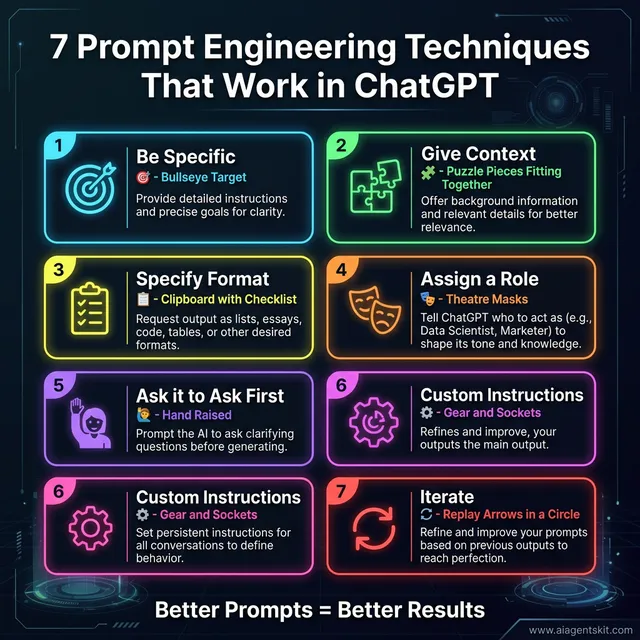
Mastering the Prompt: 7 Strategic Techniques for AI Interaction. The difference between average and exceptional AI output lies in these core prompt engineering principles. This framework moves users from ‘vague commands’ to ‘structured instructions’ that provide ChatGPT with the necessary context, persona, and output constraints to succeed. Techniques like ‘Assigning a Role’ (🎭) ensure the AI adopts the right professional tone, while ‘Asking the AI to Ask Questions’ (🙋) bridges information gaps before the generation begins. These strategies are backed by MIT Sloan research indicating that precisely structured prompts are the primary differentiator between efficient and inefficient AI users in the enterprise environment.
The quality of ChatGPT’s output is directly proportional to the quality of the prompt. Prompt engineering — the skill of crafting effective AI instructions — is now one of the most in-demand practical skills in business and education. An MIT Sloan School of Management study found that generative AI boosted worker performance by nearly 40% when used within its appropriate scope — and precisely structured prompts were the single biggest differentiator between high and low performers.
Technique 1: Be Specific and Direct
Vague prompt:
Tell me about dogsEffective prompt:
What are the 3 best dog breeds for a first-time owner who lives in a small apartment
and works from home? Include maintenance level and personality traits.
Specificity removes ambiguity and forces a useful, targeted response.
Technique 2: Give Context About the Situation
ChatGPT knows nothing about the user unless told. Context transforms generic answers into personalized, useful responses.
Without context:
Write me a bioWith context:
Write a short professional bio for a UX designer with 7 years of experience in fintech.
It's for a conference speaker page. Tone: confident but approachable. Keep it under 100 words.
Technique 3: Specify the Output Format
Give me 5 ideas in a numbered list with a 1-sentence explanation for each.Respond in a comparison table with columns: Option, Pros, Cons, Best for.Keep your response under 150 words. Use plain language.Being explicit about format eliminates back-and-forth reformatting.
Technique 4: Assign a Role or Persona
Assigning ChatGPT a role often produces more expert-level responses in that domain:
Act as an experienced financial advisor. Explain the key differences between
a Roth IRA and a traditional IRA for someone in their early 30s.
You're a senior software engineer. Review this code and identify any performance issues: [paste code]Technique 5: Ask ChatGPT to Ask Questions First
This technique reliably produces better outcomes for complex, personalized tasks:
I want to plan a week-long vacation in Japan. Before making any recommendations,
ask me questions to understand my travel style, budget, and interests.
ChatGPT conducts a brief “interview” and then tailors suggestions precisely.
Technique 6: Use Custom Instructions for Persistent Preferences
Under Settings → Personalization → Custom Instructions, users can set standing preferences that apply to every conversation:
- “Always respond in bullet points for easy scanning.”
- “Assume I have a basic understanding of finance but no technical background.”
- “Keep responses under 200 words unless I ask for more detail.”
Custom instructions eliminate the need to repeat preferences at the start of every chat.
Technique 7: Iterate with Follow-Ups
No prompt produces a perfect first response every time. The best approach treats follow-up prompts as part of the process:
- “That’s good. Now make it 30% shorter.”
- “The third option is most interesting. Expand on that one.”
- “Rewrite this for a different audience: non-technical executives.”
- “Add one concrete example from real-world business.”
For a full collection of ready-to-use prompt templates organized by profession and use case, the ChatGPT prompts for marketing that work offers specialized starting points for content creators and business teams.
Complete Feature Guide: What ChatGPT Can Do in 2026
ChatGPT has expanded far beyond a simple text chatbot. Here’s what each major feature does and how to activate it.
Text Conversations: The Core Capability
Every plan includes unlimited back-and-forth conversation on any topic. The core text conversation capability handles:
- Complex explanation and reasoning tasks
- Writing, editing, and brainstorming at any length
- Question-answering across virtually any domain
- Role-play and scenario-based learning
ChatGPT Voice Mode: Hands-Free AI Conversation
Voice Mode allows full spoken conversations with ChatGPT — the AI speaks back in a natural voice with emotional inflection.
How to activate Voice Mode:
- Open the ChatGPT app (mobile or desktop)
- Tap the microphone/headphone icon in the bottom right of the screen
- Begin speaking naturally
- ChatGPT responds with voice
Voice Mode works well for:
- Hands-free Q&A while commuting, cooking, or working
- Language practice with real-time pronunciation correction
- Thinking through complex problems out loud
- Accessibility needs where typing is difficult
Image Understanding: Visual Analysis
ChatGPT reads and interprets any image uploaded to the conversation. Practical uses include:
- Photographing a math problem and asking for a step-by-step solution
- Uploading a screenshot of an error message and asking how to fix it
- Sharing a plant photo and asking for identification and care tips
- Analyzing charts, graphs, or presentations for insights
How to use image analysis: Click the paperclip/attachment icon in the message box, select an image file, and ask the question about that image.
File Analysis and PDF Upload: How to Upload Documents to ChatGPT
Document analysis is one of the most time-saving features most beginners miss.
Step-by-step guide to uploading a PDF or document:
- Click the paperclip icon (📎) next to the message input box
- Select “Upload from computer” (or from Google Drive / Microsoft OneDrive on supported plans)
- Choose the file (PDF, Word .docx, Excel .xlsx, CSV, or plain text)
- The file appears as an attachment preview in the message field
- Type a question about the document and press Enter
What to ask after uploading a document:
Summarize the main points of this document in 5 bullet points.What are the key obligations outlined in this contract for each party?Identify any data trends in this spreadsheet and explain what they suggest.Review this report for logical gaps or missing information.This feature saves enormous amounts of time for contract review, research synthesis, and report analysis. According to the Stanford AI Index 2025 Report, 78% of companies now use AI tools in daily operations — up from 55% in 2023 — with document analysis and summarization among the top three use cases driving that adoption.
Web Search: Real-Time Information Access
By default, ChatGPT’s knowledge has a training cutoff date. With Web Search enabled, it accesses current internet information in real time.
How to enable web search:
- Click the globe icon 🌐 in the message input area, or
- Simply ask: “Search the web for [topic]”
Best use cases for web search:
- Breaking news and current events
- Recent product releases, pricing, or reviews
- Updated statistics and research data
- Verifying if a specific company or person is still operating
ChatGPT Memory: Persistent Context Across Sessions
ChatGPT Plus includes a Memory feature that remembers important information across separate conversations — preferences, ongoing projects, personal context, and communication style.
How Memory works:
- ChatGPT automatically notes and retains relevant information from conversations
- On future visits, it applies that context without the user repeating themselves
- Memory items can be viewed, edited, or deleted at any time in Settings → Personalization → Memory
For example: if a user mentions they’re learning Python as a hobby, ChatGPT will remember to frame future coding explanations around that context — even weeks later.
Deep Research Mode: Multi-Source Analysis Reports
Deep Research is a ChatGPT Plus feature that conducts extended, multi-source research and synthesizes findings into a structured report. Rather than answering from its training data alone, it actively searches and analyzes dozens of sources before responding.
How to activate Deep Research:
- Click the “Research” or “Deep Research” option in the model selector or compose area
- Type a complex research question
- ChatGPT spends several minutes (typically 3–8 minutes) analyzing multiple sources
- It returns a fully cited, structured report
Deep Research works exceptionally well for:
- Competitive market analysis
- Scientific literature synthesis
- Business decision research
- Academic background research
Projects: Organized Workspaces for Ongoing Work
Projects group related conversations together with shared files and custom instructions. Each project maintains its own context — useful for ongoing tasks like writing a book, managing a client account, or studying for a certification.
How to create a Project:
- Click “Projects” in the left sidebar
- Click “New Project”
- Name the project and optionally add custom instructions specific to that context
- Upload reference files that apply across all conversations in the project
Custom GPTs: Specialized AI Tools
Custom GPTs are purpose-built versions of ChatGPT optimized for specific workflows — accessible through the GPT Store within ChatGPT.
Examples of custom GPTs available:
- Code reviewers configured for specific languages
- Social media post generators for specific brand voices
- Language tutors for specific target languages
- Resume and cover letter specialists
Users with ChatGPT Plus can also build their own Custom GPT without any coding knowledge.
Canvas: Collaborative Document Editing
Canvas mode opens a side-by-side document editor where ChatGPT and the user work together on longer content. Rather than generating text in the chat and copy-pasting it elsewhere, Canvas allows direct in-document editing, targeted revisions, and tracked changes.
Useful for: drafting blog posts, writing reports, editing long-form documents, and working through multi-section content with ongoing AI assistance.
7 Common Mistakes ChatGPT Beginners Make
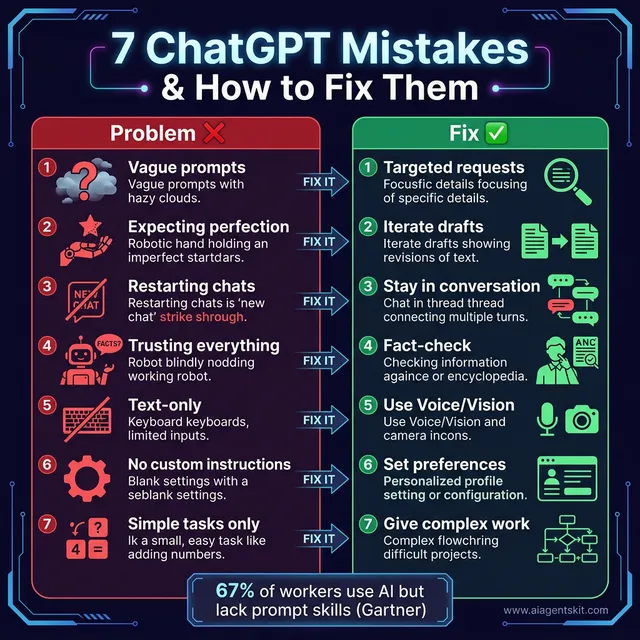
The ‘Problem vs. Solution’ Framework for AI Mastery: Overcoming common beginner pitfalls. As Gartner research highlights, 67% of workers utilize AI but lack formal prompting skills, leading to common errors like ‘restart syndrome’—opening new chats for every query—or trusting AI responses blindly without verification. This infographic provides immediate fixes for the most frequent issues, emphasizing the importance of iteration (treating the first draft as 60% complete) and utilizing multi-modal features like Voice and Image Analysis. By shifting from simple tasks to complex, multi-step workflows and setting persistent Custom Instructions, users can bypass standard learning curves and achieve professional-grade results from their first week.
Understanding what goes wrong helps new users avoid the frustrating early experiences that cause most people to give up prematurely. Gartner research found that by late 2025, 67% of enterprise employees were using AI search tools like ChatGPT for business research — yet most organizations reported that employees lacked training in how to prompt effectively, leading to suboptimal results and early abandonment.
Mistake 1: Using Vague Prompts
“Tell me about business” returns generic content. “What are 3 low-cost digital marketing strategies for a local yoga studio with no prior social media presence?” returns actionable, specific advice.
Fix: Include topic, audience, context, and desired depth in every prompt.
Mistake 2: Expecting Perfection on the First Try
ChatGPT produces strong first drafts, not finished work. Experienced users treat the first response as 60–70% of the way there, then refine with follow-ups.
Fix: Think of the initial response as a collaborative starting point, not a final product.
Mistake 3: Starting a New Chat Instead of Following Up
Many beginners restart a new conversation for every slightly different question. This loses the conversational context that makes ChatGPT most useful.
Fix: Stay in the same conversation and build on previous responses. ChatGPT retains full context throughout the session.
Mistake 4: Trusting Every Response Without Verification
ChatGPT sometimes produces AI hallucinations — confident-sounding statements that are factually incorrect. This happens more frequently with specific statistics, recent events, technical specifications, and obscure details.
Fix: For anything that matters — facts, medical information, legal details, financial data — always verify through authoritative sources. Check OpenAI’s release notes to stay informed about current model capabilities and known limitations.
Mistake 5: Only Using Text (Ignoring Multimodal Features)
Most beginners use only the text chat interface and never discover Voice Mode, file uploads, image analysis, or web search.
Fix: Experiment with uploading a document, switching to voice mode during a commute, or sharing a screenshot for analysis. These features multiply the utility dramatically.
Mistake 6: Not Setting Custom Instructions
Repeating the same preferences — language level, output length, professional tone — at the start of every conversation wastes time and mental overhead.
Fix: Spend two minutes setting up Custom Instructions in Settings. They apply to every future conversation automatically.
Mistake 7: Using ChatGPT Only for Simple Tasks
Beginners often use ChatGPT for basic questions they could answer with a search engine, then decide it’s not that impressive. The real value appears in complex, multi-step tasks: synthesizing research, drafting structured documents, analyzing uploaded files, or working through a difficult problem step by step. A Federal Reserve Bank of St. Louis working paper (2025) found that 28% of all U.S. workers use generative AI in some capacity — and among daily users, self-reported productivity gains translate to a 1.1% increase in aggregate output, with the largest gains concentrated in complex knowledge work.
Fix: Give ChatGPT a genuinely difficult task — one that would take significant time manually. That’s where the productivity difference becomes undeniable.
ChatGPT Free vs Plus: Which Plan Should You Choose?
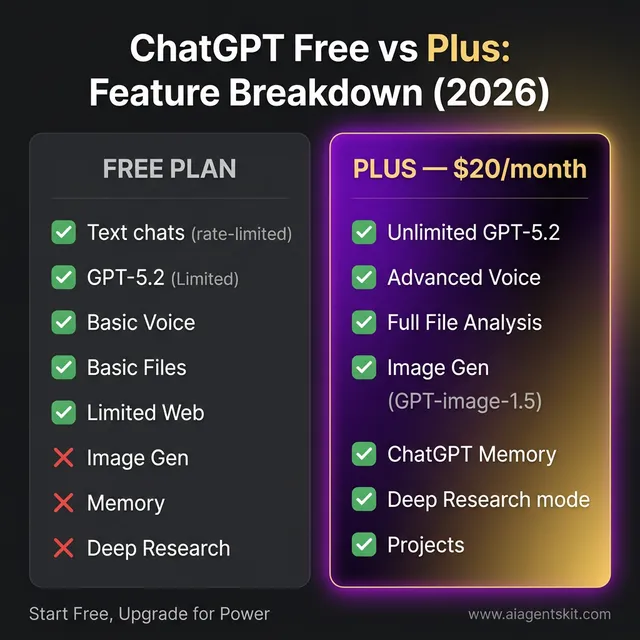
The Value Gap: Comparing ChatGPT Free vs. ChatGPT Plus (2026 Edition). This side-by-side comparison illustrates the ‘Glass Ceiling’ many users hit once they move past basic text interaction. While the Free Plan provides a generous entry point with limited GPT-5.2 and Voice access, the Plus Plan unlocks the ‘Pro’ toolset required for deep knowledge work. Key differentiators include the Deep Research mode (conducting multi-source synthesis in minutes), full multi-modal image generation, and the Memory feature which retains context across weeks of work. For professional users, the $20 monthly investment typically pays for itself through time saved on high-complexity research and document analysis that the free tier’s rate limits would otherwise bottleneck.
Here’s an honest breakdown of what each plan includes and who should pay.
Free Plan — What’s Included
| Feature | Free Plan |
|---|---|
| Text conversations | ✅ Included (rate-limited) |
| GPT-5.2 access | ✅ Limited access |
| Voice mode | ✅ Basic access |
| File upload & analysis | ✅ Basic |
| Web search | ✅ Limited |
| Image generation | ❌ Not included |
| ChatGPT Memory | ❌ Not included |
| Deep Research mode | ❌ Not included |
| Unlimited voice mode | ❌ Not included |
| Projects | ❌ Not included |
The free plan is genuinely useful for students, casual users, and anyone new to AI who wants to learn the basics without committing financially.
ChatGPT Plus ($20/month) — Full Feature Set
| Feature | ChatGPT Plus |
|---|---|
| Full GPT-5.2 access | ✅ Unlimited |
| Voice mode | ✅ Unlimited |
| File analysis | ✅ Full capabilities |
| Image generation (GPT-image-1.5) | ✅ Included |
| ChatGPT Memory | ✅ Included |
| Deep Research mode | ✅ Included |
| Projects | ✅ Included |
| Custom GPTs | ✅ Included |
| Priority access to new features | ✅ Earlier access |
Which Plan Is Right for You?
Start with the free plan. Use ChatGPT regularly for two to three weeks, and upgrade to Plus only if hitting one or more of these situations:
- Hitting daily message limits mid-workflow
- Needing image generation for regular creative or professional work
- Wanting Memory to stop repeating personal context each session
- Using Deep Research for competitive analysis or professional research
- Working with ChatGPT daily for work — at $20/month, Plus pays for itself fast for professional users
For a comprehensive look at how ChatGPT compares to alternatives like Claude, Gemini, and Perplexity, the ChatGPT alternatives guide breaks down which AI tool fits which workflow.
Frequently Asked Questions About ChatGPT
Is ChatGPT free to use?
Yes. ChatGPT offers a free plan at chatgpt.com that includes text conversations, limited GPT-5.2 access, basic voice mode, and basic file upload capabilities. The free plan handles most casual use cases without needing a payment method. ChatGPT Plus at $20/month unlocks the full feature set including Memory, Deep Research, unlimited voice mode, and image generation.
Can I use ChatGPT without creating an account?
Yes — ChatGPT offers a guest mode that works without signing up. Guest access has a lower message limit and conversations aren’t saved. Creating a free account removes those limits and enables chat history, Projects, and persistent Memory across sessions.
Does ChatGPT remember previous conversations?
ChatGPT Plus includes a Memory feature that stores important information across separate conversations. Free plan users start fresh each session unless they use Projects, which maintain ongoing context within an organized workspace. Memory can be viewed, edited, or cleared at any time in Settings → Personalization → Memory.
Is there a ChatGPT app for iPhone and Android?
Yes. Download the official ChatGPT app from the App Store (iOS) or Google Play Store (Android) by searching “ChatGPT.” Only install the app published by OpenAI. The mobile app includes voice mode, file uploads, image analysis, and full conversation sync with the web account.
Is ChatGPT safe to use?
ChatGPT is safe for general use. OpenAI applies significant content moderation and safety guidelines. For personal privacy: toggle off “Improve the model for everyone” in Settings → Data Controls. Avoid sharing passwords, financial account credentials, government ID numbers, or confidential business information in any AI chat session.
How do I delete my ChatGPT chat history?
To delete all conversations: go to Settings → Data Controls → Delete all chats. To delete a specific conversation: hover over it in the sidebar, click the three-dot menu, and select “Delete.” To prevent conversations from being saved at all, enable Temporary Chat mode before starting a session — temporary chats aren’t stored in history.
Why is ChatGPT giving bad answers?
The most common cause is a vague or under-specified prompt. Adding specificity about the topic, audience, desired format, and output length typically resolves most issues. Switching to a stronger model (GPT-5.2 instead of GPT-5.2 mini) can also help with complex reasoning tasks. Enabling web search helps when the question involves recent information. If an answer seems wrong, challenge it directly — ChatGPT often corrects itself when questioned.
Is ChatGPT better than Google for research?
They serve different research needs. Google search is better for finding specific URLs, official documentation, and real-time news. ChatGPT is better for synthesizing information, explaining complex topics, comparing multiple options, and producing structured summaries. For deep research tasks requiring multiple source analysis, ChatGPT Plus’s Deep Research mode is particularly strong. According to Statista data from 2025, nearly one in four Americans now prefer ChatGPT over Google for research-style queries — a number that’s growing fastest among 18–34 year olds.
Can ChatGPT replace my job?
The evidence points toward augmentation, not replacement. The Harvard Business School study of 758 BCG consultants showed that less-skilled workers gained the most from AI assistance — a 43% performance improvement — while even top performers improved by 17%. The Stanford 2025 AI Index reports that only 36% of workers expect AI to replace their jobs within five years, while 78% of companies see it primarily as a productivity amplifier. McKinsey estimates the long-term AI productivity opportunity at $4.4 trillion in added economic value. The more accurate framing: professionals who use ChatGPT effectively outcompete those who don’t.
How accurate is ChatGPT?
ChatGPT is broadly accurate on factual topics, especially well-documented subjects with extensive training data. It’s less reliable on very recent events (without web search enabled), obscure technical specifications, precise statistics, and niche domains. The risk of AI hallucination — confident but incorrect responses — is real and varies by topic. For any consequential decision, verify ChatGPT’s claims through authoritative primary sources.
Start Using ChatGPT: A Practical Action Plan for Beginners
The fundamentals are now clear. Here’s a concrete five-minute action plan for getting real results today:
Right now:
- Go to chatgpt.com or open the mobile app
- Create a free account if not already signed up
- Start with one specific task — an email to draft, something to explain, a plan to create
This week:
- Try uploading a real document (PDF, Word file, spreadsheet) and asking questions about it
- Experiment with Voice Mode on a mobile device during a commute or walk
- Set up Custom Instructions with communication preferences and context about work or goals
Within two weeks:
- Use ChatGPT for a genuinely difficult, multi-step task that would normally take an hour or more
- Try ChatGPT for students studying complex topics or professional workflows
- Decide whether the free plan is sufficient or whether Plus features are worth the upgrade
ChatGPT rewards consistent practice. Every session builds familiarity with what works, what doesn’t, and where the tool’s boundaries lie. The users who get the most value aren’t necessarily the most technically sophisticated — they’re the ones who iterate, experiment, and keep refining their approach.
Once the fundamentals are solid, explore the advanced ChatGPT tips and tricks that turn casual users into power users. The difference in daily productivity is substantial.